
Zero Stock Value Adjustment
The zero stock value adjustment allows you to adjust the value of an item against zero stock. Either positive or negative values are adjusted through this page where value refers to the price of the item.
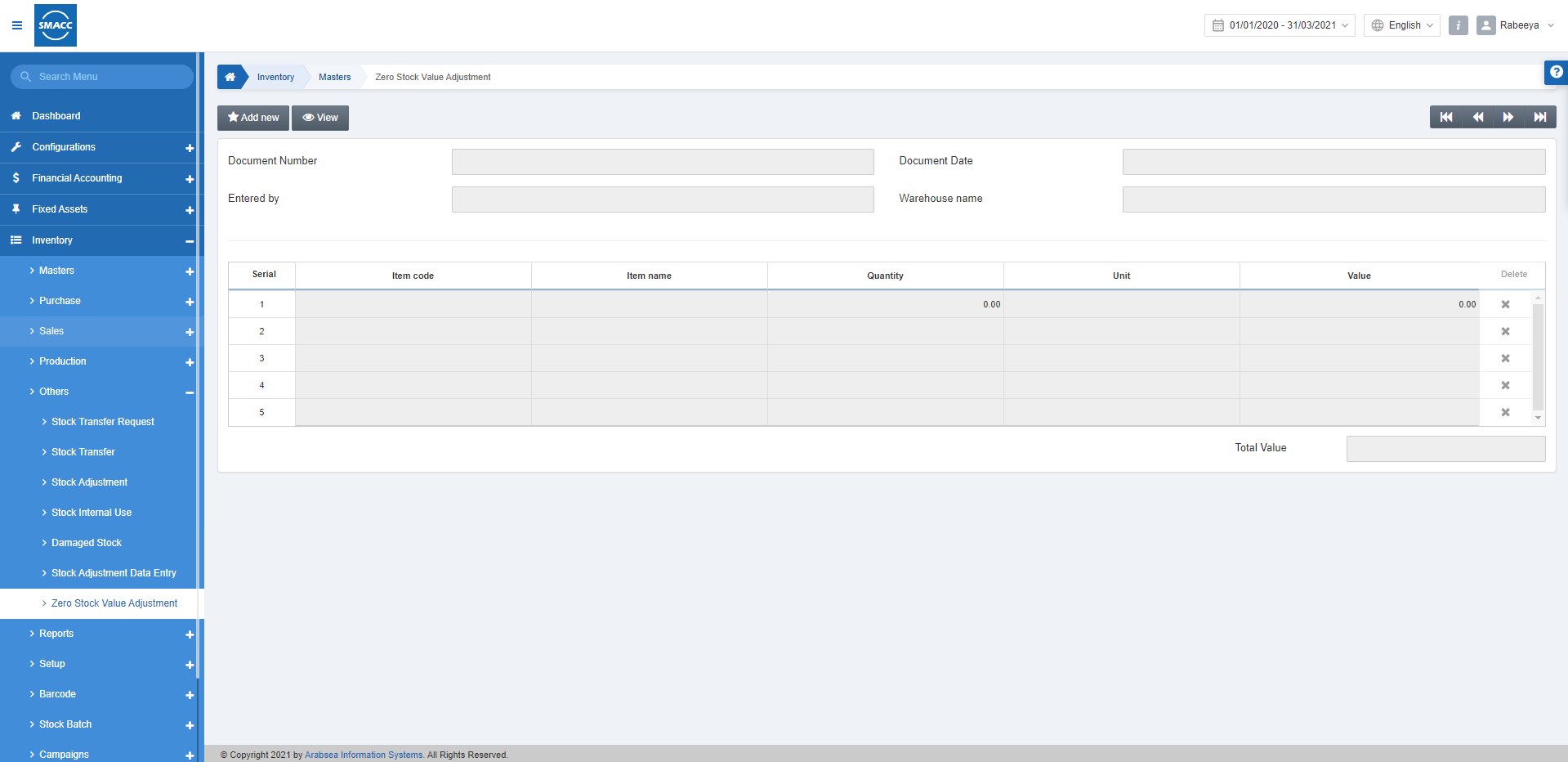
Adding a Zero Stock Value Adjustment Entry
To add a zero stock value adjustment entry, go to Inventory > Others > Zero Stock Value Adjustment, the zero stock value adjustment page is displayed.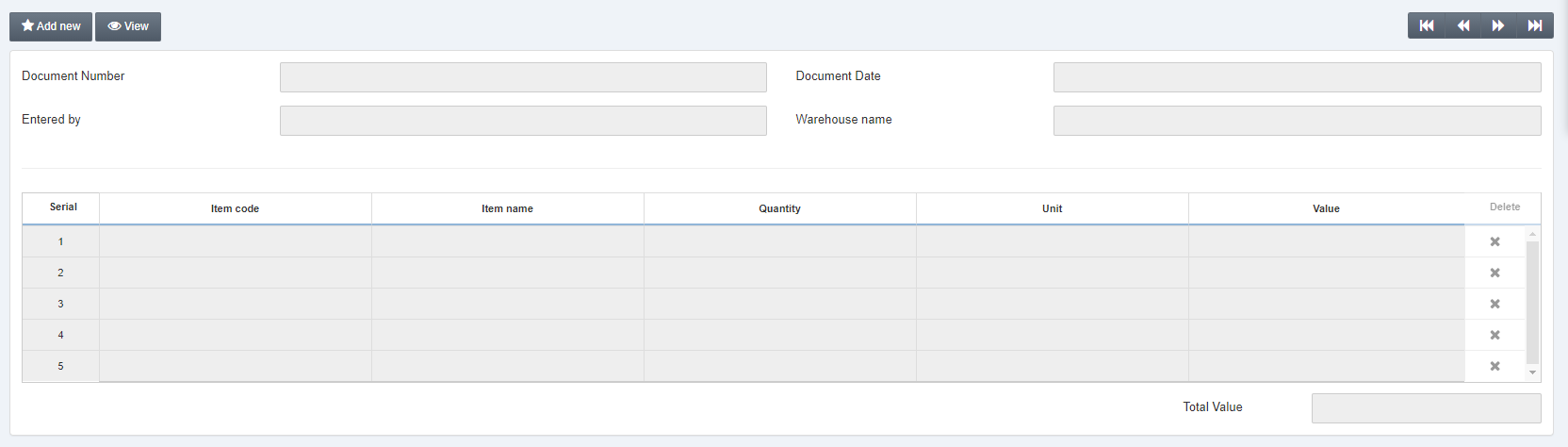 Click on the Add New button at the top of the page.
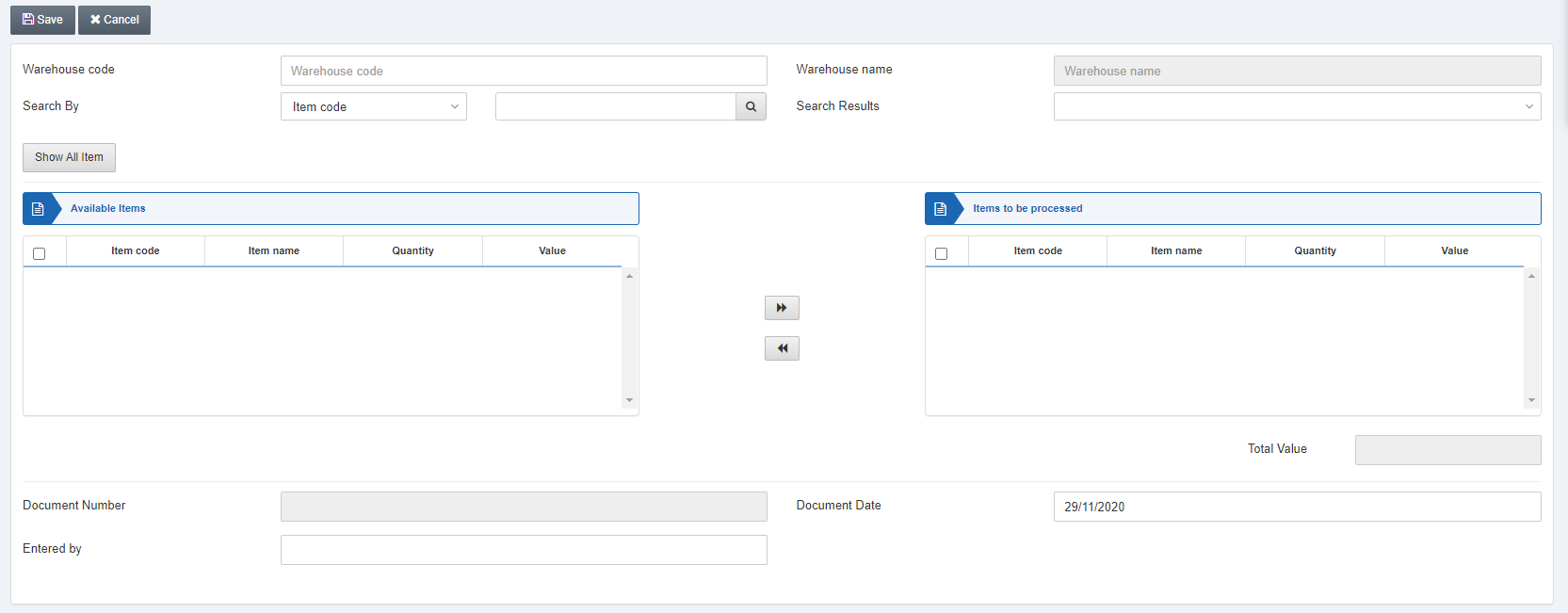 Warehouse Code: This field allows the selection of warehouse code from the drop-down list.
Warehouse Name: This field is auto-fetched by the system.
 Click on the Show All Item button and the following display is shown.
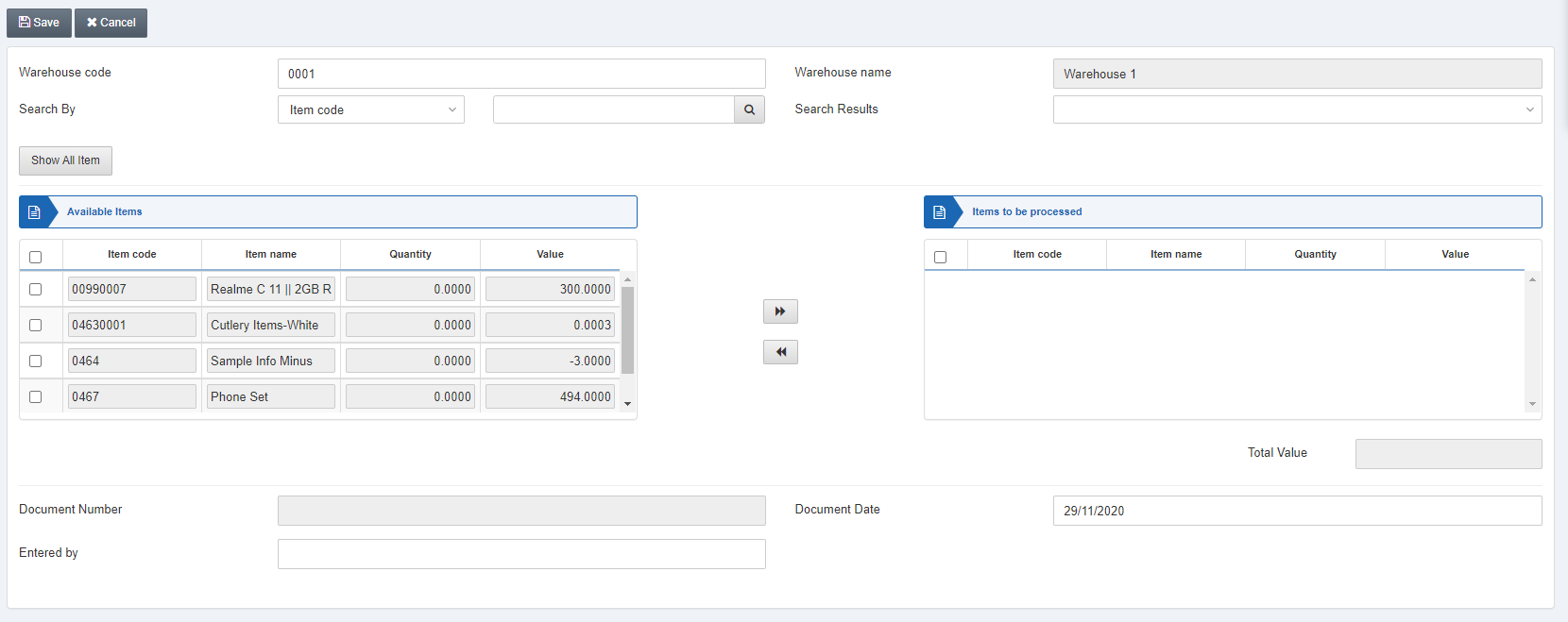
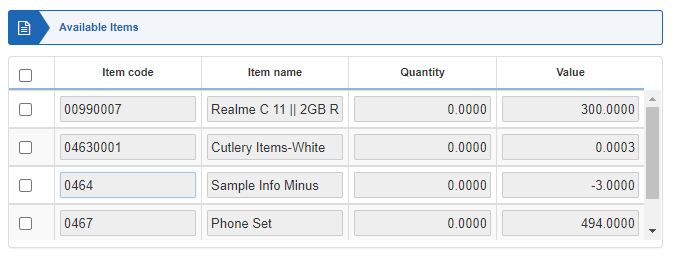 Select the desired item to be processed.

 Click on the “>>” button.
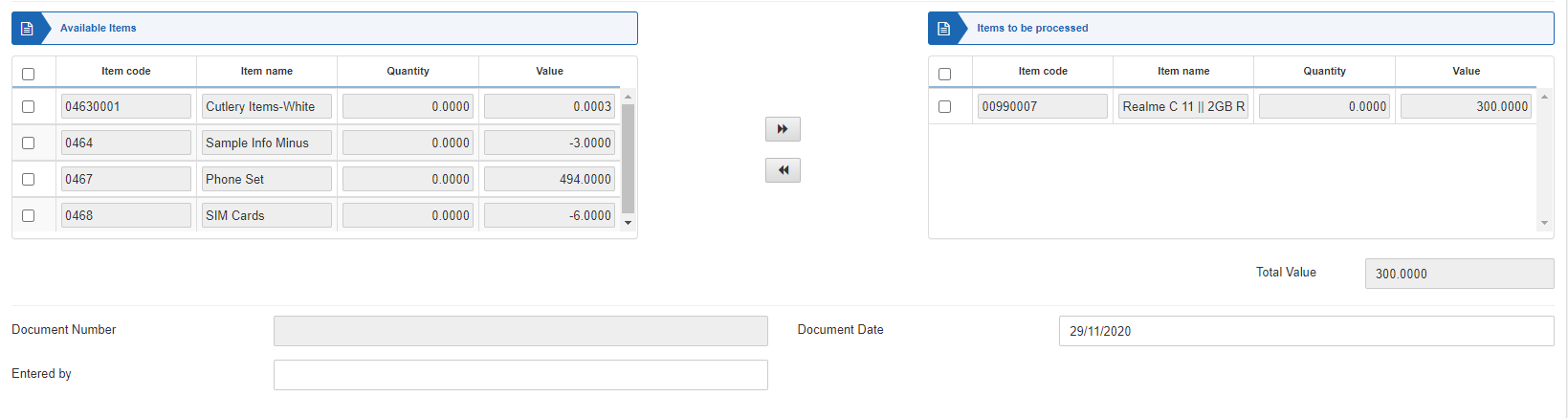 Check the checkbox in the right panel.
Entered by: This field sets the name of the person who is making zero stock value adjustment.
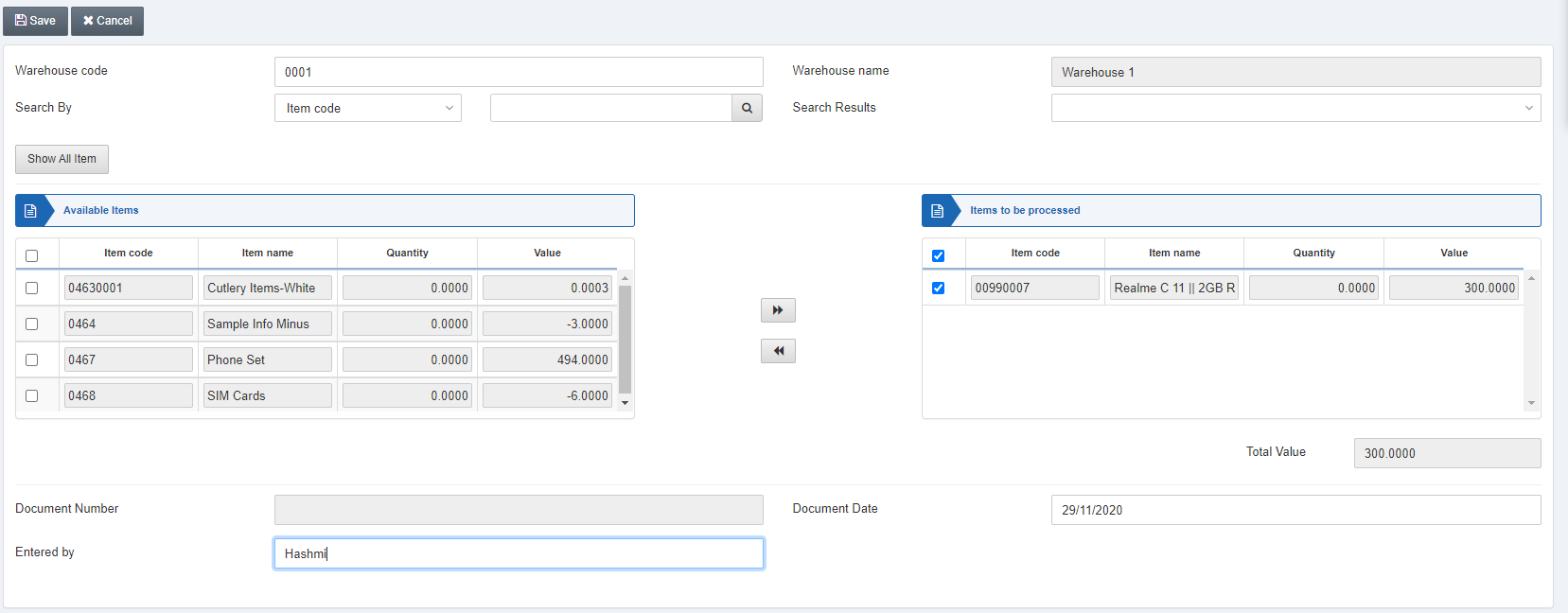 Click on the Save button at the top of the page.
Note: The value to be adjusted can be either Positive or Negative.
Negative Value Case: Inventory Account = Debit, Cost of Goods = Credit.
Positive Value Case: Inventory Account = Credit, Cost of Goods = Debit.
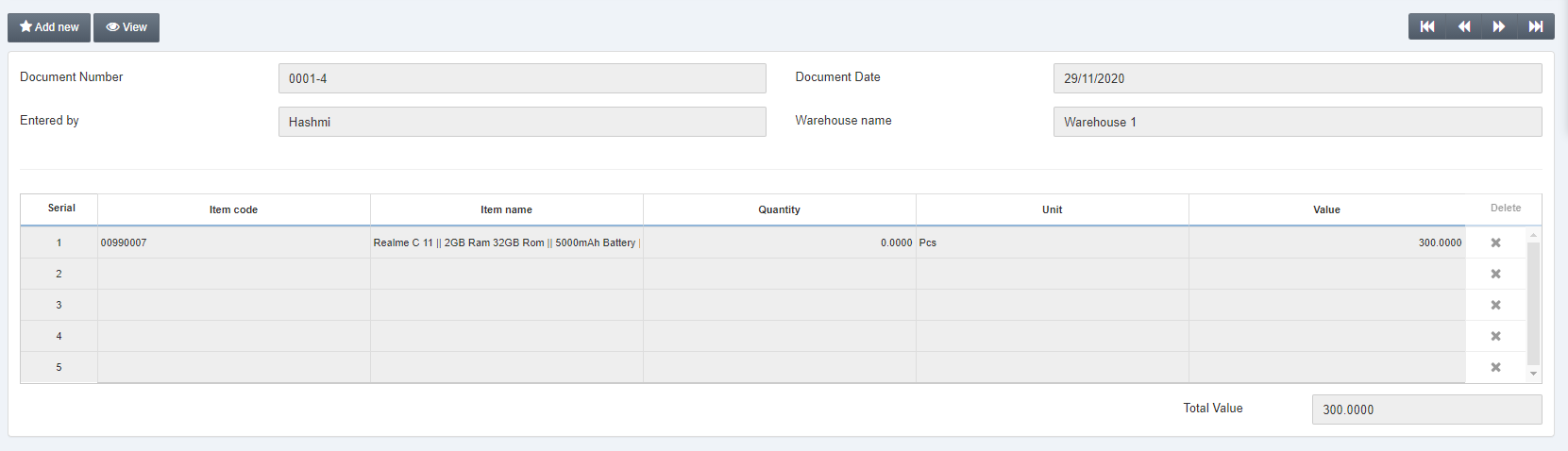
You can also click on the View button and Load button to get the following display.
Was this article helpful?
Start with SMACC today
Try free for 14 days — no credit card, no commitment.