
Stock Internal Use
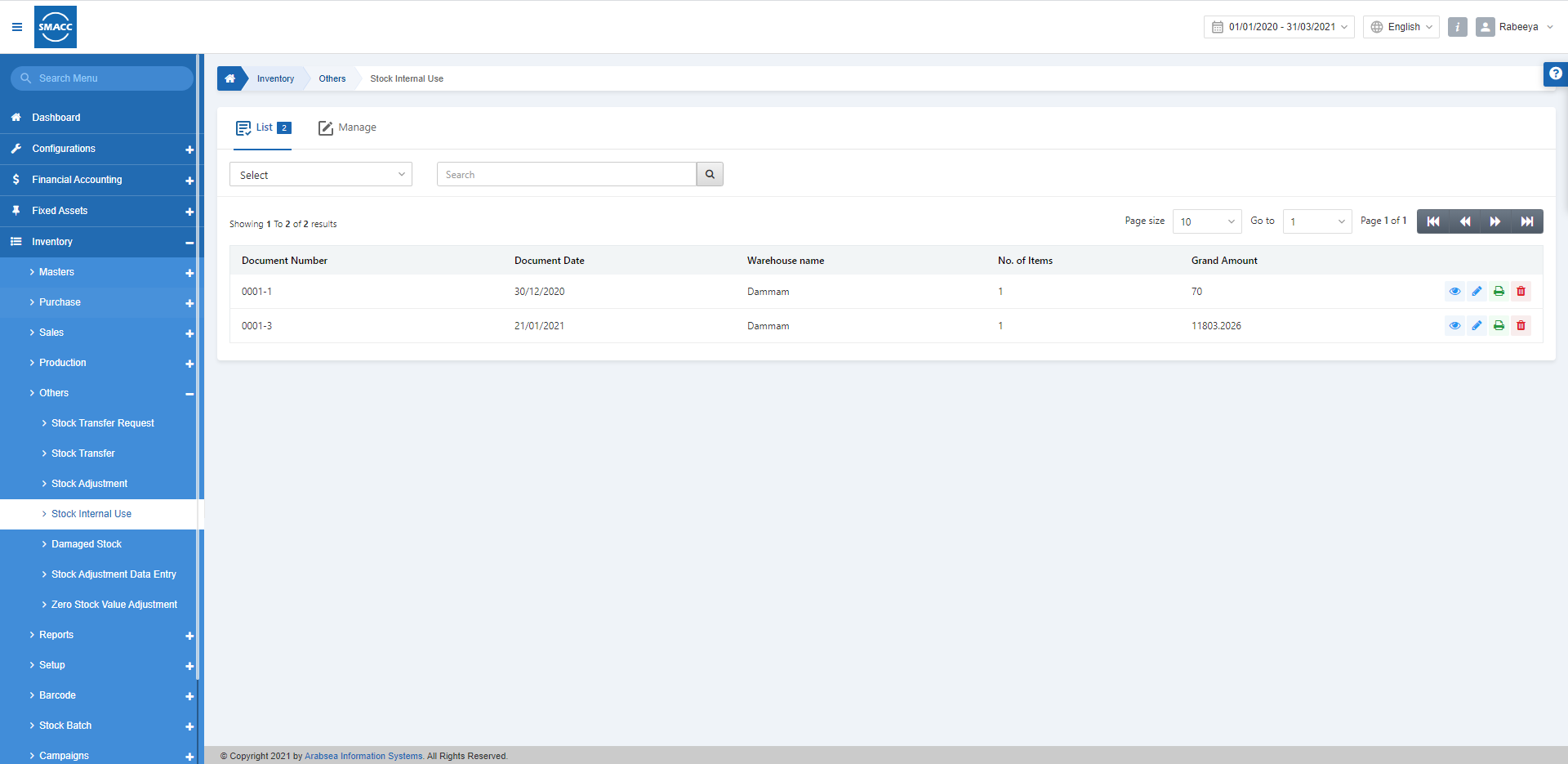
The stock internal use includes the stock used or consumed internally by a company. You can edit, delete and print the stock for internal use.
Adding the Stock Internal Use for Simple Items
To add the stock internal use, go to Inventory > Others > Stock Internal Use, the stock internal use page is displayed. Click on the Manage icon at the top of the page.
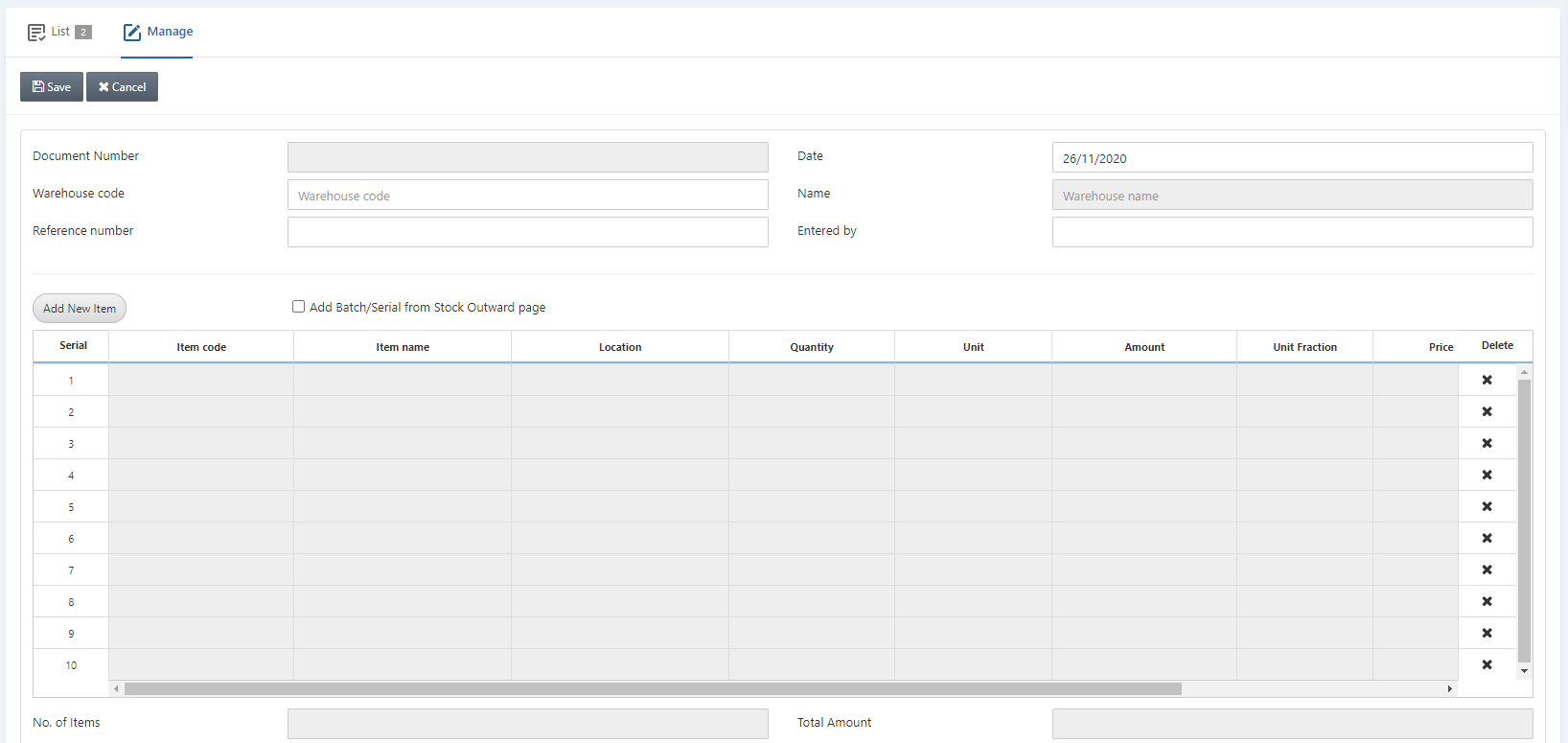 Document Number: This field is auto-generated by the system.
Date: This field sets the date of the stock internal use which is by default the current date.
Warehouse Code: This field allows the selection of the warehouse from the drop-down list.
Name: This field is auto-fetched by the system based on the warehouse code above.
Reference Number: This field sets the reference number for this particular document.
Entered by: This field sets the name of the person who enters the data.
Document Number: This field is auto-generated by the system.
Date: This field sets the date of the stock internal use which is by default the current date.
Warehouse Code: This field allows the selection of the warehouse from the drop-down list.
Name: This field is auto-fetched by the system based on the warehouse code above.
Reference Number: This field sets the reference number for this particular document.
Entered by: This field sets the name of the person who enters the data.
 Add New Item: This button allows you the addition of new items to the stock internal use.
Add Batch/Serial from Stock Outward page: This checkbox allows the addition of the batch and serial numbers from the stock outward page.
Click on the Add New Item:
Add New Item: This button allows you the addition of new items to the stock internal use.
Add Batch/Serial from Stock Outward page: This checkbox allows the addition of the batch and serial numbers from the stock outward page.
Click on the Add New Item:
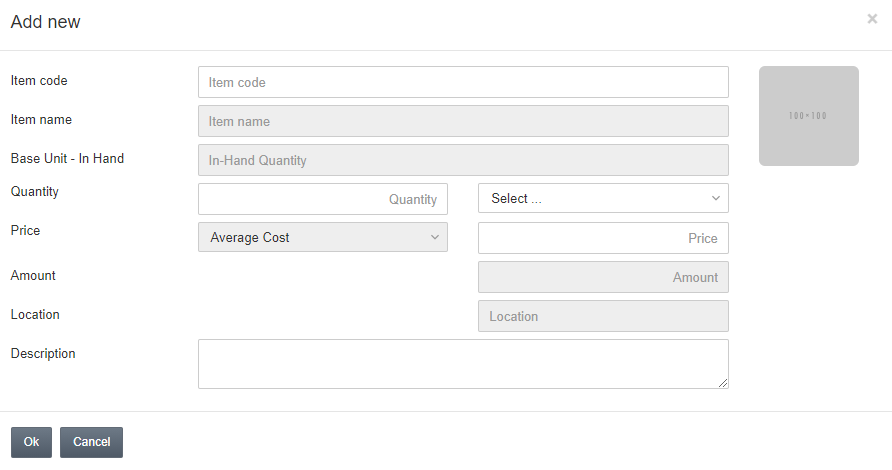
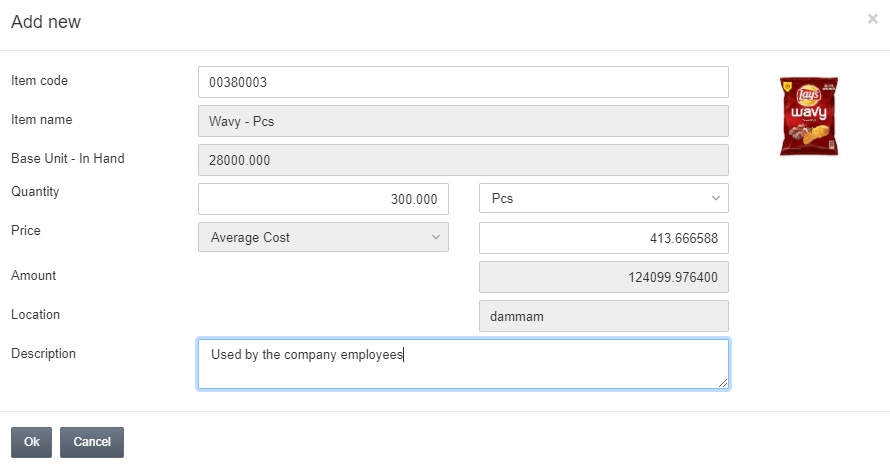 Click on the Ok button to save the information.
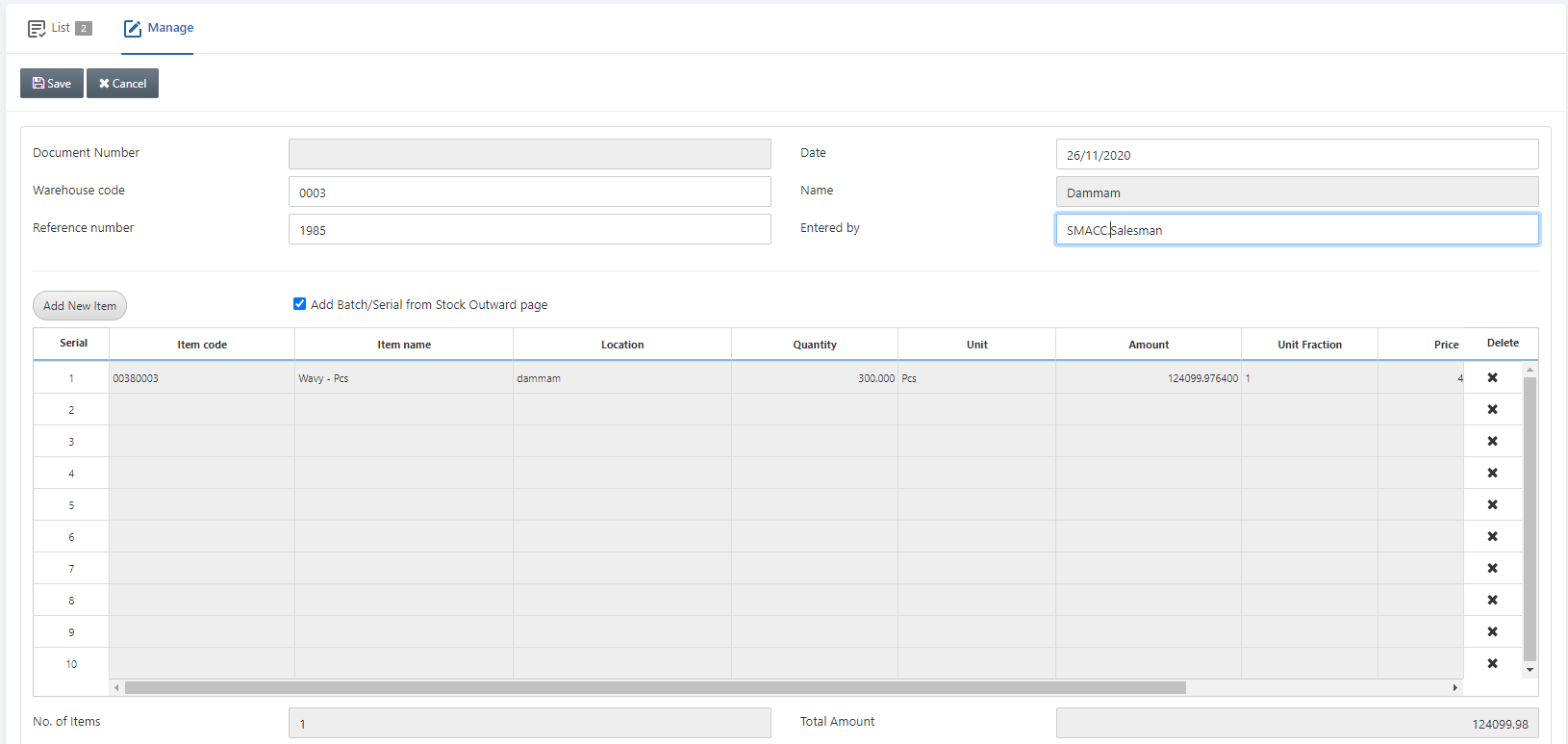
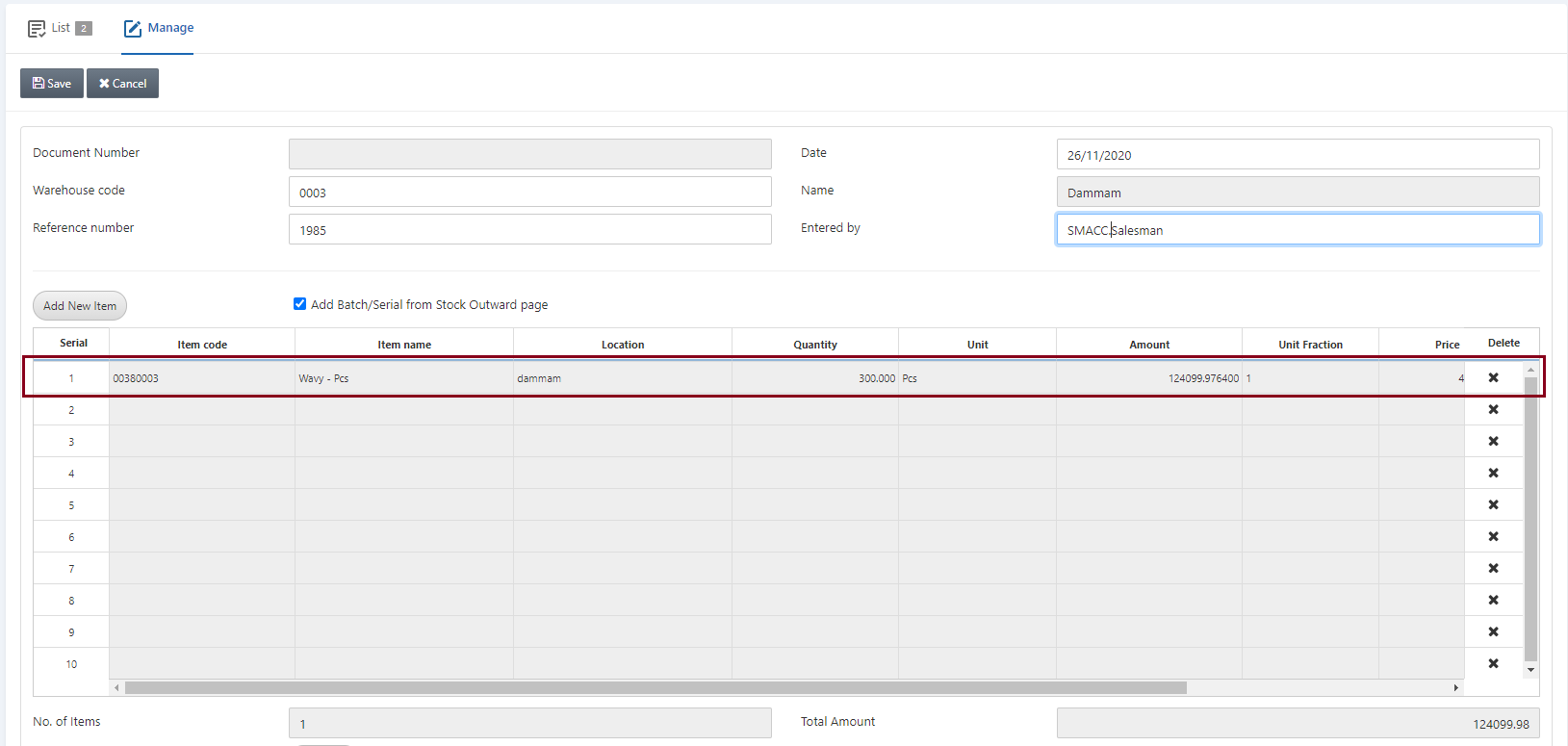 Click on the Save button at the top of the page.
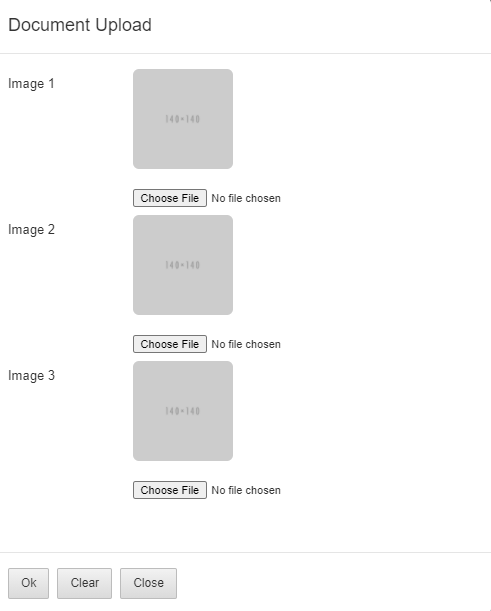
 Document Upload: The Upload button allows you the upload any images with data in case of scanned documents.
Adding the Stock Internal Use for Dimensional Items
To add the stock internal use, go to Inventory > Others > Stock Internal Use, the stock internal use page is displayed.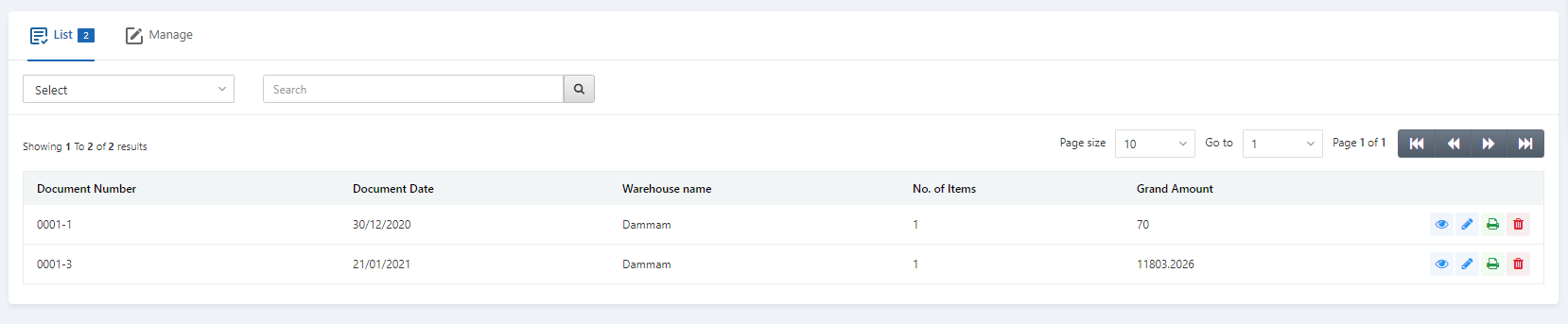 Click on the Manage icon at the top of the page.
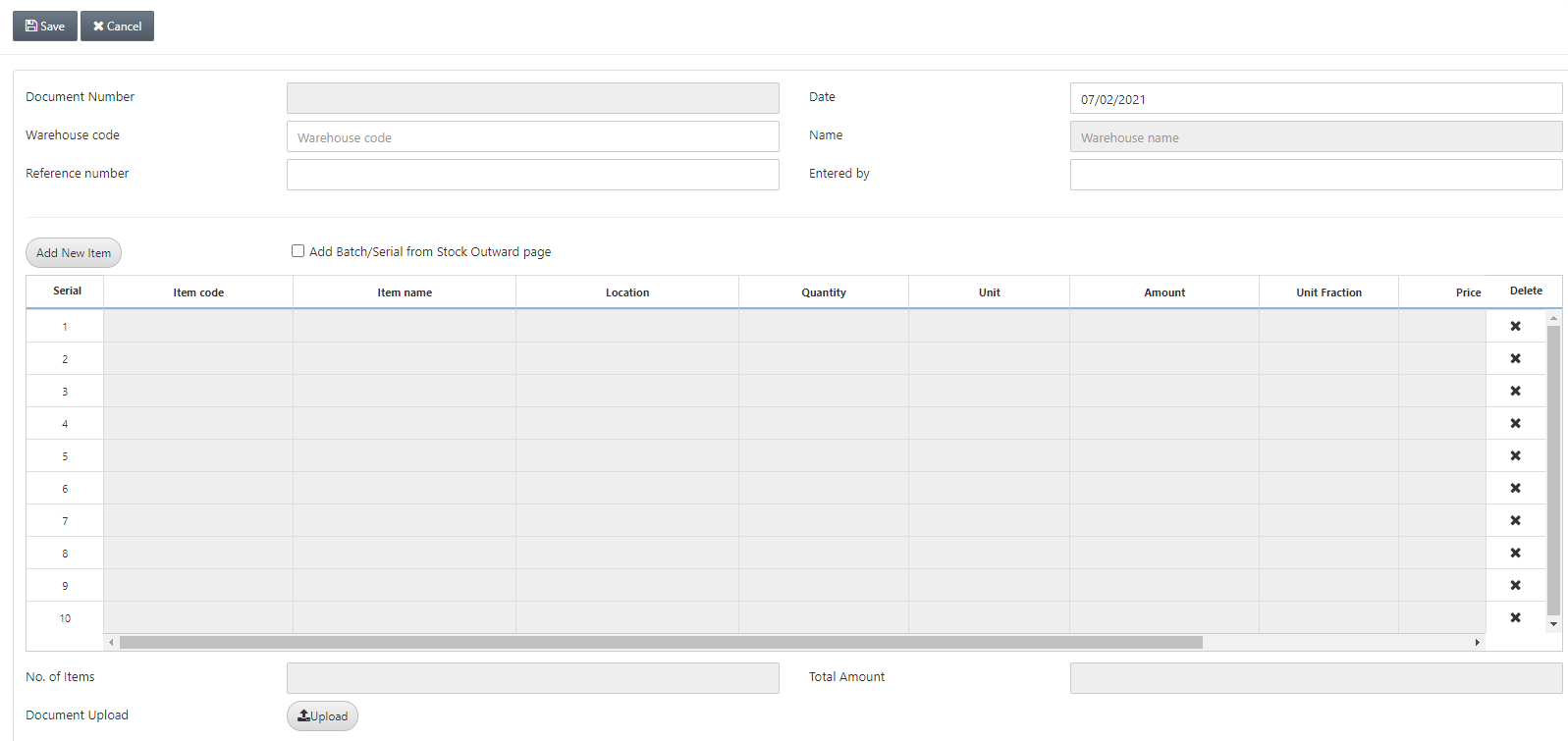 Document Number: This field is auto-generated by the system.
Date: This field sets the date of the stock internal use which is by default the current date.
Warehouse Code: This field allows the selection of the warehouse from the drop-down list.
Name: This field is auto-fetched by the system based on the warehouse code above.
Reference Number: This field sets the reference number for this particular document.
Entered by: This field sets the name of the person who enters the data.
Add New Item: This button allows you the addition of new items to the stock internal use.
Add Batch/Serial from Stock Outward page: This checkbox allows the addition of the batch and serial numbers from the stock outward page.
Click on the Add New Item:
Document Number: This field is auto-generated by the system.
Date: This field sets the date of the stock internal use which is by default the current date.
Warehouse Code: This field allows the selection of the warehouse from the drop-down list.
Name: This field is auto-fetched by the system based on the warehouse code above.
Reference Number: This field sets the reference number for this particular document.
Entered by: This field sets the name of the person who enters the data.
Add New Item: This button allows you the addition of new items to the stock internal use.
Add Batch/Serial from Stock Outward page: This checkbox allows the addition of the batch and serial numbers from the stock outward page.
Click on the Add New Item:
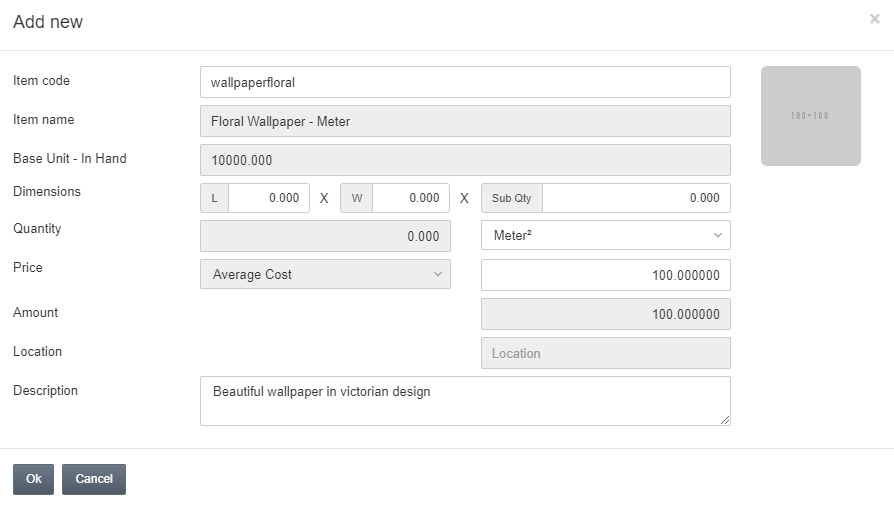 Dimensions: These fields are entered on run-time. You can add the Length (L) and Width (W) and Sub Quantity (Sub Qty).
Quantity: Dimensions multiplied with Sub Qty equals the Quantity.
Note: Similarly you can add a three-dimensional item with length, width and height parameters.
Dimensions: These fields are entered on run-time. You can add the Length (L) and Width (W) and Sub Quantity (Sub Qty).
Quantity: Dimensions multiplied with Sub Qty equals the Quantity.
Note: Similarly you can add a three-dimensional item with length, width and height parameters.
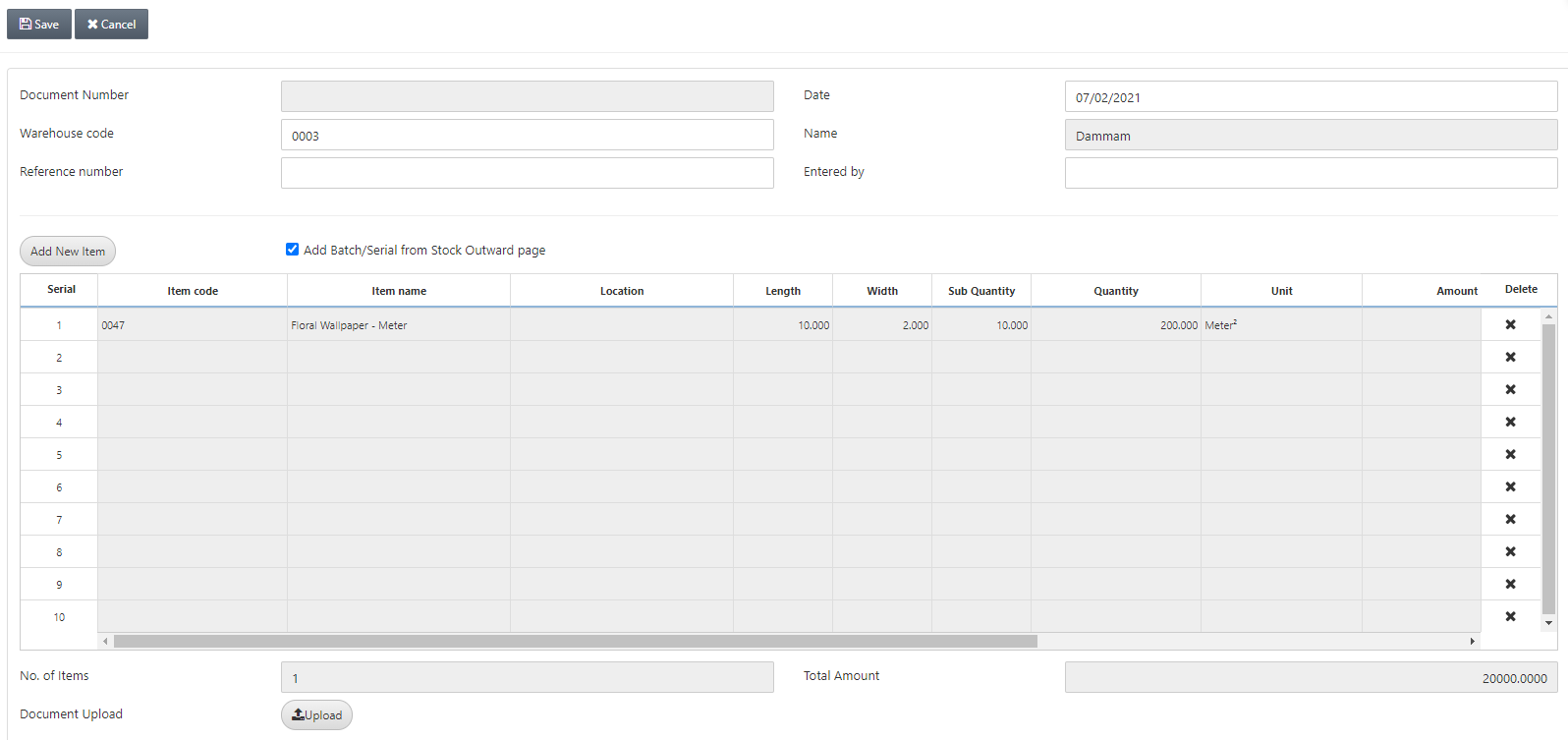 Click on the Save button at the top of the page.
Adding the Stock Internal Use for Size and Color Items
To add the stock internal use, go to Inventory > Others > Stock Internal Use, the stock internal use page is displayed.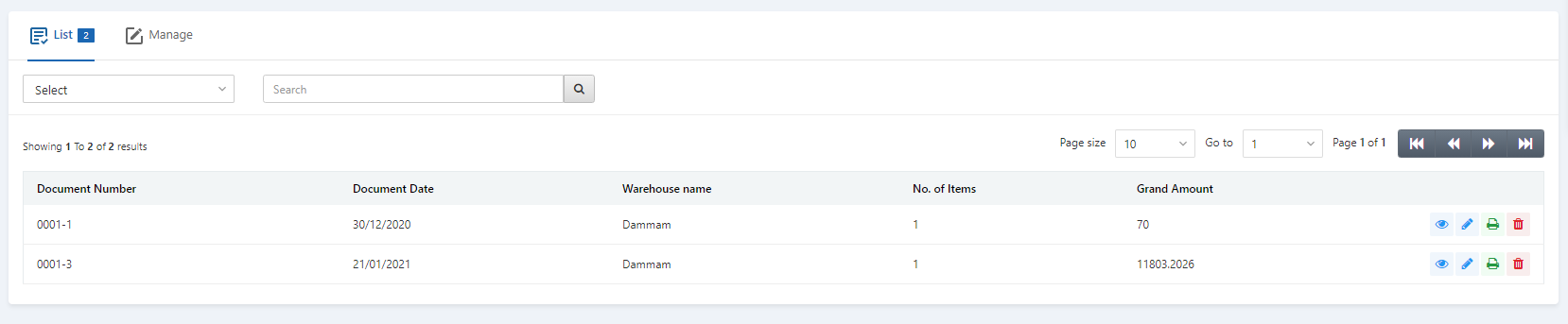 Click on the Manage icon at the top of the page.
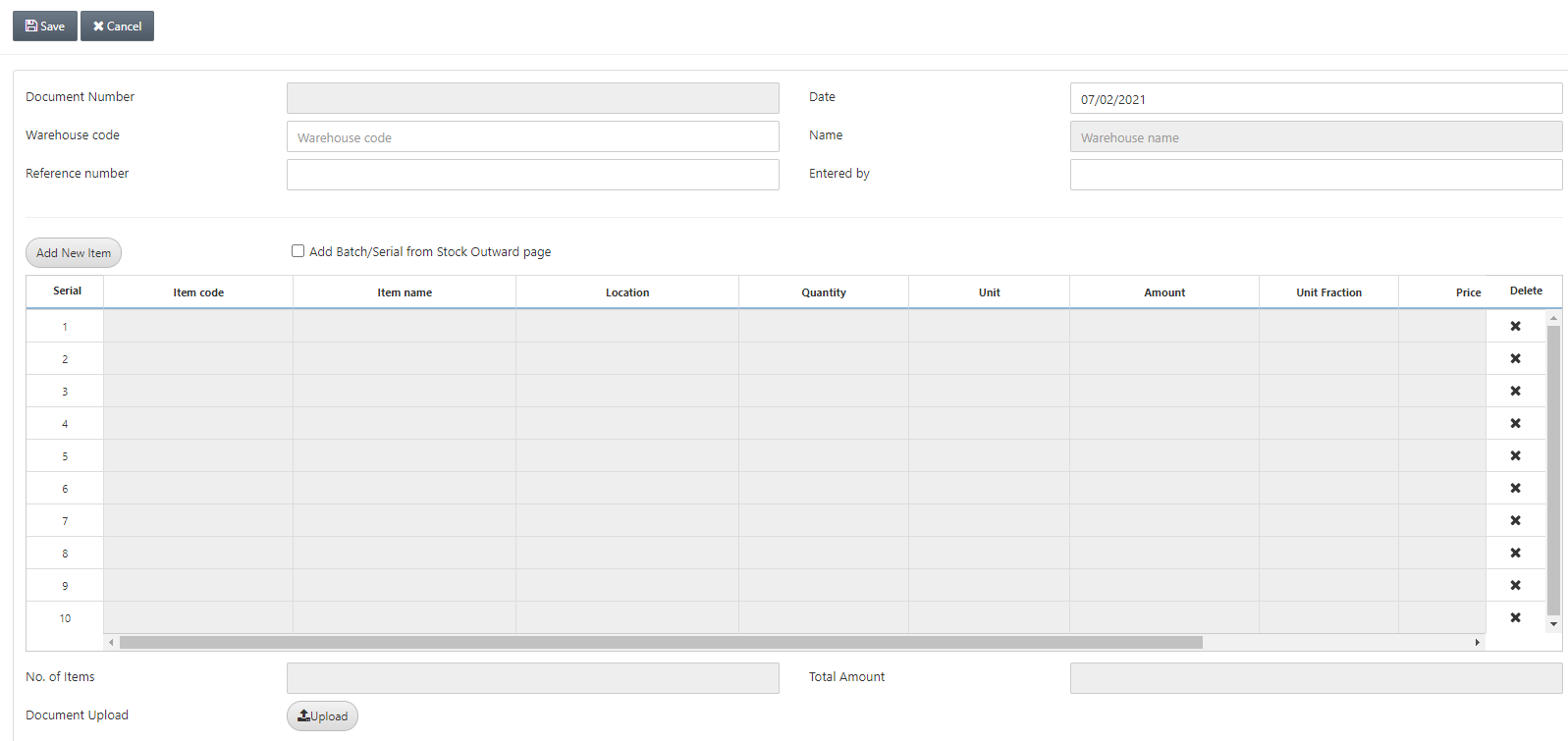 Document Number: This field is auto-generated by the system.
Date: This field sets the date of the stock internal use which is by default the current date.
Warehouse Code: This field allows the selection of the warehouse from the drop-down list.
Name: This field is auto-fetched by the system based on the warehouse code above.
Reference Number: This field sets the reference number for this particular document.
Entered by: This field sets the name of the person who enters the data.
Document Number: This field is auto-generated by the system.
Date: This field sets the date of the stock internal use which is by default the current date.
Warehouse Code: This field allows the selection of the warehouse from the drop-down list.
Name: This field is auto-fetched by the system based on the warehouse code above.
Reference Number: This field sets the reference number for this particular document.
Entered by: This field sets the name of the person who enters the data.
 Add New Item: This button allows you the addition of new items to the stock internal use.
Add Batch/Serial from Stock Outward page: This checkbox allows the addition of the batch and serial numbers from the stock outward page.
Click on the Add New Item:
Add New Item: This button allows you the addition of new items to the stock internal use.
Add Batch/Serial from Stock Outward page: This checkbox allows the addition of the batch and serial numbers from the stock outward page.
Click on the Add New Item:
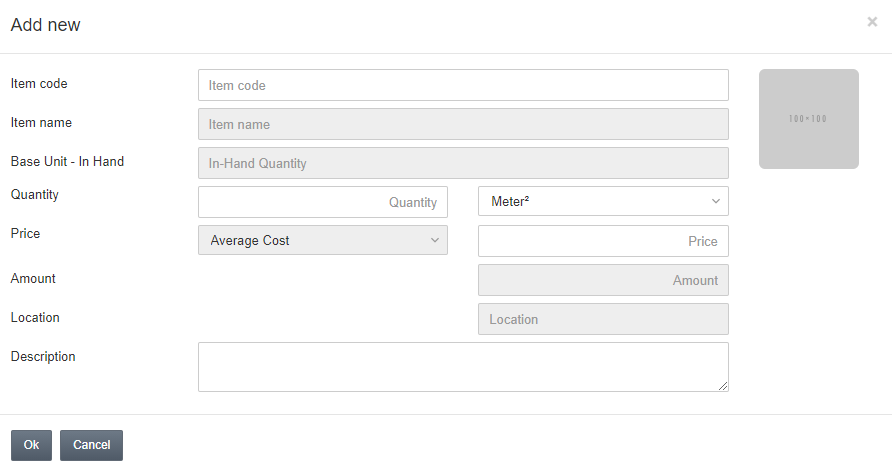 Select an item code which has colour and size item and enters the parent item code, for example, 0045.
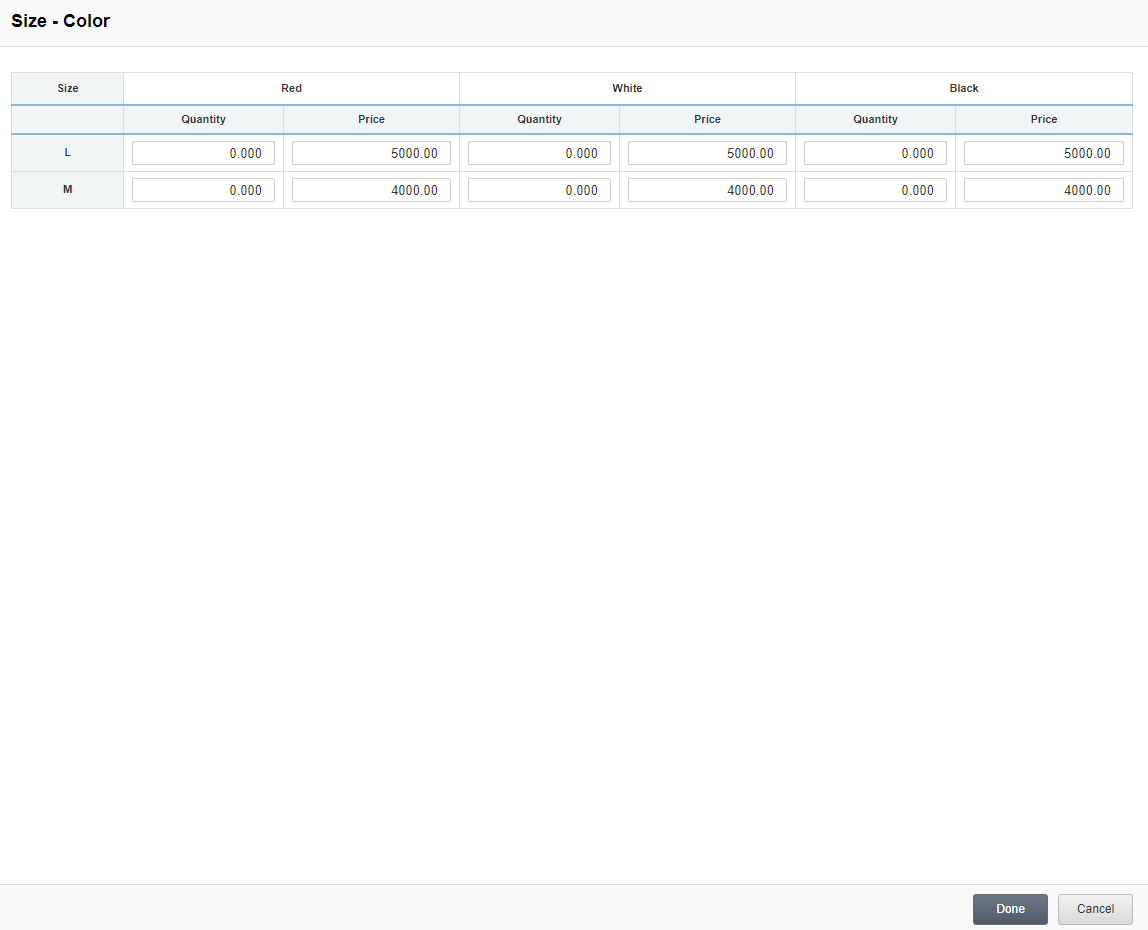
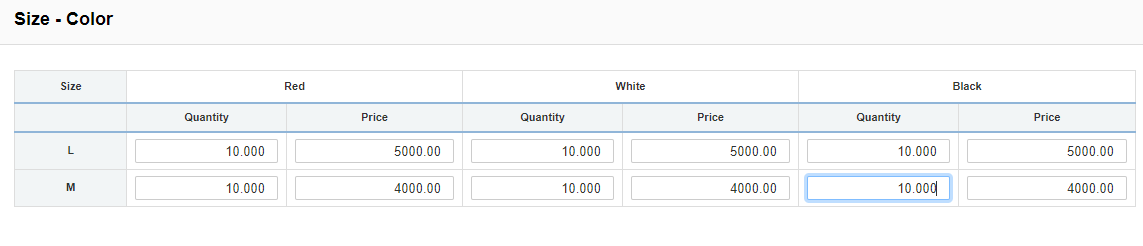 Click on the Done button.
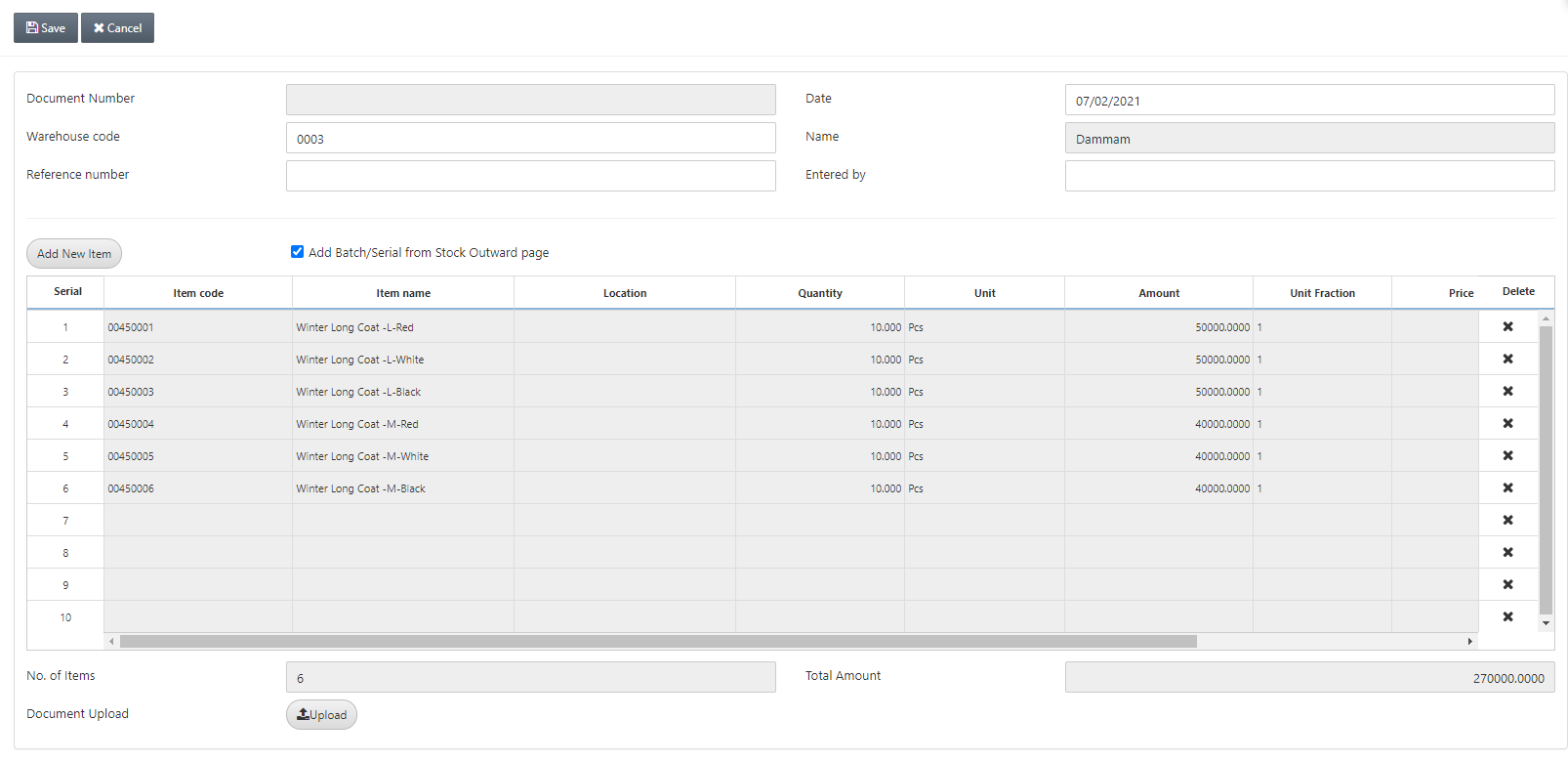 Click on the Save button at the top of the page.
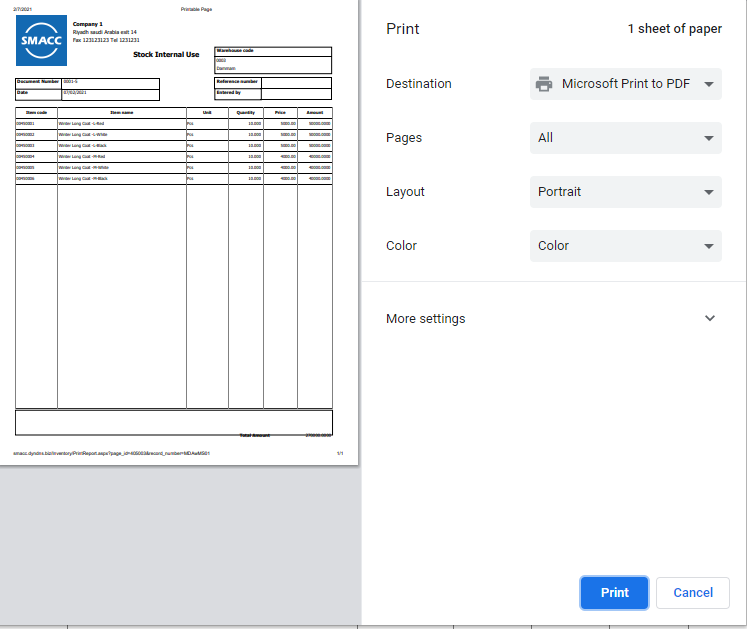
Updating the Stock Internal Use
To edit/update the stock internal use, go to Inventory > Others > Stock Internal Use, the stock internal use page is displayed.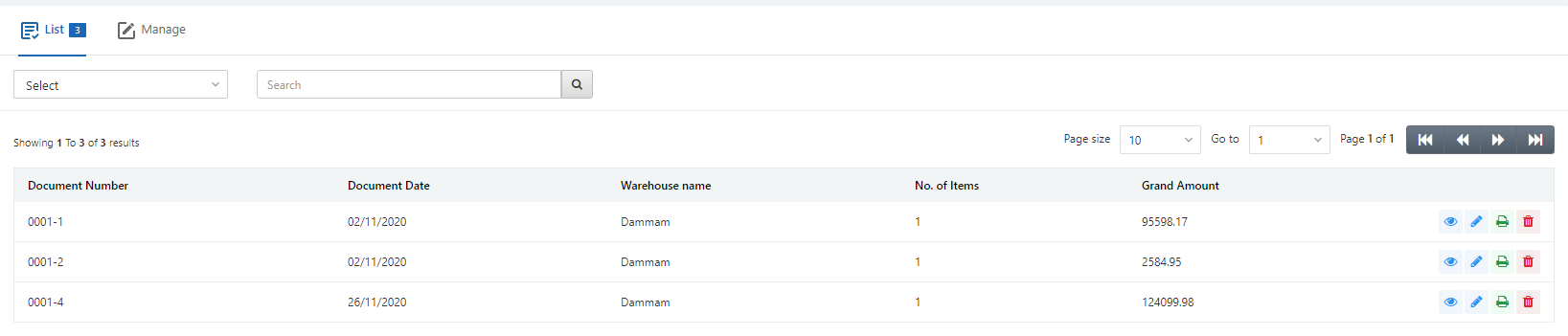 Select the desired row of the Stock internal use’s entry.
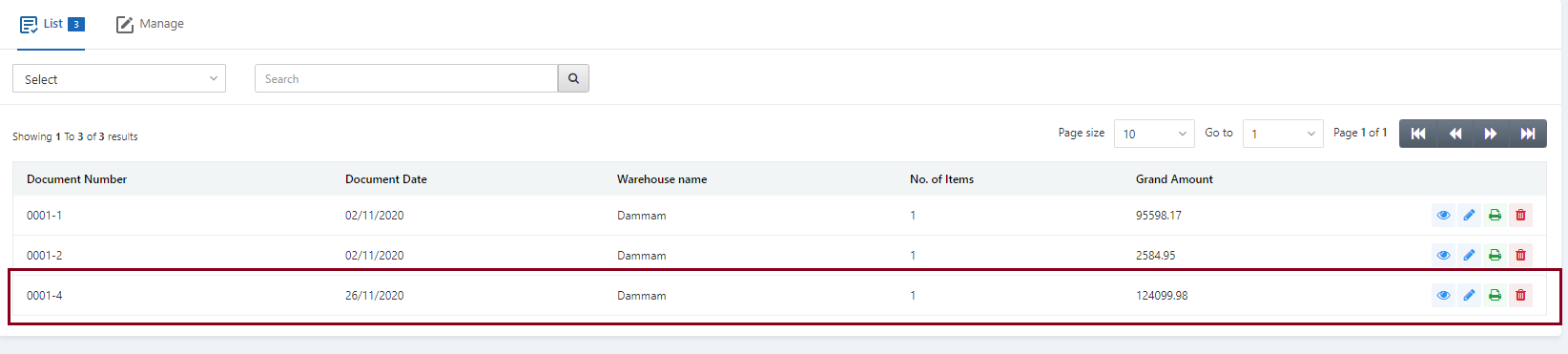 There are four icons in front of each row that is Load, Edit, Print, and Delete.
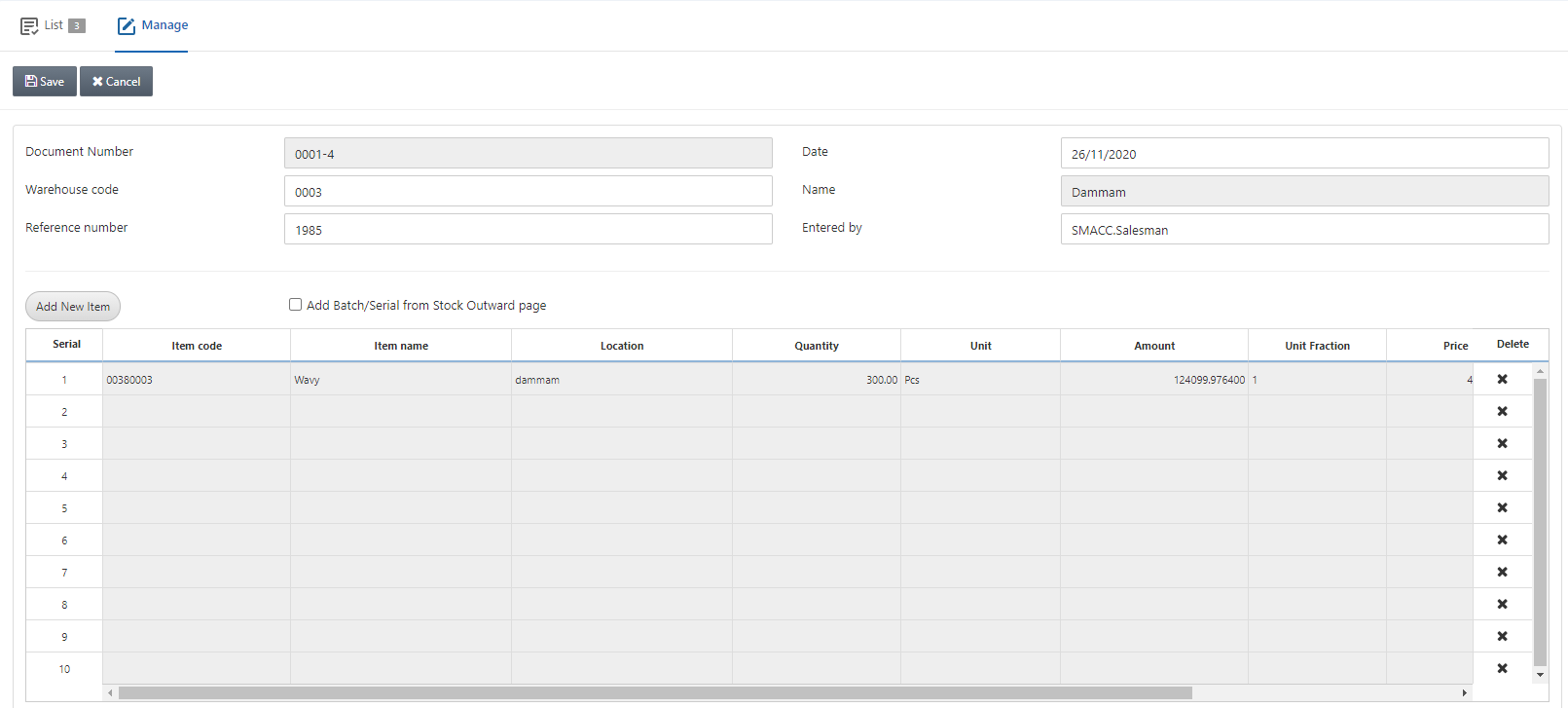
 Click on the Edit icon (blue pencil) to update the information.
You can update the data and save the information.
Click on the Edit icon (blue pencil) to update the information.
You can update the data and save the information.
Deleting the Stock Internal Use
To delete the stock internal use, go to Inventory > Others > Stock Internal Use, the stock internal use page is displayed.
Select the desired row of the Stock internal use’s entry.
There are four icons in front of each row that is Load, Edit, Print, and Delete.
Click on the Delete icon (red) to delete the information.
 Click on the Yes button to save the information.
Printing the Stock Internal Use
To print the stock internal use, go to Inventory > Others > Stock Internal Use, the stock internal use page is displayed.
Select the desired row of the Stock internal use’s entry.
There are four icons in front of each row that is Load, Edit, Print, and Delete.
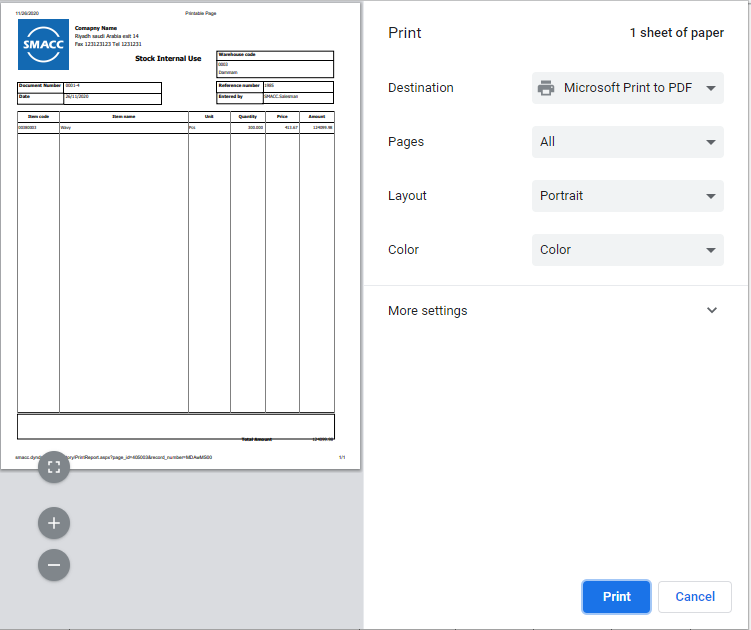
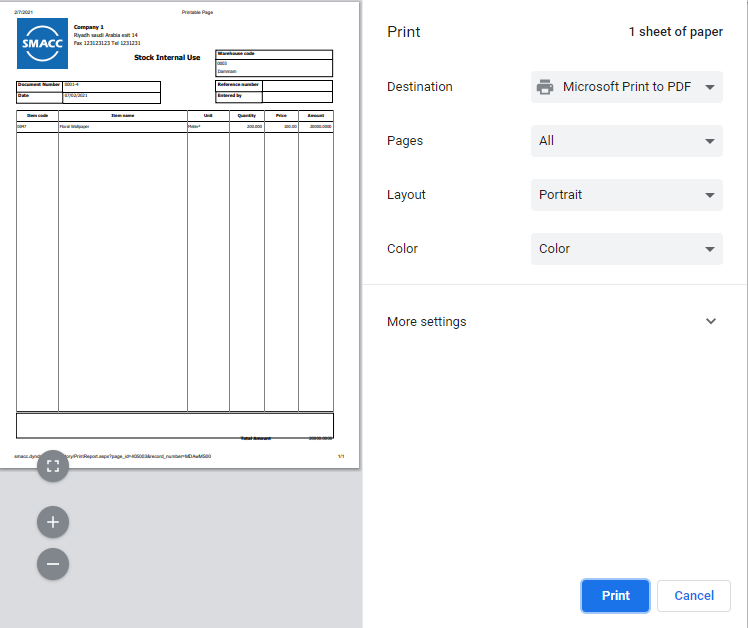
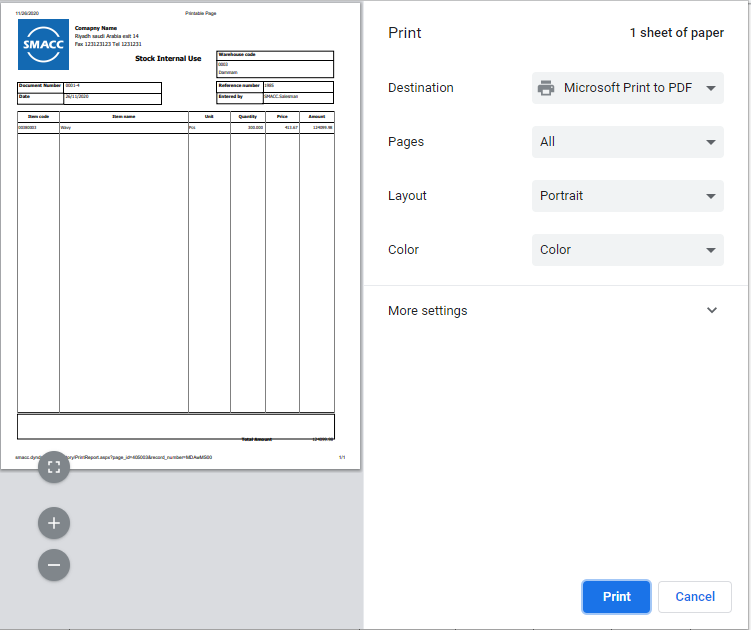
Click on the Print icon (green) to print the information.
Was this article helpful?
Start with SMACC today
Try free for 14 days — no credit card, no commitment.