
Stock in Hand on a Date
The stock in hand on a date allows you to view the report of stock on a given date.
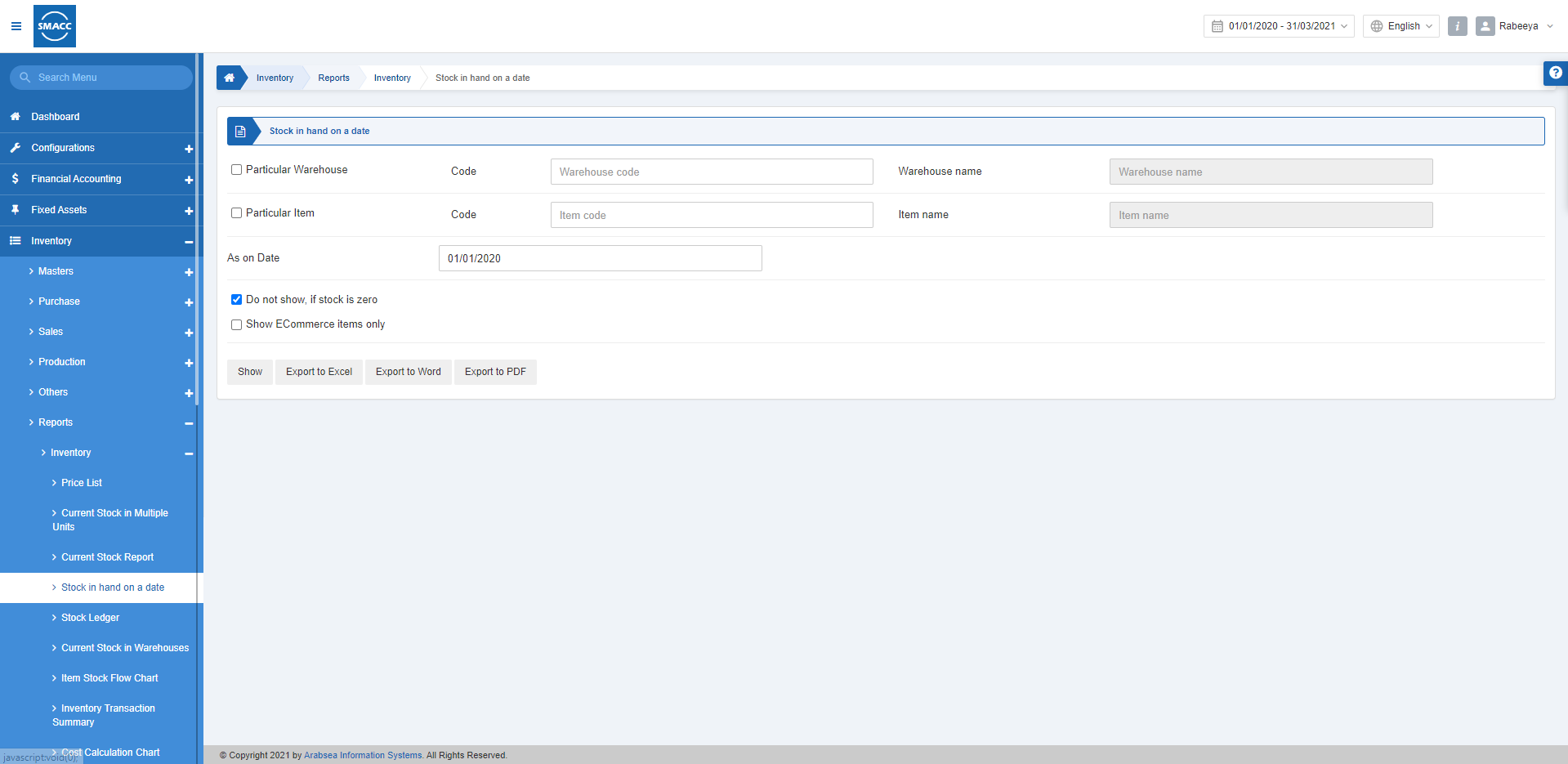
Viewing the Stock in Hand on a Date
To view the stock in hand on a date, go to Inventory > Reports > Inventory > Stock in Hand on a Date, the stock in hand on a date page is displayed.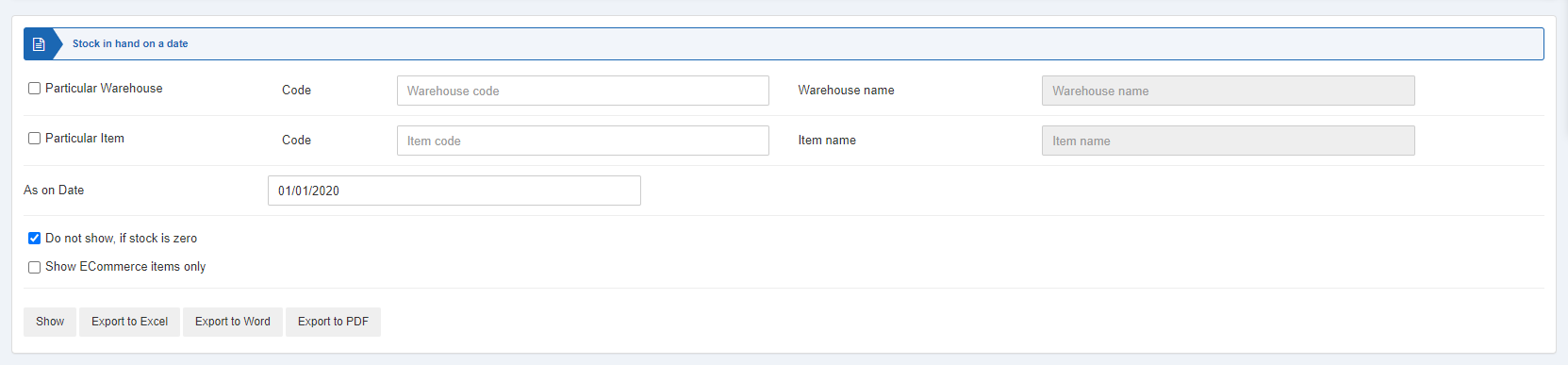
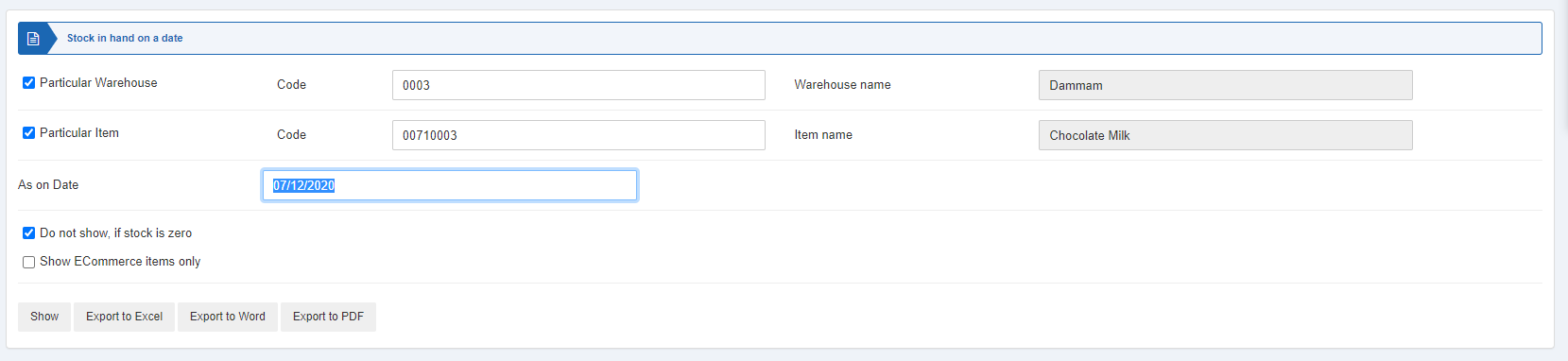 Particular Warehouse: You can select a particular warehouse as a filter for your report. You can further select the warehouse code.
Particular Item: You can select the particular item as a filter for your report. You can further select the item code.
 As on Date: You can select the desired date on which you want to know the item stock.
 Do not show, if stock is zero: This checkbox when checked does not show any warehouse report if its stock is zero.
Show ECommerce items only: This checkbox when checked shows only the Ecommerce items only.
 Show: This button represents the report as per the selected filters.
Export to Excel: This button allows the data of the report to be exported to Excel.
Export to Word: This button allows the data of the report to be exported to Word.
Export to PDF: This button allows the data of the report to be exported to PDF.
Click on the Show button at the bottom of the page.
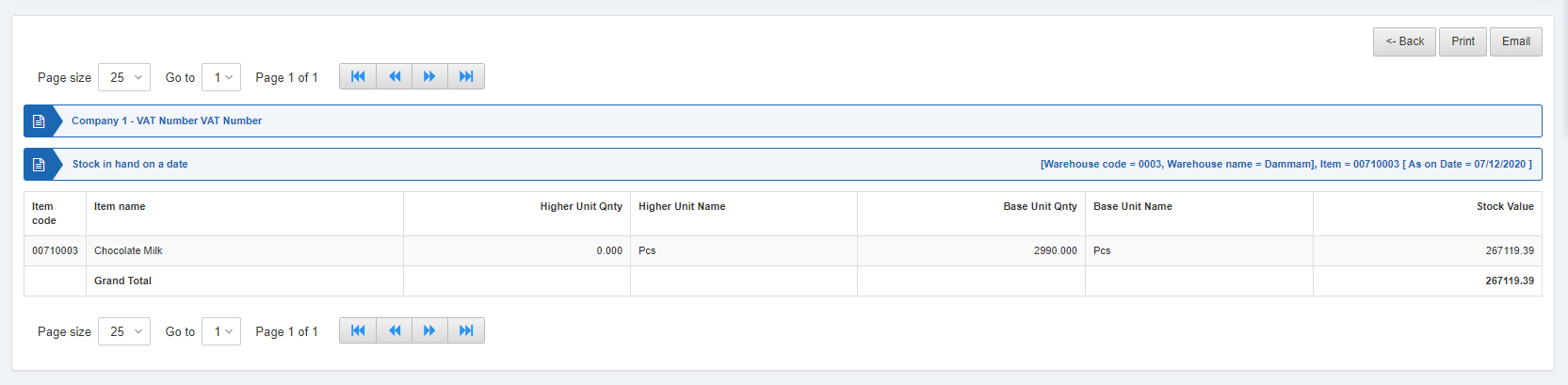 Also, there are navigation buttons for the page view.
 Page Size: You can adjust the number of entries per page.
Go to: You can go to the page number you want to view.
 You can go back to the previous page or print or email the report.
Was this article helpful?
Start with SMACC today
Try free for 14 days — no credit card, no commitment.