
Opening Stock File
The opening stock file allows you to download the sample format file and upload the (same format of) excel file for the opening stock.
Downloading the Opening Stock File
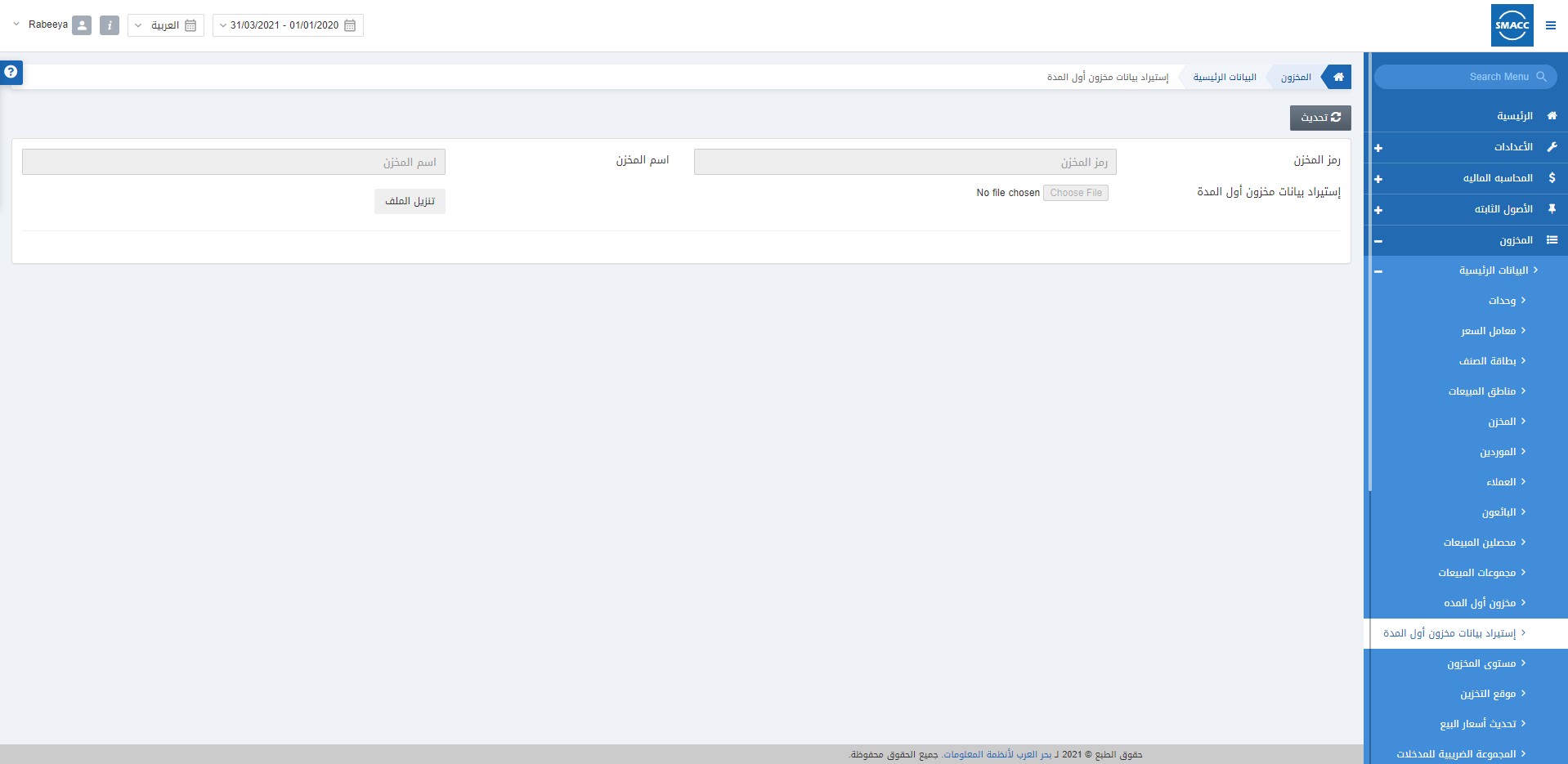
To download the opening stock file, go to Inventory > Masters > Opening Stock File, the opening stock file page is displayed. The file you will download here is the sample file for future entries to be uploaded. Click on the Update button and the display is shown:
 Warehouse code: This field allows the selection of the warehouse from a drop-down list.
Warehouse Name: This field is auto-fetched by the system based on the Warehouse code.
Click on the Download File button to download the file you previously uploaded on the system.
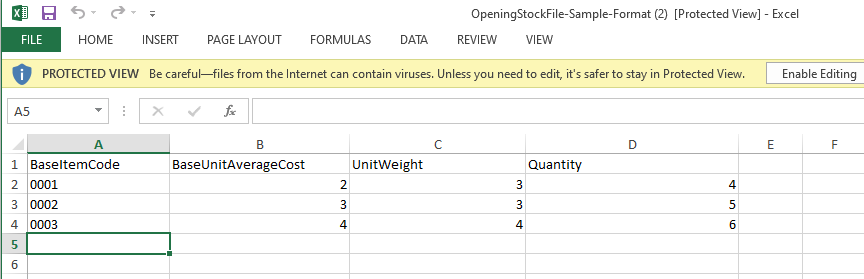
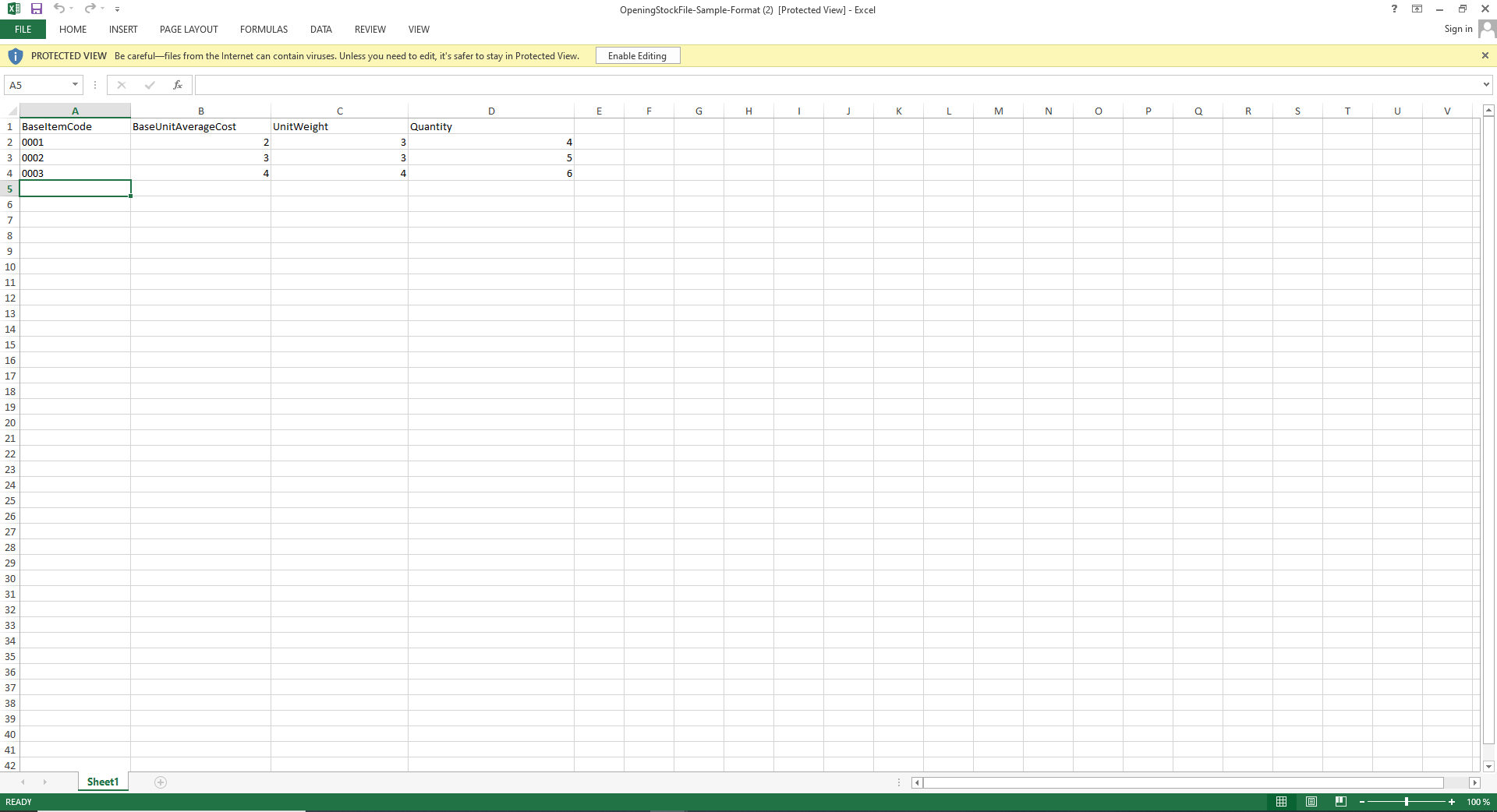 Note: You can update the field by adding the stock of inventory to be updated.
 Add the entries as per your new stock in the sample file.
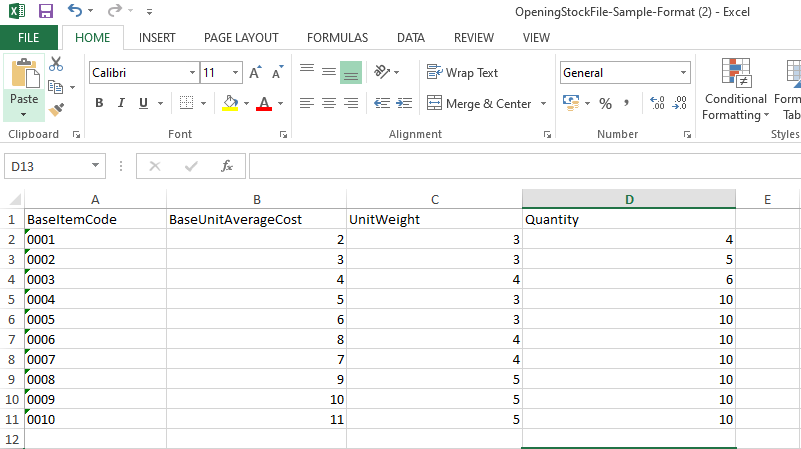 Now save the same file with a new name.
Note: This new name of the saved file will be uploaded in the uploading section.
Uploading the Opening Stock File
To upload the opening stock file, go to Inventory > Masters > Opening Stock File, the opening stock file page is displayed.
Click on the Update button and the display is shown:
 Warehouse code: This field allows the selection of the warehouse from a drop-down list.
Warehouse Name: This field is auto-fetched by the system based on the Warehouse Code.
Opening Stock File: "Choose the same format of the updated Excel file to upload".
Click on Save to save the information on this page.
Was this article helpful?
Start with SMACC today
Try free for 14 days — no credit card, no commitment.