
Revise Selling Price
The revise selling price defines the revision of the sale prices of the items in the inventory by a percentage of increment or decrement.
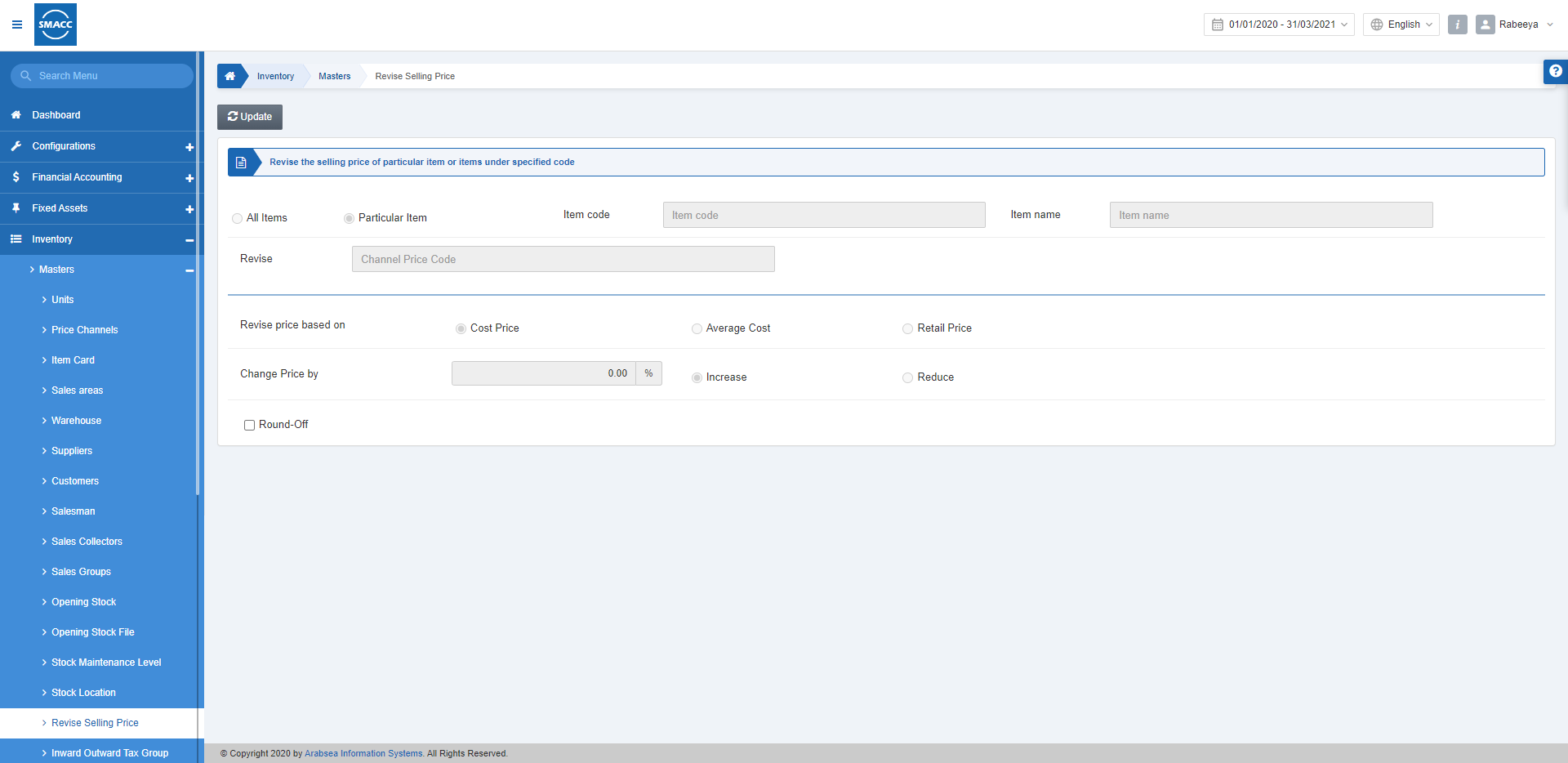
Setting the Revise Selling Price of All Items
To set the revised selling price of all items in the inventory, go to Inventory > Masters > Revise Selling Price, the revised selling price page is displayed.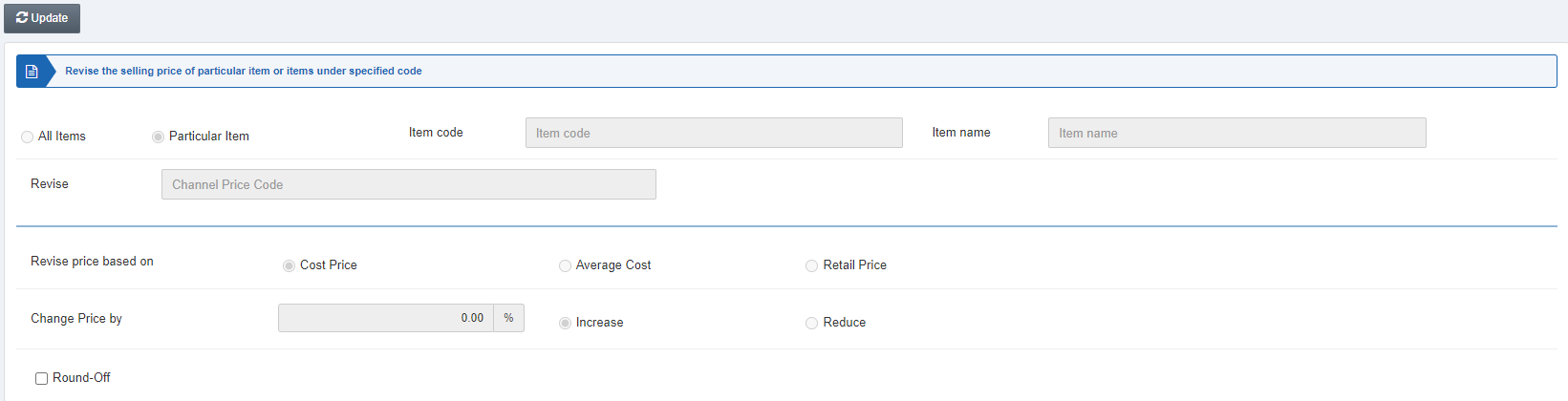 Click on the Update button to change the price of an item.
Click on the All Items radio button.
Revise: This field allows the selection of the price channel from the drop-down list.
 Revise price based on: Select one from the three radio buttons of Cost price, Average cost, and Retail price.
Change Price by: Enter the percentage amount and select one from the two radio buttons Increase and Reduce.
Round-off: This checkbox allows the rounding off.
Click on the Save button to save the information.
Setting the Revise Selling Price of Particular Item
To set the revised selling price of a particular item in the inventory, go to Inventory > Masters > Revise Selling Price, the revised selling price page is displayed. Click on the Particular Item radio button. Item Code: Enter the Item code, for example, 0017 Item Name: This field is auto-fetched by the system. Revise: This field allows the selection of the price channel from the drop-down list. Revise price based on: Select one from the three radio buttons of Cost price, Average cost, and Retail price.
Change Price by: Enter the percentage amount and select one from the two radio buttons Increase and Reduce.
Round-off: This checkbox allows the rounding off.
Click on the Save button to save the information.
Was this article helpful?
Start with SMACC today
Try free for 14 days — no credit card, no commitment.