
Opening Stock
In opening stock, you can update opening stock information. You can view the item's opening stock details.
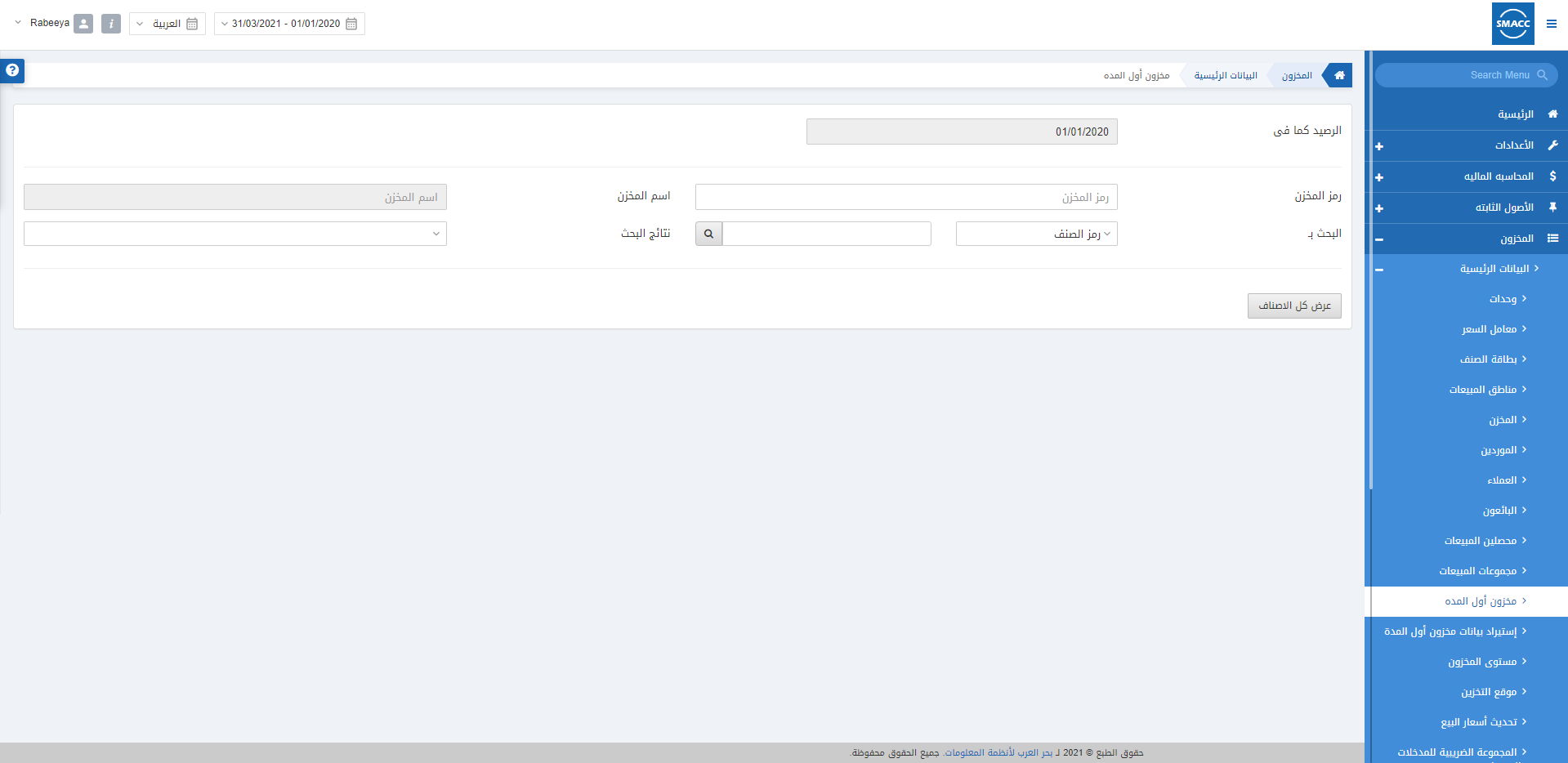
Adding the Opening Stock
To add the Opening Stock in Inventory, go to Inventory > Masters > Opening Stock, the Opening Stock page is displayed. Warehouse Code: This field allows the selection of the Warehouse code from the drop-down list.
Warehouse Name: This field is auto-fetched by the system.
 Search by: This field allows the selection from the drop-down list as Item code or Item name.
Search Box: Enter the selected type of Search by. For example, 0017 is the item code to be searched.
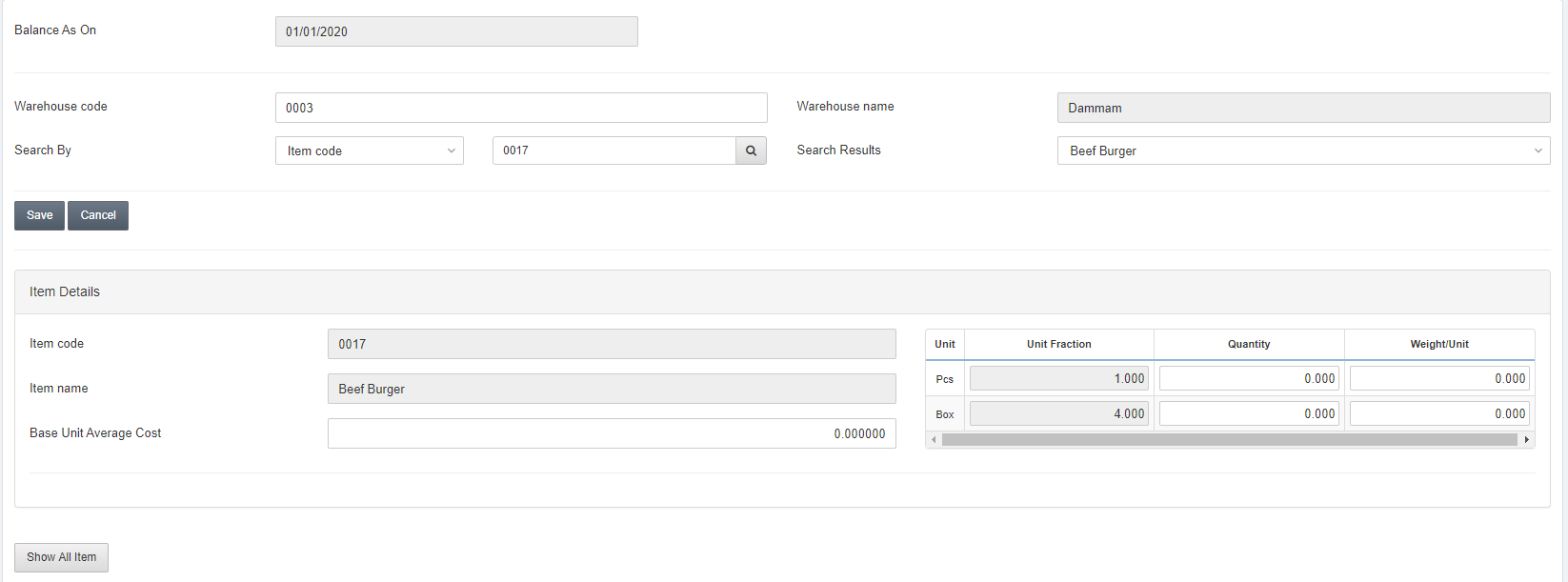 Item Details:
 Click on the Save button to save the opening stock information.
Viewing the Opening Stock
To view the Opening Stock in Inventory, go to Inventory > Masters > Opening Stock, the Opening Stock page is displayed.
Warehouse Code: This field allows the selection of the Warehouse code from the drop-down list.
Warehouse Name: This field is auto-fetched by the system.
 Search by: This field allows the selection from the drop-down list as Item code or Item name.
Search bar: Enter the selected type of Search by. For example, 0017 is the item code to be searched.
 Click on the Show All Item button to view all the items and their opening stock information.

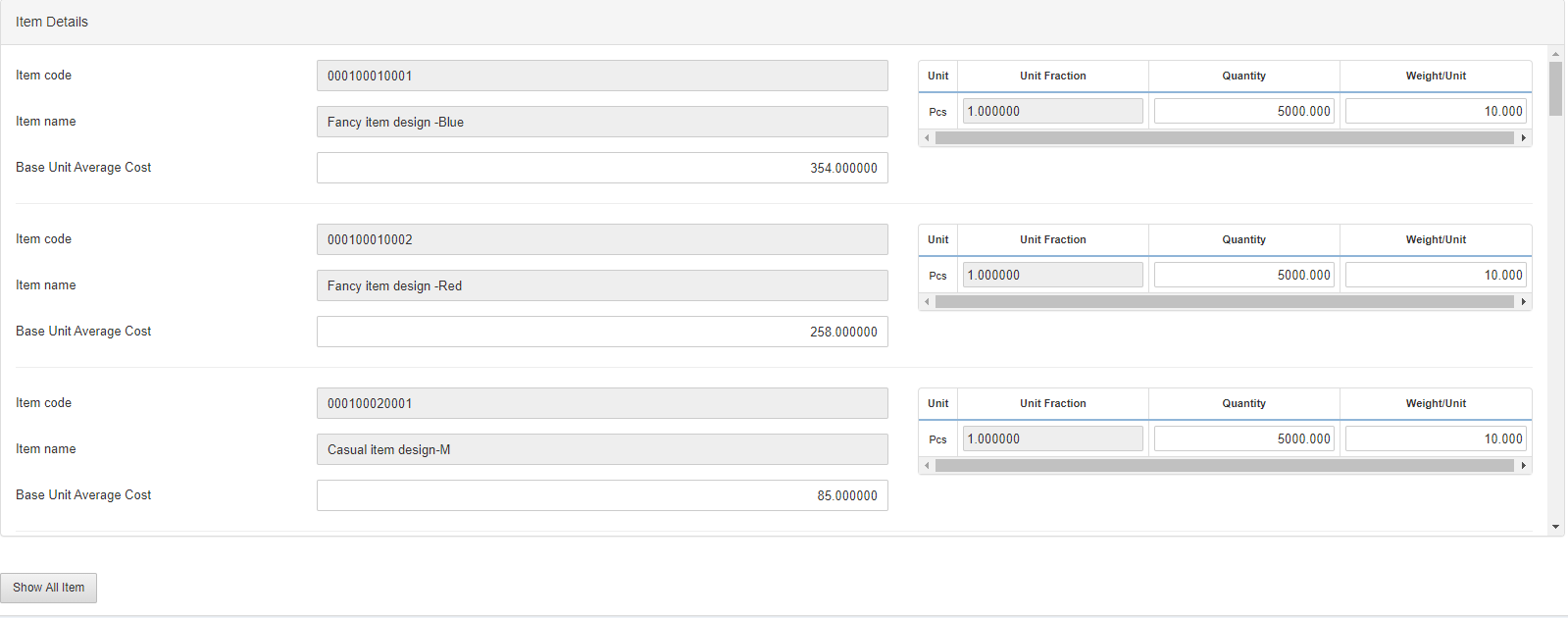 Note: If the item code is not selected then the user can view all items of the selected warehouse code.
Was this article helpful?
Start with SMACC today
Try free for 14 days — no credit card, no commitment.