
Item Card Add-On
The item card Add-on sets the additional items as a deal along with an item card. You can update, delete and view the information.
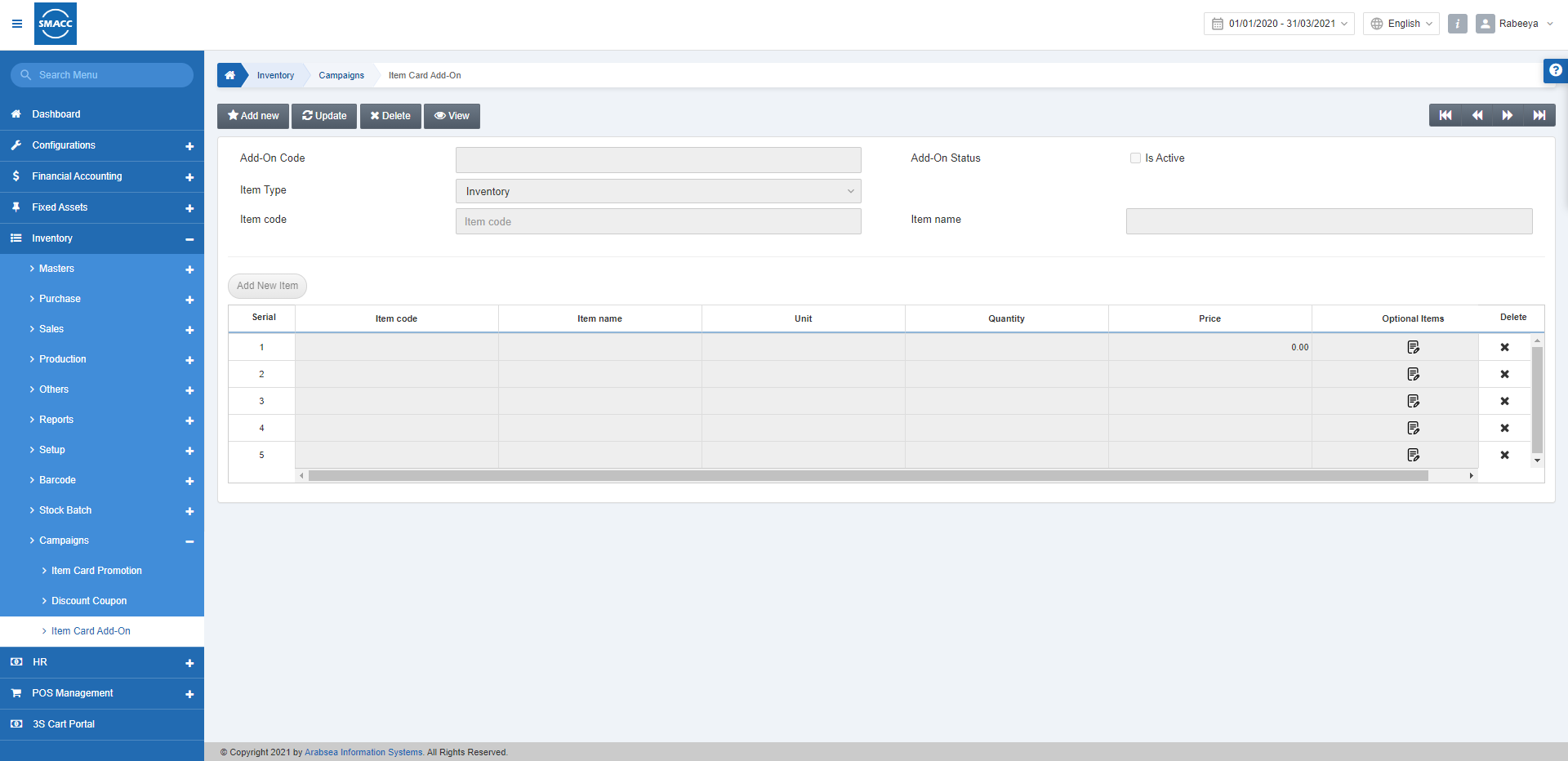
Adding the Item Card Add-on
To add the Item card add-on go to Inventory > Campaigns > Item Card Add-On, the Item Card Add-On page is displayed.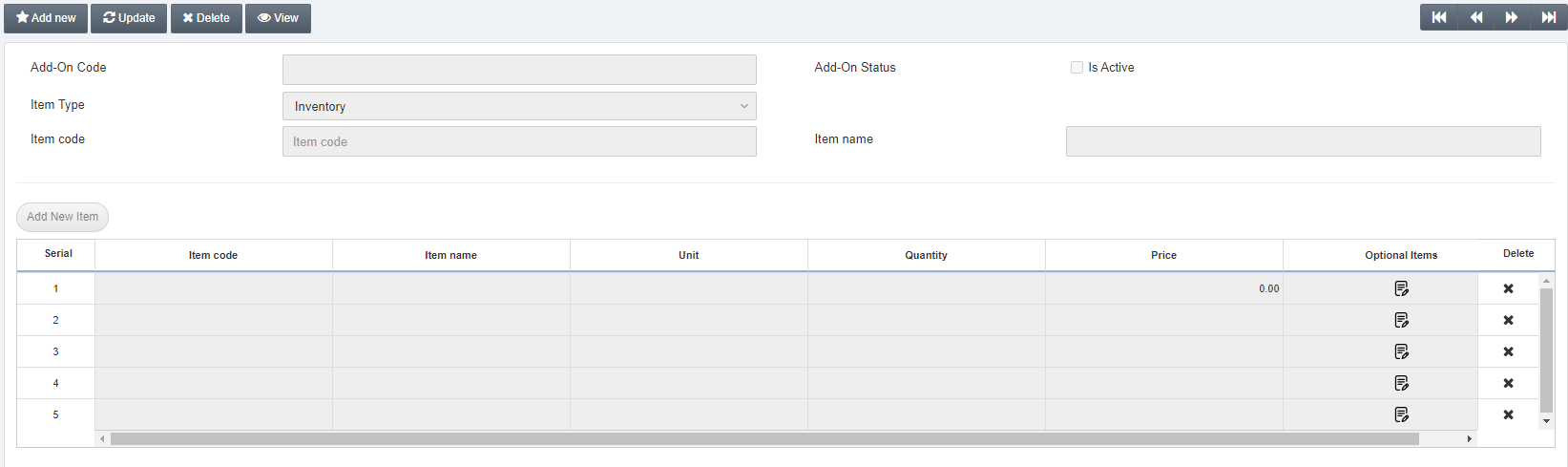 Click on the Add New button at the top of the page.
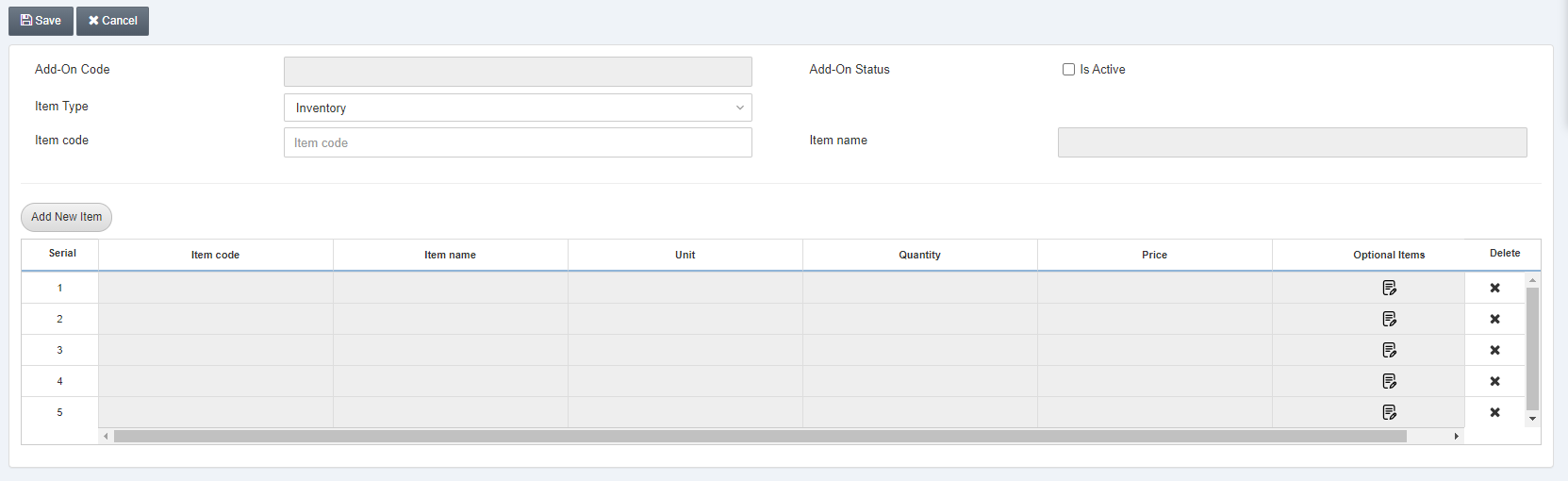 Add-On Code: This field is auto-generated by the system.
Add-On Status: Is Active: This checkbox applies/enables the Add-on functionality.
Item Type: Select the Item Type from the drop-down list.
Item Code: Enter the desired Item code on which you want to apply/enable the Item card Add-On.
Item Name: This field is auto-fetched by the system based on the Item Code above.
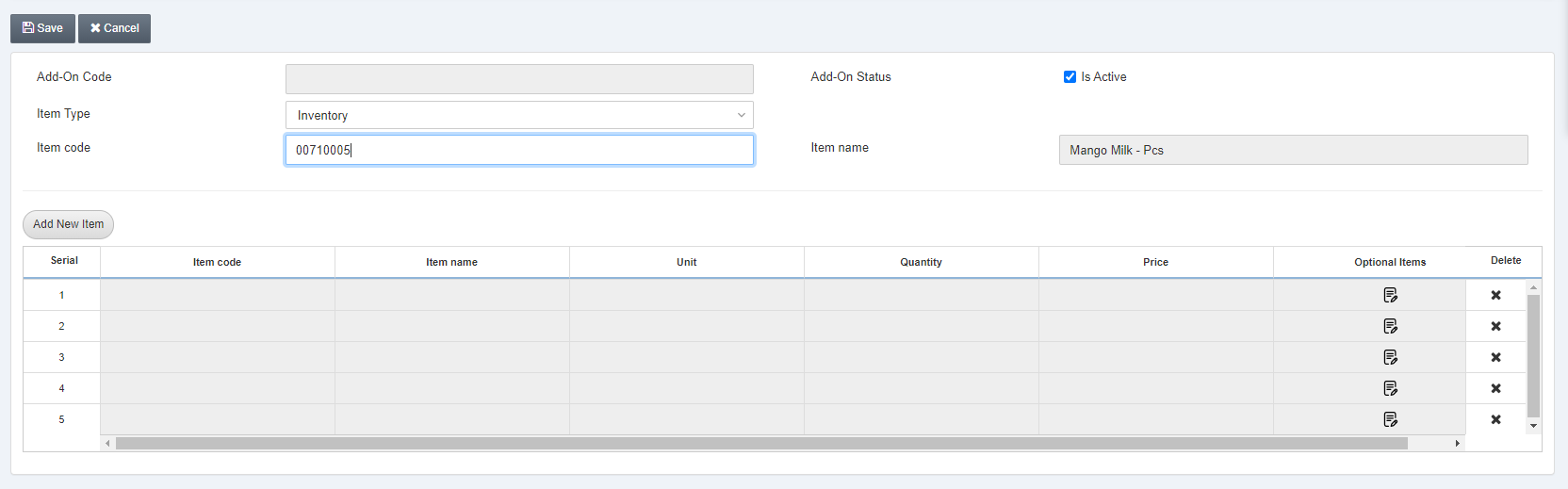 Click on the Add New Item button.
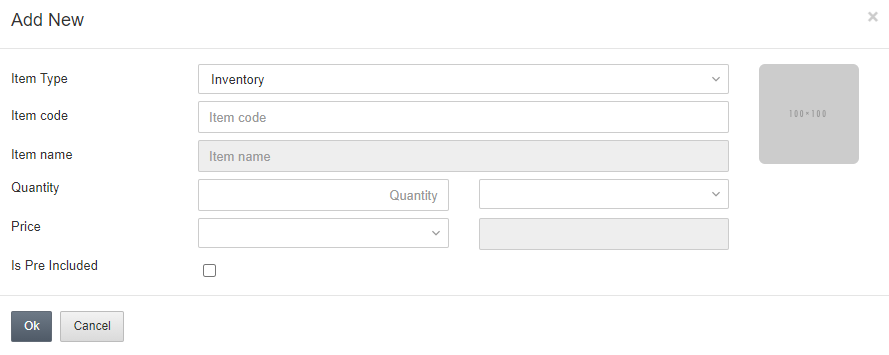
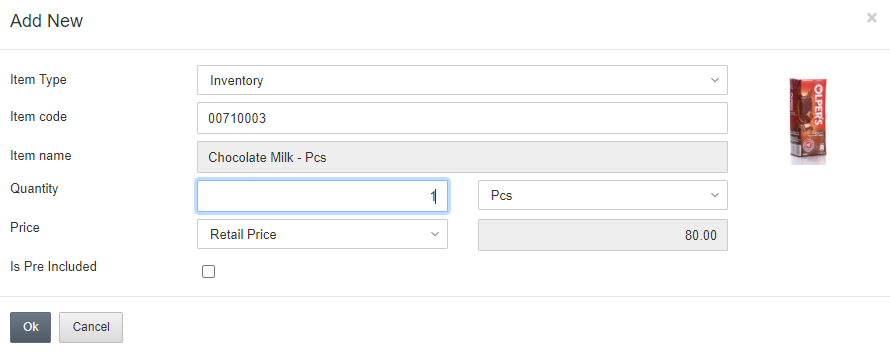 Item Type: This field selects the item type from the drop-down list.
Item Code: Enter the desired item code to be added as an Add-on item.
Item Name: This field is auto-fetched by the system.
Quantity: This field defines the quantity to be added.
Price: This field sets the price for the item.
Is Pre-Included: This checkbox allows that the item is already included. On checking this checkbox, add on quantity will be automatically fetched.
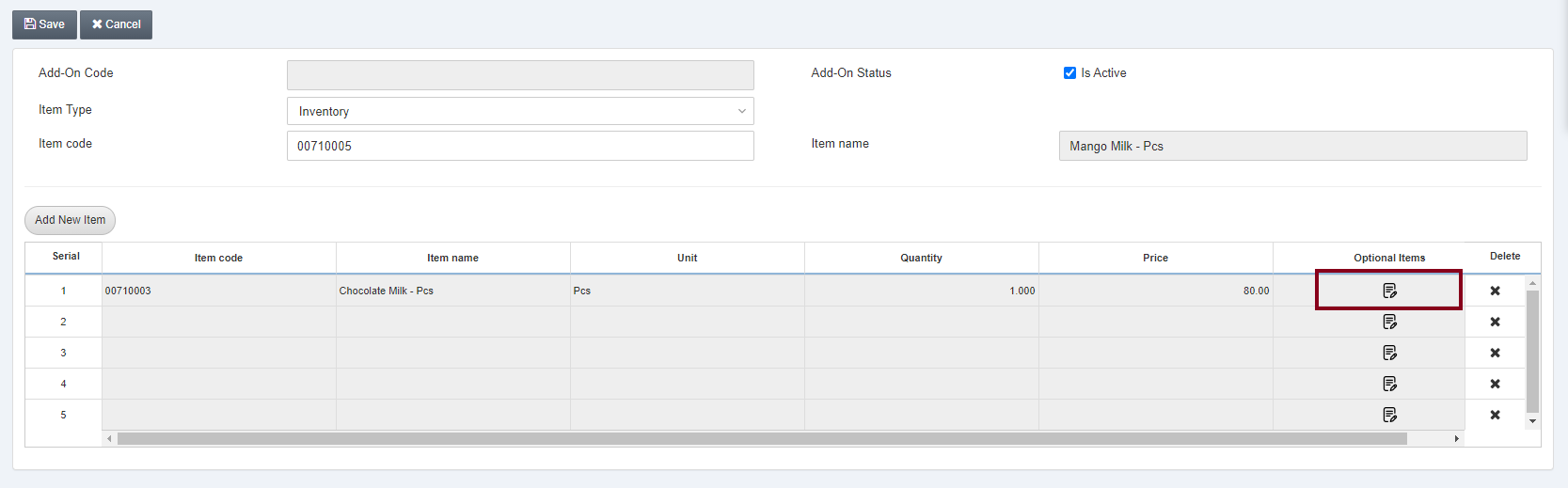 Click on the icon under the Optional Items.
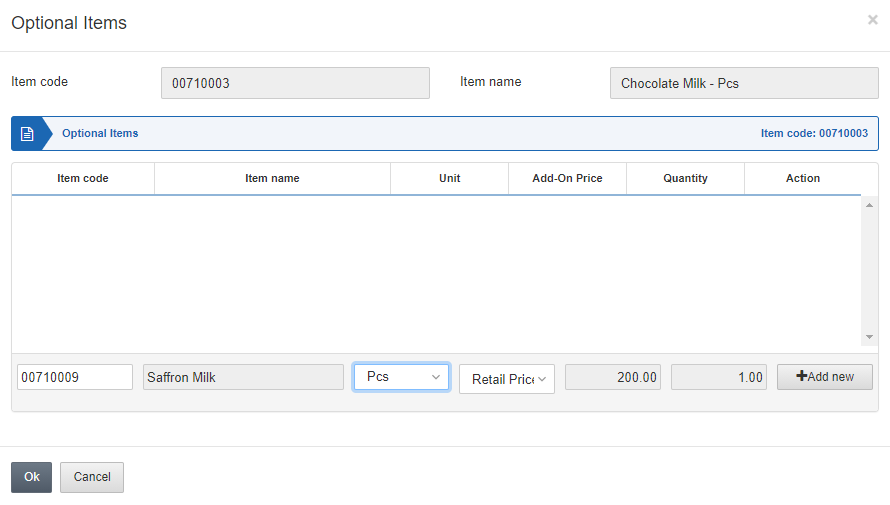
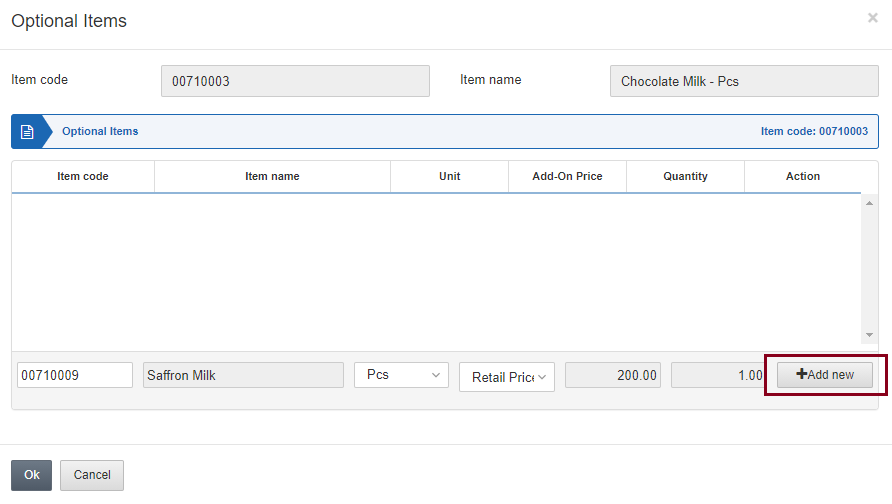 Click on the Add new button.
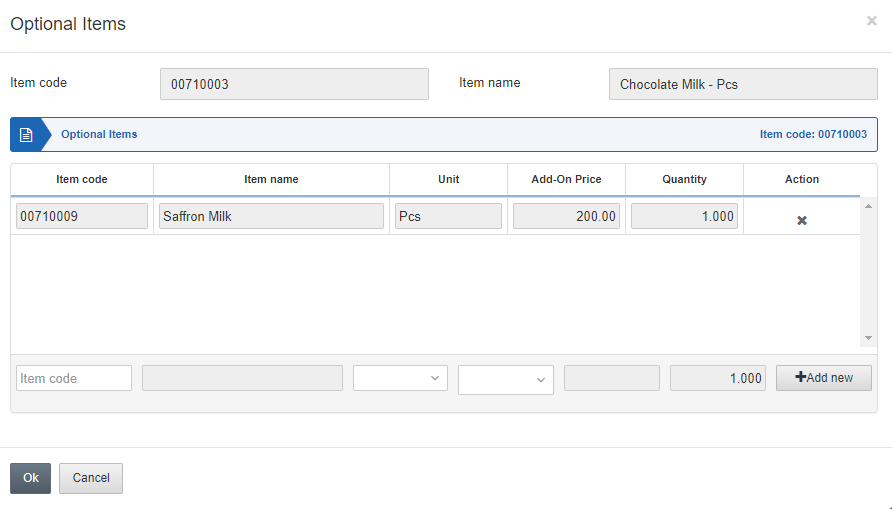 Click on the OK button to insert the information.
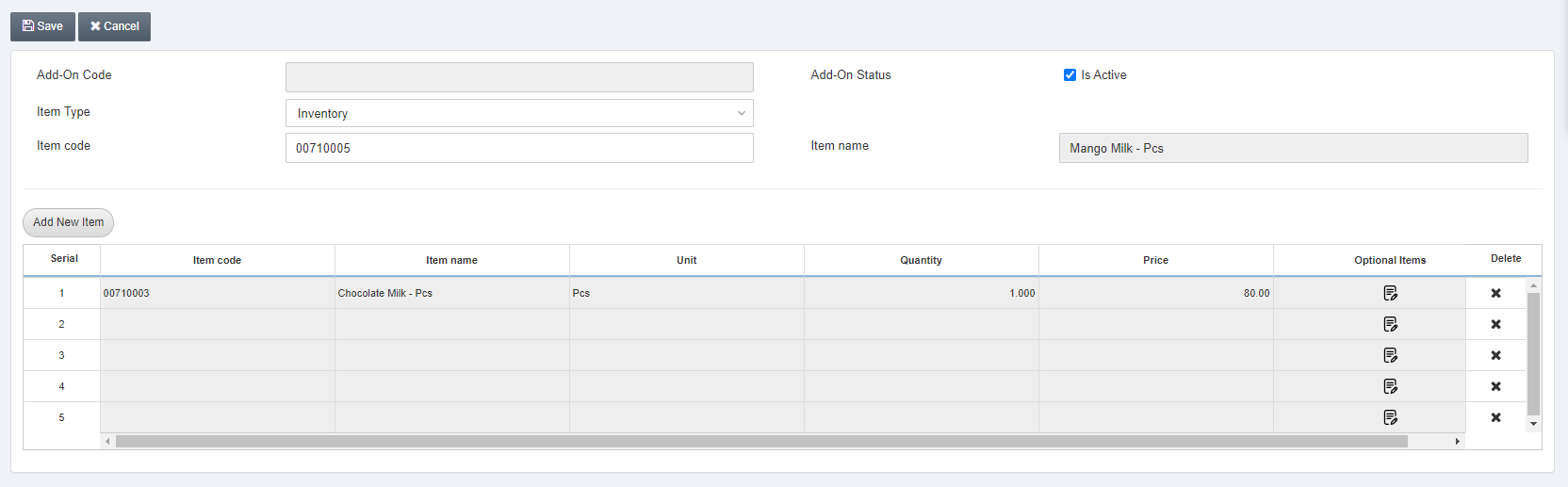 Note: You can also delete the add-on entries by clicking on the “X” sign under the Delete heading.
Click on the Save button to save the information.
Updating the Item Card Add-on
To update/edit the Item card add-on go to Inventory > Campaigns > Item Card Add-On, the Item Card Add-On page is displayed.
Click on the Update button at the top of the page.
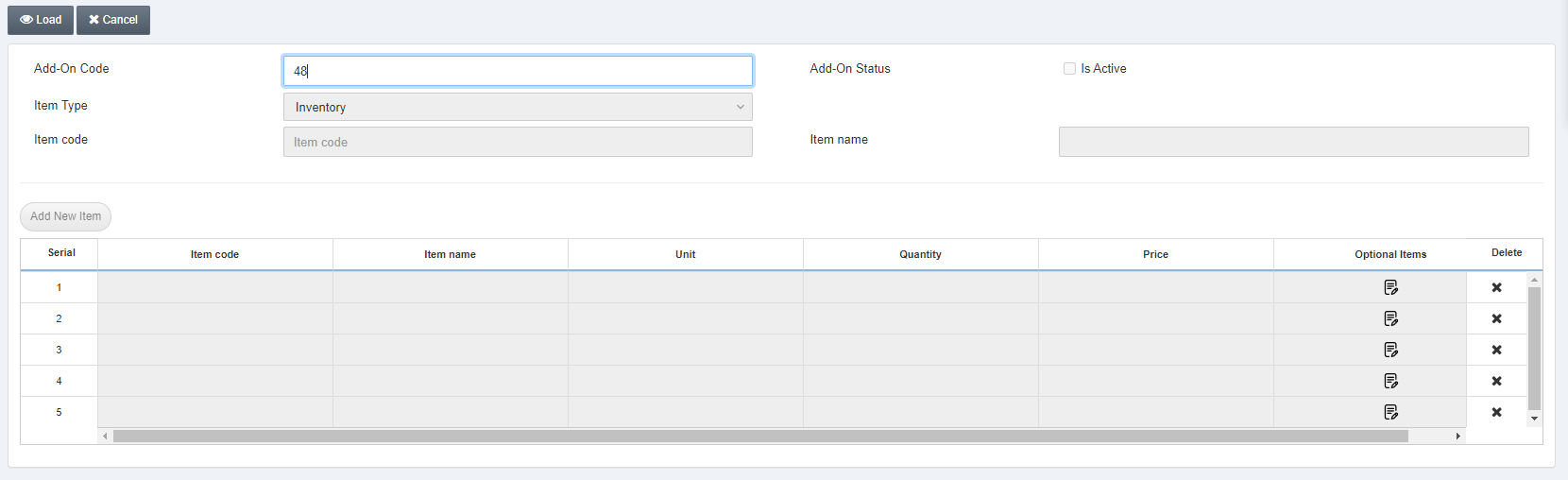 Add-on Code: Enter the desired Add-on code to be updated.
Click on the Load button at the top of the page.
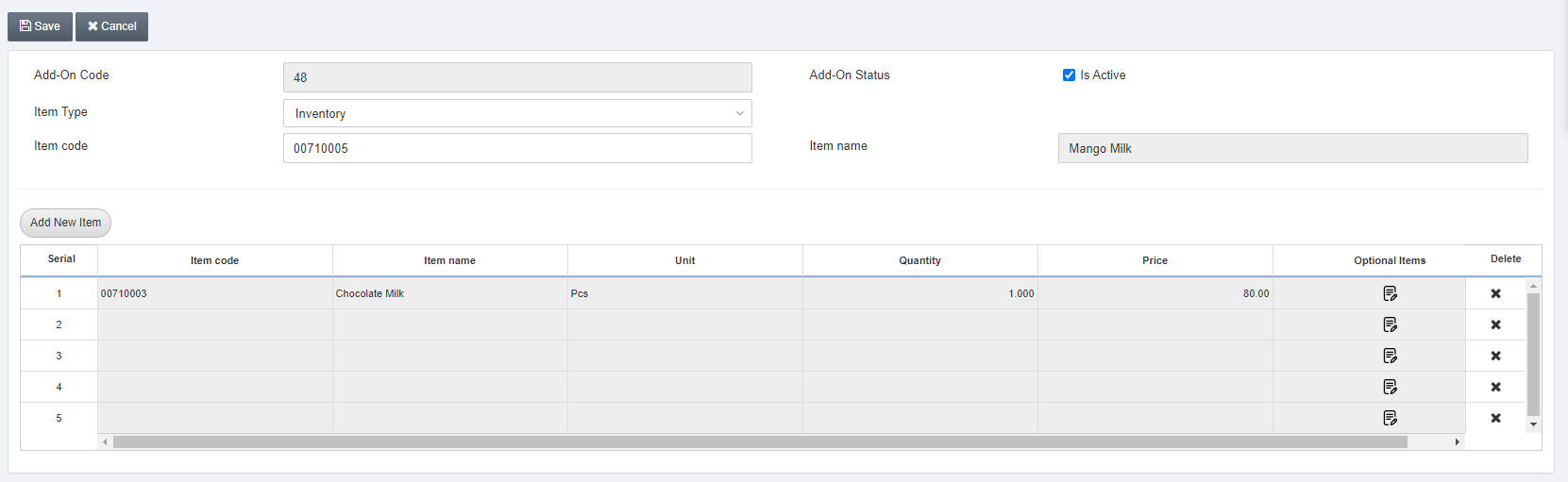 You can update the given information and click on the Save button to save the information.
Deleting the Item Card Add-on
To delete the Item card add-on go to Inventory > Campaigns > Item Card Add-On, the Item Card Add-On page is displayed.
Click on the Delete button at the top of the page.
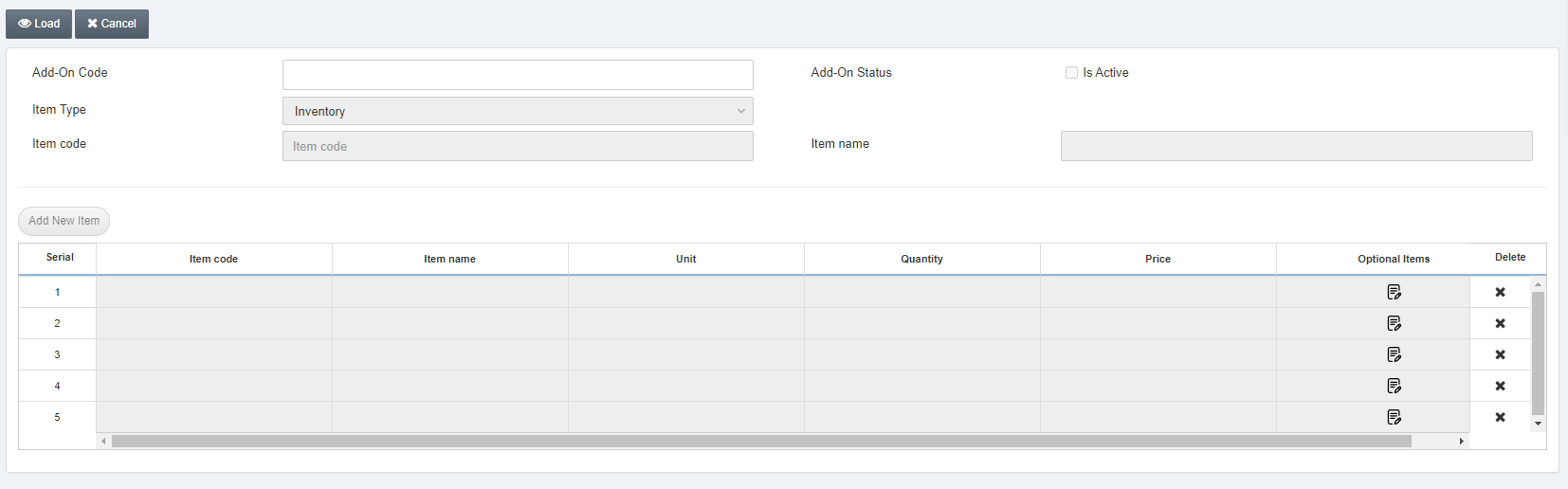 Add-on Code: Enter the desired Add-on code to be updated.
Click on the Load button at the top of the page.
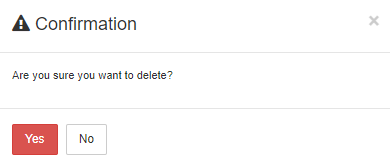 Click on the Yes button to confirm the deletion.
Note: The Add-on functionality does not apply to the Dimensional Items.
Note: Similarly you can view add-on details by clicking on the View button at the top of the page and then followed by entering the add-on code and clicking on the Load button.
Was this article helpful?
Start with SMACC today
Try free for 14 days — no credit card, no commitment.