
Barcode Label Printing
In Barcode Label Printing, you can print all information in barcode label for the items of inventory.
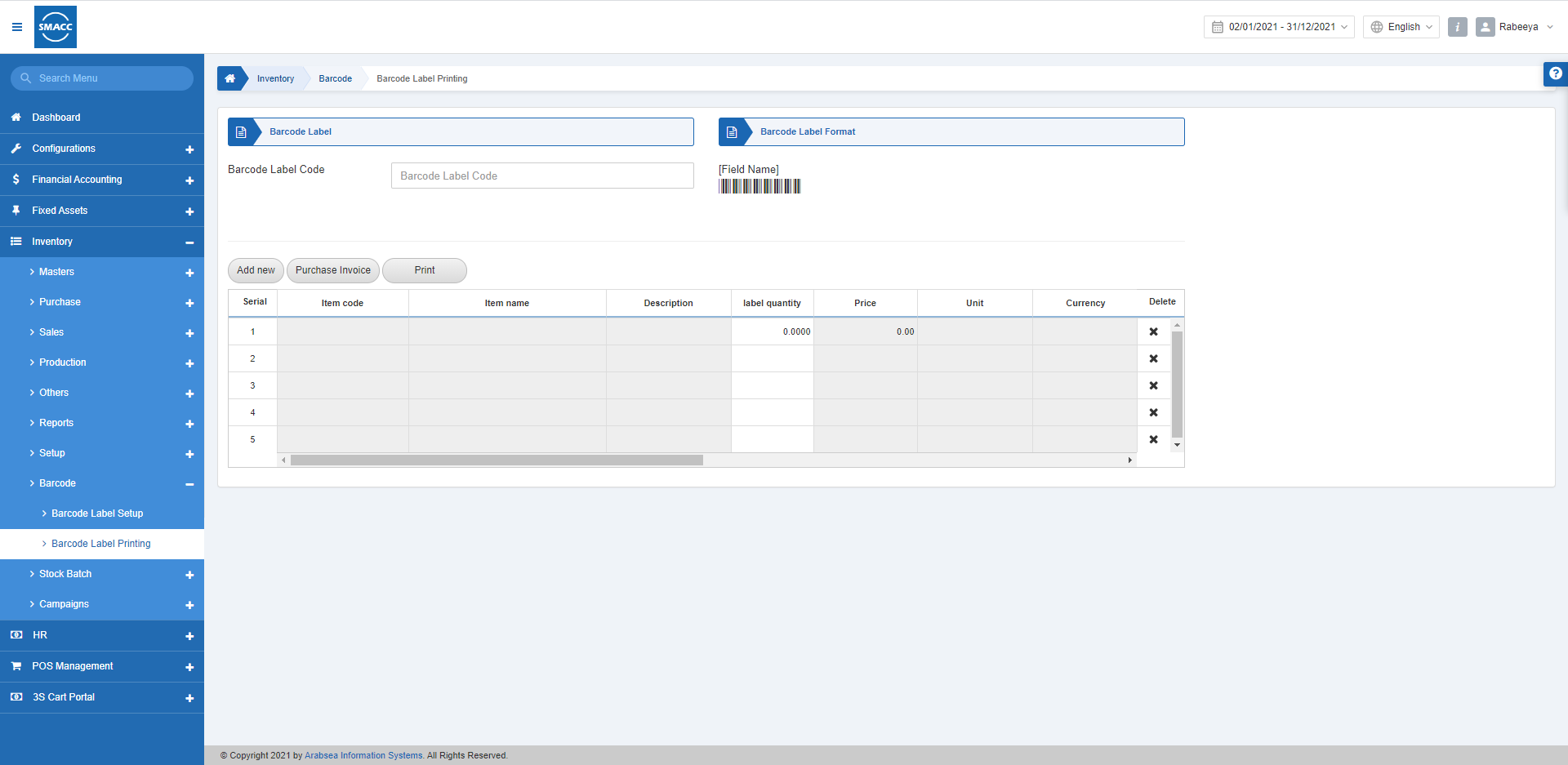
Printing Barcode Label by Adding Items
To print the barcode label, go to Inventory > Barcode > Printing Barcode Label, the printing barcode label page is displayed.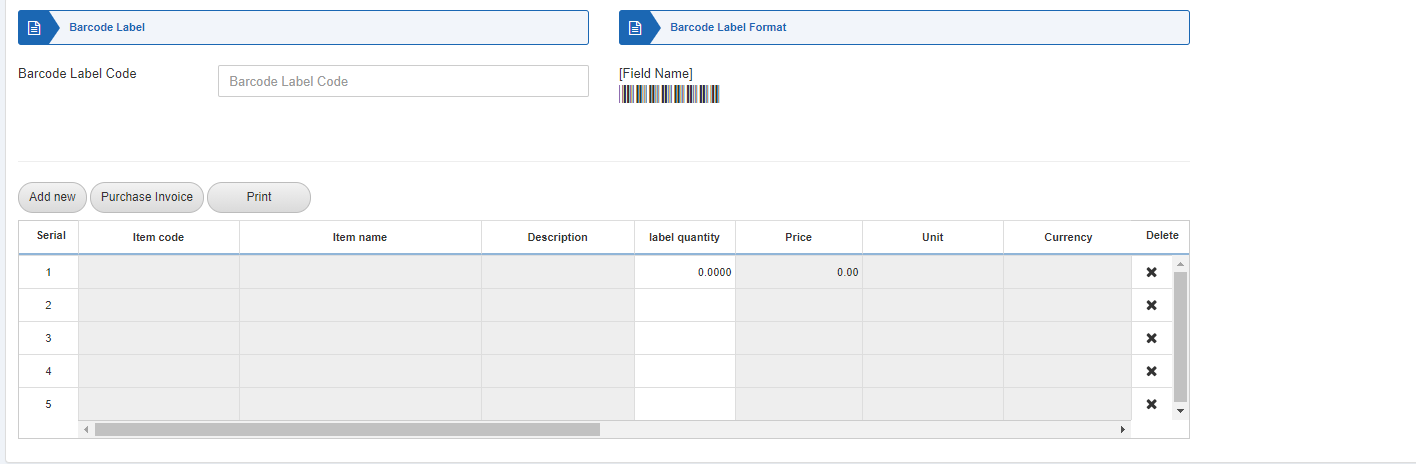 Barcode Label Code: Enter the barcode label code to be implemented.
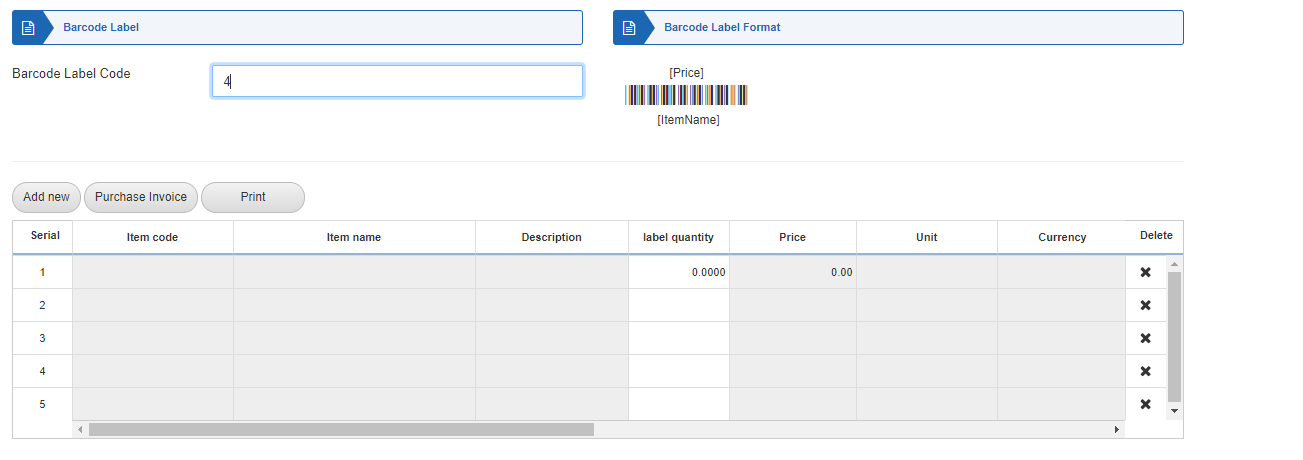 Click on the Add New button to add the items on which you want to print the barcode.
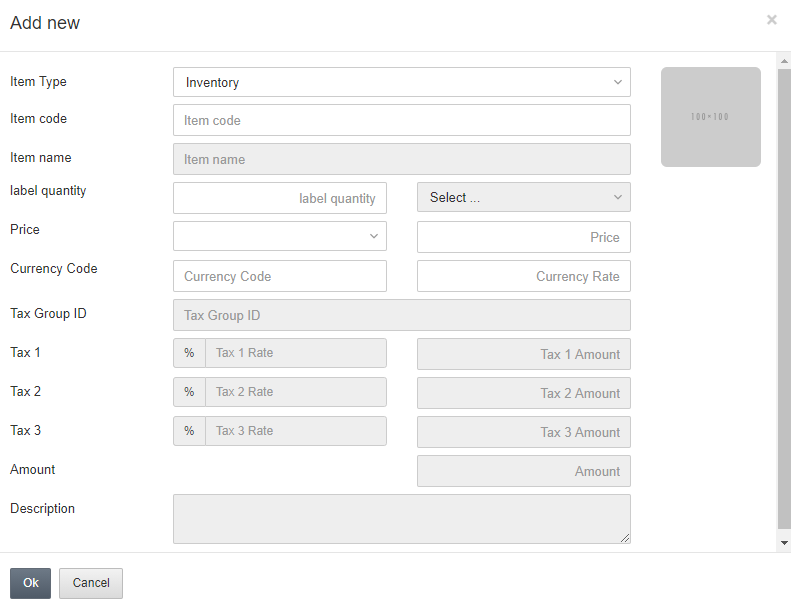 Label Quantity: This field sets the quantity of printing the barcode labels in bulk amount.
Currency Code: This field allows the selection of currency from the drop-down list.
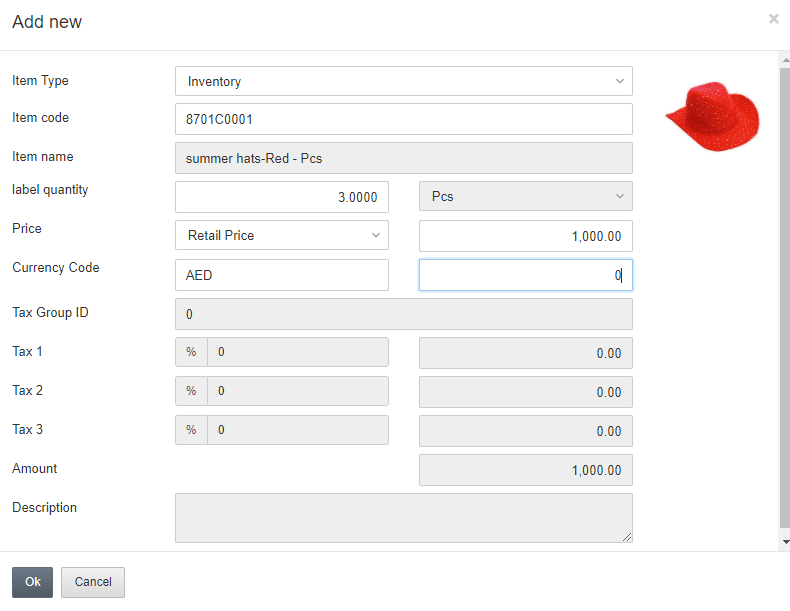 Click on the OK button to save the item information.
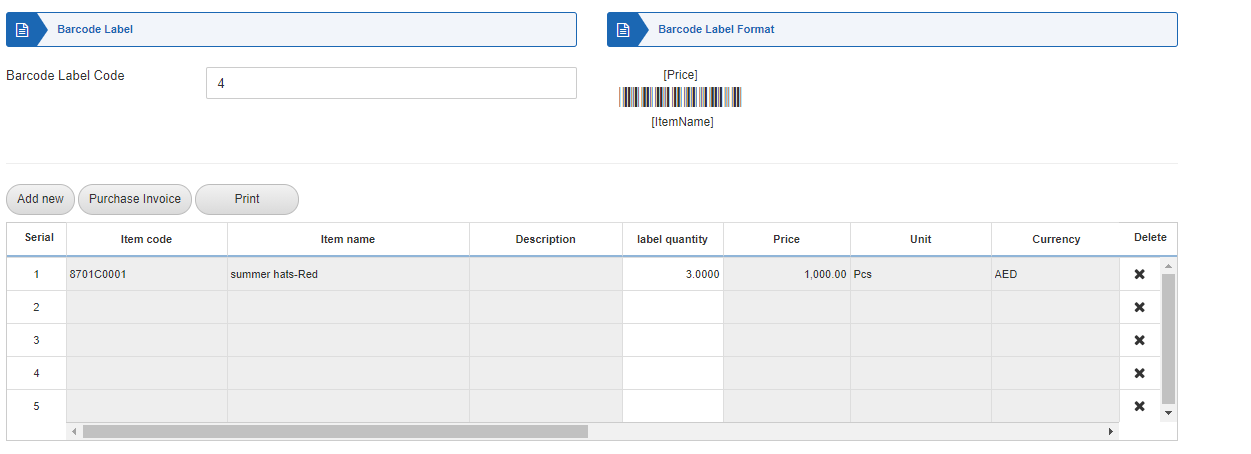 Note: You can delete any entry by clicking on "X" under Delete.
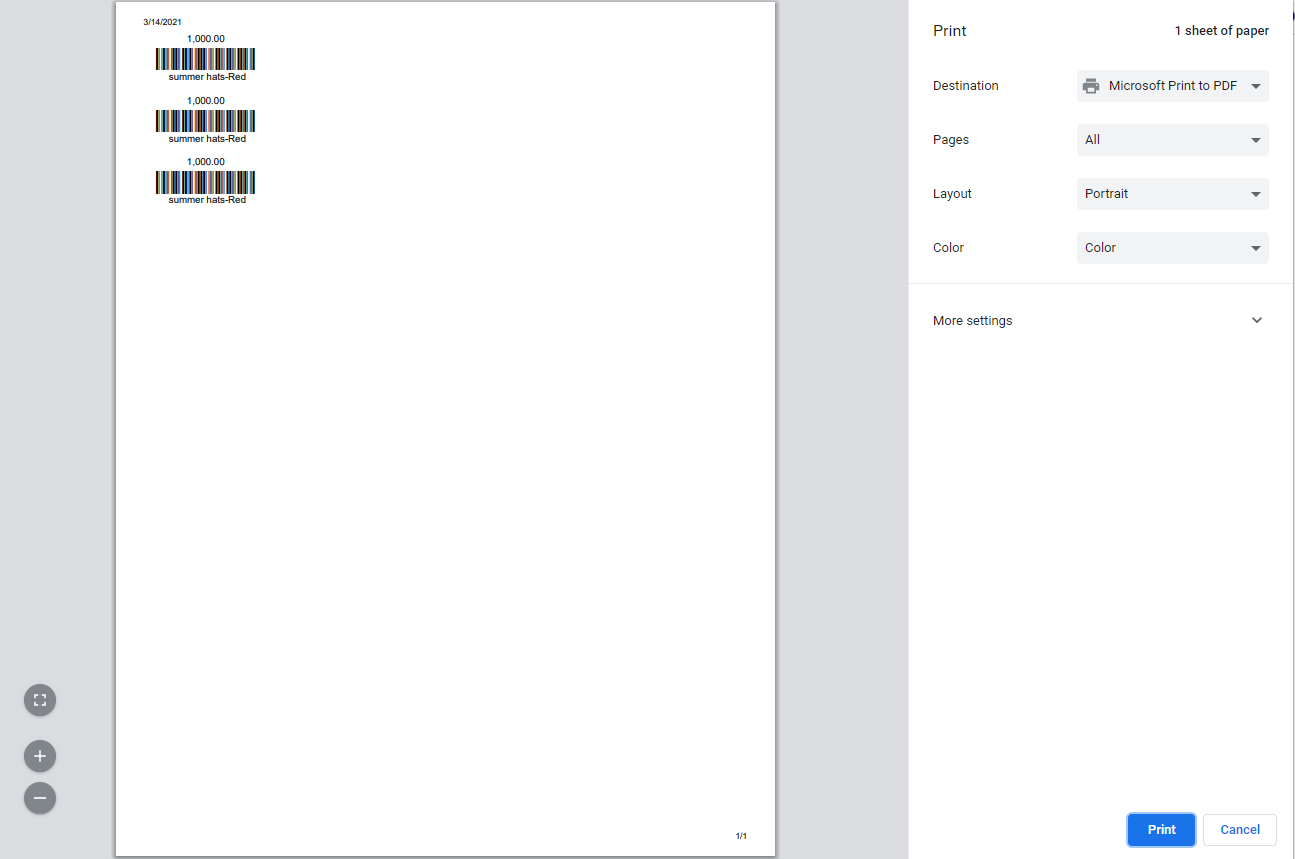
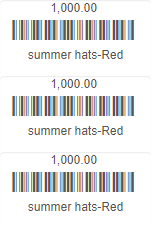
Click on the Print button.
Printing Barcode Label by Purchase Invoice
To print the barcode label, go to Inventory > Barcode > Printing Barcode Label, the printing barcode label page is displayed.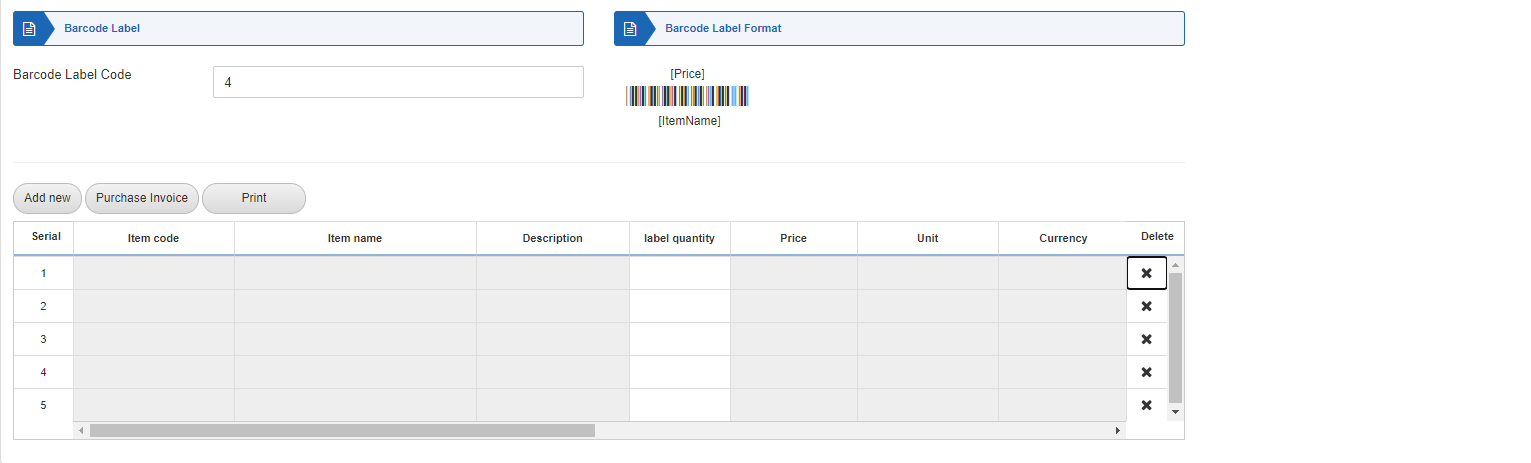
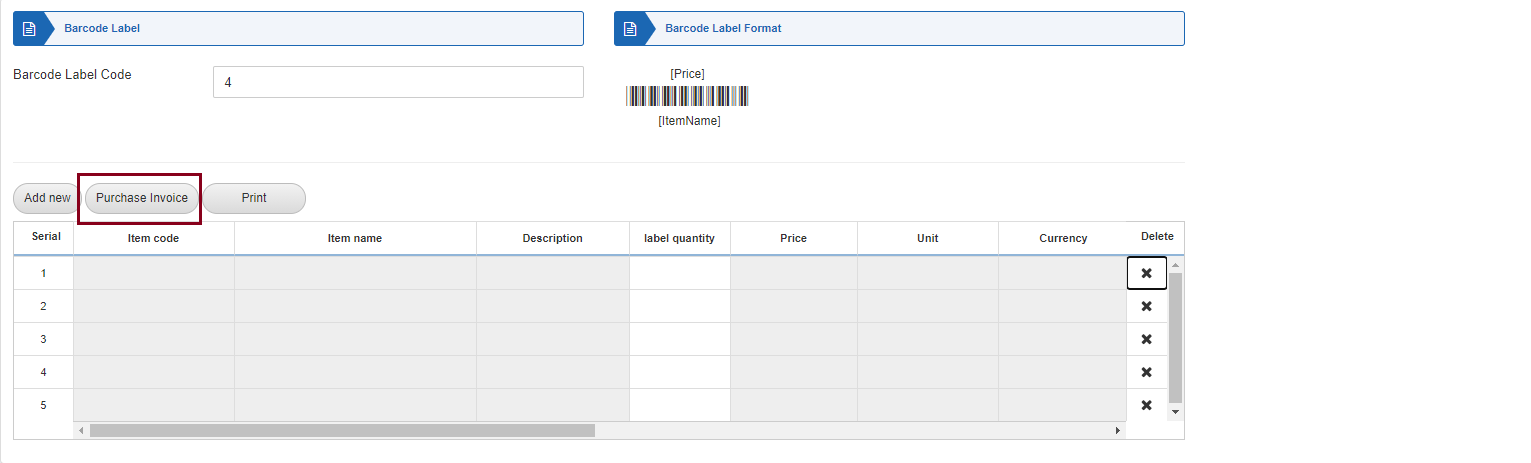 Click on the Purchase Invoice button.
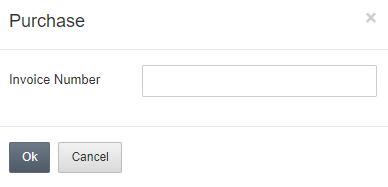 Enter the desired purchase invoice number.
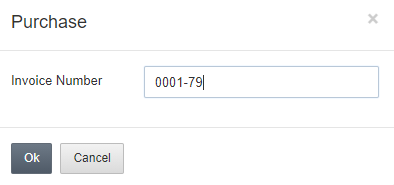 Click on the Ok button.
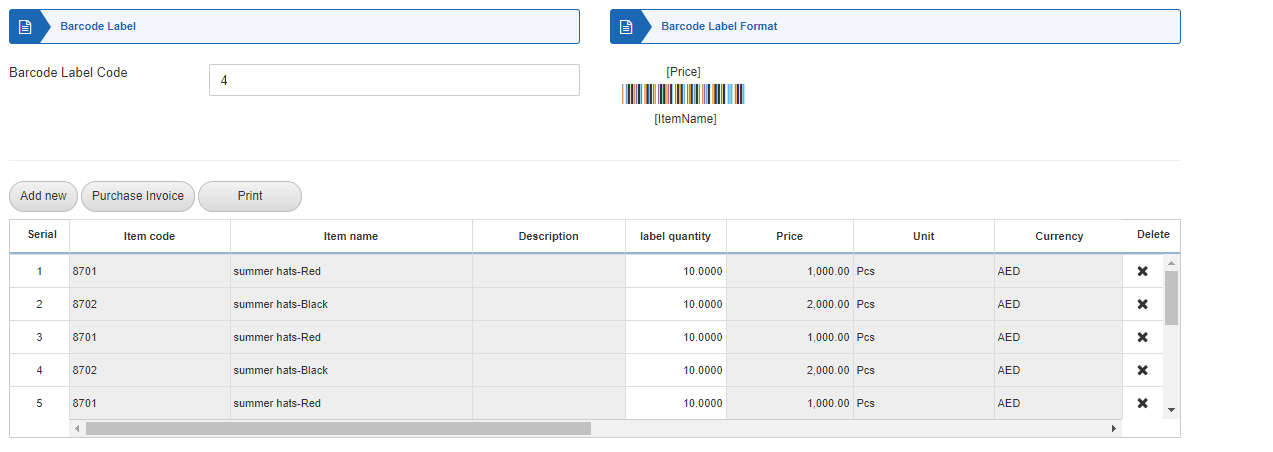 Now click on the Print button.
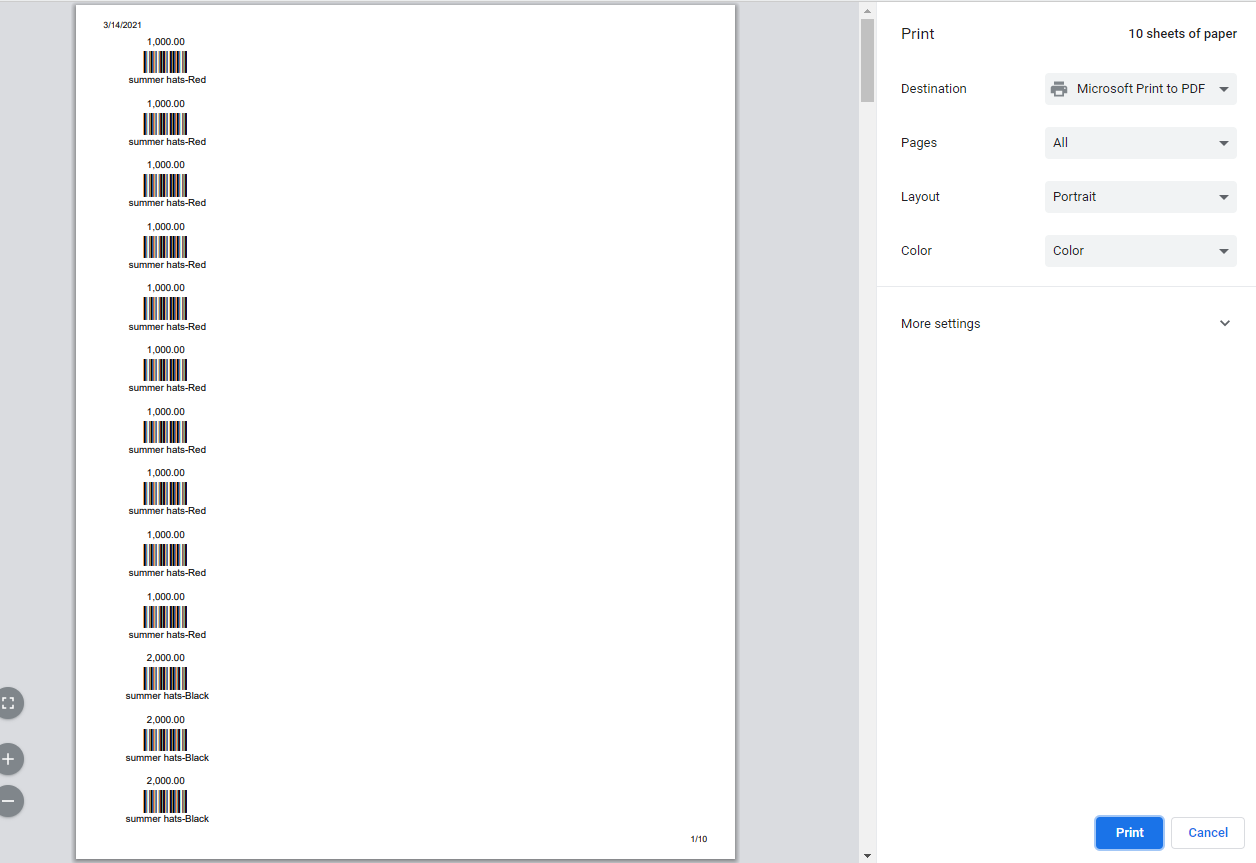 Note: Once the barcode labels are printed, you can paste them on the items for scanning through the barcode scanners.
Was this article helpful?
Start with SMACC today
Try free for 14 days — no credit card, no commitment.