
Provisions
In provisions, you can update all the provisional information of the employees and employer.
Updating/Editing Employees Provisions in HR.
To update/edit Employees Provisions in HR”, click on the “HR”, then “Employees”, then click “Provisions”. Provisions page will be displayed.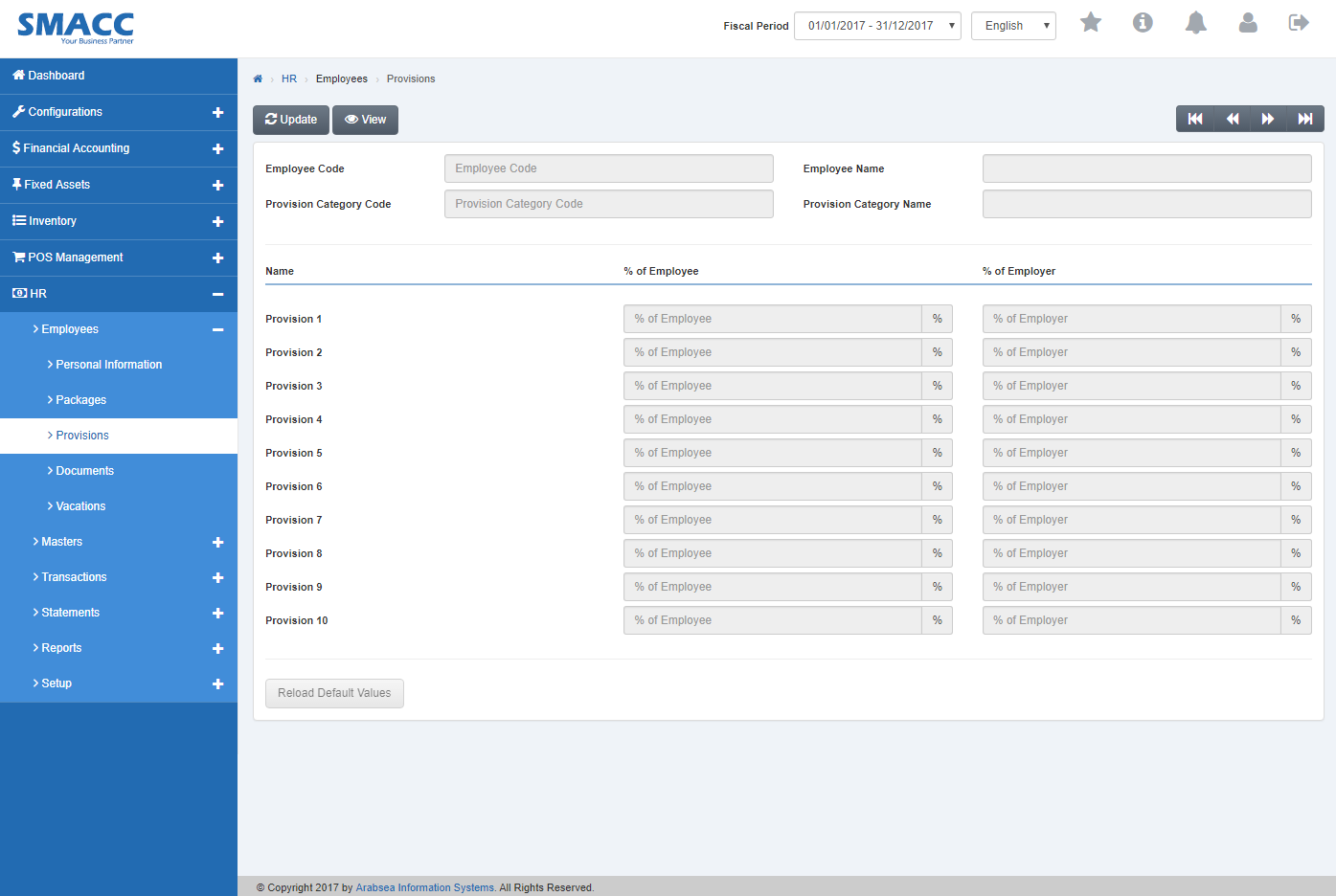 Click the “Update” button on the top of provisions page.
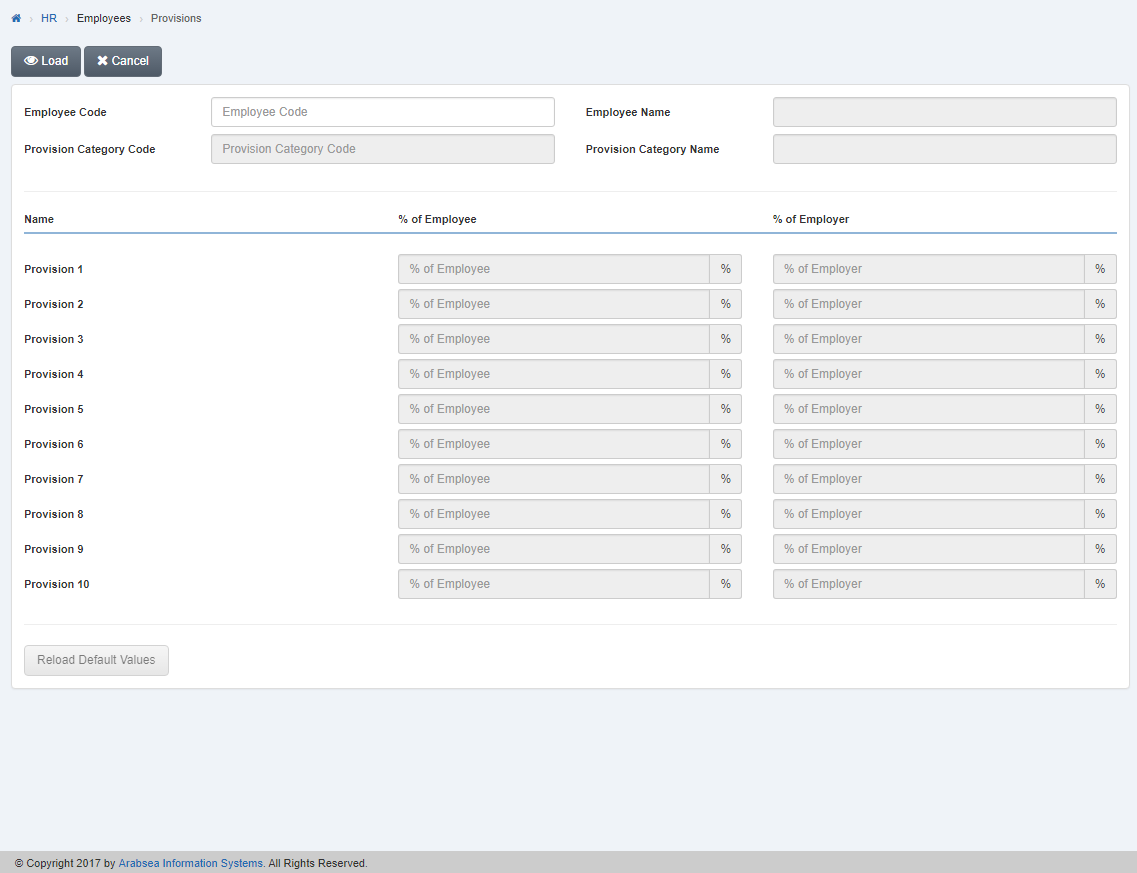 Select employee code by navigation bar or enter employee code in “Employee Code” input box then click “Load” button.
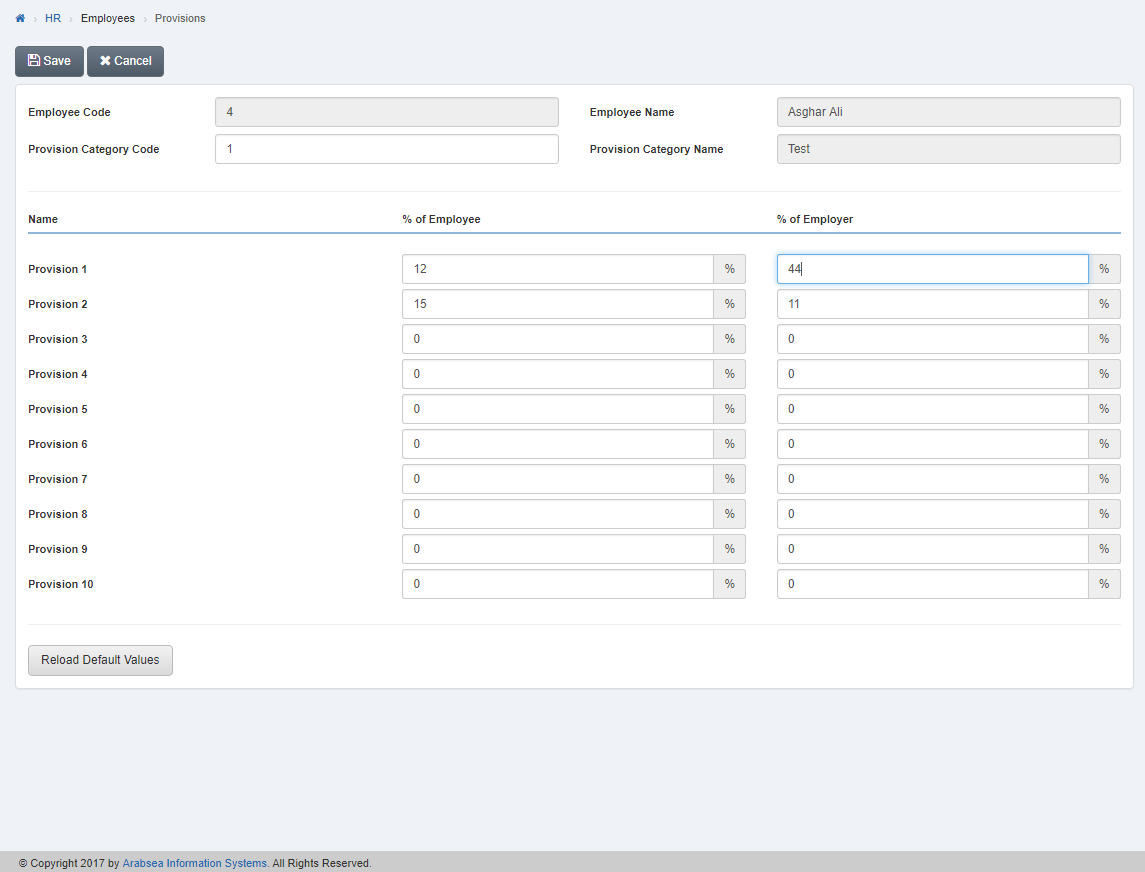
 Enter provisional percentage of employee in column “% of Employee” input box then enter provisional percentage of employer in column “% of Employer” input box. You can set up to 10 provisional percentage of employee and employer.
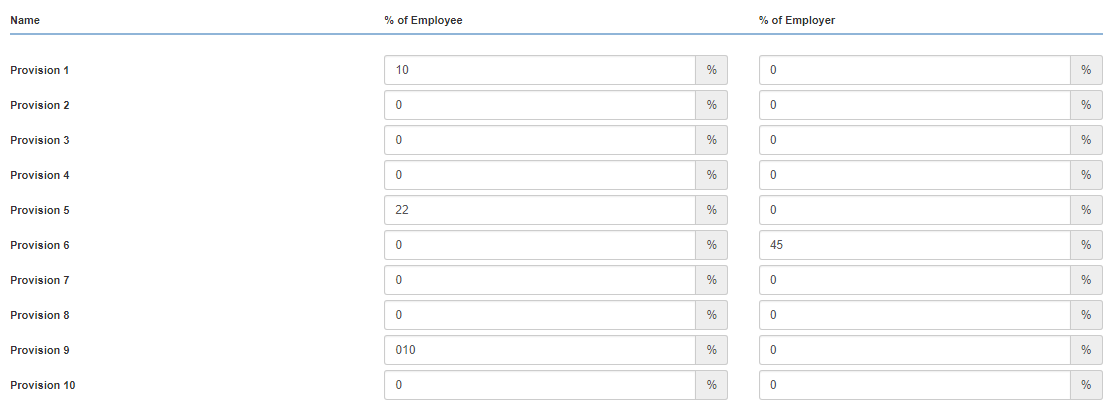 Note: You can change string (Provision 1…) into your desired string in HR -> Setup -> Change Strings.
To reload default values, click on “Reload Default Values” button then default values will be reloaded.
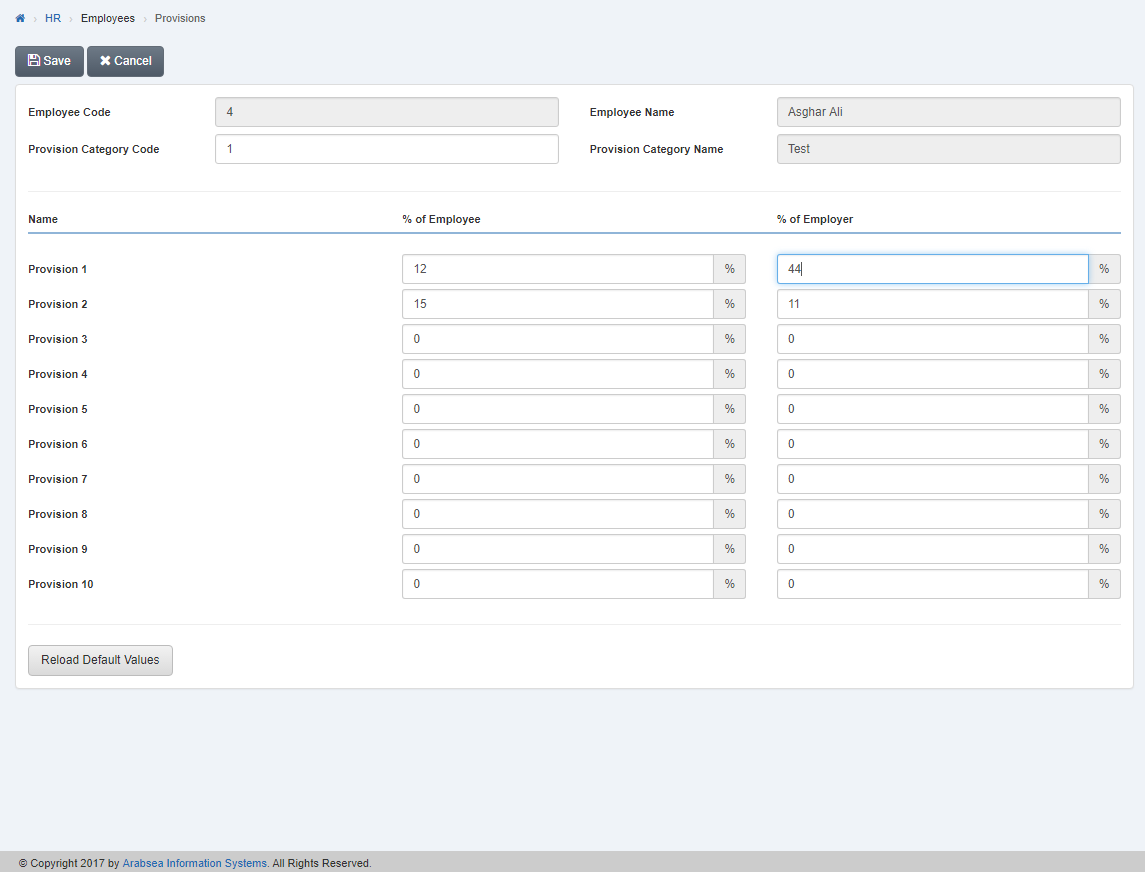 Click “Save” button to save the information.
Updating/Editing Provision Category Code in HR.
To update/edit “Provision Category Code in HR”, click on the “HR”, then “Employees”, then click “Provisions”. Provisions page will be displayed.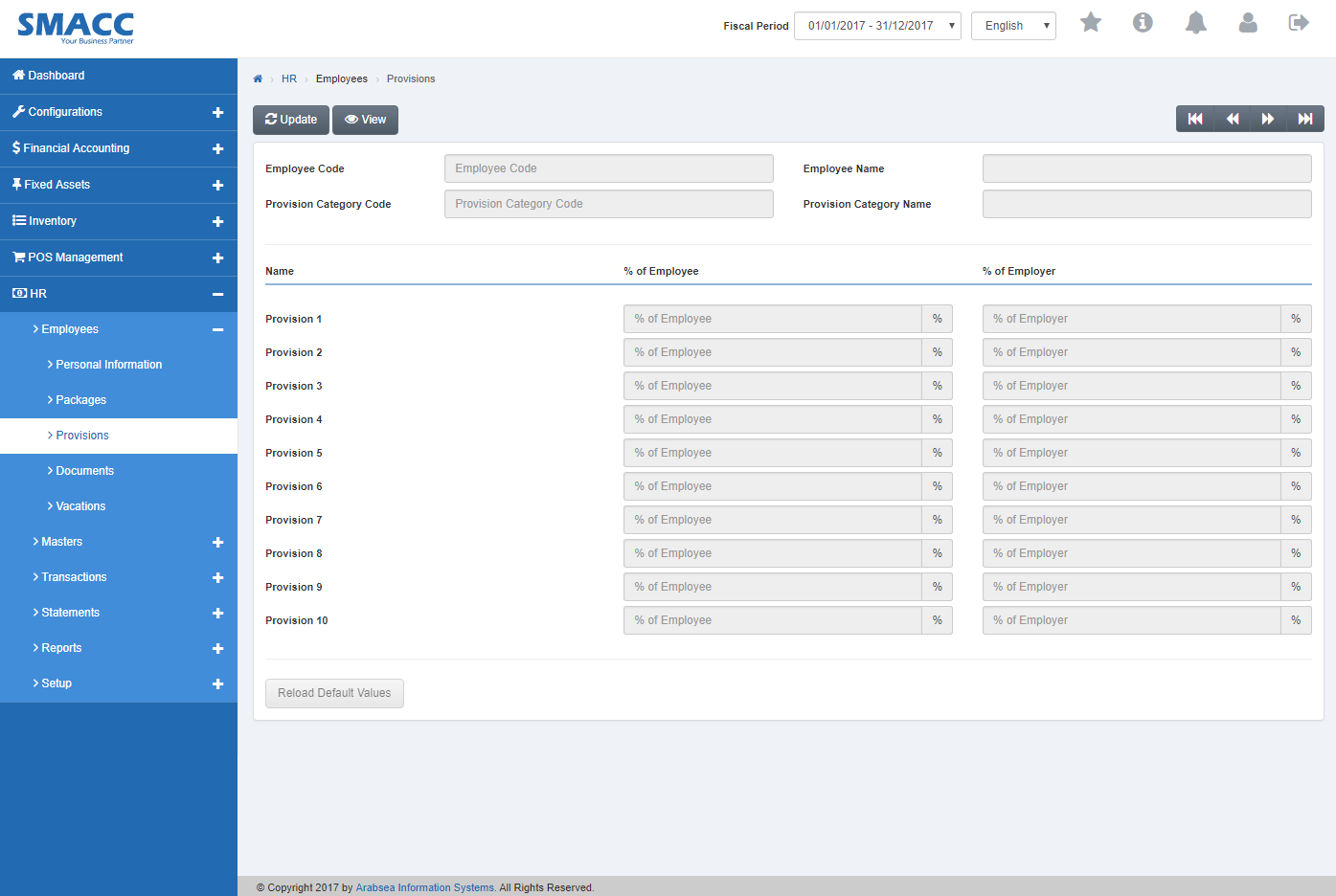 Click the “Update” button on the top of provisions page.
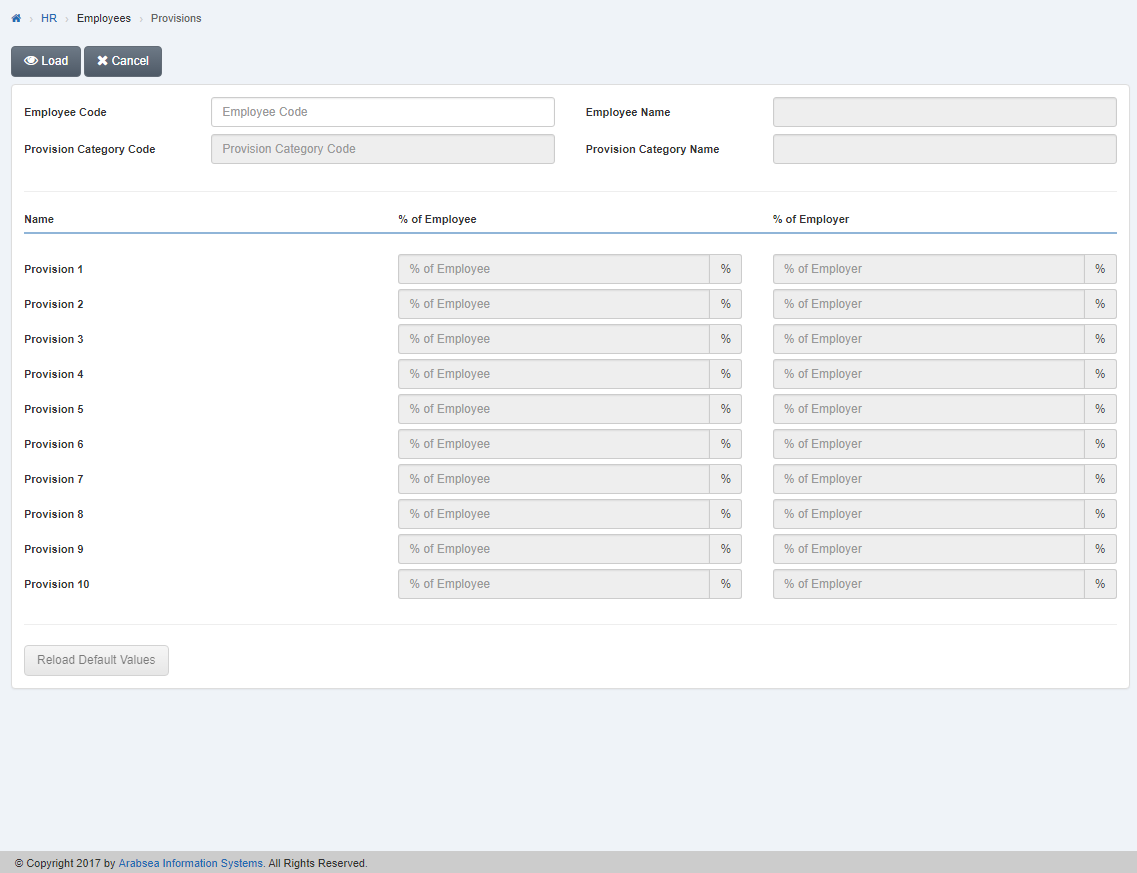 Select employee code by navigation bar or enter employee code in “Employee Code” input box then click “Load” button.
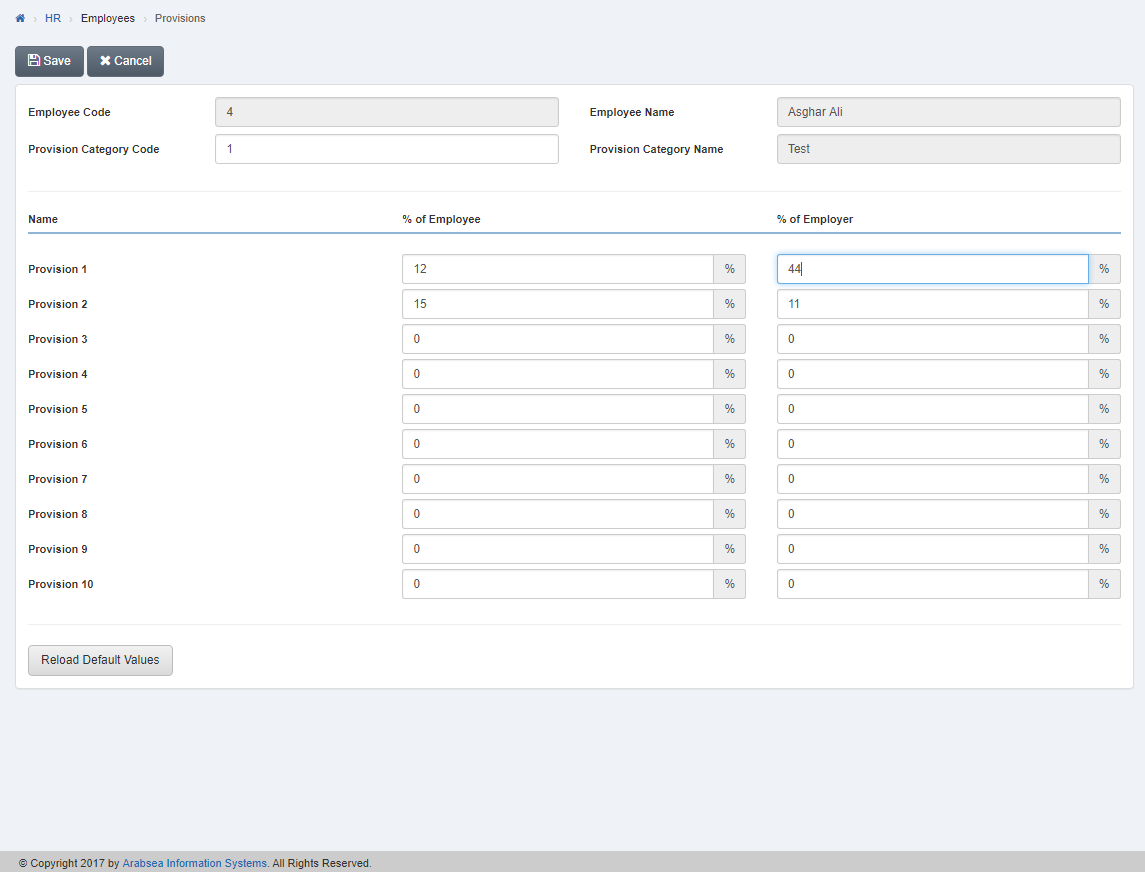

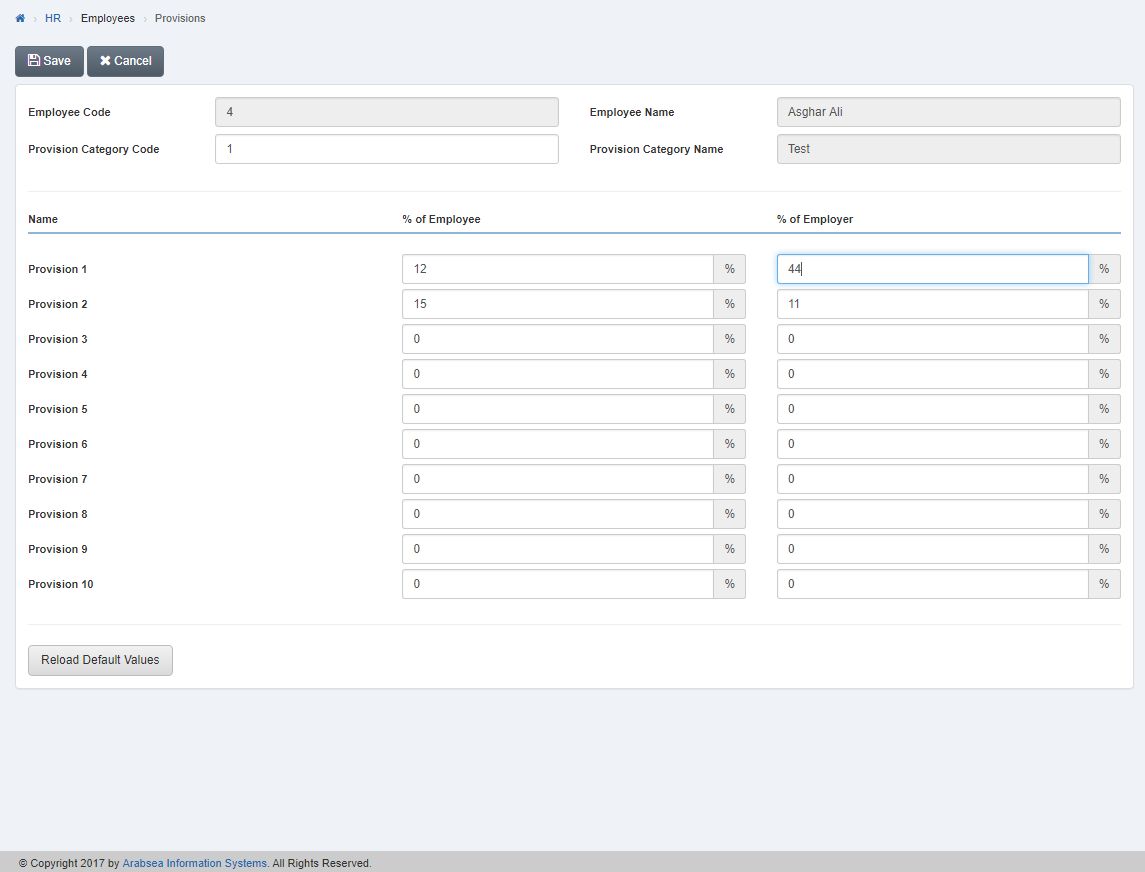 Click “Save” button to save the information.
Setting Percentage of Employee & Employer in HR.
To set “Percentage of Employee & Employer in HR”, click on the “HR”, then “Employees”, then click “Provisions”. Provisions page will be displayed.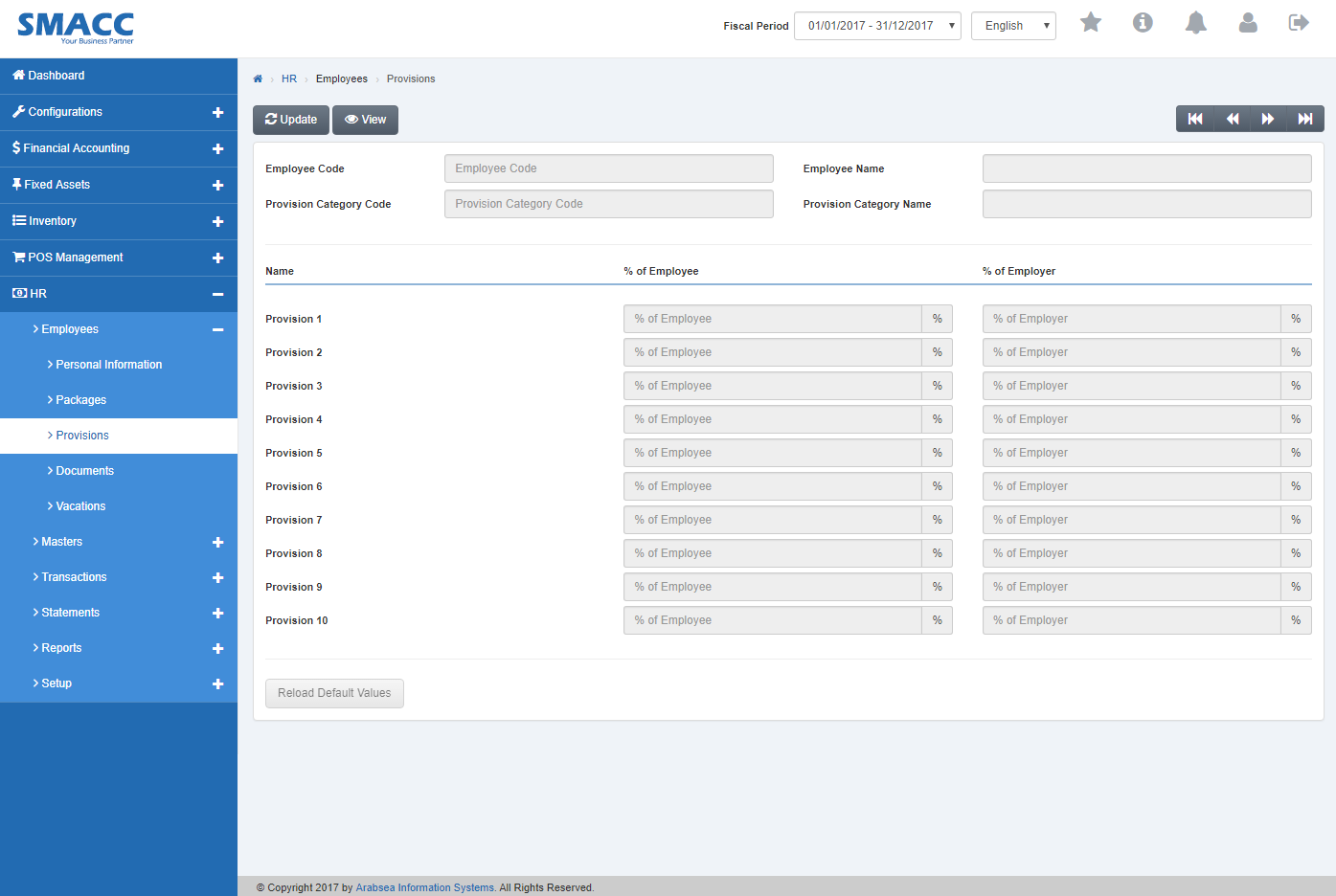 Click the “Update” button on the top of provisions page.
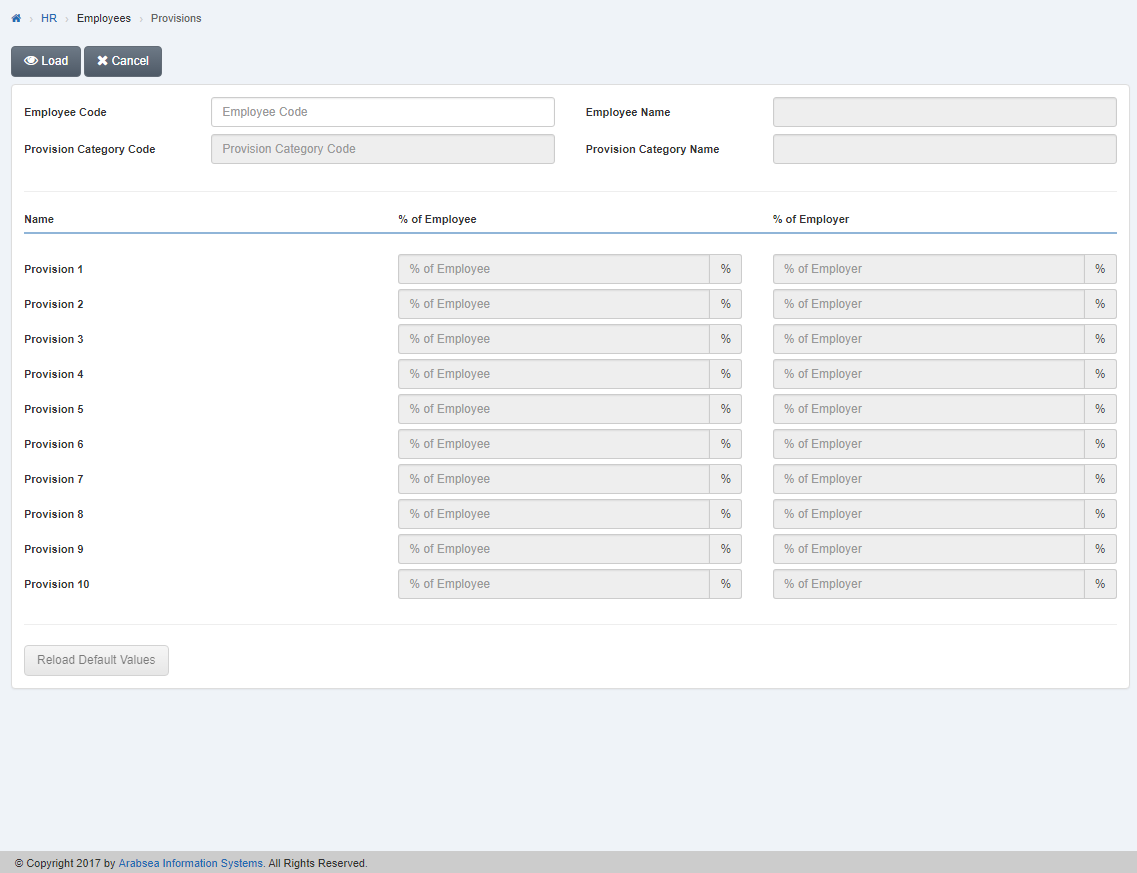 Select employee code by navigation bar or enter employee code in “Employee Code” input box then click “Load” button.
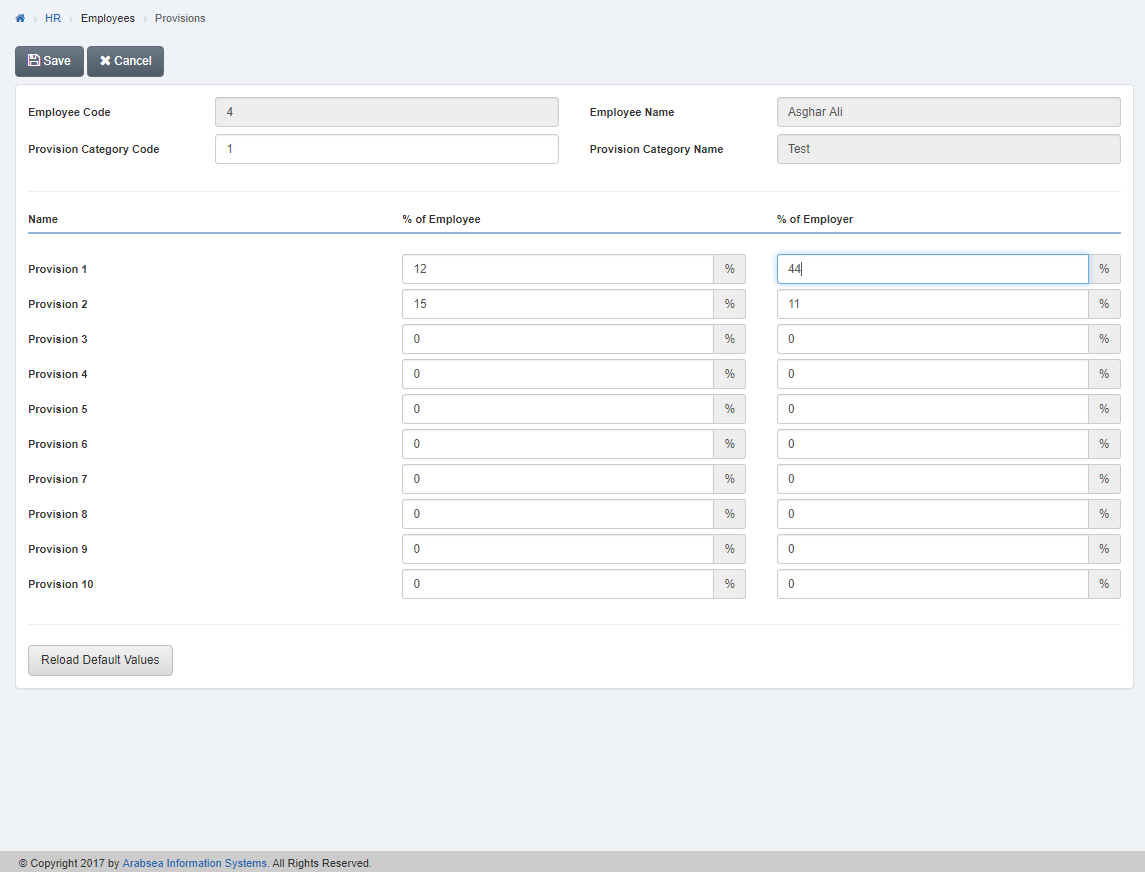 Enter provisional percentage of employee in column “% of Employee” input box then enter provisional percentage of employer in column “% of Employer” input box. You can set up to 10 provisional percentage of employee and employer.
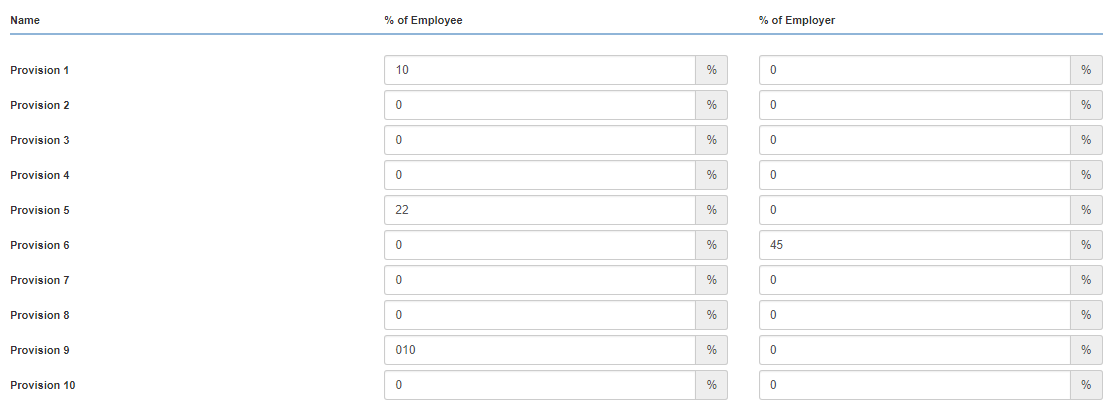 Note: You can change string (Provision 1…) into your desired string in HR -> Setup -> Change Strings.
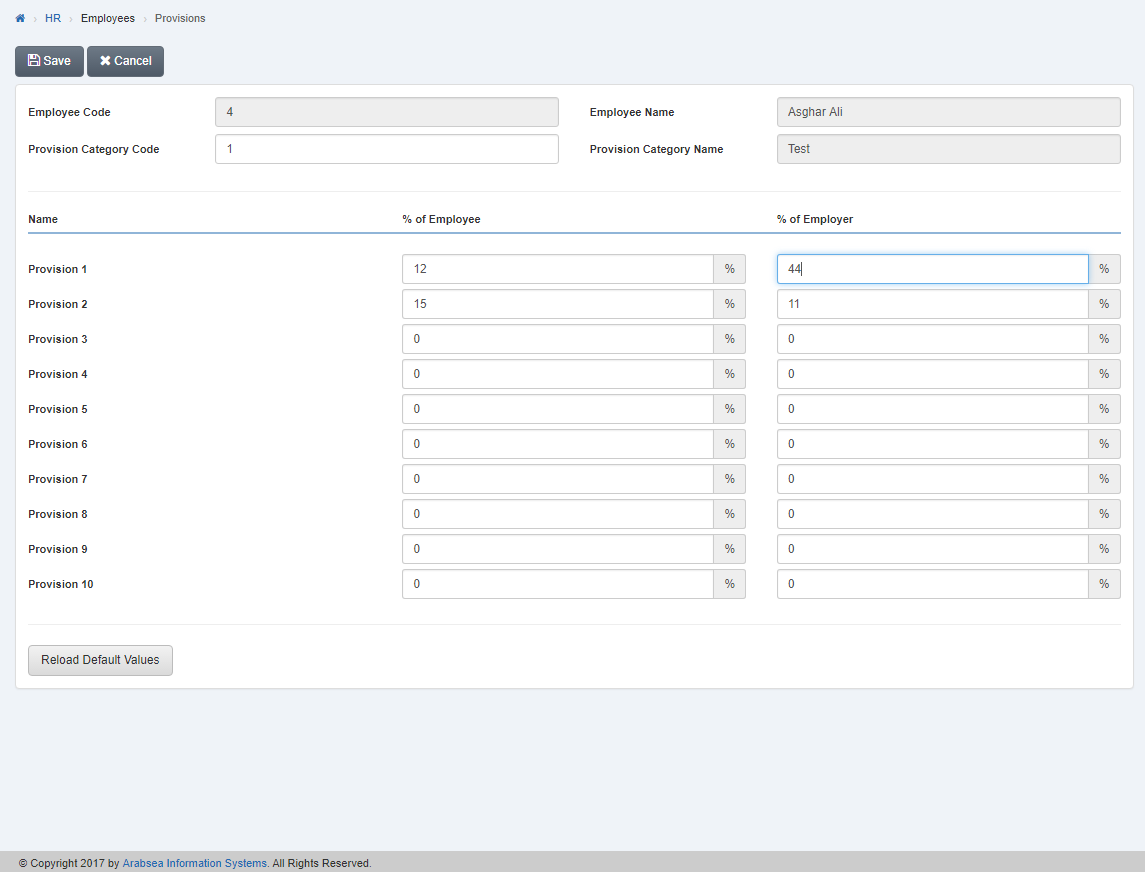 Click “Save” button to save the information.
Reload Default Values in Provision.
To “Reload Default Values in Provision”, click on the “HR”, then “Employees”, then click “Provisions”. Provisions page will be displayed.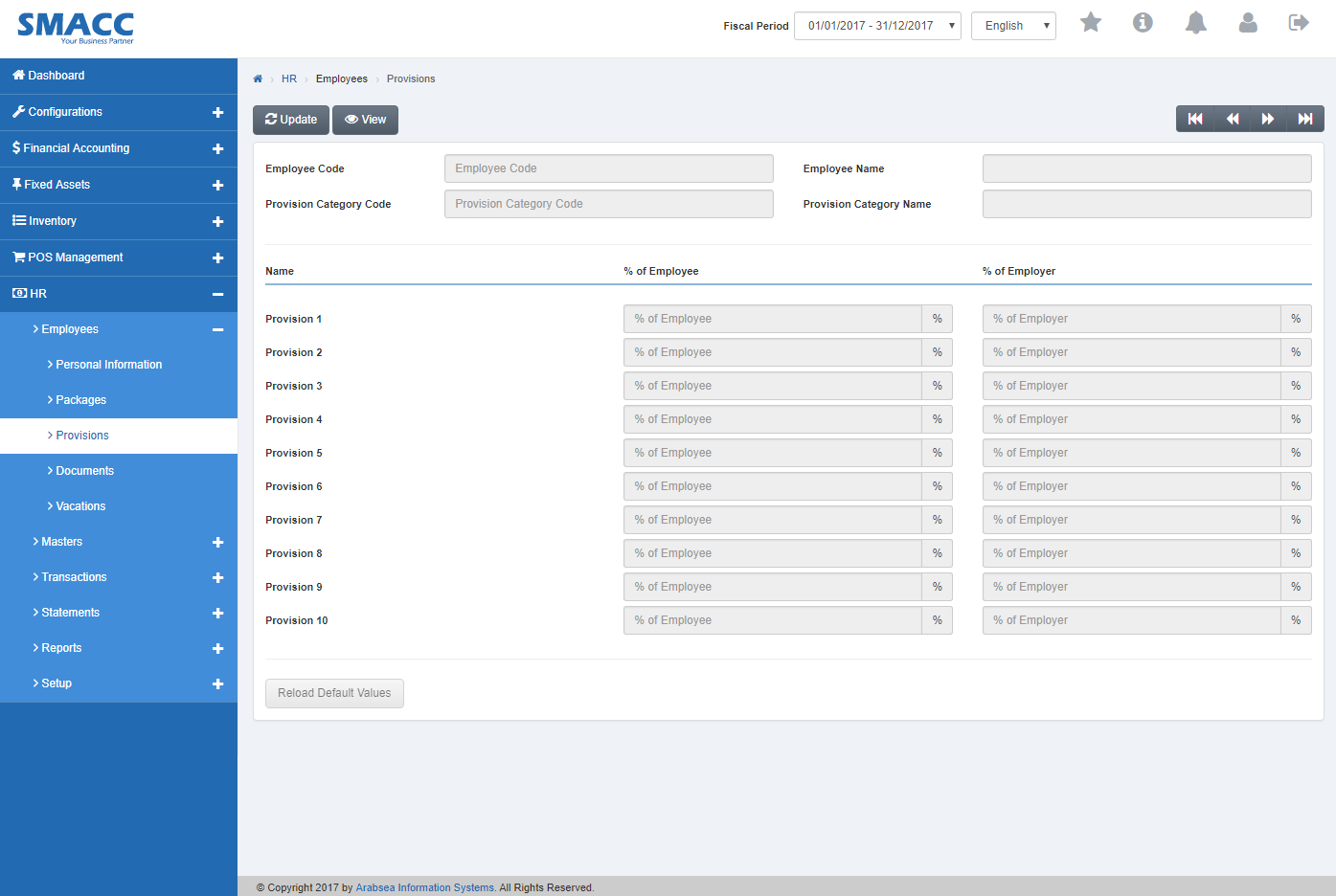 Click the “Update” button on the top of provisions page.
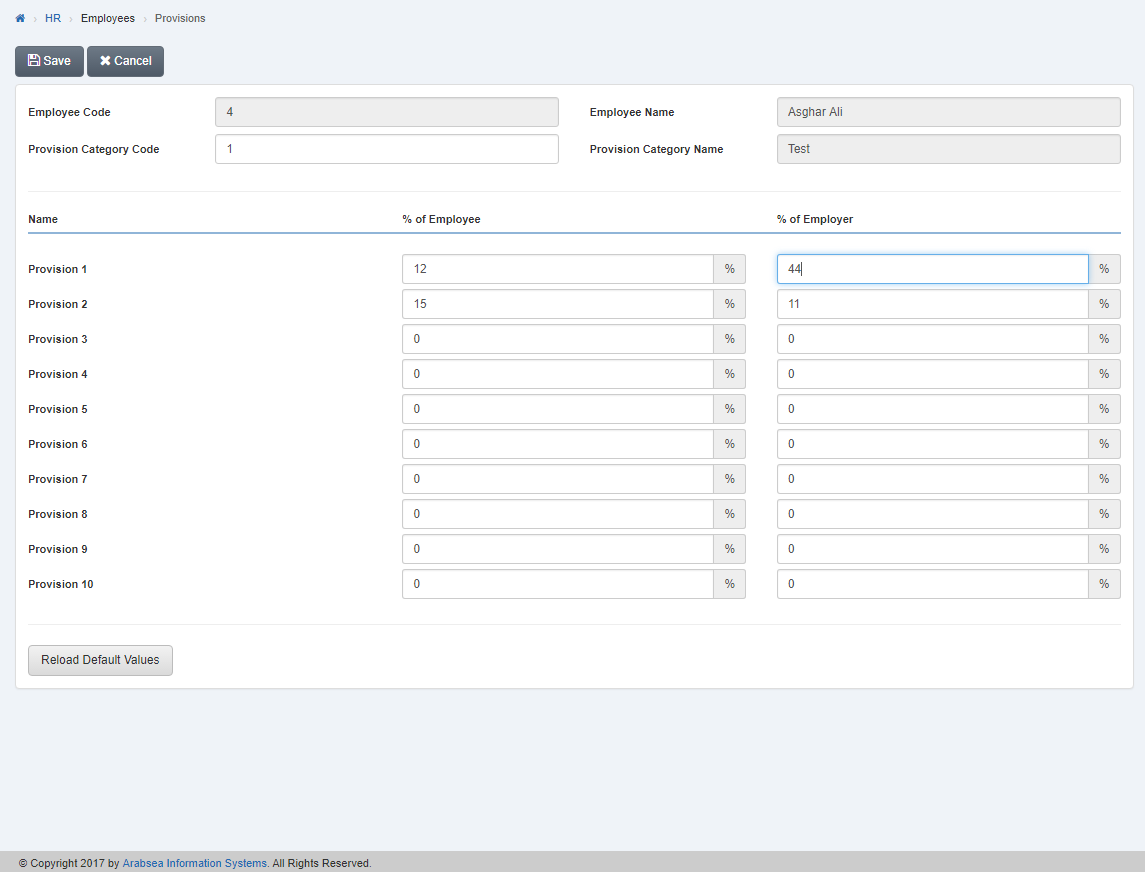 Select employee code by navigation bar or enter employee code in “Employee Code” input box then click “Load” button.
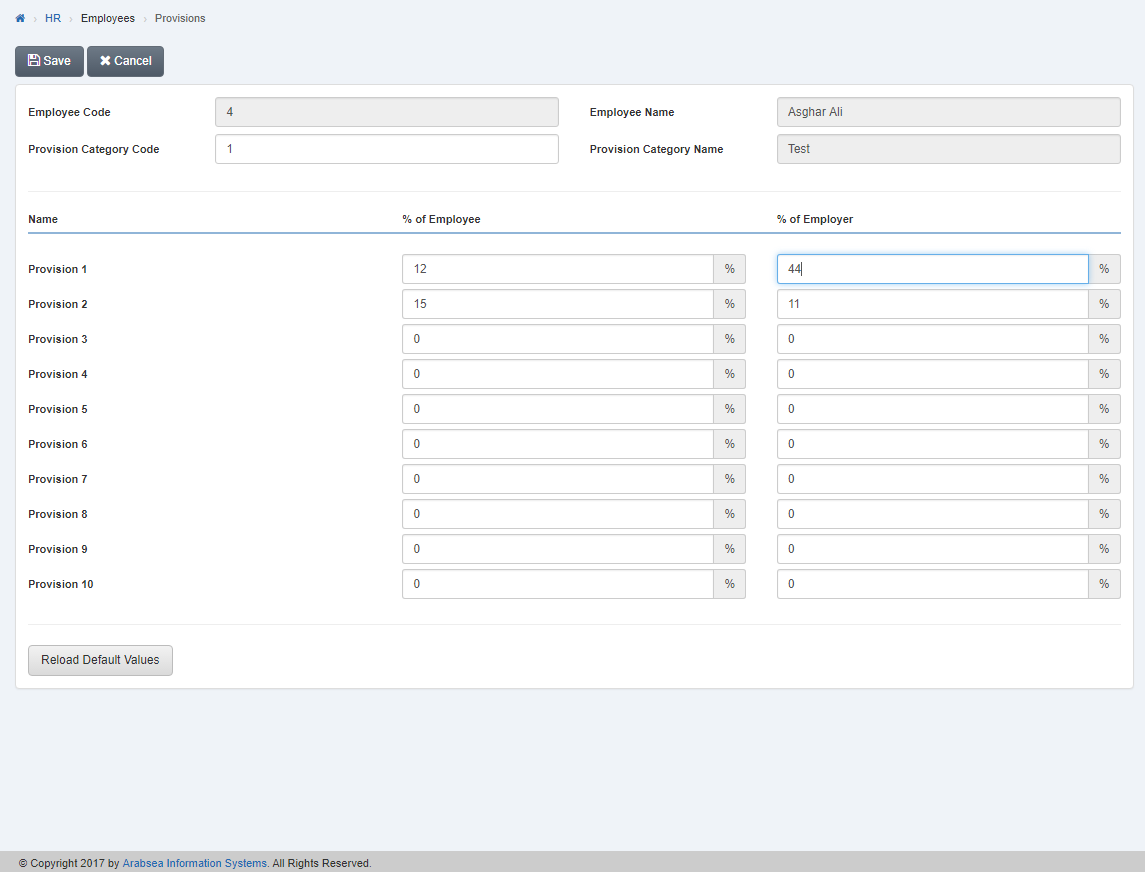 To reload default values, click on “Reload Default Values” button then default values will be reloaded.
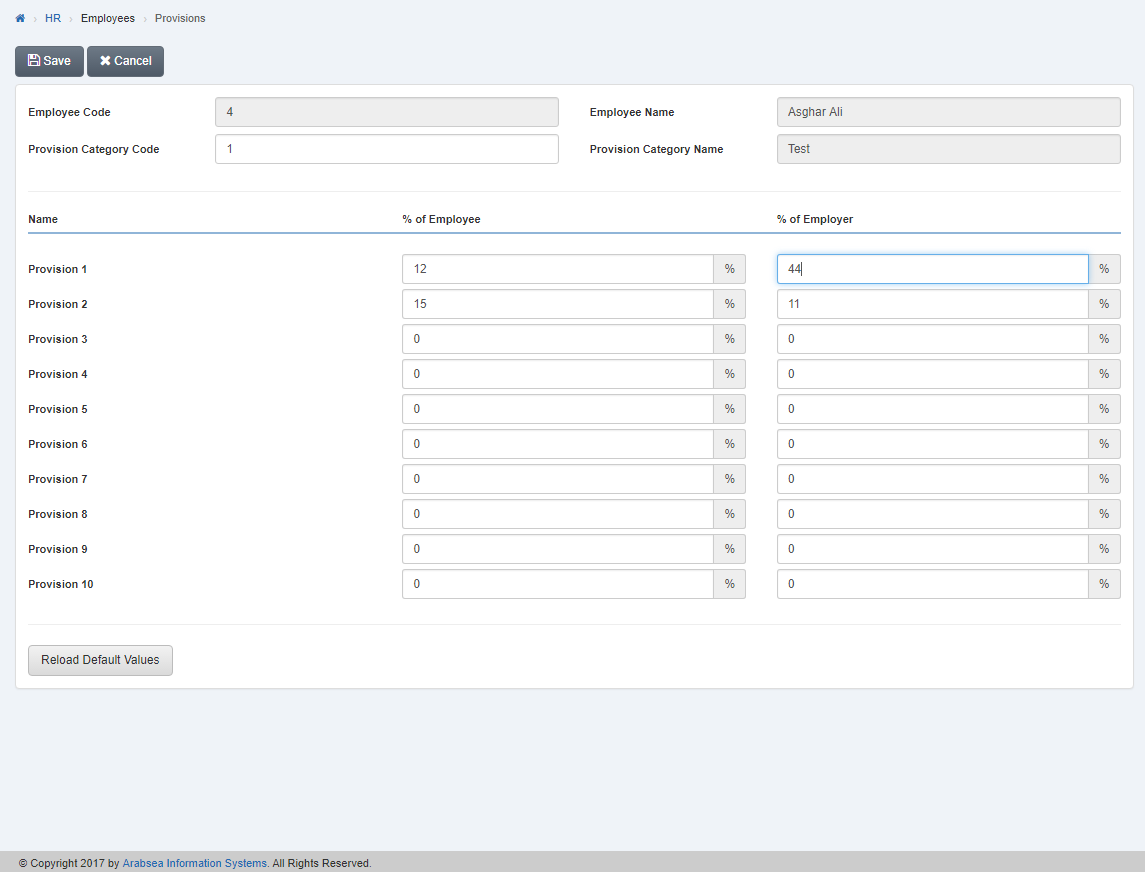 Click “Save” button to save the information.
Was this article helpful?
Start with SMACC today
Try free for 14 days — no credit card, no commitment.