
Employee Types
In document types. You can add new document information of employees and can update and delete the information.
Adding New Employee Types.
To add “New Employee Types”, click on the “HR”, then “Masters”, then click “Employee Types”. Employee types page will be displayed.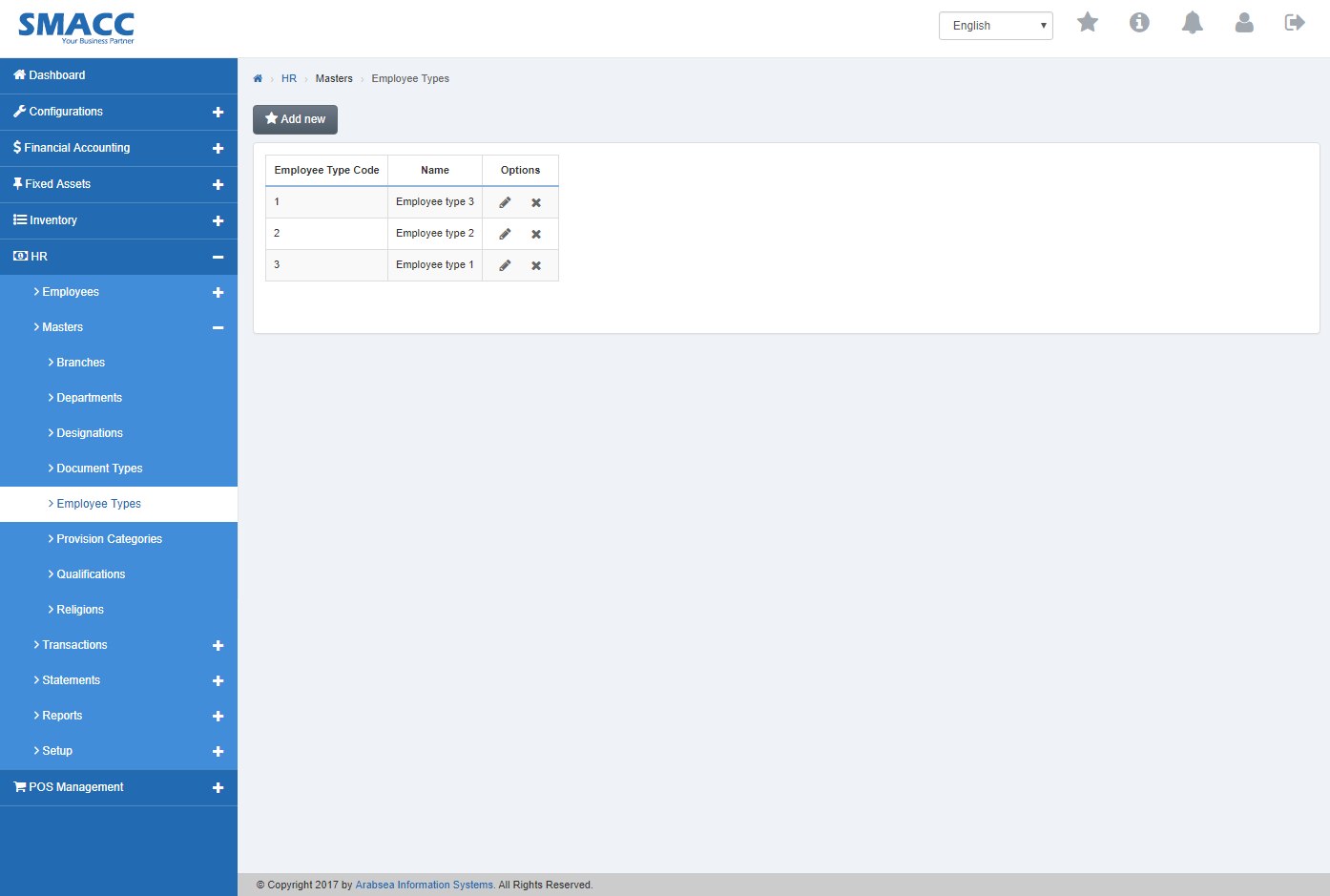 Click the “Add new” button on employee page then pop-up will be appeared.
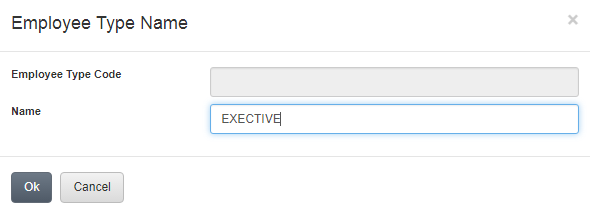 Enter employee name in “Name” input box. Click “OK” button then employee type code will be systematically generated and will be appeared in the grid in employees page.
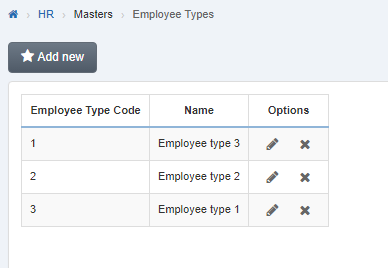
To delete Employee Types.
To delete “Employee Types”, click on the “HR”, then “Masters”, then click “Employee Types”. Employee types page will be displayed.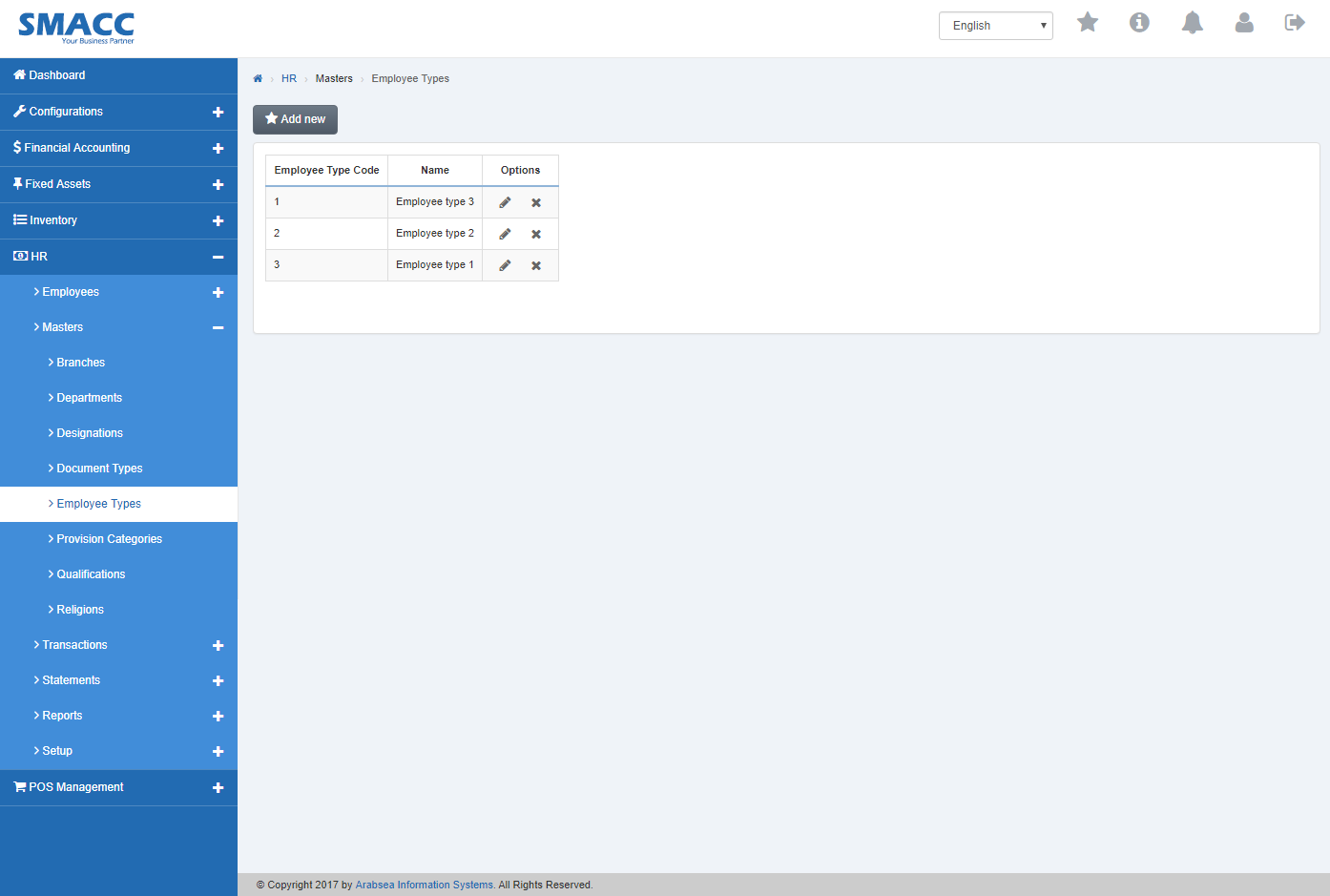 Click the “Delete” Icon in column “Options” in the grid on Employee page. If selected code which you want to delete is in use then message bar will be appeared on the top of page and it will not delete the code.
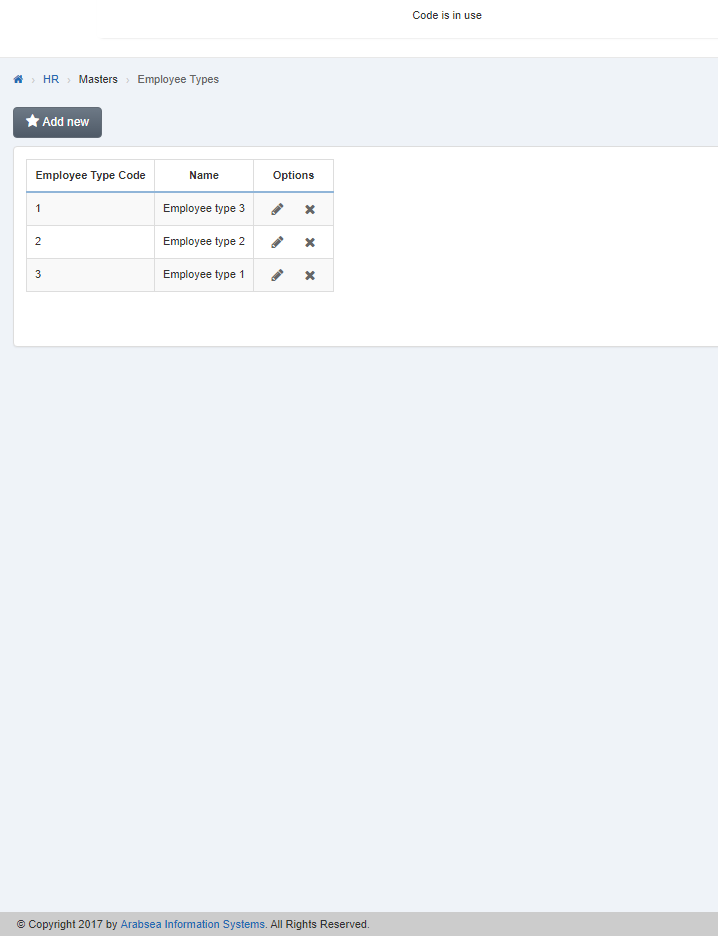 If selected code is not in use then a prompt box will be appeared.
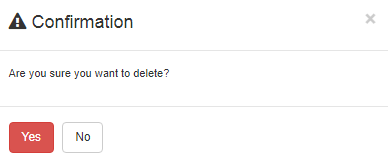 Click “Yes” button to delete the information.
Editing/Updating Employee Types.
To editing/updating “Employee Types”, click on the “HR”, then “Masters”, then click “Employee Types”. Employee types page will be displayed.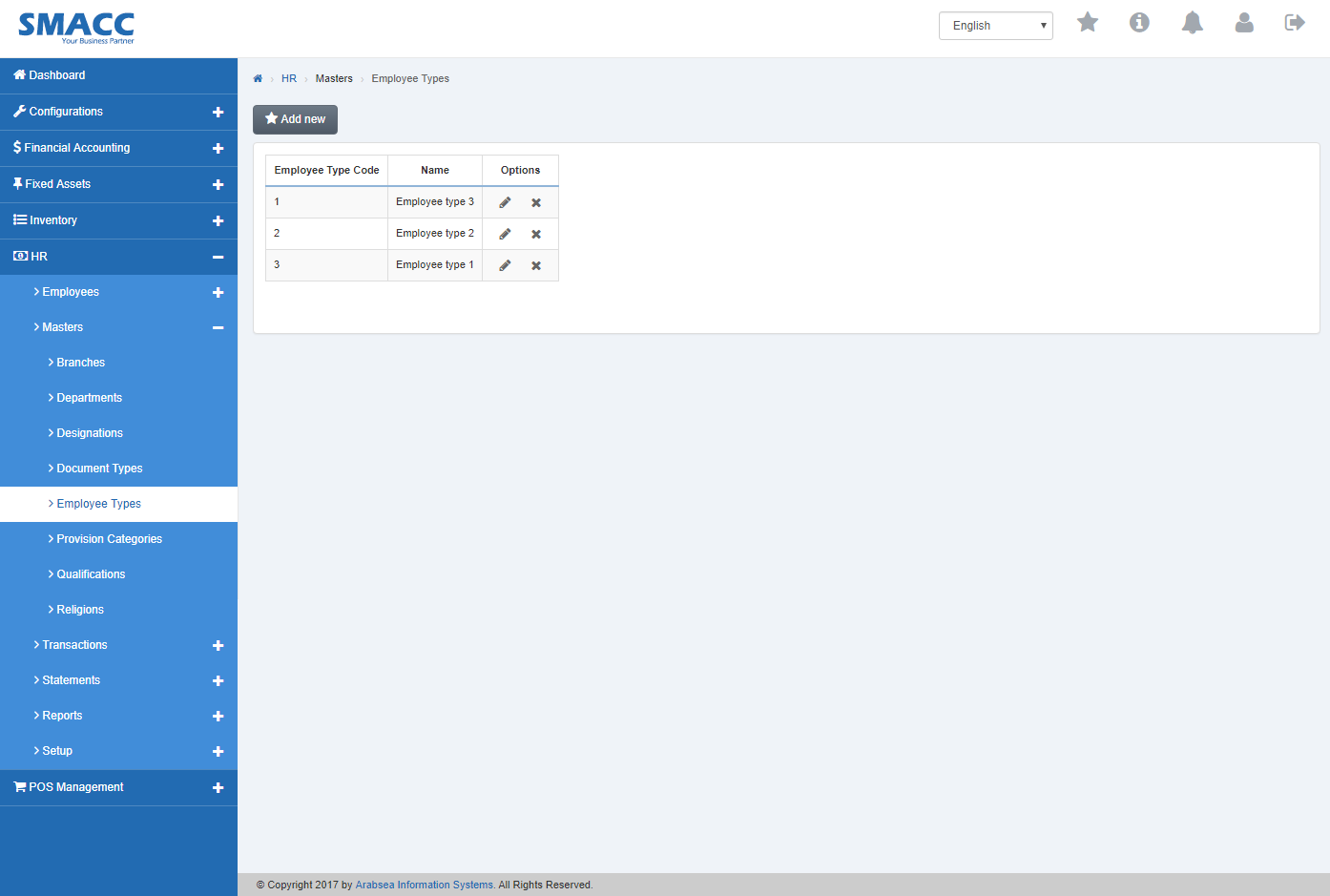 Click the “Edit” Icon in column “Options” in the grid on employee page.
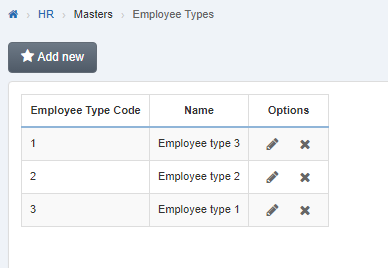 A prompt box will be displayed.
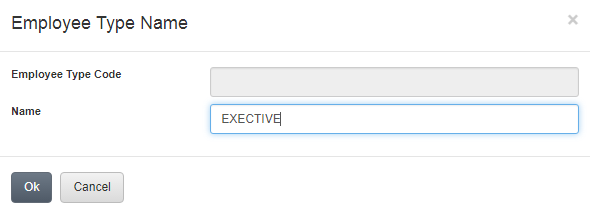 Edit employee name in “Name” input box. Click “OK” button then employee name will be appeared in the grid in employee page.
Was this article helpful?
Start with SMACC today
Try free for 14 days — no credit card, no commitment.