
Loans
In loans, you can search loans information of the employees with in required date. You can send loans information into excel, word and pdf formats.
View Loan Report In HR
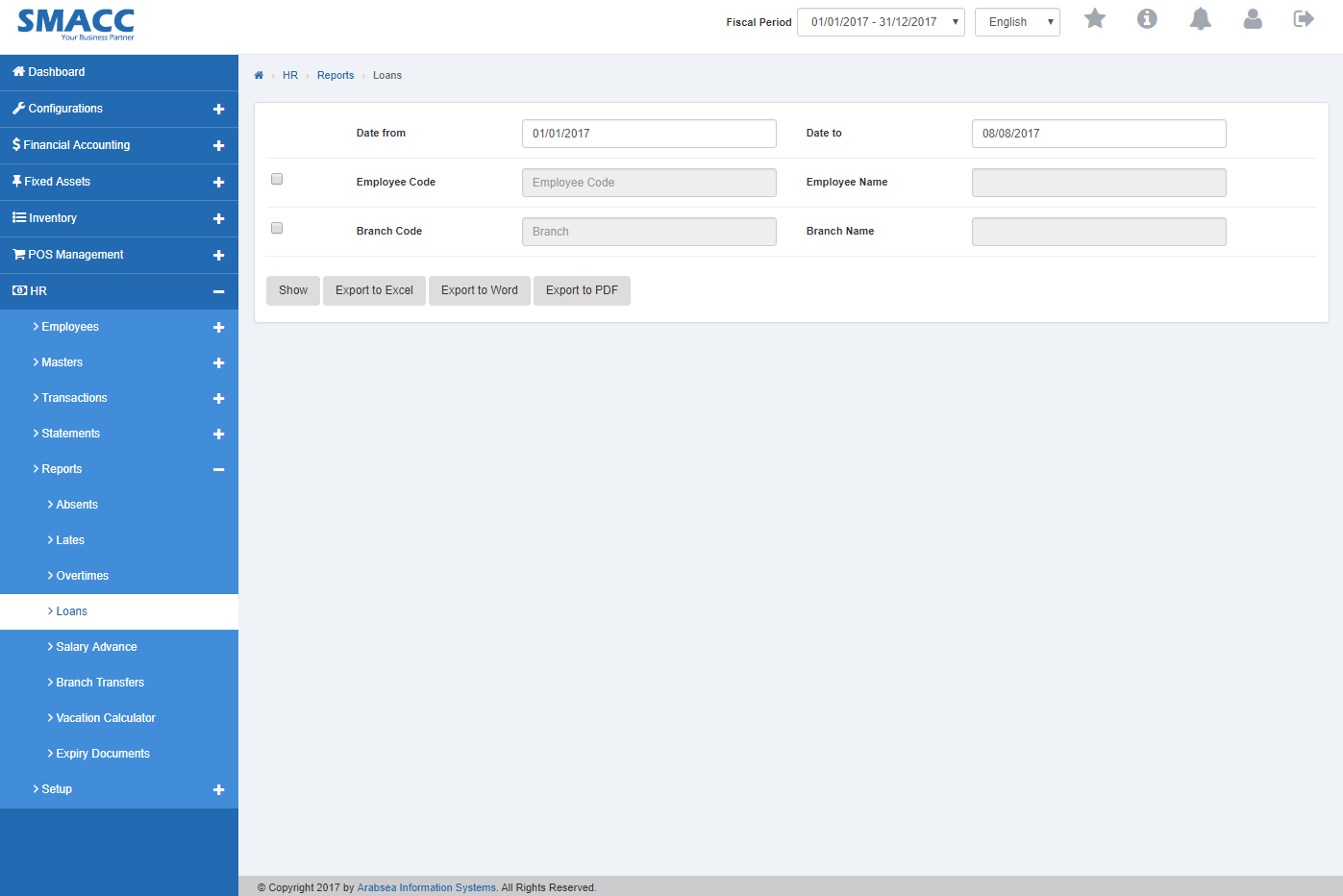
A: Click on the “HR”, then “Reports”, then click “loans”. Loans page will be displayed.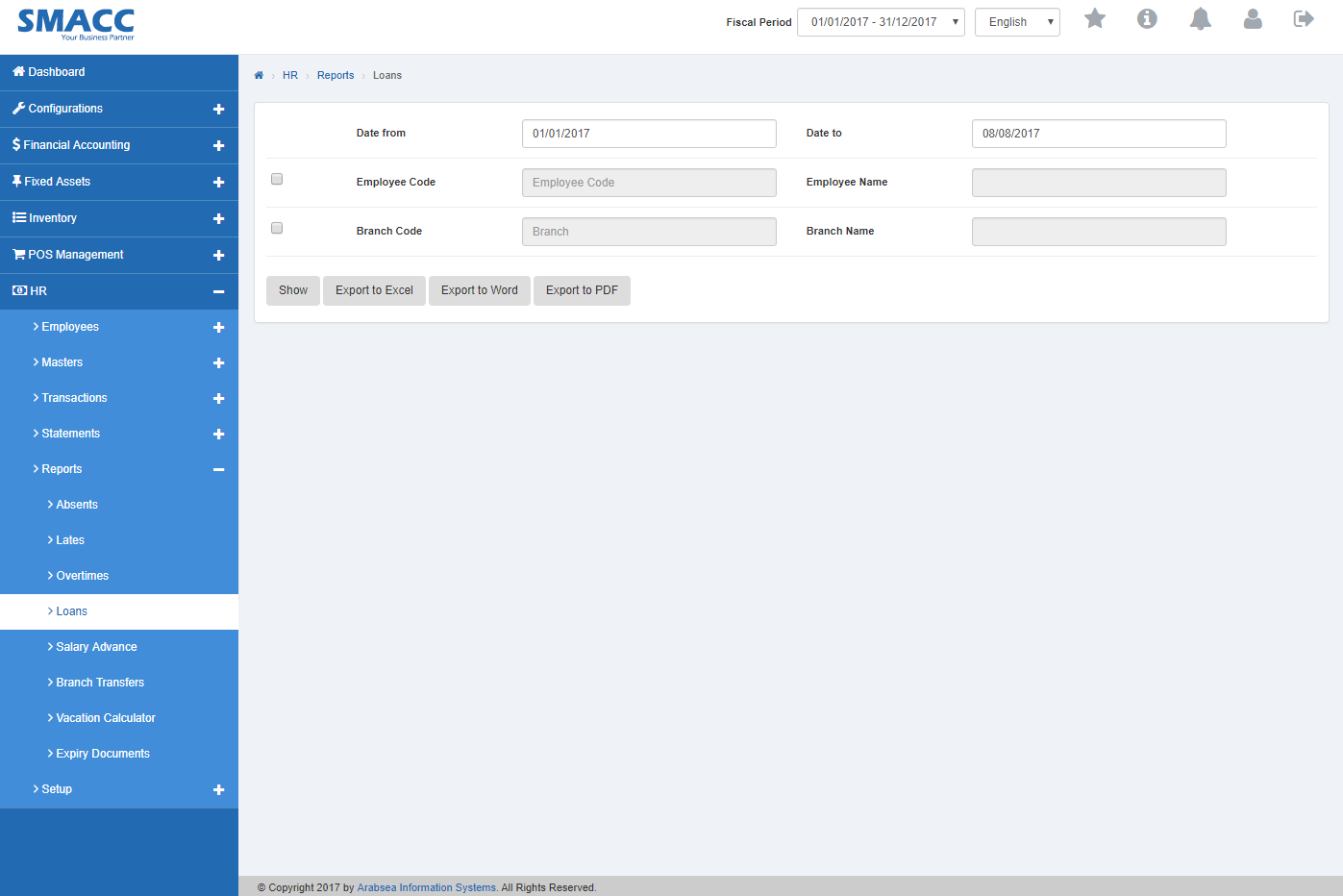 Enter starting date in “Date from” input box then enter ending date in “Date to” input box.
 Enter employee code or click in “Employee Code” input box then employee code list will be drop down. Select your desired employee code then selected employee name will be appeared in “Employee Name” input box.
 Enter branch code or click in “Branch Code” input box then branch code list will be drop down. Select your desired branch code then selected branch name will be appeared in “Branch Name” input box.
 Click “Show” button.
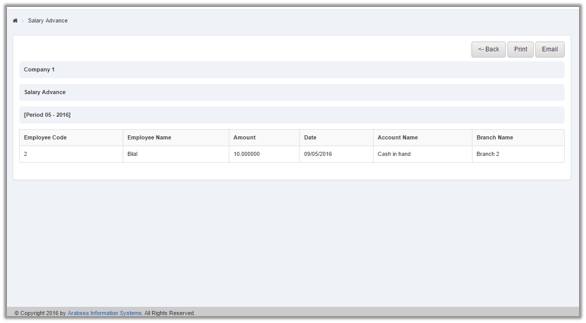
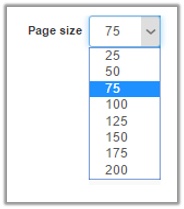
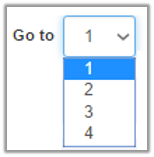
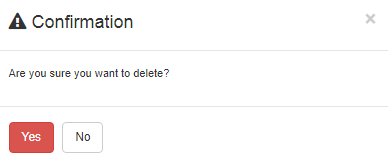 Click “Yes” button to print the information.
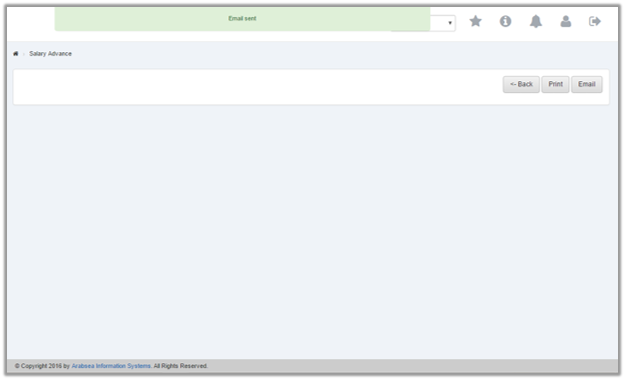
If you want to send information through email then click on “Email” button then email confirmation massage will be appeared on the top of Loans page.
Click “Yes” button to print the information.
If you want to send information through email then click on “Email” button then email confirmation massage will be appeared on the top of Loans page.
Export Loans to Excel
A: Click on the “HR”, then “Reports”, then click “Loans”. Loans page will be displayed.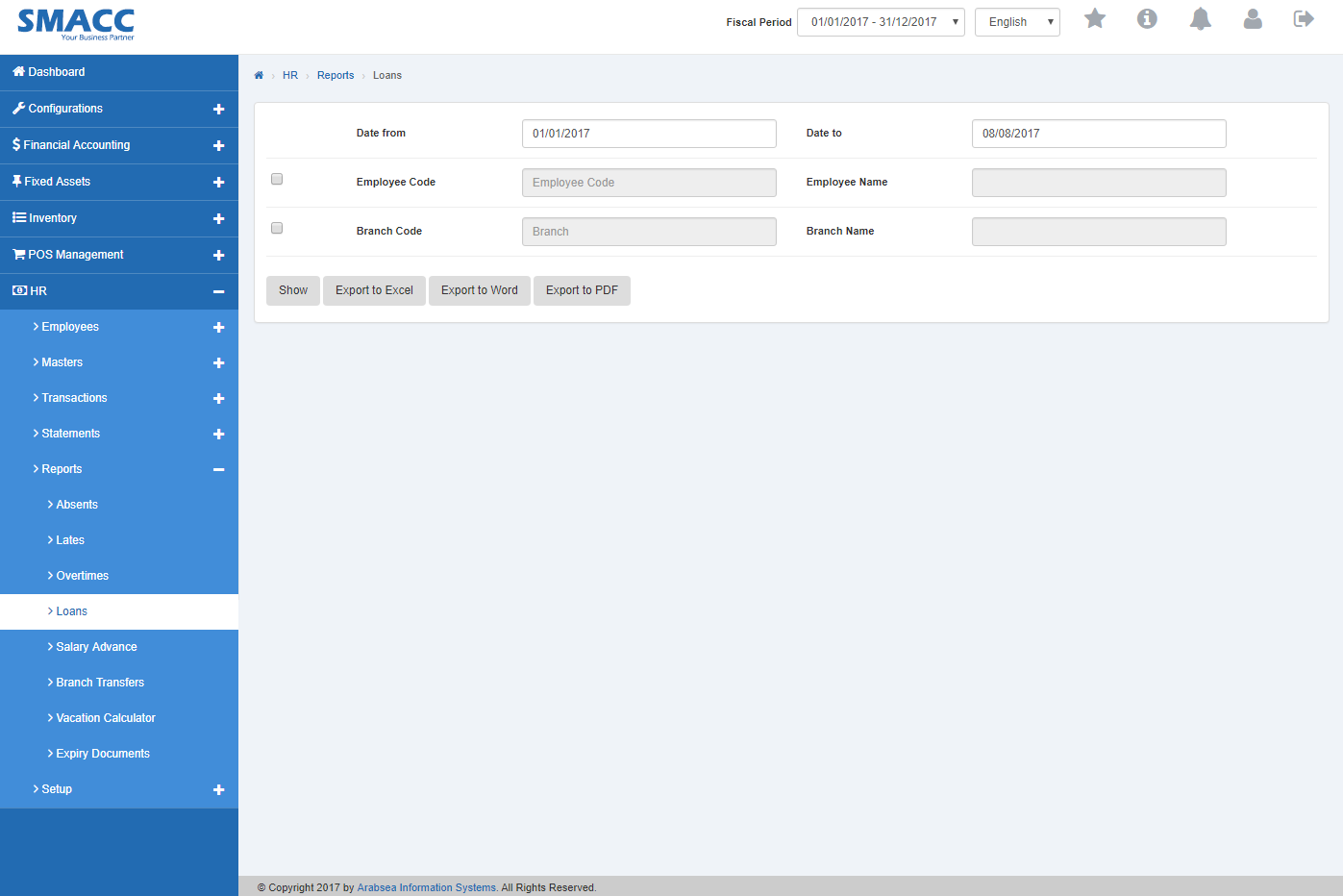 Enter starting date in “Date from” input box then enter ending date in “Date to” input box.
 Enter employee code or click in “Employee Code” input box then employee code list will be drop down. Select your desired employee code then selected employee name will be appeared in “Employee Name” input box.
 Enter branch code or click in “Branch Code” input box then branch code list will be drop down. Select your desired branch code then selected branch name will be appeared in “Branch Name” input box.
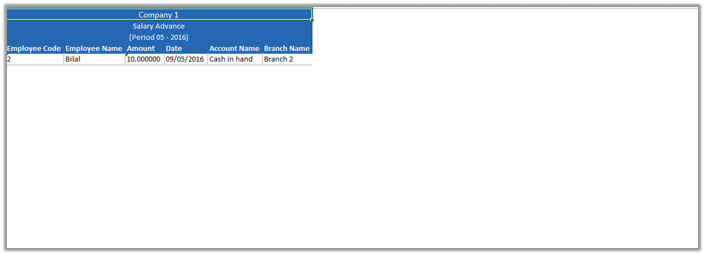
 Click “Export to Excel” button then it will download Loans report in Excel format. Click in the massage box on the bottom corner of the page.
 It will display Loans statement in Excel format.
Export loans to Word
A: Click on the “HR”, then “Reports”, then click “Loans”. Loans page will be displayed.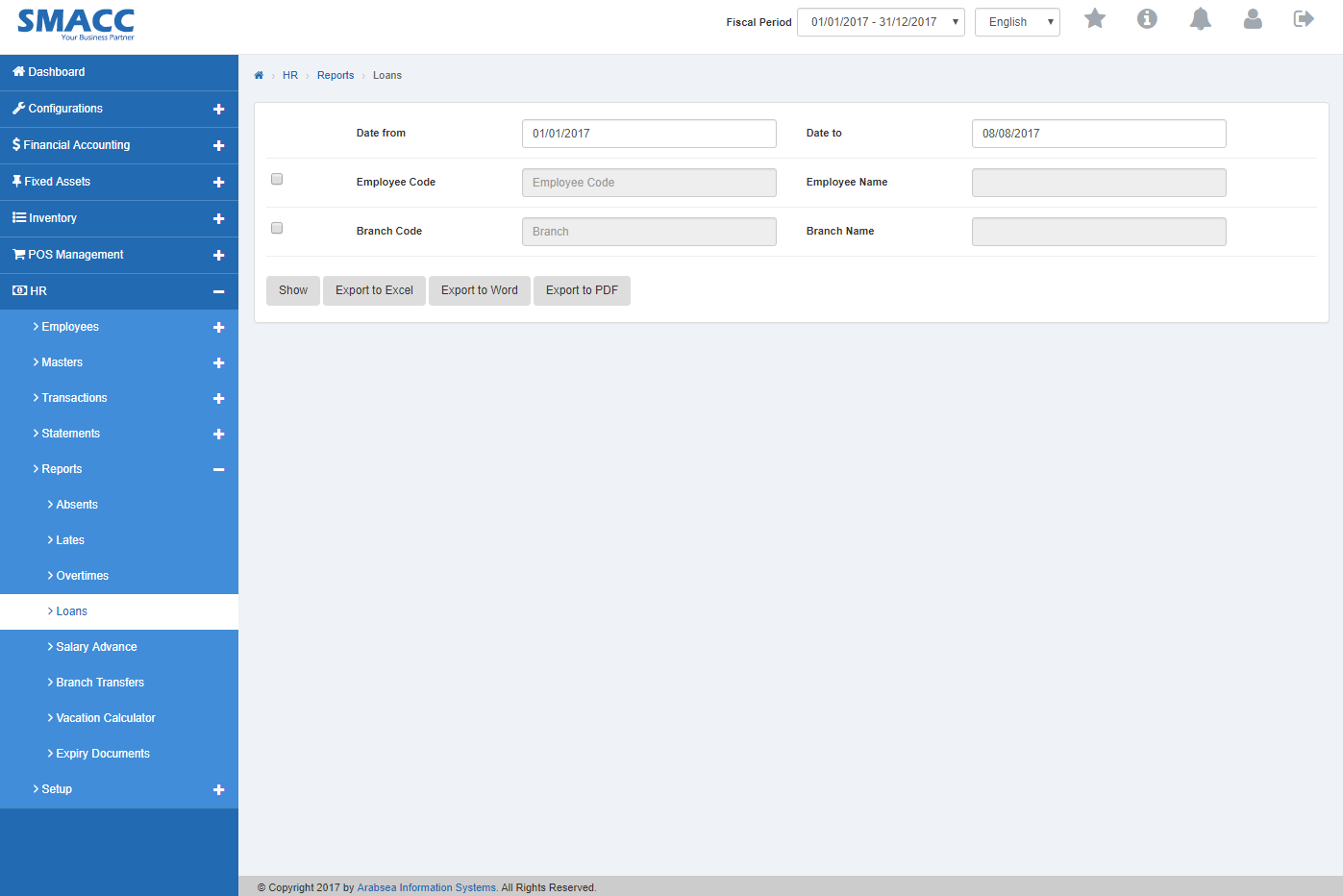 Enter starting date in “Date from” input box then enter ending date in “Date to” input box.
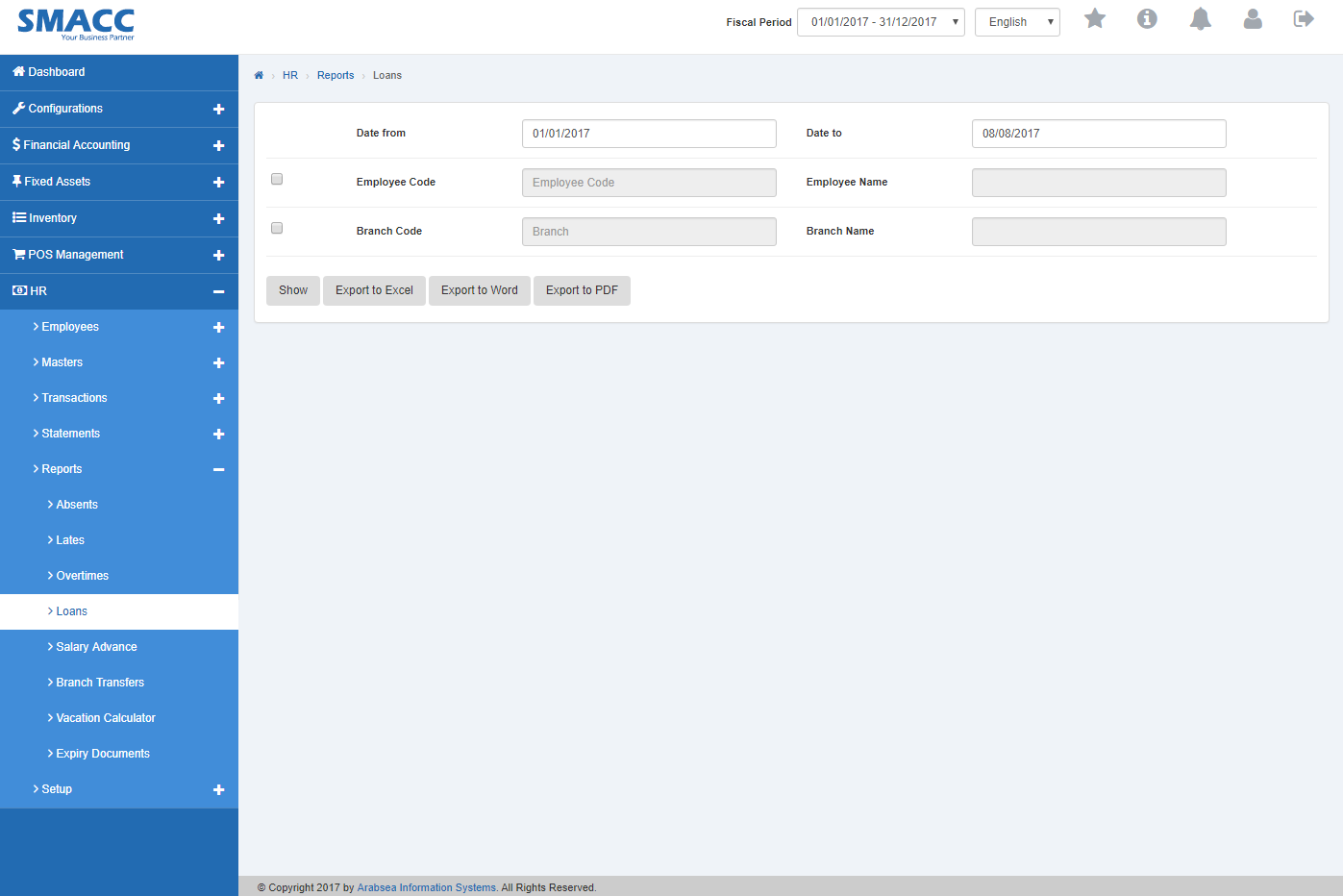
 Enter employee code or click in “Employee Code” input box then employee code list will be drop down. Select your desired employee code then selected employee name will be appeared in “Employee Name” input box.
 Enter branch code or click in “Branch Code” input box then branch code list will be drop down. Select your desired branch code then selected branch name will be appeared in “Branch Name” input box.

Export Loans Statement to PDF
A: Click on the “HR”, then “Reports”, then click “Loans”. Loans page will be displayed.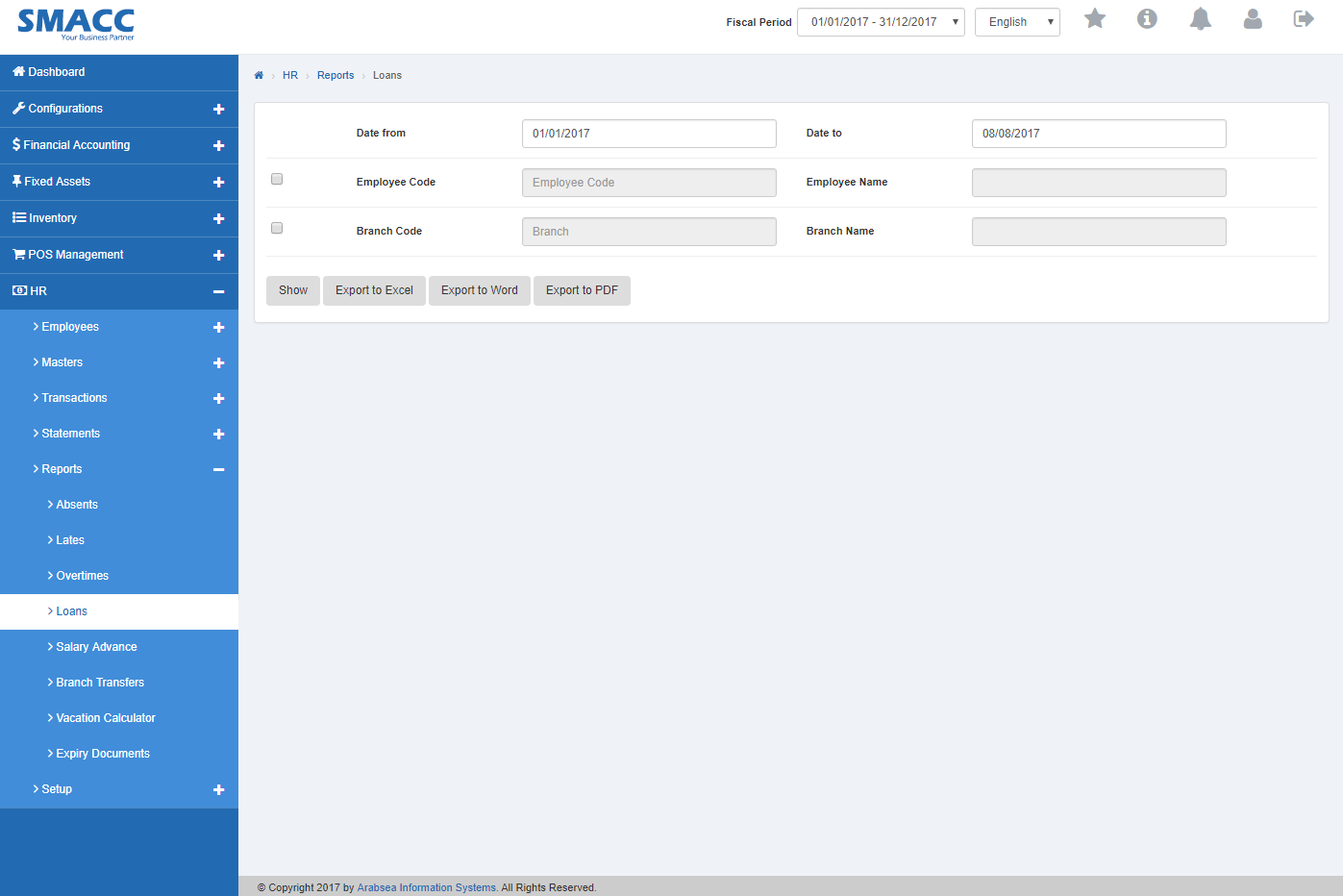 Enter starting date in “Date from” input box then enter ending date in “Date to” input box.
 Enter employee code or click in “Employee Code” input box then employee code list will be drop down. Select your desired employee code then selected employee name will be appeared in “Employee Name” input box.
 Enter branch code or click in “Branch Code” input box then branch code list will be drop down. Select your desired branch code then selected branch name will be appeared in “Branch Name” input box.
 Click “Export to PDF” button then it will download Loans report in PDF format. Click in the massage box on the bottom corner of the page.
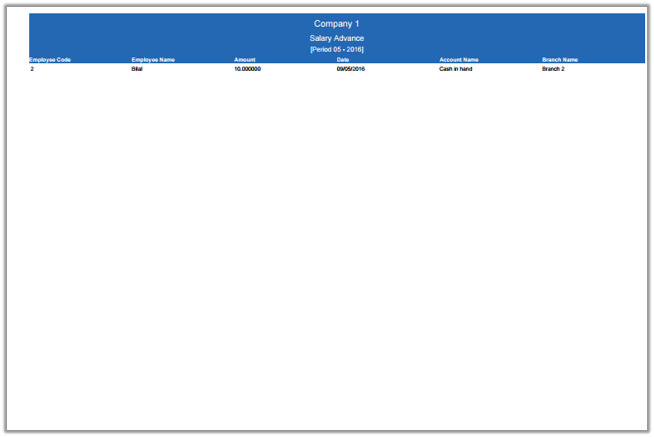
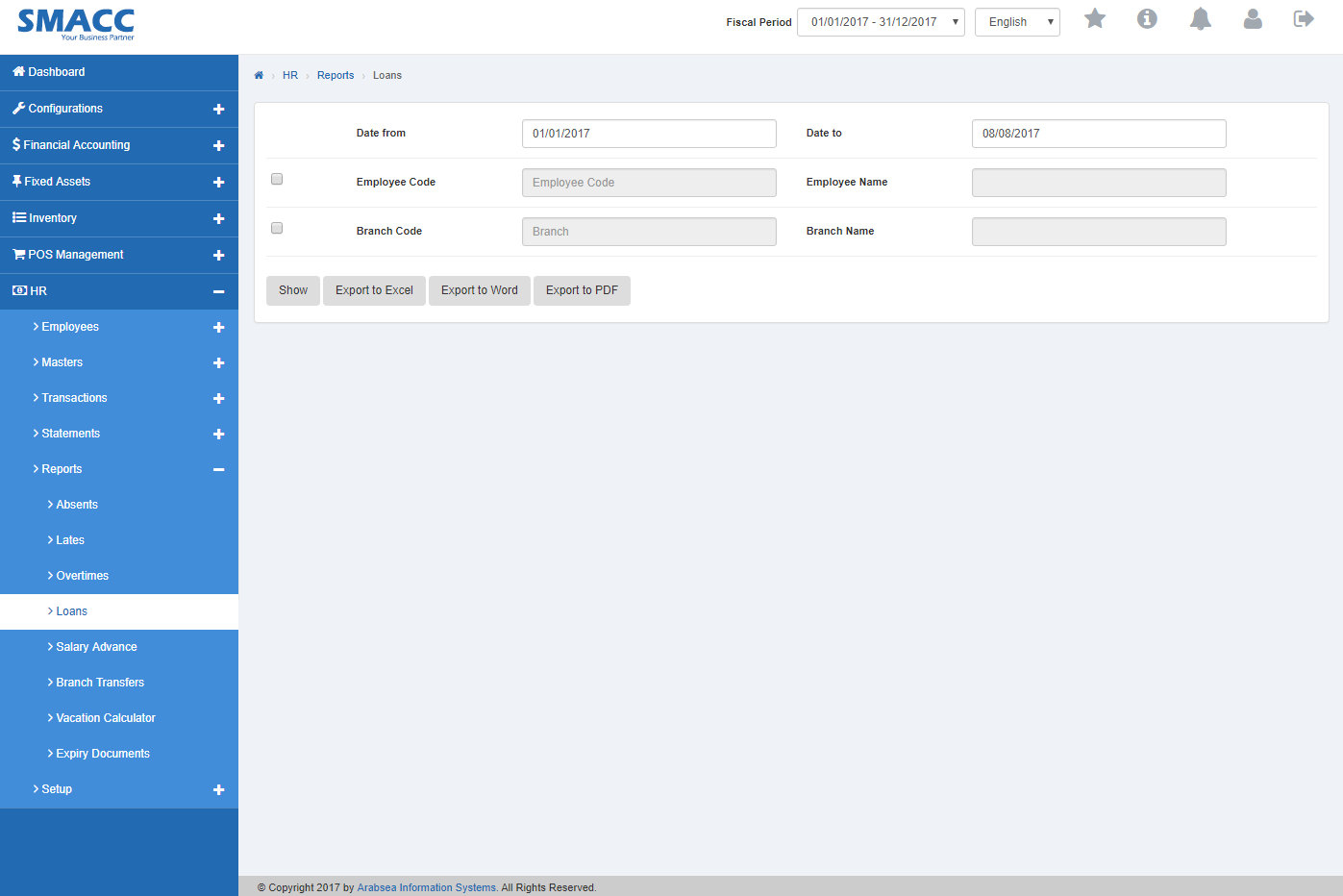 It will display Loans statement in PDF format.
Was this article helpful?
Start with SMACC today
Try free for 14 days — no credit card, no commitment.