
قائمة أصناف المبيعات
يساعدك تقرير قائمة أصناف المبيعات على عرض كشف بأصناف المبيعات.
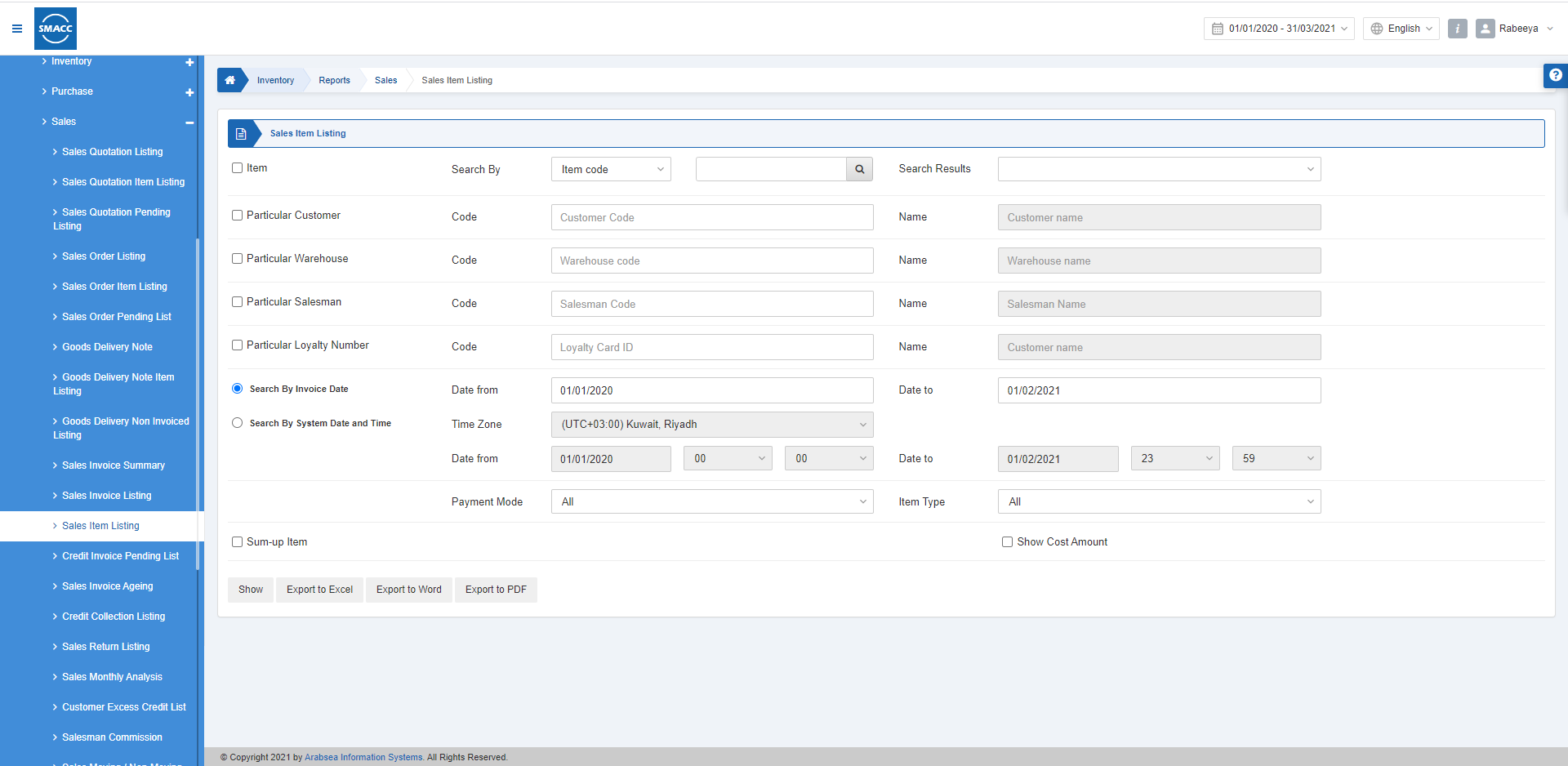
عرض قائمة أصناف المبيعات
لعرض قائمة أصناف المبيعات، انتقل إلى المخزون > التقارير > المبيعات > قائمة أصناف المبيعات، فتظهر صفحة قائمة أصناف المبيعات.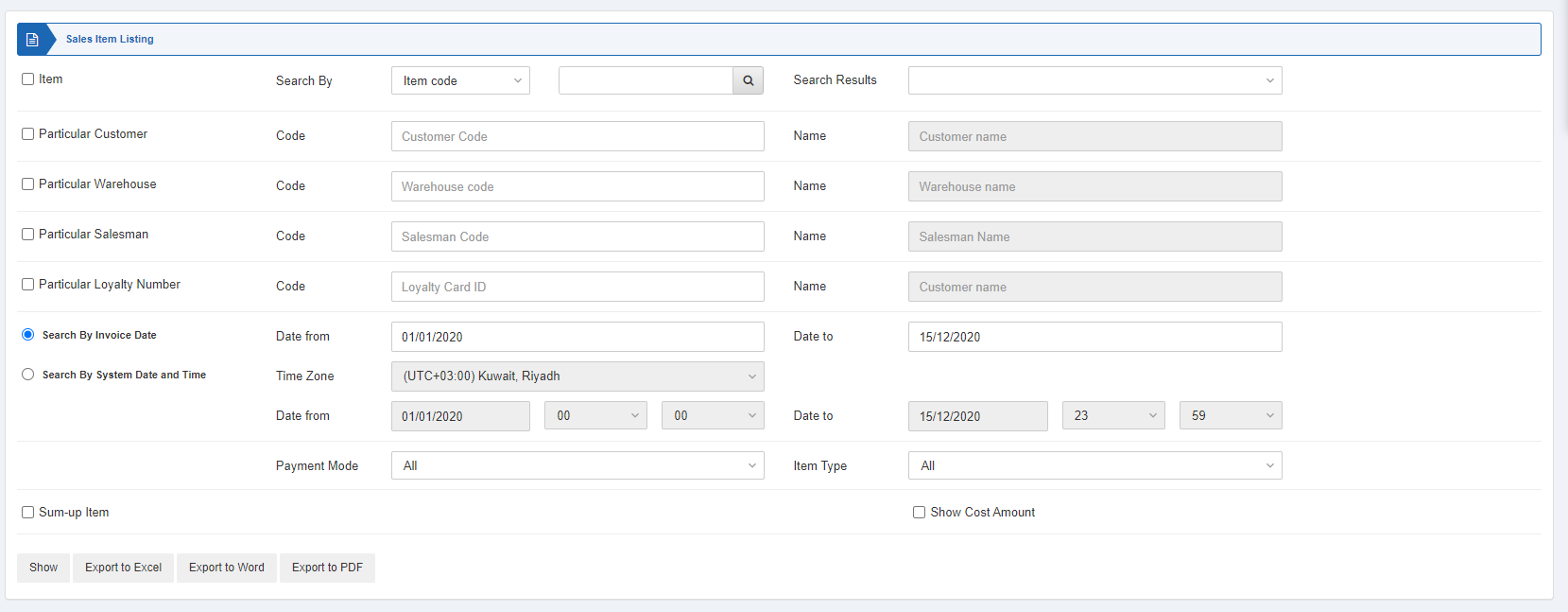 تعمل خمسة مربعات اختيار كـعوامل تصفية في التقرير.
 «Item» (الصنف): عند تحديد مربع الاختيار هذا يتيح لك اختيار رمز صنف أو اسم صنف معيّن. وإذا تُرك دون تحديد فستظهر جميع الأصناف.
«Search Results» (نتائج البحث): يعرض هذا الحقل الصنف الذي تم البحث عنه بحسب رمز الصنف أو اسم الصنف.
«Particular Customer» (عميل معيّن): عند تحديد مربع الاختيار هذا يتيح لك اختيار رمز عميل معيّن. وإذا تُرك دون تحديد فستظهر جميع العملاء.
«Particular Warehouse» (مستودع معيّن): عند تحديد مربع الاختيار هذا يتيح لك اختيار رمز مستودع معيّن. وإذا تُرك دون تحديد فستظهر جميع المستودعات.
«Particular Salesman» (مندوب معيّن): عند تحديد مربع الاختيار هذا يتيح لك اختيار رمز مندوب معيّن. وإذا تُرك دون تحديد فستظهر جميع المندوبين.
«Particular Loyalty Number» (رقم ولاء معيّن): عند تحديد مربع الاختيار هذا يتيح لك اختيار رقم الولاء. وإذا تُرك دون تحديد فستظهر جميع أرقام الولاء.
يوجد زرّا اختيار يمكنك تحديد أحدهما في كل مرة.
«Item» (الصنف): عند تحديد مربع الاختيار هذا يتيح لك اختيار رمز صنف أو اسم صنف معيّن. وإذا تُرك دون تحديد فستظهر جميع الأصناف.
«Search Results» (نتائج البحث): يعرض هذا الحقل الصنف الذي تم البحث عنه بحسب رمز الصنف أو اسم الصنف.
«Particular Customer» (عميل معيّن): عند تحديد مربع الاختيار هذا يتيح لك اختيار رمز عميل معيّن. وإذا تُرك دون تحديد فستظهر جميع العملاء.
«Particular Warehouse» (مستودع معيّن): عند تحديد مربع الاختيار هذا يتيح لك اختيار رمز مستودع معيّن. وإذا تُرك دون تحديد فستظهر جميع المستودعات.
«Particular Salesman» (مندوب معيّن): عند تحديد مربع الاختيار هذا يتيح لك اختيار رمز مندوب معيّن. وإذا تُرك دون تحديد فستظهر جميع المندوبين.
«Particular Loyalty Number» (رقم ولاء معيّن): عند تحديد مربع الاختيار هذا يتيح لك اختيار رقم الولاء. وإذا تُرك دون تحديد فستظهر جميع أرقام الولاء.
يوجد زرّا اختيار يمكنك تحديد أحدهما في كل مرة.
 «Search By Invoice Date» (البحث حسب تاريخ الفاتورة): يمكنك تحديد تاريخ البداية وتاريخ النهاية للفواتير الصادرة.
«Date from» (التاريخ من): يحدد هذا الحقل تاريخ البداية.
«Date to» (التاريخ إلى): يحدد هذا الحقل تاريخ النهاية.
«Search By System Date and Time» (البحث حسب تاريخ ووقت النظام): يمكنك اختيار المنطقة الزمنية والتاريخ والوقت من نقطة البداية إلى نقطة النهاية.
«Time Zone» (المنطقة الزمنية): يحدد هذا الحقل المنطقة الزمنية الصحيحة لموقعك الحالي.
«Date from» (التاريخ من): يعرض هذا الحقل تاريخ البداية مع وقت البداية بالساعات والدقائق.
«Date to» (التاريخ إلى): يعرض هذا الحقل تاريخ النهاية مع وقت النهاية بالساعات والدقائق.
«Search By Invoice Date» (البحث حسب تاريخ الفاتورة): يمكنك تحديد تاريخ البداية وتاريخ النهاية للفواتير الصادرة.
«Date from» (التاريخ من): يحدد هذا الحقل تاريخ البداية.
«Date to» (التاريخ إلى): يحدد هذا الحقل تاريخ النهاية.
«Search By System Date and Time» (البحث حسب تاريخ ووقت النظام): يمكنك اختيار المنطقة الزمنية والتاريخ والوقت من نقطة البداية إلى نقطة النهاية.
«Time Zone» (المنطقة الزمنية): يحدد هذا الحقل المنطقة الزمنية الصحيحة لموقعك الحالي.
«Date from» (التاريخ من): يعرض هذا الحقل تاريخ البداية مع وقت البداية بالساعات والدقائق.
«Date to» (التاريخ إلى): يعرض هذا الحقل تاريخ النهاية مع وقت النهاية بالساعات والدقائق.
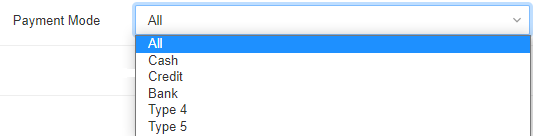 «Payment Mode» (طريقة الدفع): يتيح هذا الحقل اختيار طريقة الدفع من القائمة المنسدلة. وتشمل الأنواع cash (نقدي) وcredit (آجل) وbank (بنك) وtype-4 وtype-5.
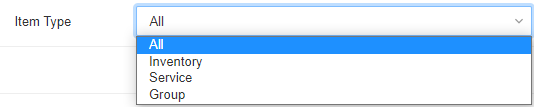 «Item Type» (نوع الصنف): يتيح هذا الحقل اختيار نوع الصنف من القائمة المنسدلة. وتشمل الأنواع inventory (مخزني) وservice (خدمي) وgroup (مجموعة).
 «Sum-up Item» (تجميع الأصناف): يتيح مربع الاختيار هذا تجميع جميع الأصناف.
«Show Cost Amount» (عرض مبلغ التكلفة): عند تحديد مربع الاختيار هذا يعرض مبلغ التكلفة.
«Sum-up Item» (تجميع الأصناف): يتيح مربع الاختيار هذا تجميع جميع الأصناف.
«Show Cost Amount» (عرض مبلغ التكلفة): عند تحديد مربع الاختيار هذا يعرض مبلغ التكلفة.
 «Show» (عرض): يعرض هذا الزر التقرير وفقاً لعوامل التصفية المحددة.
«Export to Excel» (تصدير إلى Excel): يتيح هذا الزر تصدير بيانات التقرير إلى Excel.
«Export to Word» (تصدير إلى Word): يتيح هذا الزر تصدير بيانات التقرير إلى Word.
«Export to PDF» (تصدير إلى PDF): يتيح هذا الزر تصدير بيانات التقرير إلى PDF.
انقر على زر «Show» (عرض) لعرض التقرير.
«Show» (عرض): يعرض هذا الزر التقرير وفقاً لعوامل التصفية المحددة.
«Export to Excel» (تصدير إلى Excel): يتيح هذا الزر تصدير بيانات التقرير إلى Excel.
«Export to Word» (تصدير إلى Word): يتيح هذا الزر تصدير بيانات التقرير إلى Word.
«Export to PDF» (تصدير إلى PDF): يتيح هذا الزر تصدير بيانات التقرير إلى PDF.
انقر على زر «Show» (عرض) لعرض التقرير.
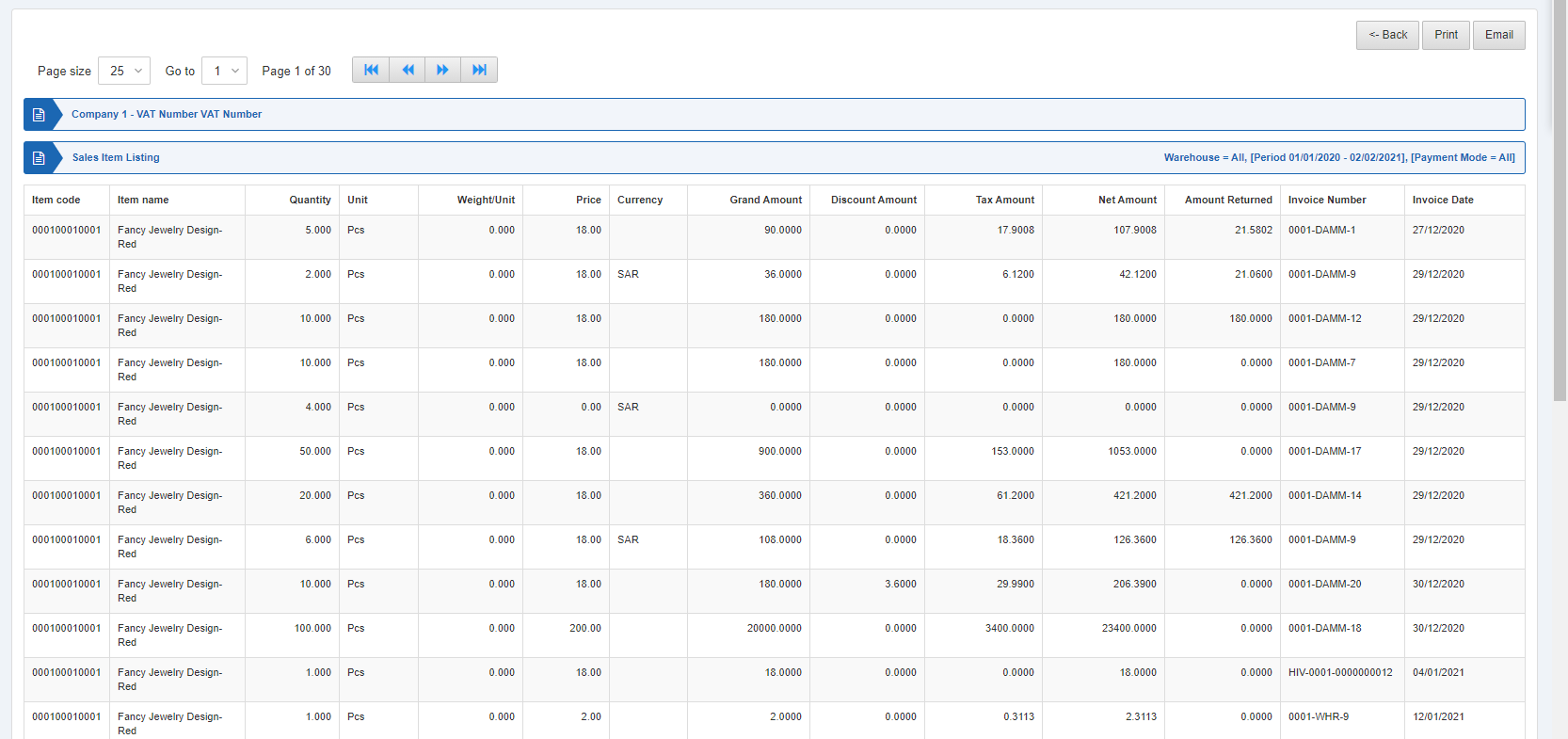 كما توجد أزرار تنقّل لعرض الصفحات.
 «Page Size» (حجم الصفحة): يمكنك ضبط عدد السجلات في كل صفحة.
«Go to» (الانتقال إلى): يمكنك الانتقال إلى رقم الصفحة التي ترغب في عرضها.
«Page Size» (حجم الصفحة): يمكنك ضبط عدد السجلات في كل صفحة.
«Go to» (الانتقال إلى): يمكنك الانتقال إلى رقم الصفحة التي ترغب في عرضها.
 يمكنك العودة إلى الصفحة السابقة أو طباعة التقرير أو إرساله عبر البريد الإلكتروني.
هل كان هذا المقال مفيداً؟
ابدأ مع SMACC اليوم
جرّب مجاناً لمدة 14 يوماً — بدون بطاقة ائتمان وبدون التزام.