
Sub Account Ledgers
Searching "Sub Account Ledgers" in Financial Account.
To search sub account ledgers in “Financial Account”, click on the “Financial Accounting”, then “Reports”,then”Ledger & Statement“, then click “Sub Account Ledgers”. Sub Account Ledgers page will be displayed.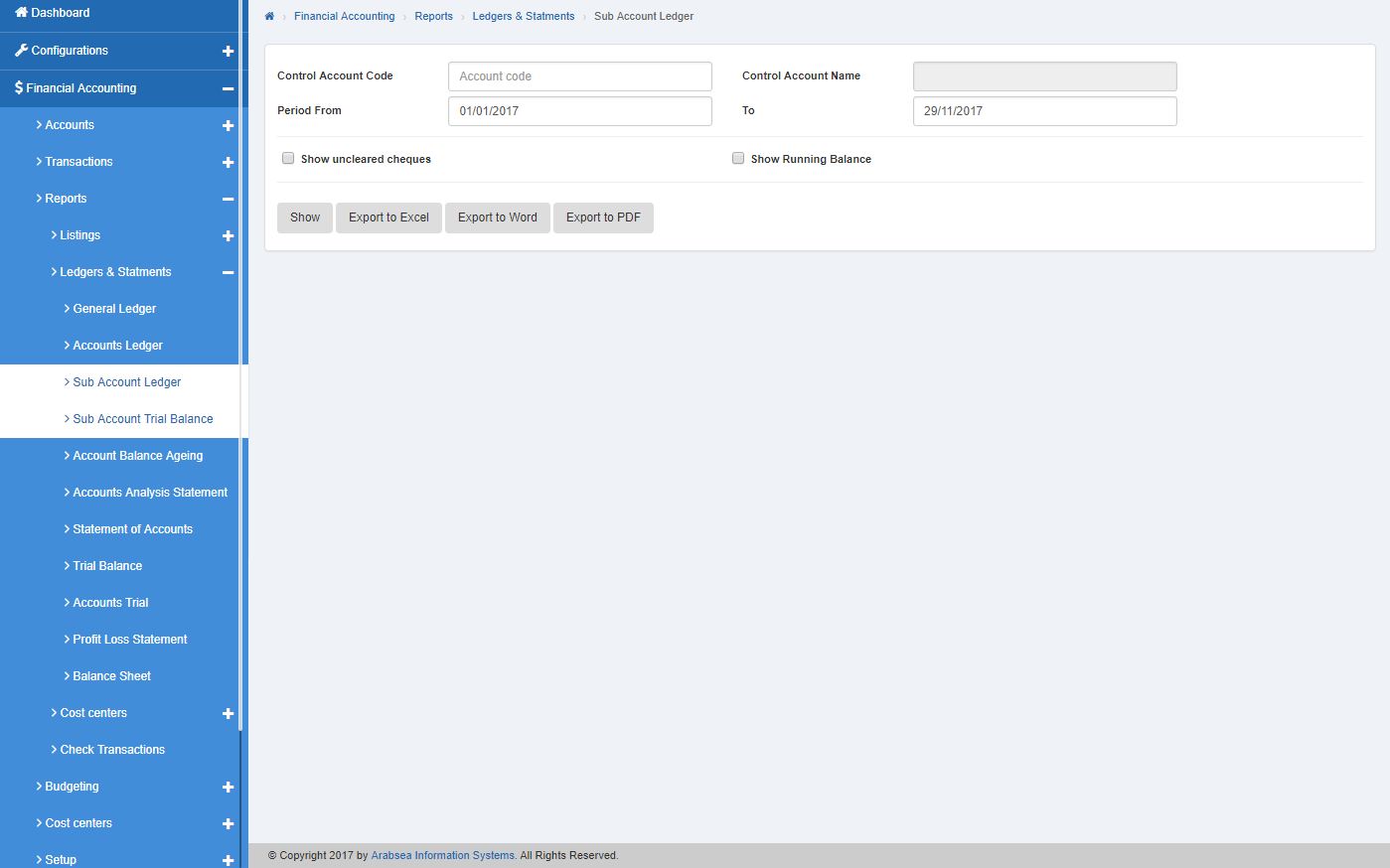 Enter control account code or click in " Control Account Code" input box then account code list will be appeared. Select the desired account code then selected account name will be appeared in “Account Name” input box.
 Enter date in Period “From” and “To” input boxes.
 if you want to search sub account ledger in financial account with account running balance details, check “With running balance” check box or if you want to search sub account ledger in financial with unclear cheque details, check ““Show” uncleared cheques” then check ““Show” uncleared cheques” check box. You can set desired search by checking or unchecking the check box against the required query.
 Click “Show” button then it will display sub account ledgers detail sheet with in selected orders.
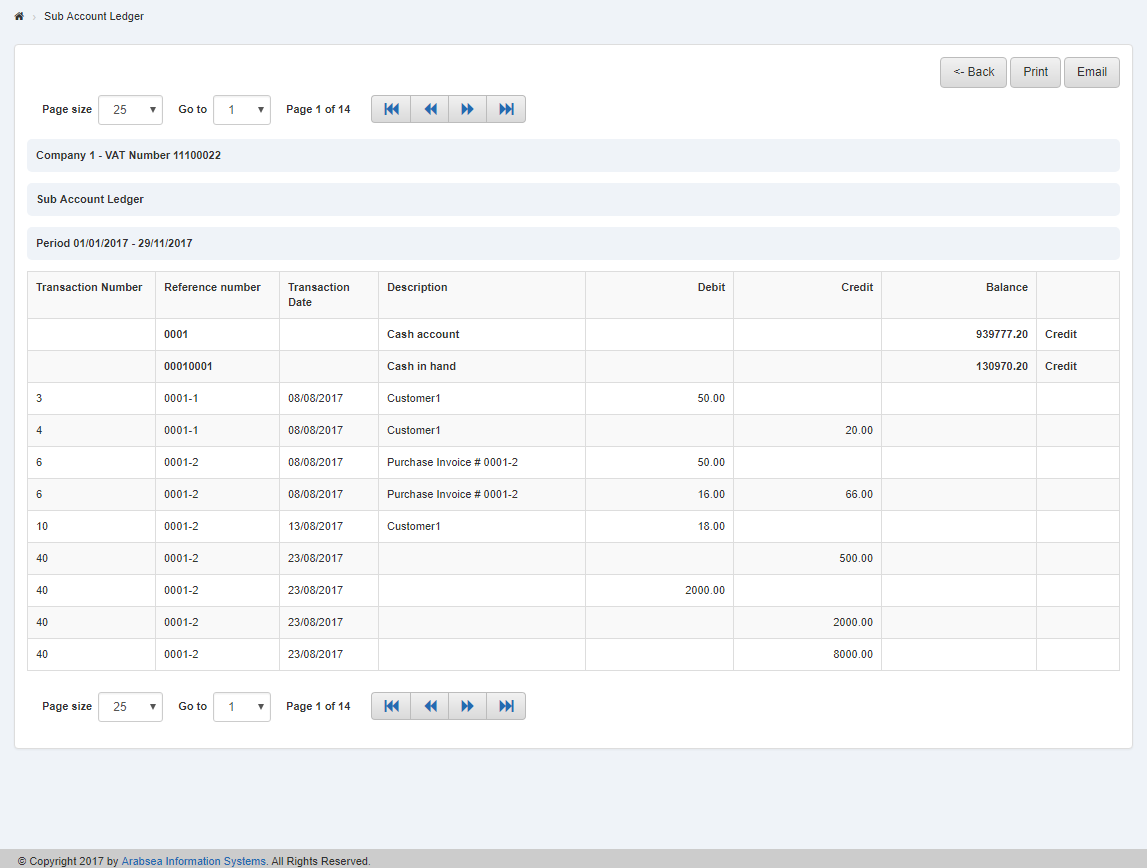 You can select page size by clicking on “Page size” checkbox then page size list will be appeared. Select the page size. If you want to select desired page number then click on “Navigation” button or click in “Go to” checkbox then page list will appear. Select the page number.
 If you want to print the page then select your desired page and click on “Print” button on top of sub account ledgers page then prompt box will be appeared.
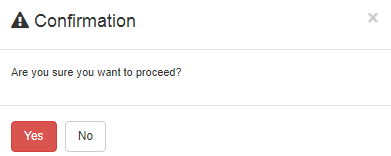 Click “Yes” button to print the information.
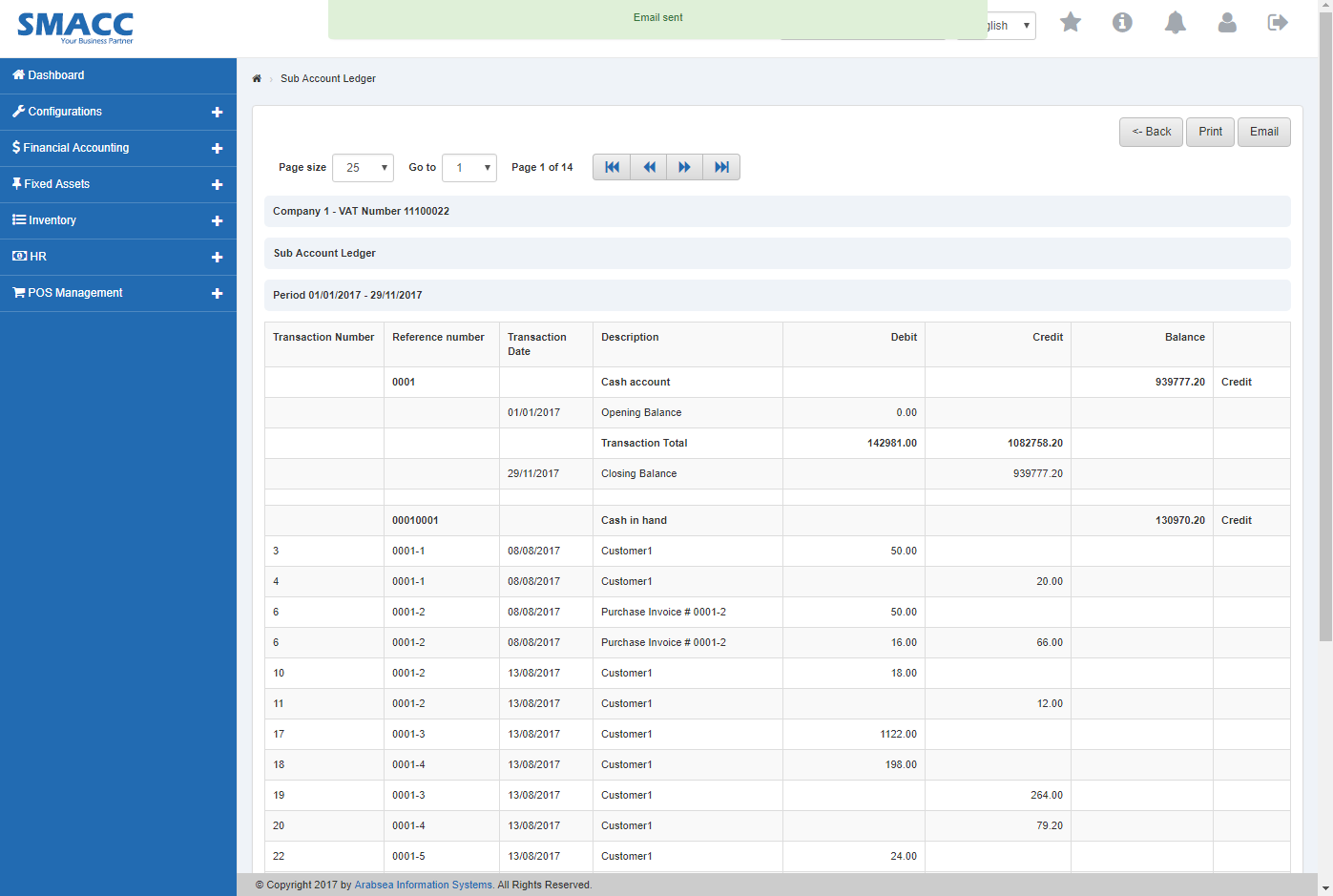
If you want to send information through email then click on “Email” button then email confirmation massage will be appeared on top of sub account ledgers page.
Export Sub Account Ledger to Excel.
To search sub account ledgers in “Financial Account”, click on the “Financial Accounting”, then “Reports”,then”Ledger & Statement“, then click “Sub Account Ledgers”. Sub Account Ledgers page will be displayed.
Enter control account code or click in " Control Account Code" input box then account code list will be appeared. Select the desired account code then selected account name will be appeared in “Account Name” input box.
Enter date in Period “From” and “To” input boxes.
if you want to search sub account ledger in financial account with account running balance details, check “With running balance” check box or if you want to search sub account ledger in financial with unclear cheque details, check ““Show” uncleared cheques” then check ““Show” uncleared cheques” check box. You can set desired search by checking or unchecking the check box against the required query.
Click “Show” button then it will display sub account ledgers detail sheet with in selected orders.
You can select page size by clicking on “Page size” checkbox then page size list will be appeared. Select the page size. If you want to select desired page number then click on “Navigation” button or click in “Go to” checkbox then page list will appear. Select the page number.
If you want to print the page then select your desired page and click on “Print” button on top of sub account ledgers page then prompt box will be appeared.
Click “Yes” button to print the information.
If you want to send information through email then click on “Email” button then email confirmation massage will be appeared on top of sub account ledger page.
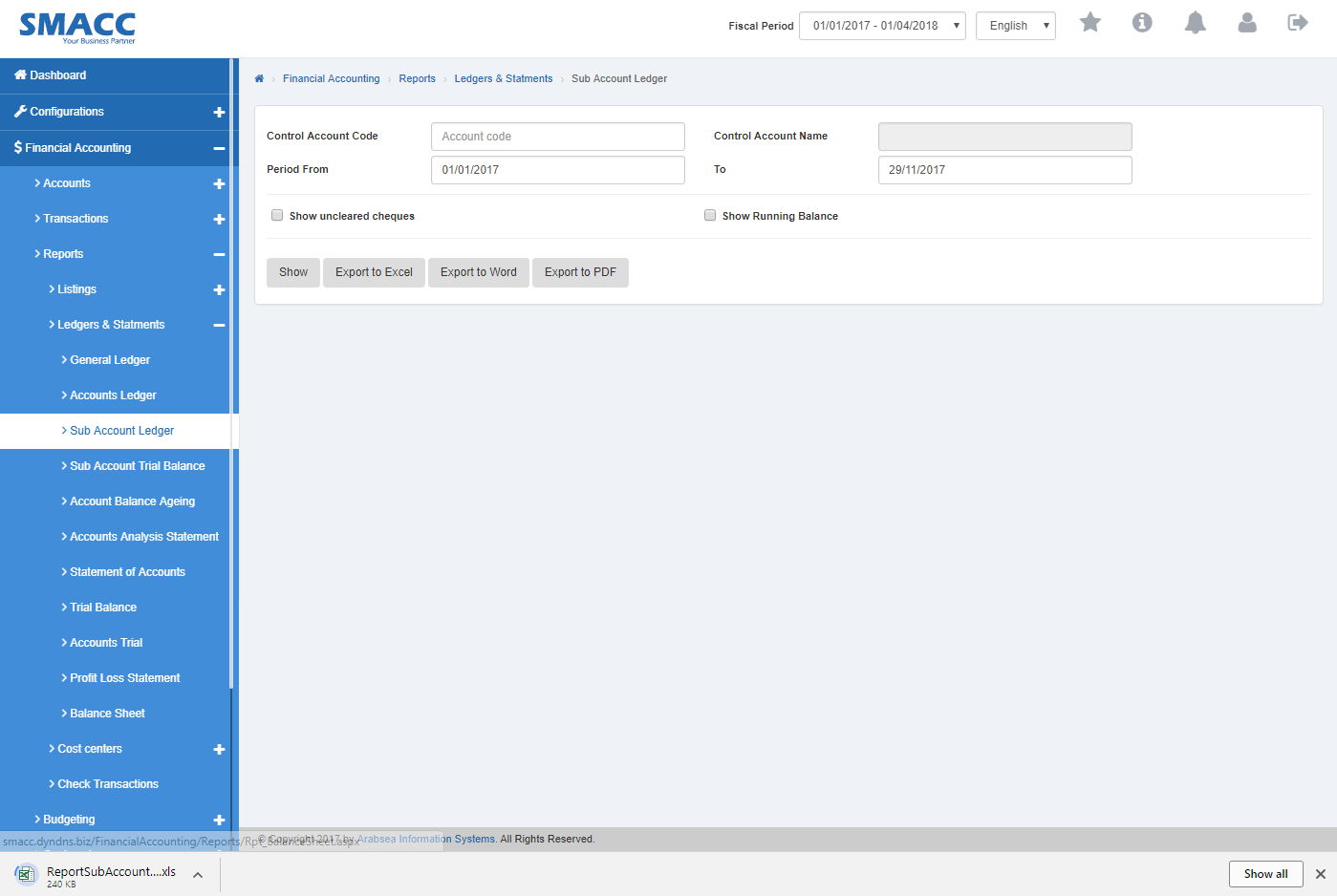
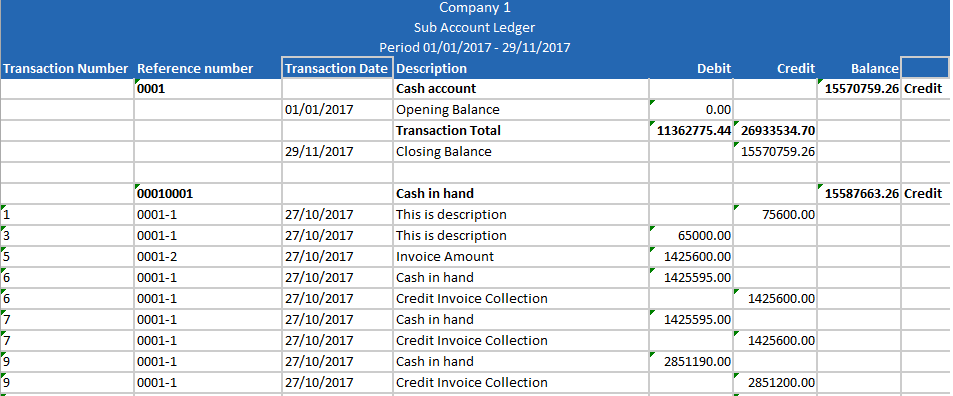
Click “Export to Excel” button then it will download sub account ledgers in Excel format. Click in the massage box on the top corner of the page.
 It will display sub account ledgers in Excel format.
Export Sub Account Ledgers to Word.
To search sub account ledgers in “Financial Account”, click on the “Financial Accounting”, then “Reports”,then”Ledger & Statement“, then click “Sub Account Ledgers”. Sub Account Ledgers page will be displayed.
Enter control account code or click in " Control Account Code" input box then account code list will be appeared. Select the desired account code then selected account name will be appeared in “Account Name” input box.
Enter date in Period “From” and “To” input boxes.
if you want to search sub account ledger in financial account with account running balance details, check “With running balance” check box or if you want to search sub account ledger in financial with unclear cheque details, check ““Show” uncleared cheques” then check ““Show” uncleared cheques” check box. You can set desired search by checking or unchecking the check box against the required query.
Click “Show” button then it will display stock transfer listing detail sheet with in selected orders.
You can select page size by clicking on “Page size” checkbox then page size list will be appeared. Select the page size. If you want to select desired page number then click on “Navigation” button or click in “Go to” checkbox then page list will appear. Select the page number.
If you want to print the page then select your desired page and click on “Print” button on top of sub Account ledgers page then prompt box will be appeared.
Click “Yes” button to print the information.
If you want to send information through email then click on “Email” button then email confirmation massage will be appeared on top of sub account ledgers page.
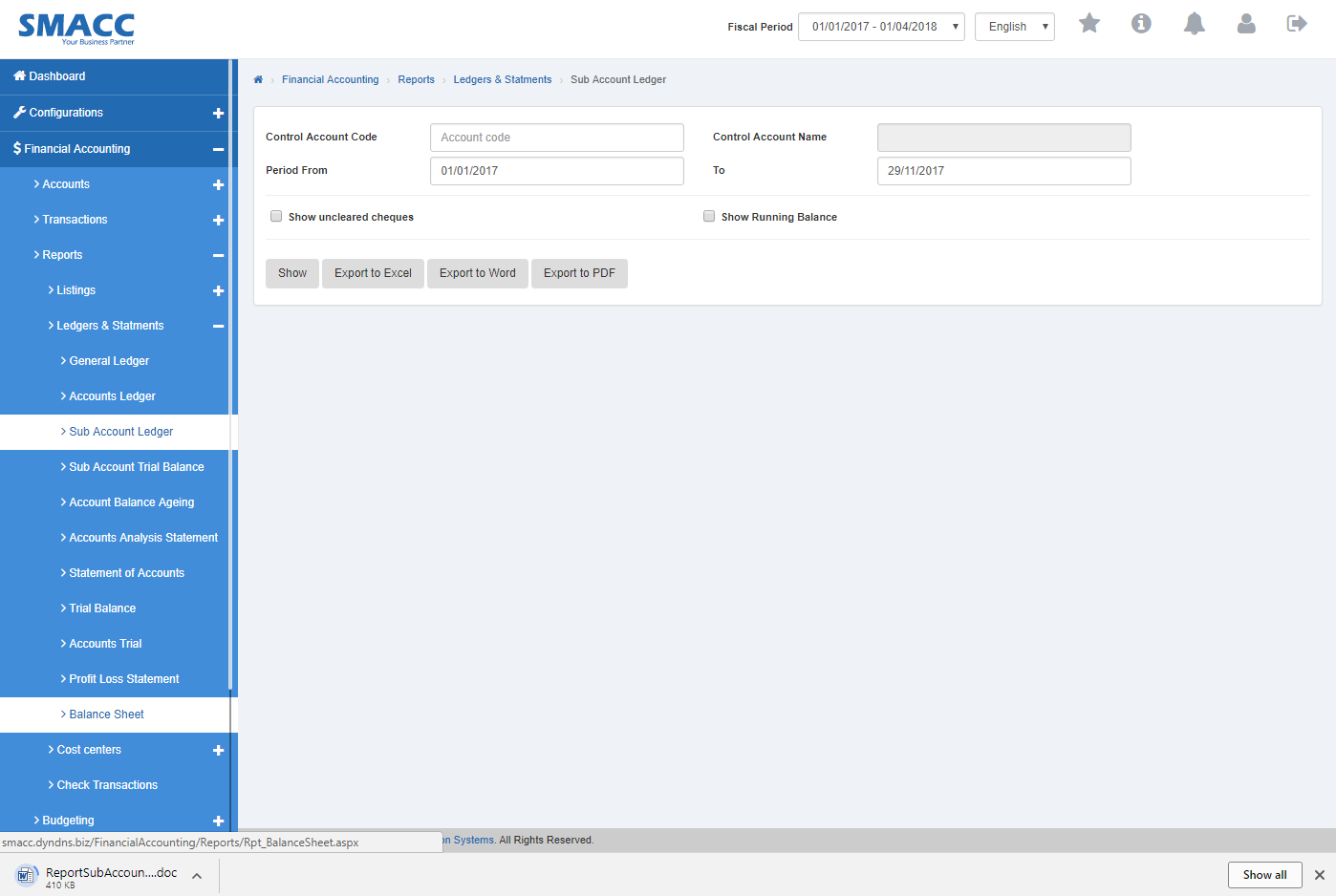
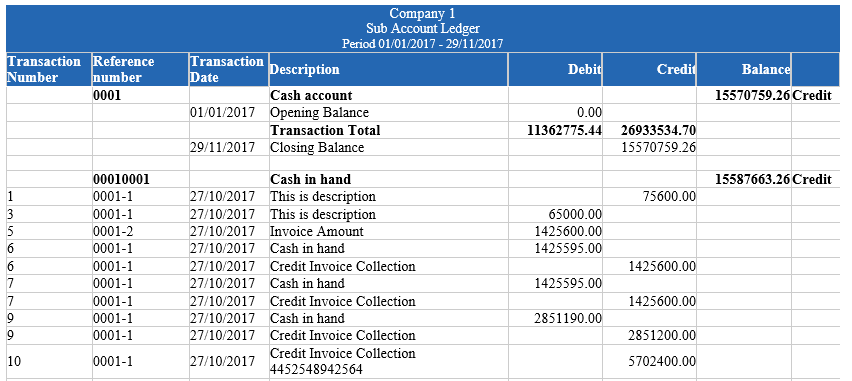
Click “Export to Word” button then it will download sub account ledgers in Word format. Click in the massage box on the top corner of the page.
 It will display sub account ledgers in Word format.
Export Sub Account Ledgers to PDF.
To search sub account ledgers in “Financial Account”, click on the “Financial Accounting”, then “Reports”,then”Ledger & Statement“, then click “Sub Account Ledgers”. Sub Account Ledgers page will be displayed.
Enter control account code or click in " Control Account Code" input box then account code list will be appeared. Select the desired account code then selected account name will be appeared in “Account Name” input box.
Enter date in Period “From” and “To” input boxes.
if you want to search sub account ledger in financial account with account running balance details, check “With running balance” check box or if you want to search sub account ledger in financial with unclear cheque details, check ““Show” uncleared cheques” then check ““Show” uncleared cheques” check box. You can set desired search by checking or unchecking the check box against the required query.
Click “Show” button then it will display stock transfer listing detail sheet with in selected orders.
You can select page size by clicking on “Page size” checkbox then page size list will be appeared. Select the page size. If you want to select desired page number then click on “Navigation” button or click in “Go to” checkbox then page list will appear. Select the page number.
If you want to print the page then select your desired page and click on “Print” button on top of sub account ledgers page then prompt box will be appeared.
Click “Yes” button to print the information.
If you want to send information through email then click on “Email” button then email confirmation massage will be appeared on top of sub account ledgers page.
Click “Export to PDF” button then it will download sub account ledgers in PDF format. Click in the massage box on the top corner of the page.
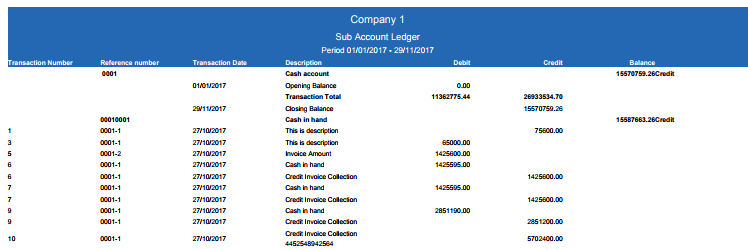
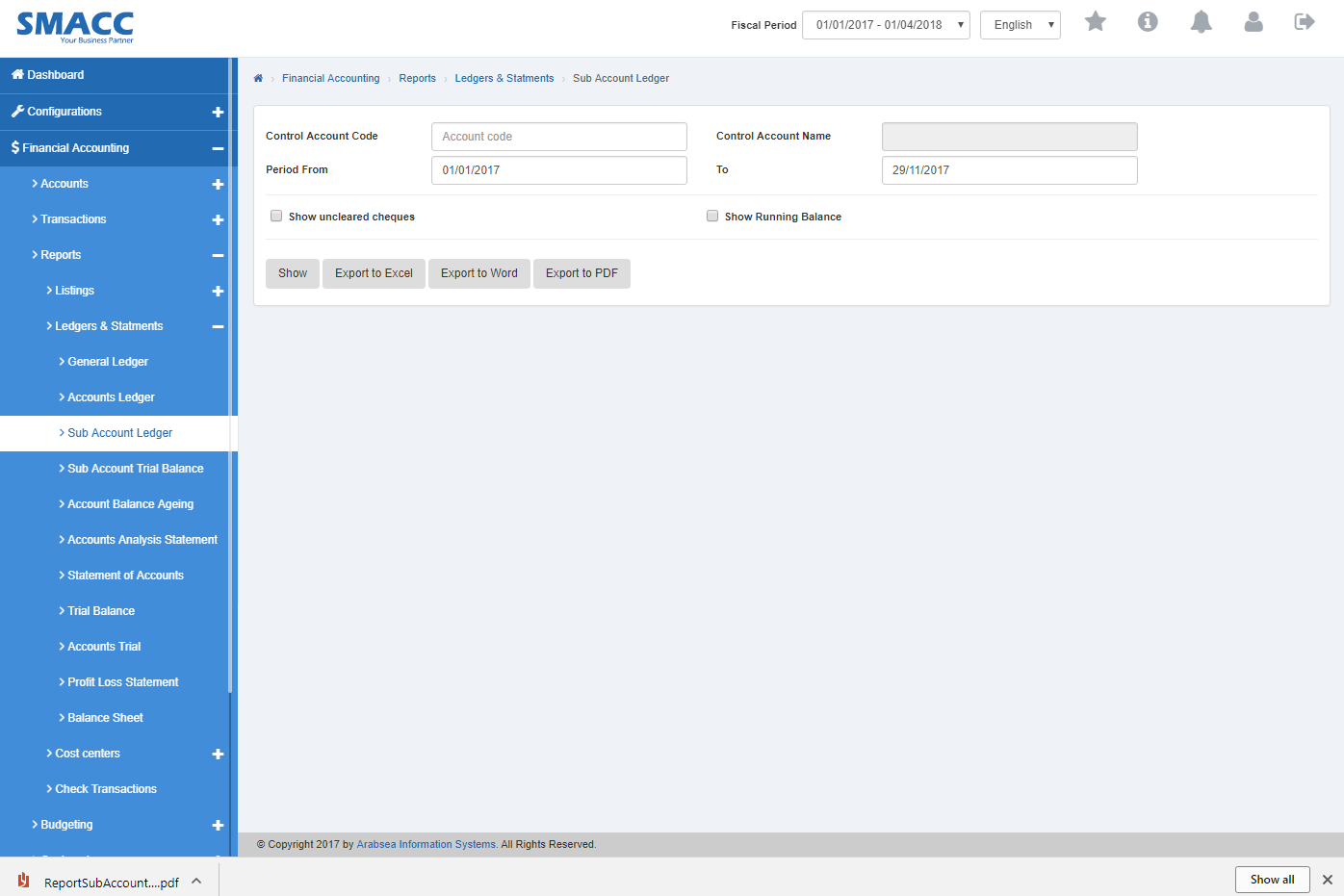 It will display sub account ledgers in PDF format.
Was this article helpful?
Start with SMACC today
Try free for 14 days — no credit card, no commitment.