
Chart of Accounts
In chart of accounts, you can print and email all information of all accounts. You can also export all information into excel, word and pdf formats.
Searching Account information in Account Chart.
To search accounts in “Account Chart”, click on the “Financial Accounting”, then “Reports”, then click “Chart of Accounts”. Chart of Accounts page will be displayed.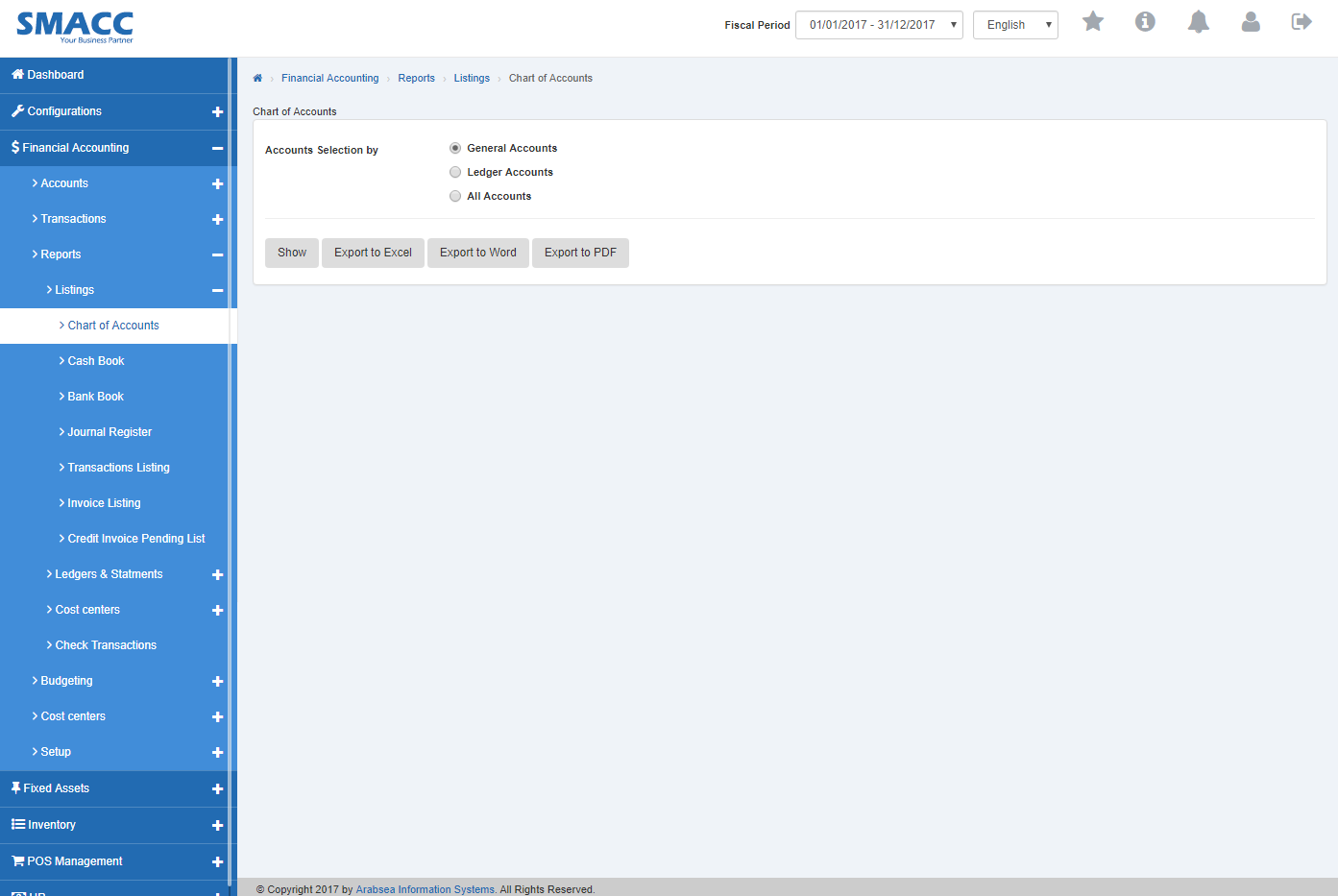 Select the desired account by clicking the radio button in “Account Selection by” along with if you want to view the opening balance of selected account then check “Show Opening Balance” check box. Click “Show” button. It will display the selected account details.
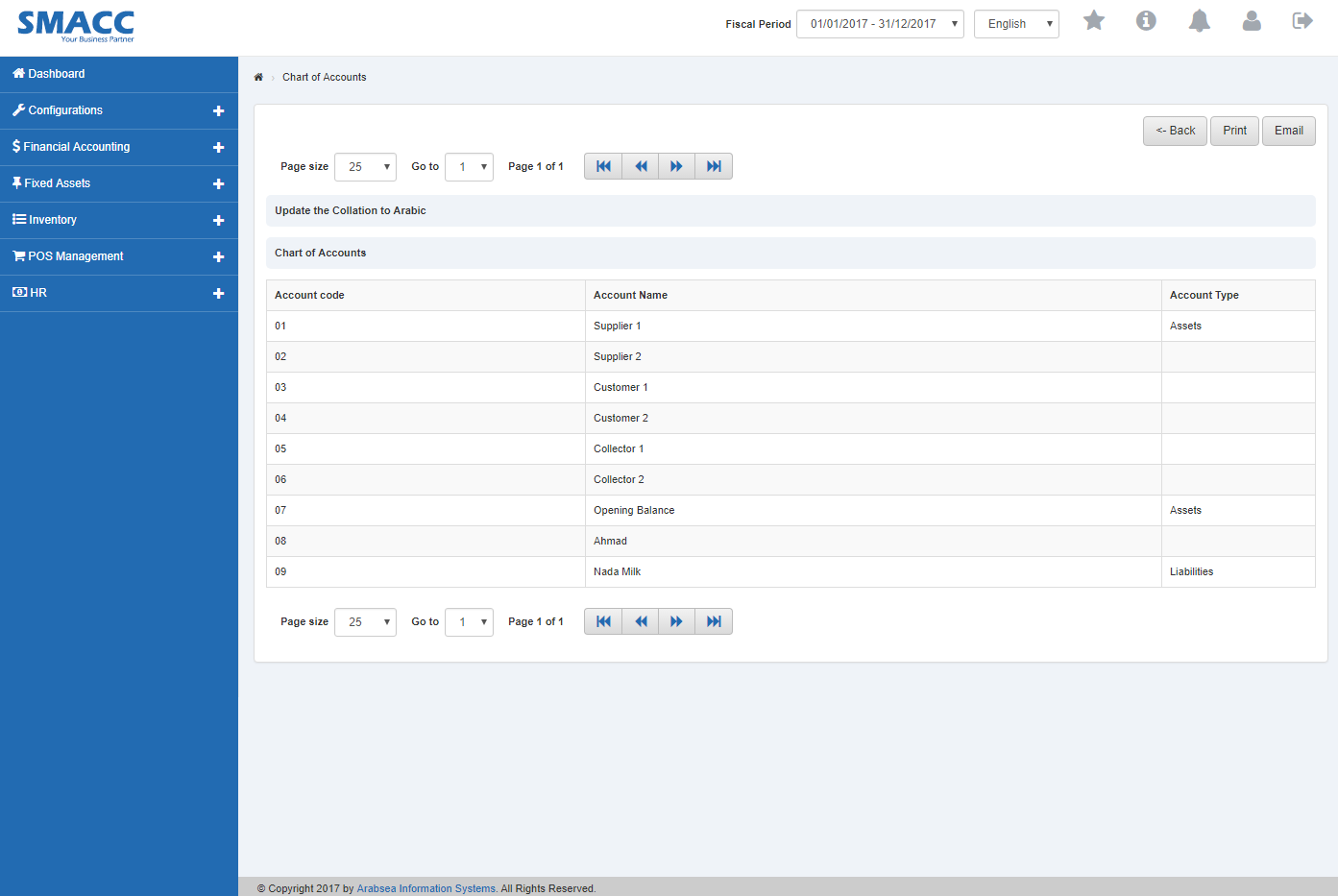
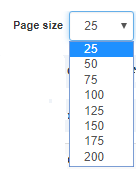


Exporting Account details in Account Chart to Excel.
To “Export Account details in Account Chart to Excel”, click on the “Financial Accounting”, then “Reports”, then click “Chart of Accounts”. Chart of Accounts page will be displayed.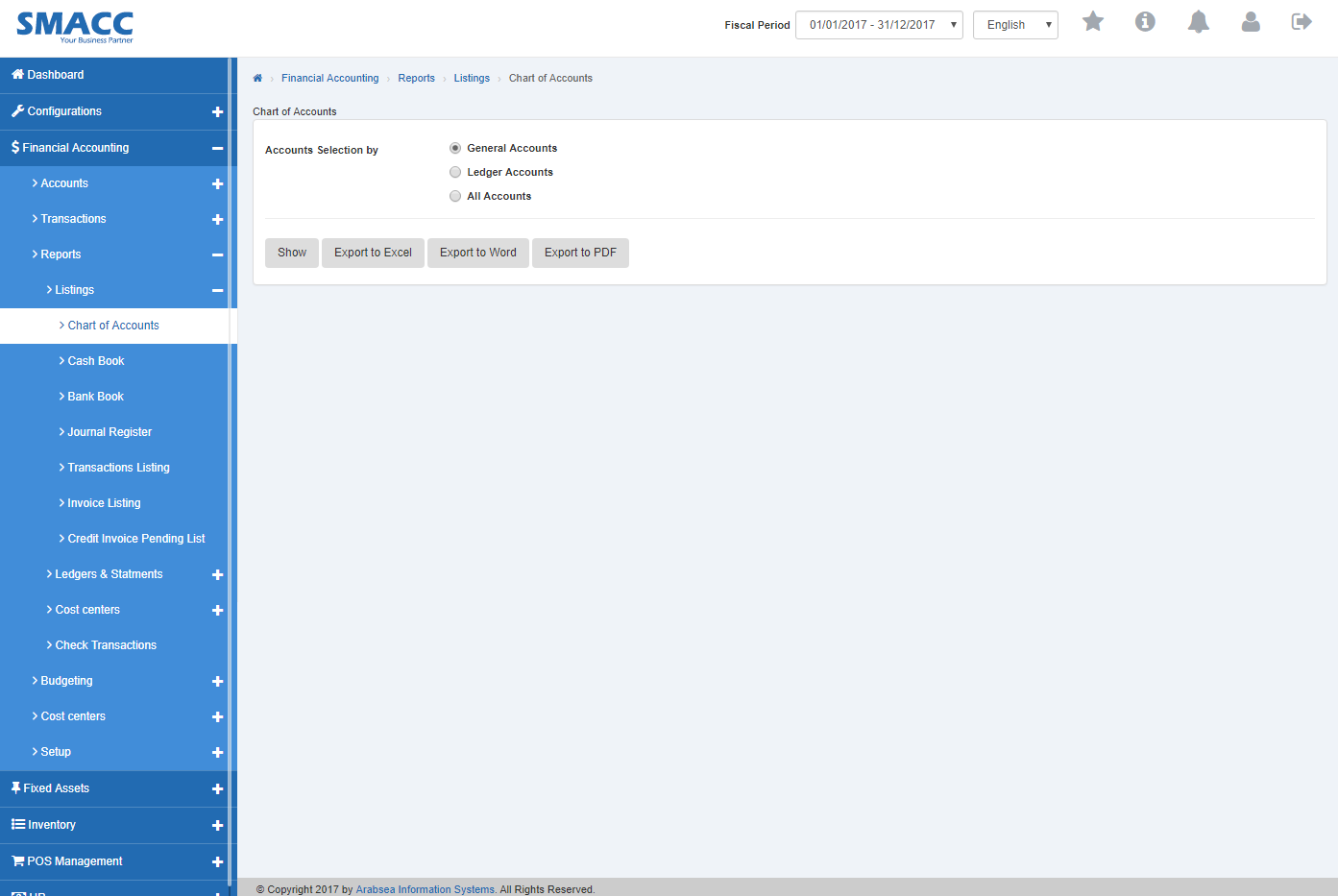 Select the desired account by clicking the radio button in “Account Selection by” then click “Export to Excel” button. It will export selected account details to excel.
Exporting Account details in Account Chart to Word.
To “Export Account details in Account Chart to Word”, click on the “Financial Accounting”, then “Reports”, then click “Chart of Accounts”. Chart of Accounts page will be displayed.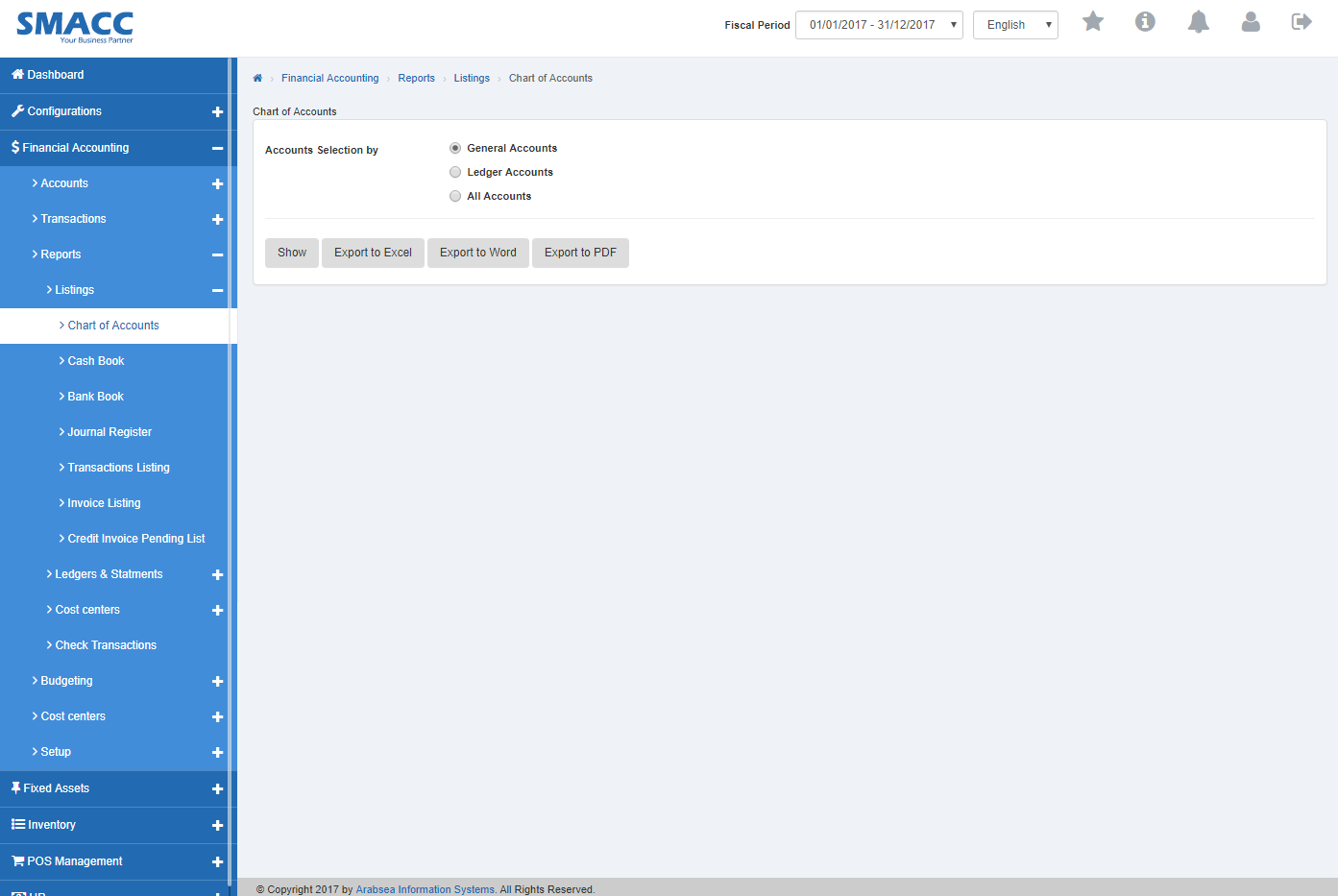 Select the desired account by clicking the radio button in “Account Selection by” then click “Export to Word” button. It will export selected account details to word.
Exporting Account details in Account Chart to PDF.
To “Export Account details in Account Chart to PDF”, click on the “Financial Accounting”, then “Reports”, then click “Chart of Accounts”. Chart of Accounts page will be displayed.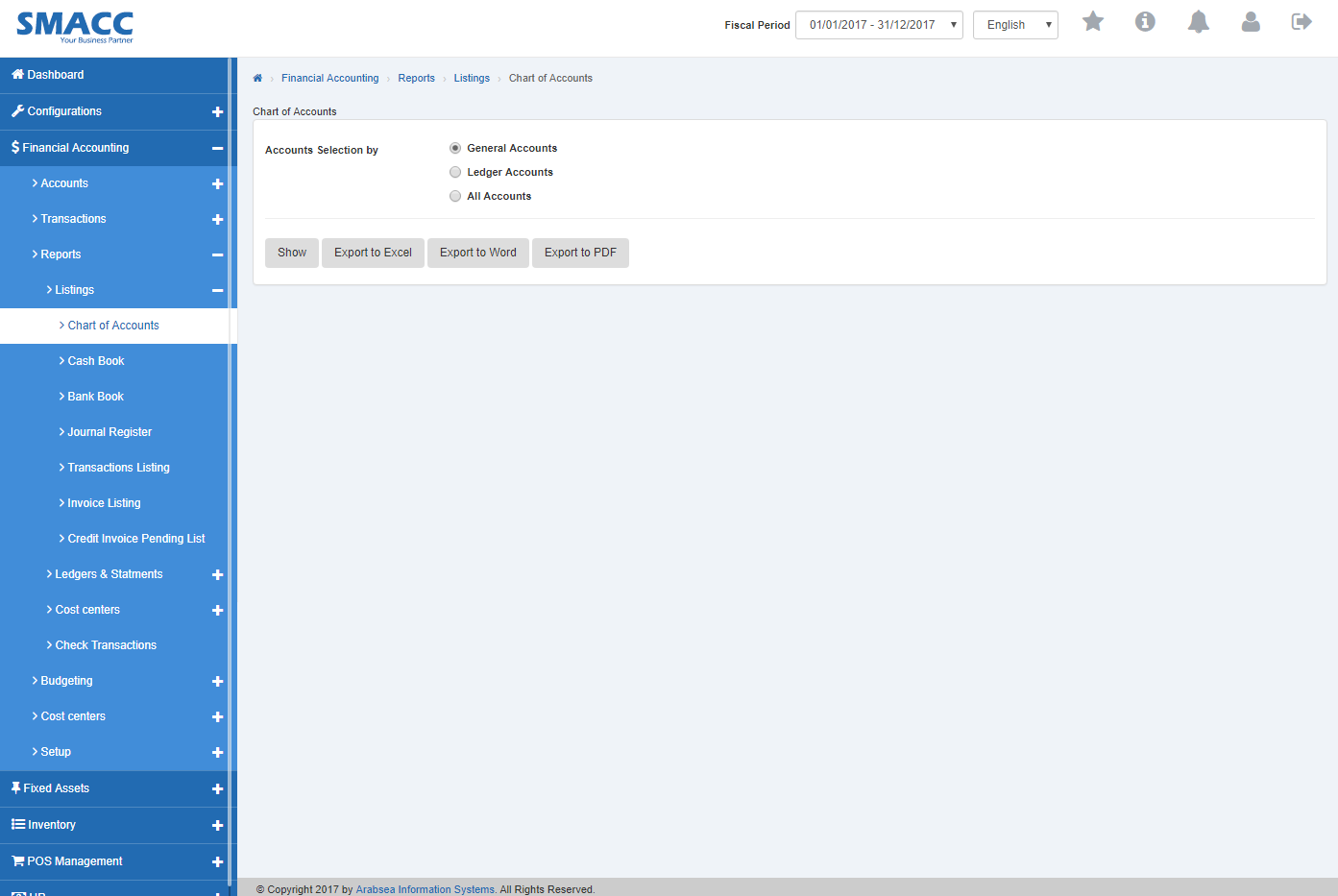 Select the desired account by clicking the radio button in “Account Selection by” then click “Export to PDF” button. It will export selected account details to pdf.
Printing Account details in Account Chart.
To print "Account details in Account Chart", click on the “Financial Accounting”, then “Reports”, then click “Chart of Accounts”. Chart of Accounts page will be displayed.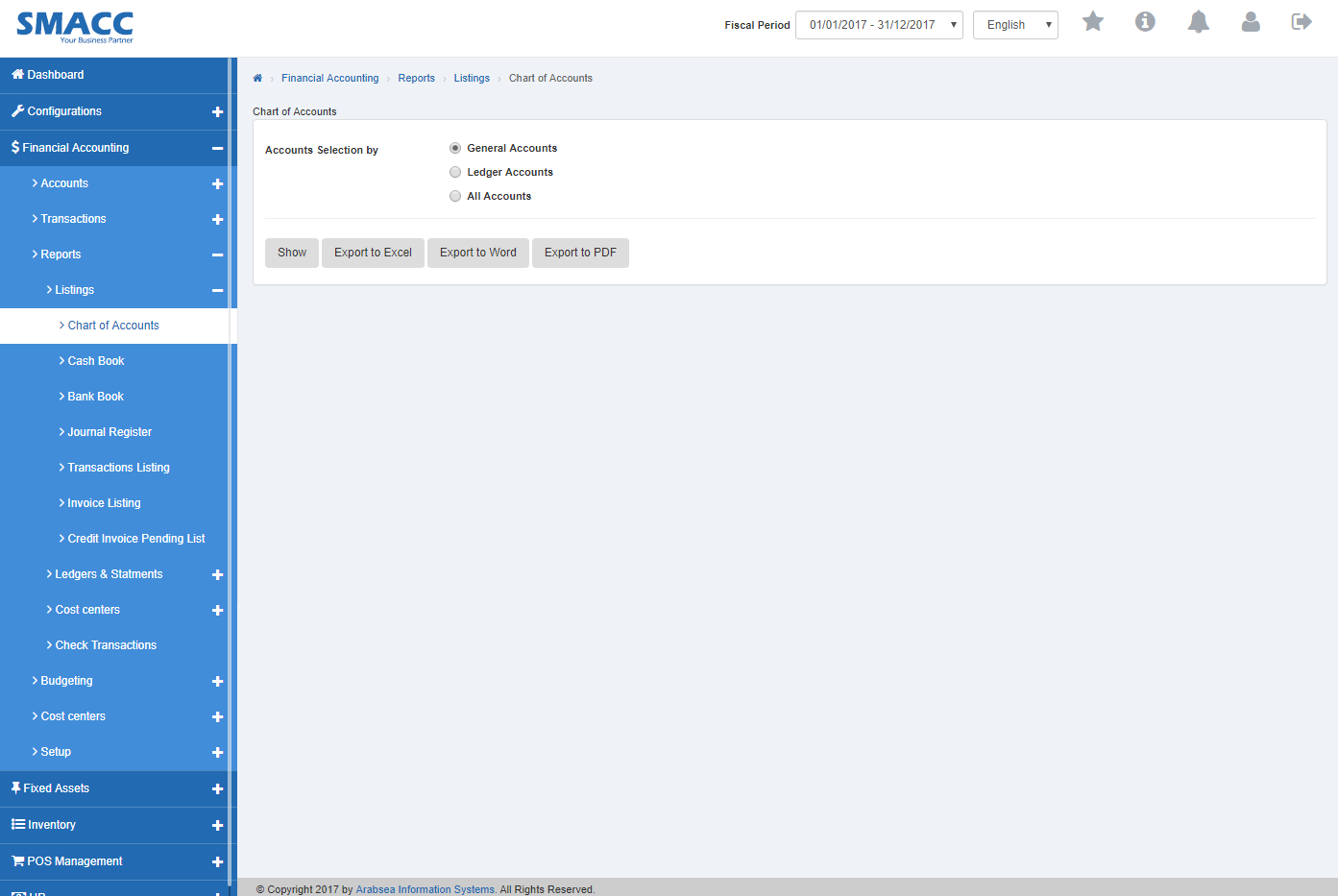 Select the desired account by clicking the radio button in “Account Selection by” along with if you want to view the opening balance of selected account then check “Show Opening Balance” check box. Click “Show”
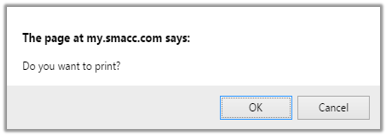
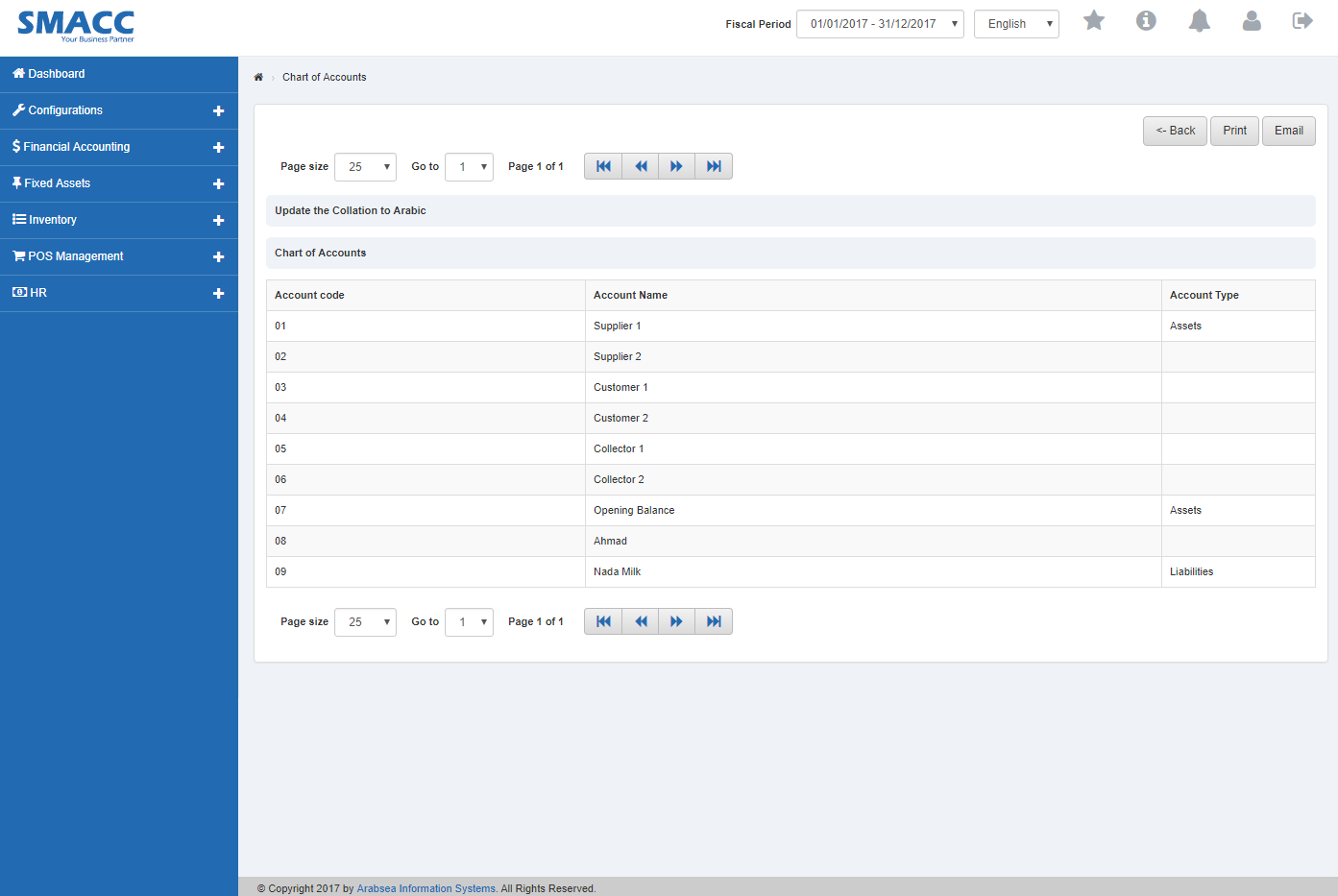 Click “Print” button on chart of accounts page.
Was this article helpful?
Start with SMACC today
Try free for 14 days — no credit card, no commitment.