
Cost Centers
In cost centers, you can add new cost center and update, delete and print your desired cost center.You can update sub cost center support.
Adding new Cost Center.
To add new cost center, click on "Financial Accounting" , then "Master", then click on "Cost Centers". Cost center page will be displayed.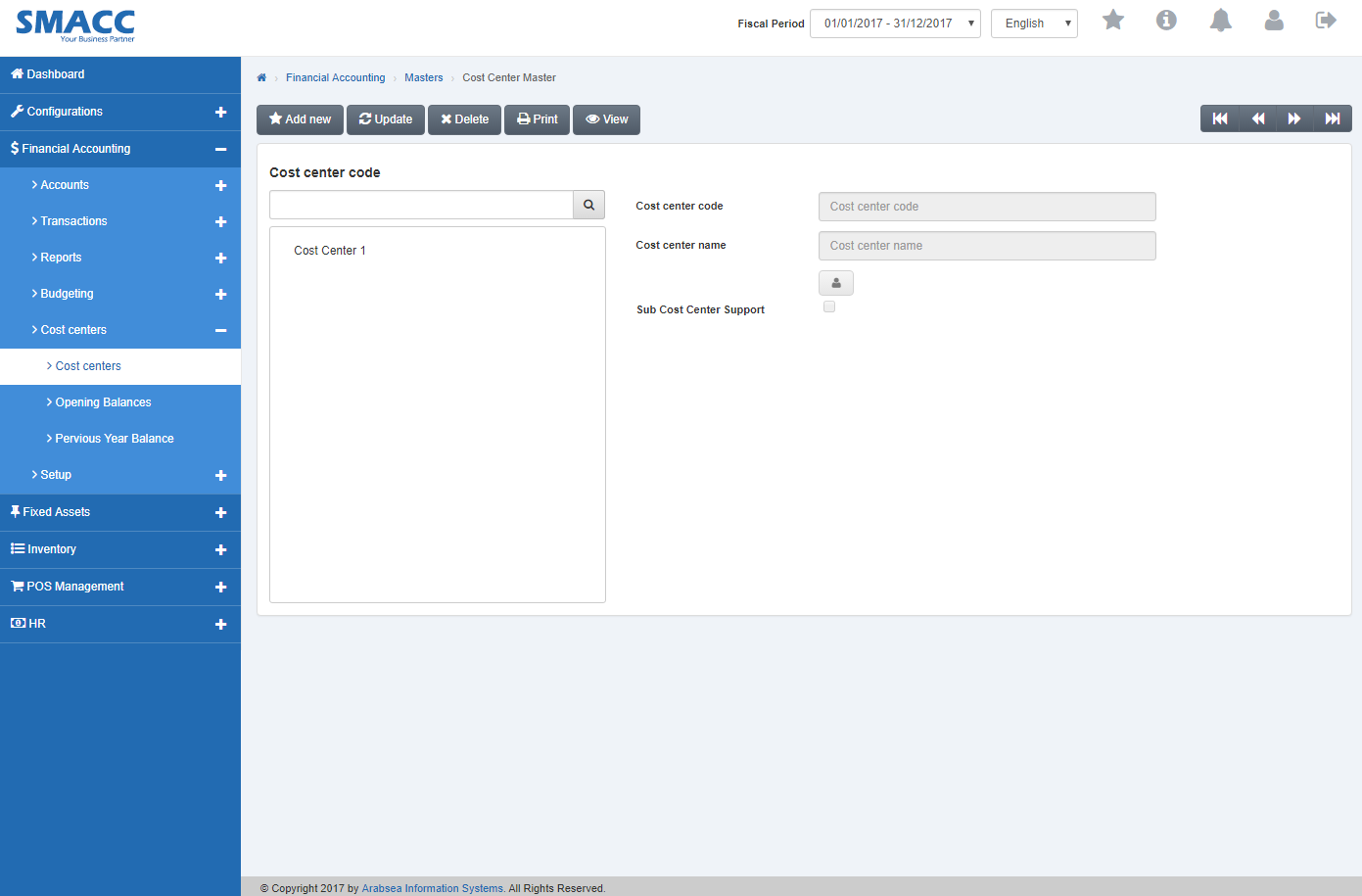 To add new cost center , click on "Add new" button on the top of cost center page.
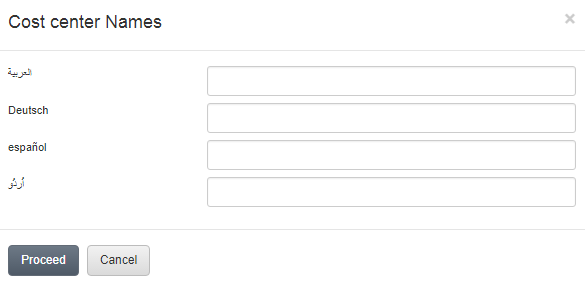
 If you want to enter cost center name in your desired language then click on manage name icon then cost center name input box will be displayed . Enter cost center name in your desired language then click on "Proceed" button to save the information.
 Check/Unchecked "Add this cost center at root " check box to attach/unattached cost center at root.
 Check/Unchecked "Sub Cost Center Support" check box to attach/unattached sub cost center support.

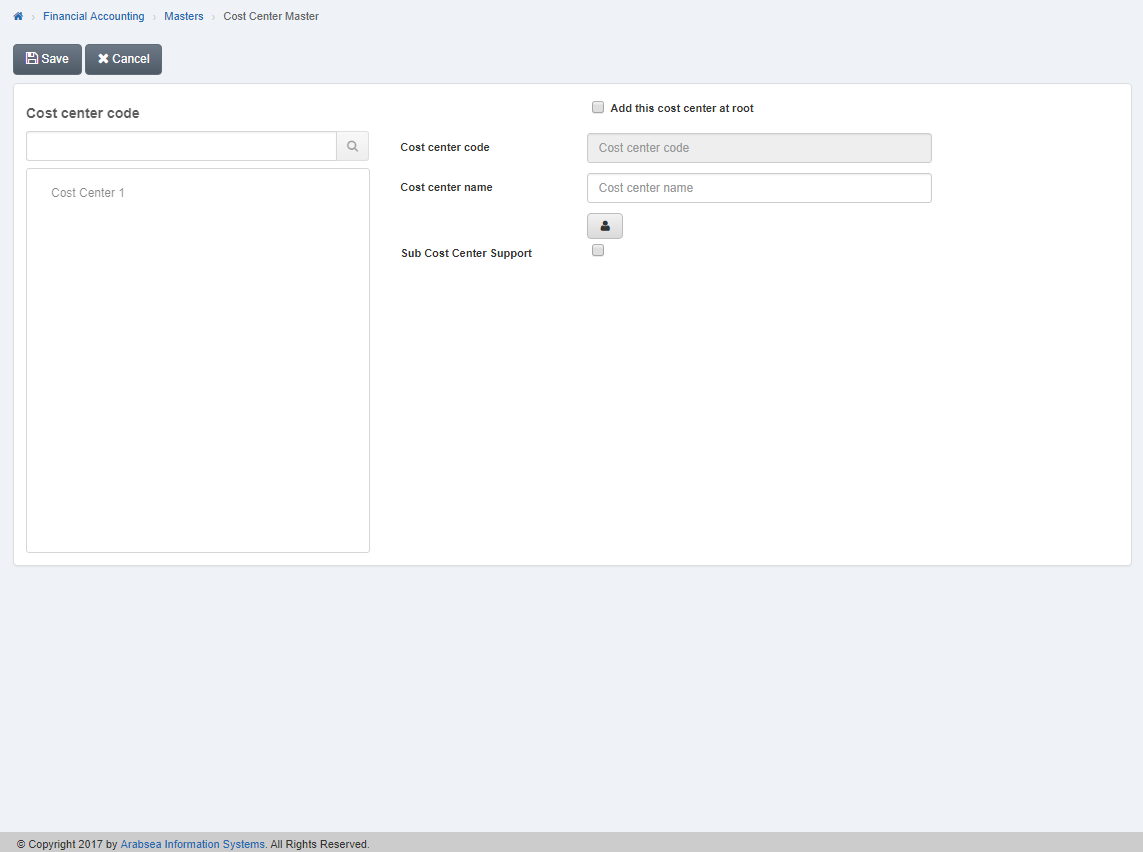 Click "Save" button to save the information then cost center code will be systematically generated and shown in cost center input box.
Searching Cost Center.
To search cost center, click on "Financial Accounting" , then "Master", then click on "Cost Centers". Cost center page will be displayed.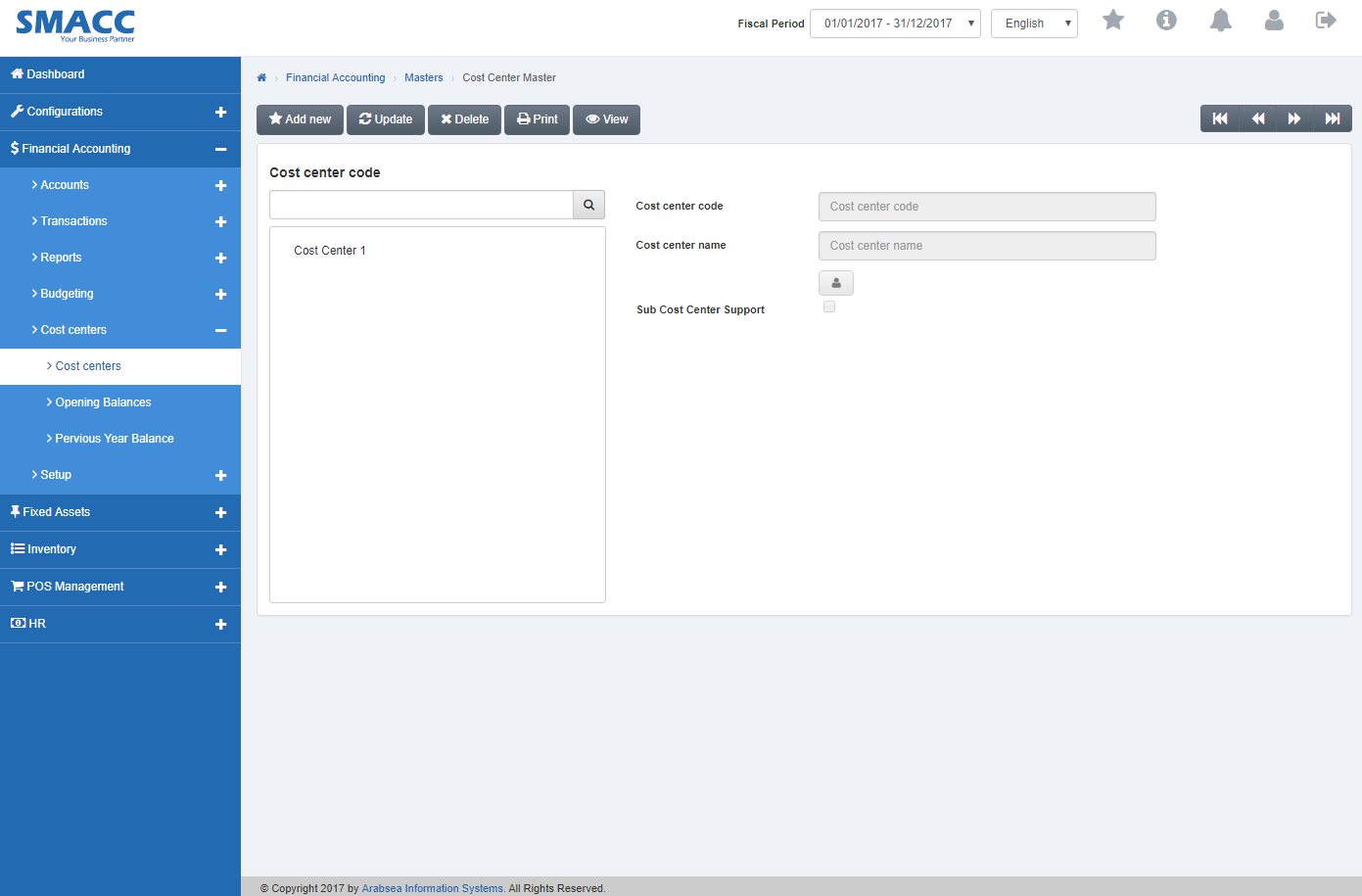 Click "View" button then enter cost center code in "Cost center code" input box.
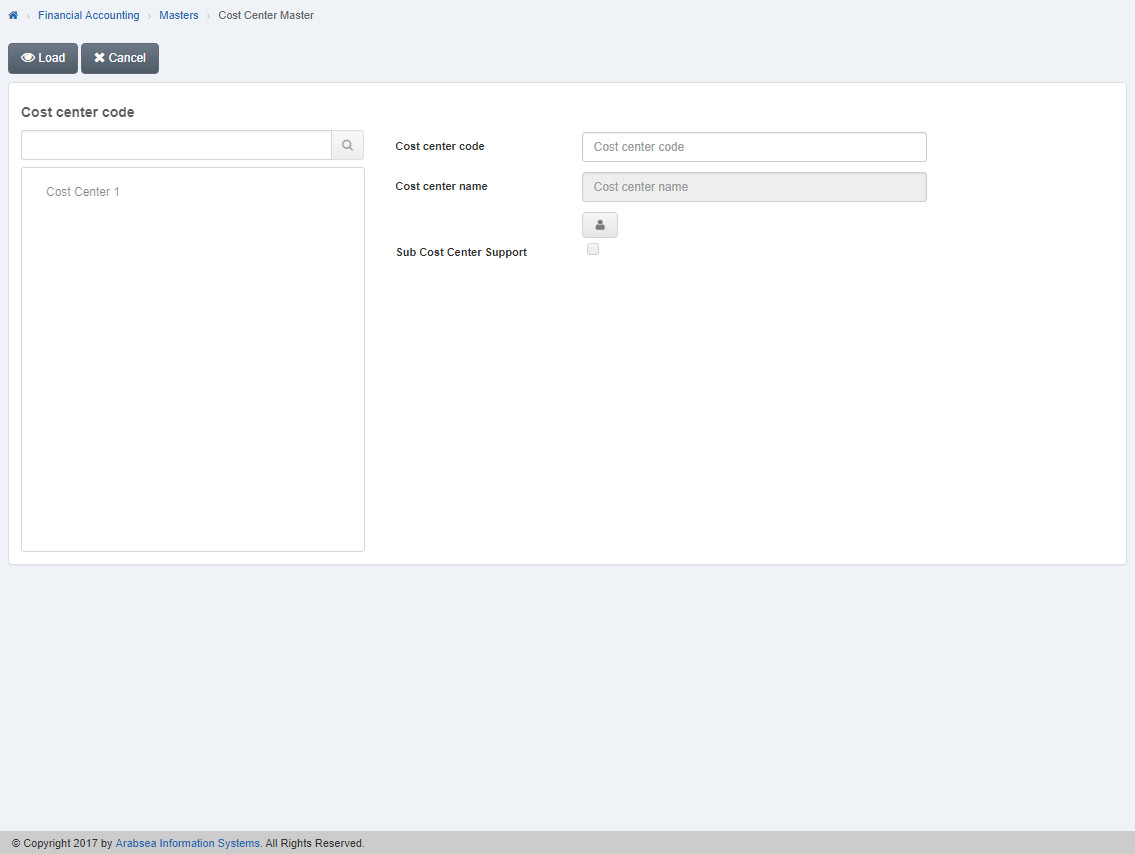 Click on "Load" button then all information of required cost center will be displayed.
Deleting Cost Center.
To delete cost center, click on "Financial Accounting" , then "Master", then click on "Cost Centers". Cost center page will be displayed.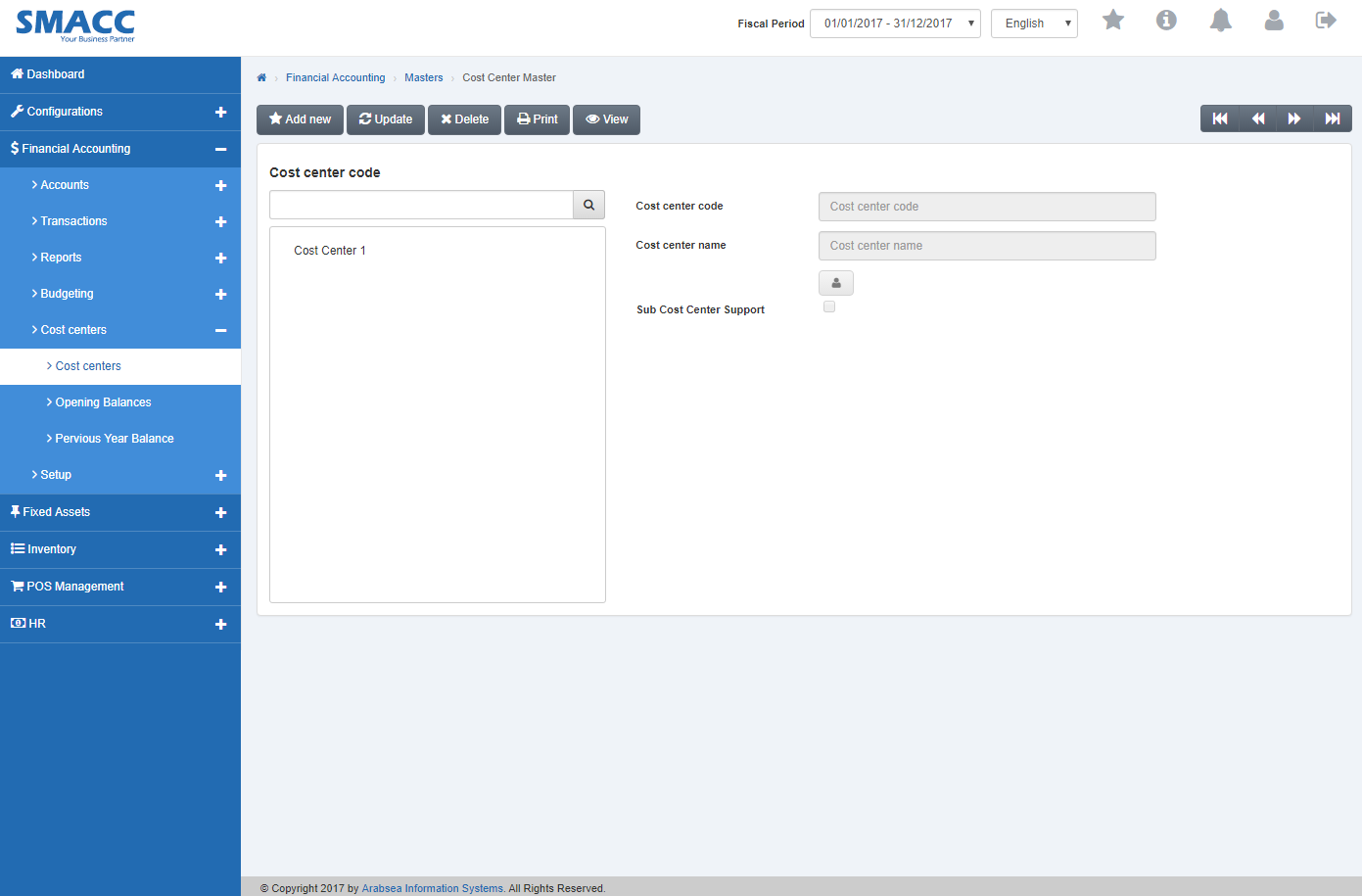 To delete cost center, select the cost center in cost center list bar then click on "Delete" button on the top of cost center page.
A prompt will be displayed.
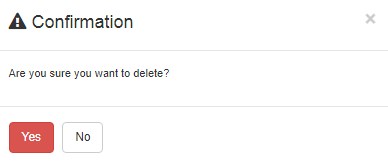 Click "Yes" button to delete the information.
Printing Cost Center.
To print cost center, click on "Financial Accounting" , then "Master", then click on "Cost Centers". Cost center page will be displayed.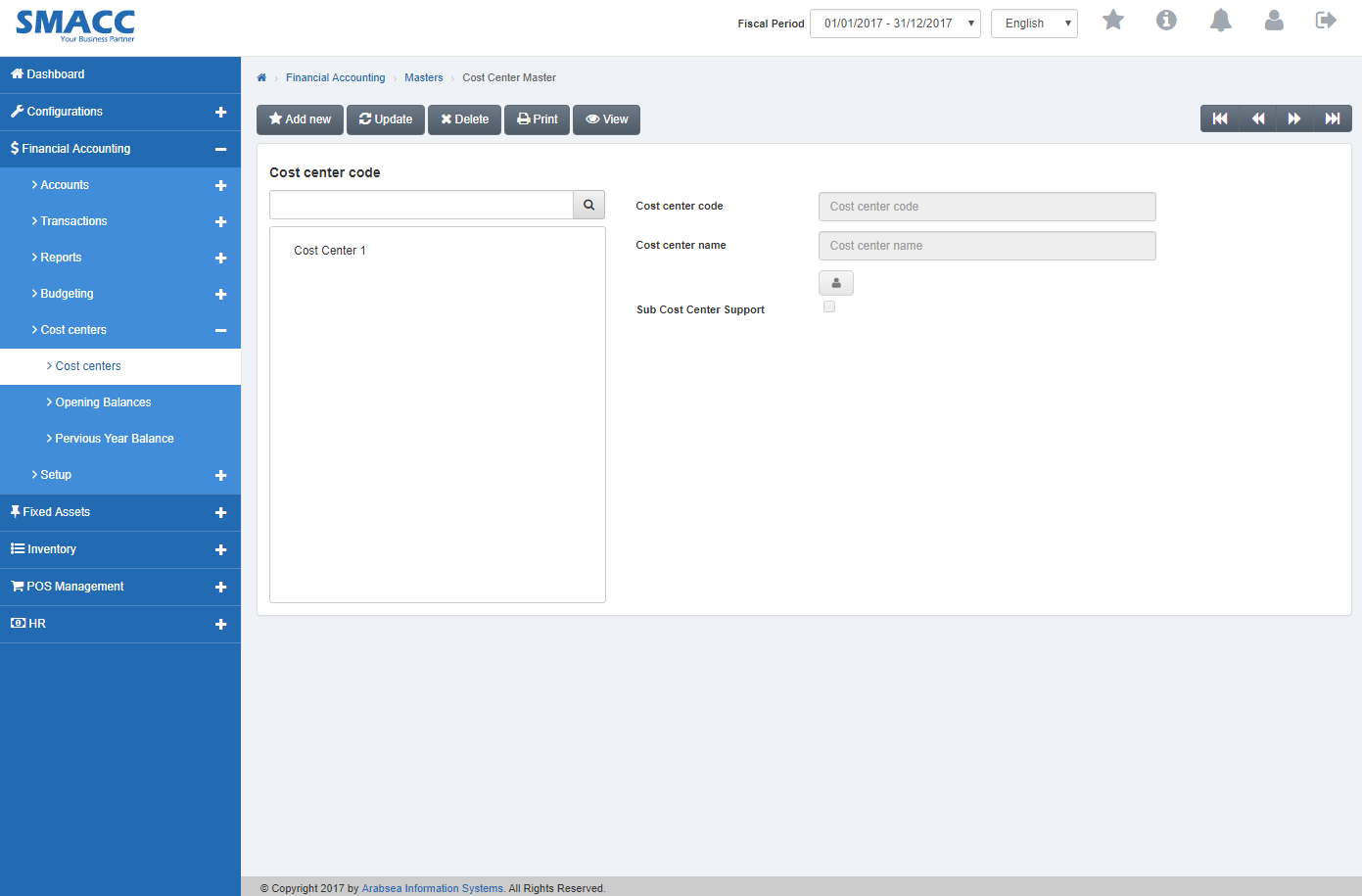 Click "Print" button then enter cost center code in "Cost center code" input box.
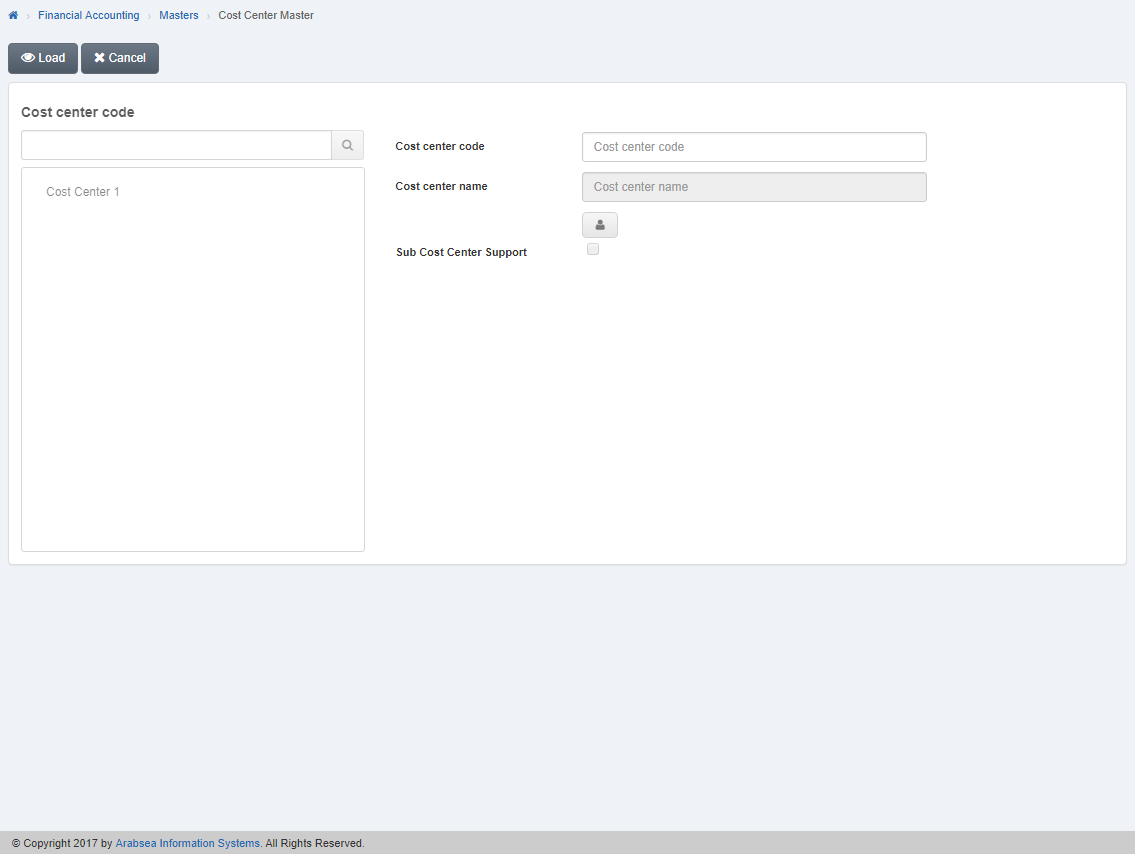 Click on "Load" button on cost center page .
A prompt will be displayed.
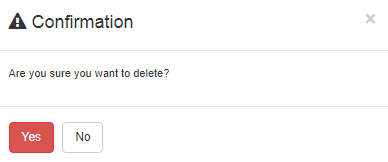 Click "Yes" button to save the information.
Was this article helpful?
Start with SMACC today
Try free for 14 days — no credit card, no commitment.