
Tables
While dealing with restaurant management, you can add, update, or delete tables on a floor of a restaurant in the module of POS Management.
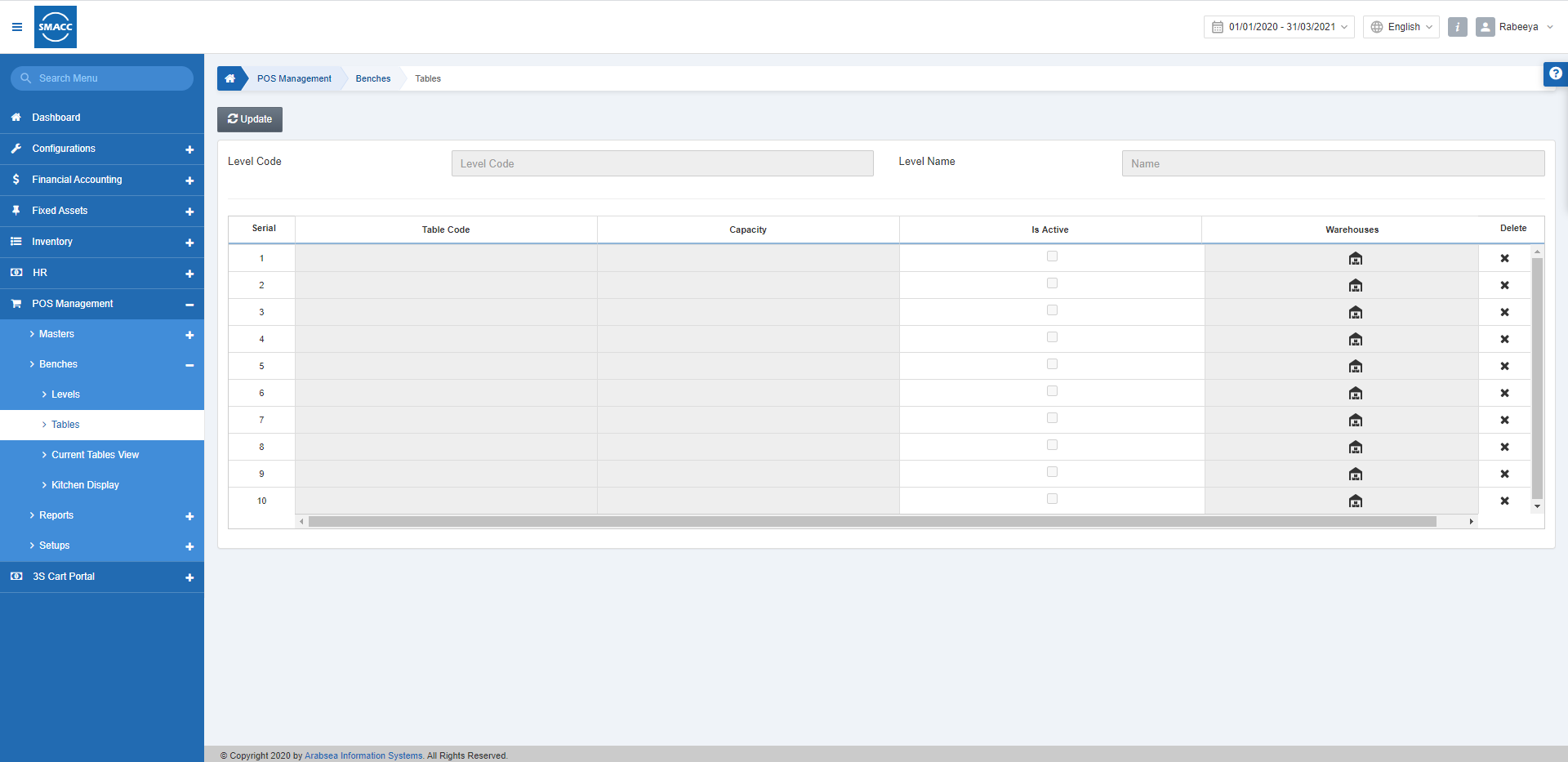
Addition of Tables on a Level
To add the tables go to POS Management > Benches > Tables, the tables page is displayed.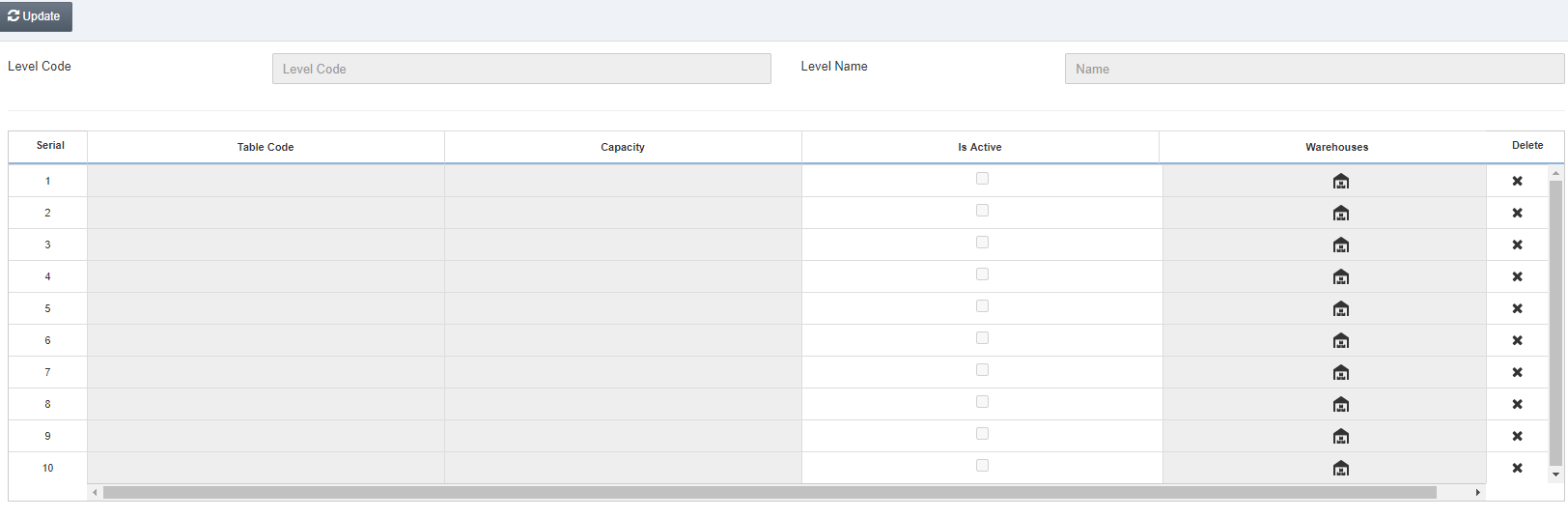 Click on the Update button.
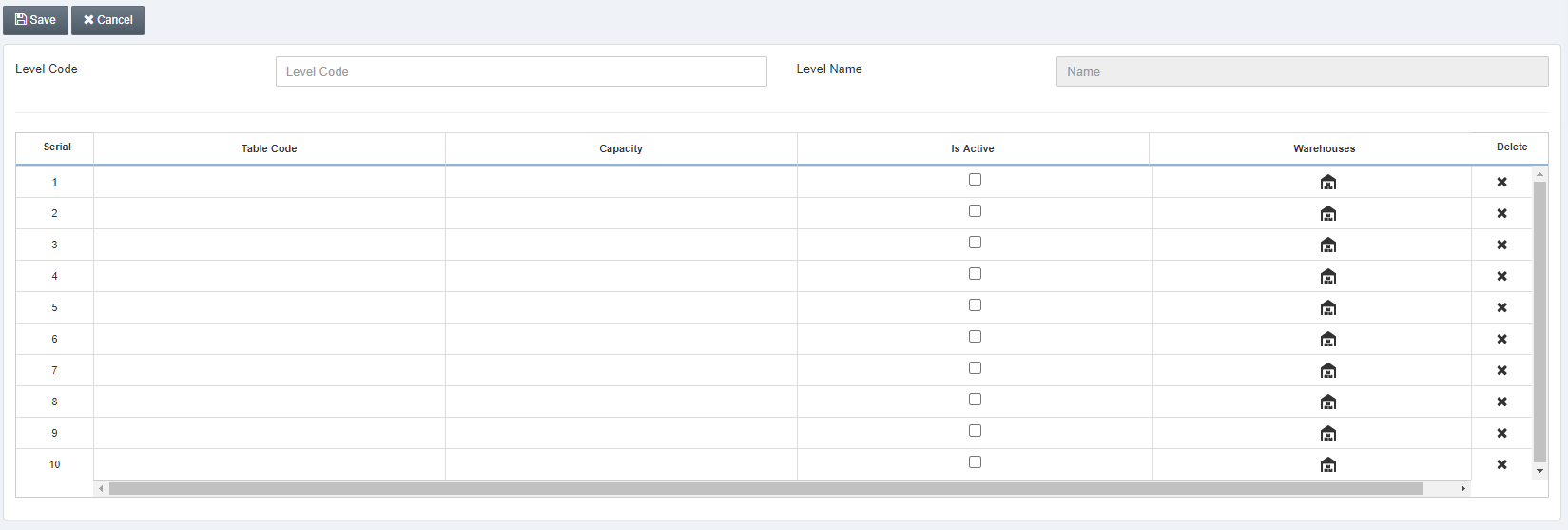 Enter the Level Code where you want to set the tables.
Note: Tables are managed on each level.
Enter the Level Code where you want to set the tables.
Note: Tables are managed on each level.
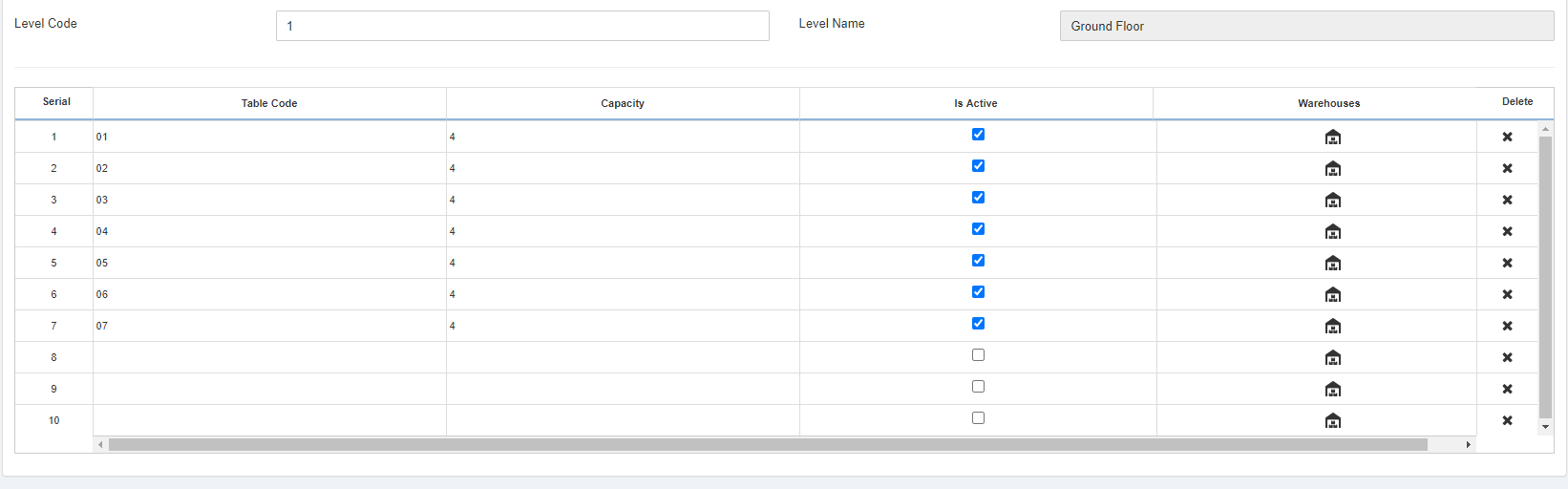 Click on the House icon under the Warehouse in each row to add the warehouse. This is a mandatory field to add a warehouse.
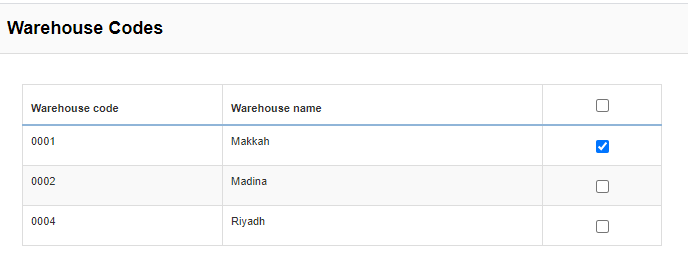 Note: Every table has a code and capacity. If Is Active is checked table is available for the Dine In order. Warehouse” selection is mandatory against each table.
Deletion of Tables on a Level
Click on the X icon under Delete, to delete the table from a particular level, and click on “Save”.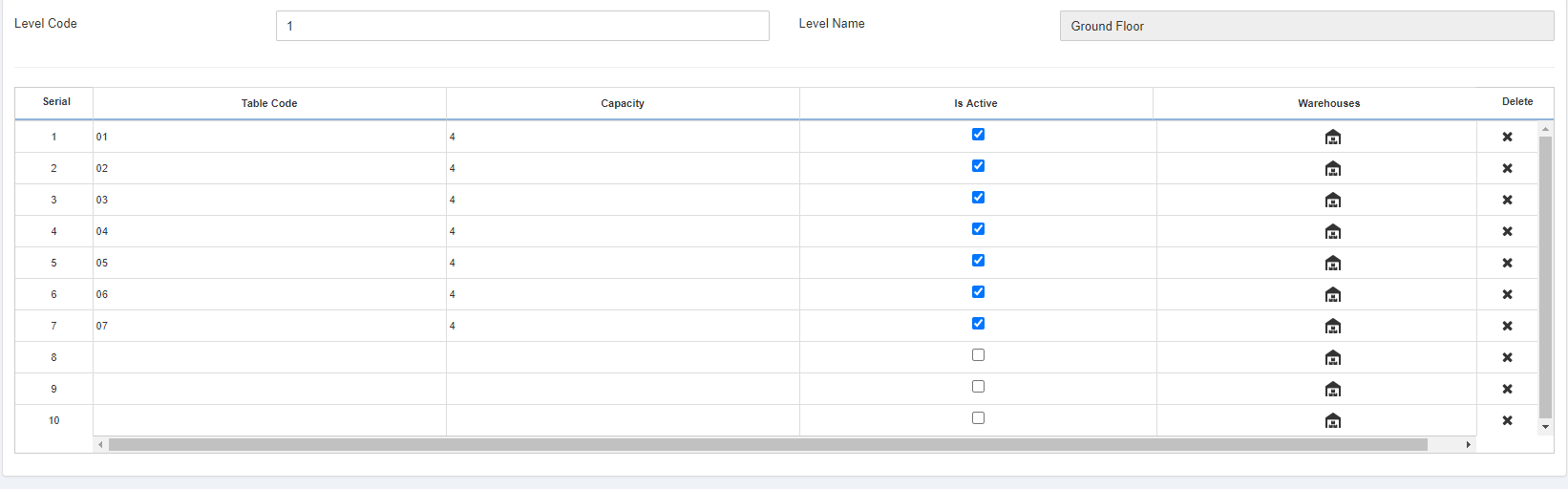 This is how you can manage the tables on each floor and it helps you in detailed restaurant management.
Was this article helpful?
Start with SMACC today
Try free for 14 days — no credit card, no commitment.