
Bounce
In bounce, you can add new date entries of bounced cheques. You can update, delete the information.
Searching Post Dated Cheques to Bounce
To search “Post Dated Cheques” to “Bounce”, click on the “Financial Accounting”, then “Transactions”, then “Post Paid Cheques”, then click “Bounce”. Bounce page will be displayed.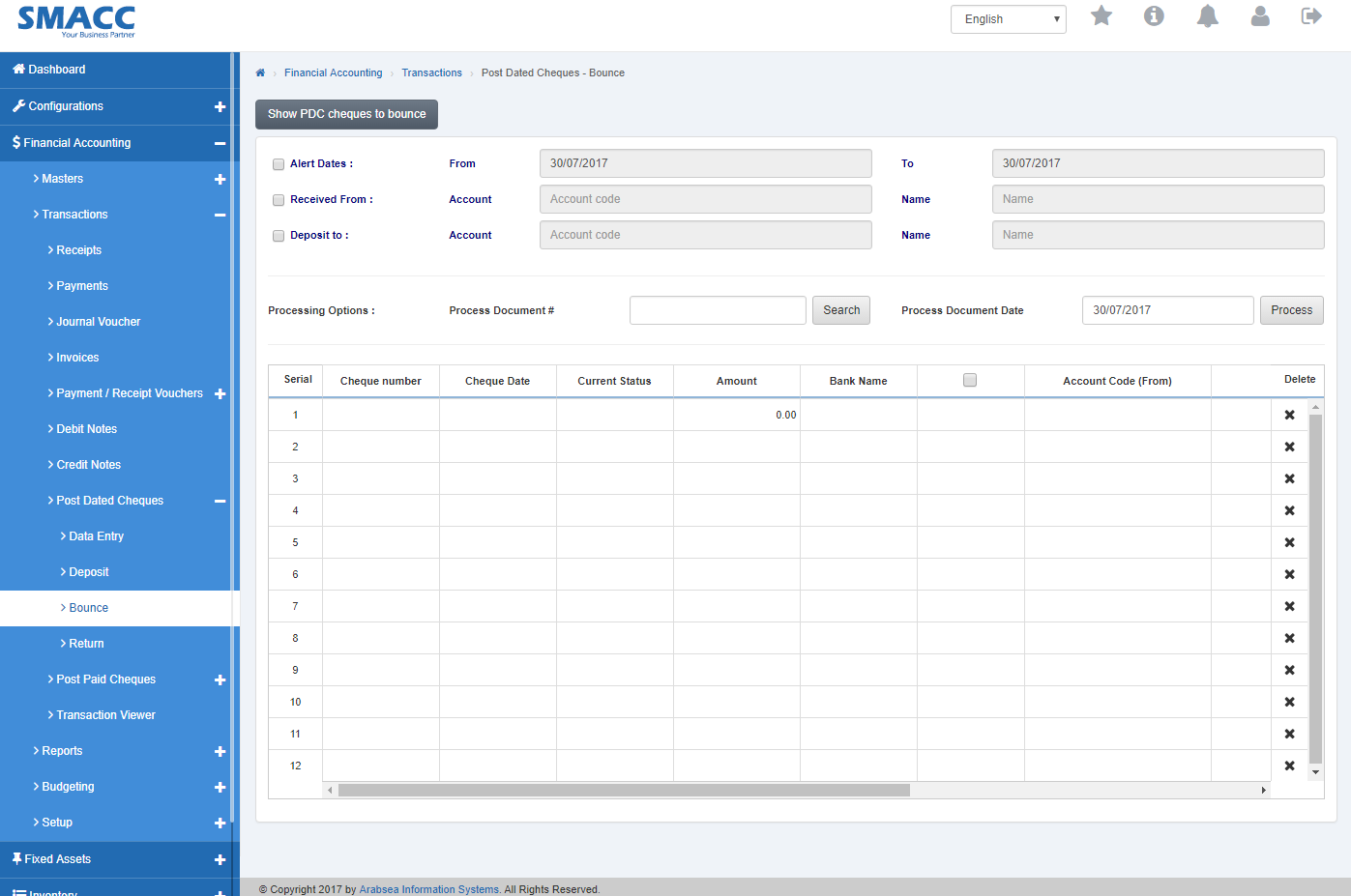 Check the “Alert Dates:” check box then set the date in “From” inbox and in “To” inbox.
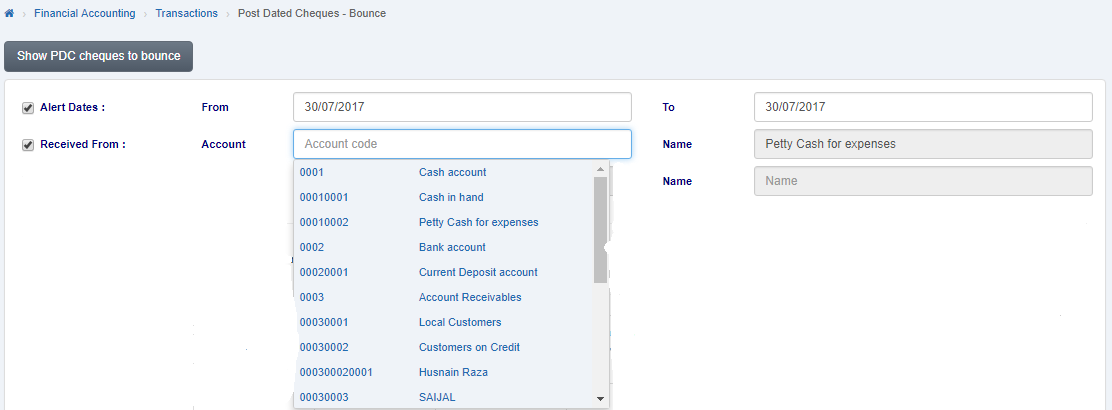
 Check the “Received From:” check box then enter account number or enter (0), then it will auto display the list of accounts. Select desired account, then selected account name will be shown in column “Name” input box.
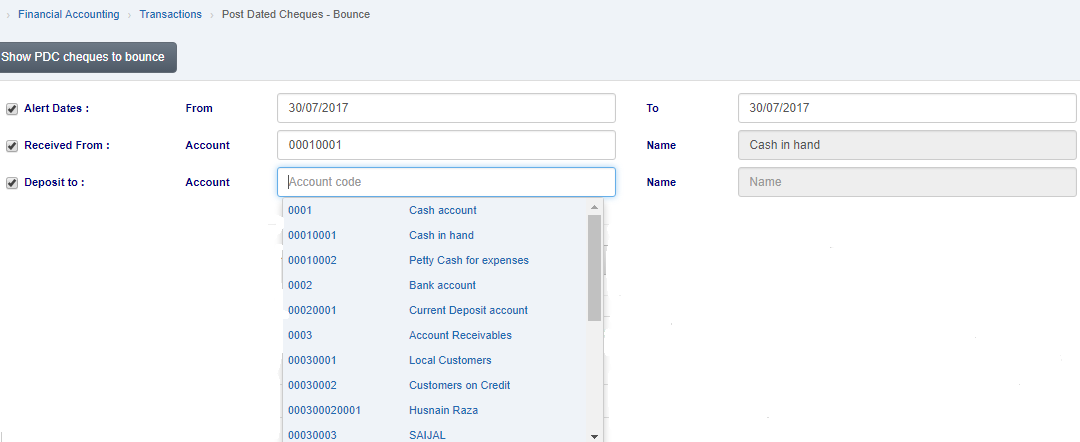
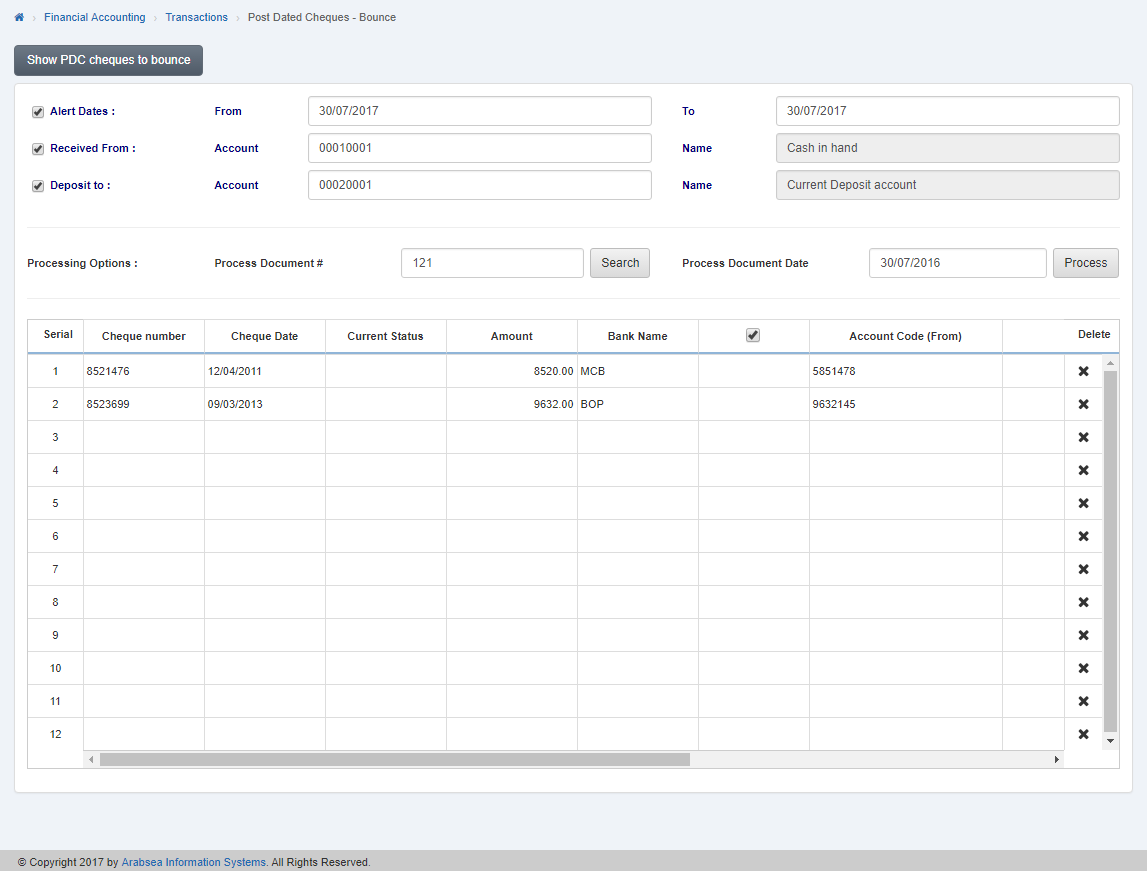
 Check the “Deposit to:” check box then enter account no or enter (0), then it will auto display the list of accounts. Select desired accounts, then selected account name will be shown in column “Name” input box. Click “Show PDC cheques to deposit” button, then it will show the cheques details in the grid
 Enter process document number in “Process Document #” input box then enter date in “Process Document Date” input box and click on “Process” button to save the information.
Was this article helpful?
Start with SMACC today
Try free for 14 days — no credit card, no commitment.