
Posted Invoices
The posted Invoices allow you to view the invoices that are successfully posted to the server.
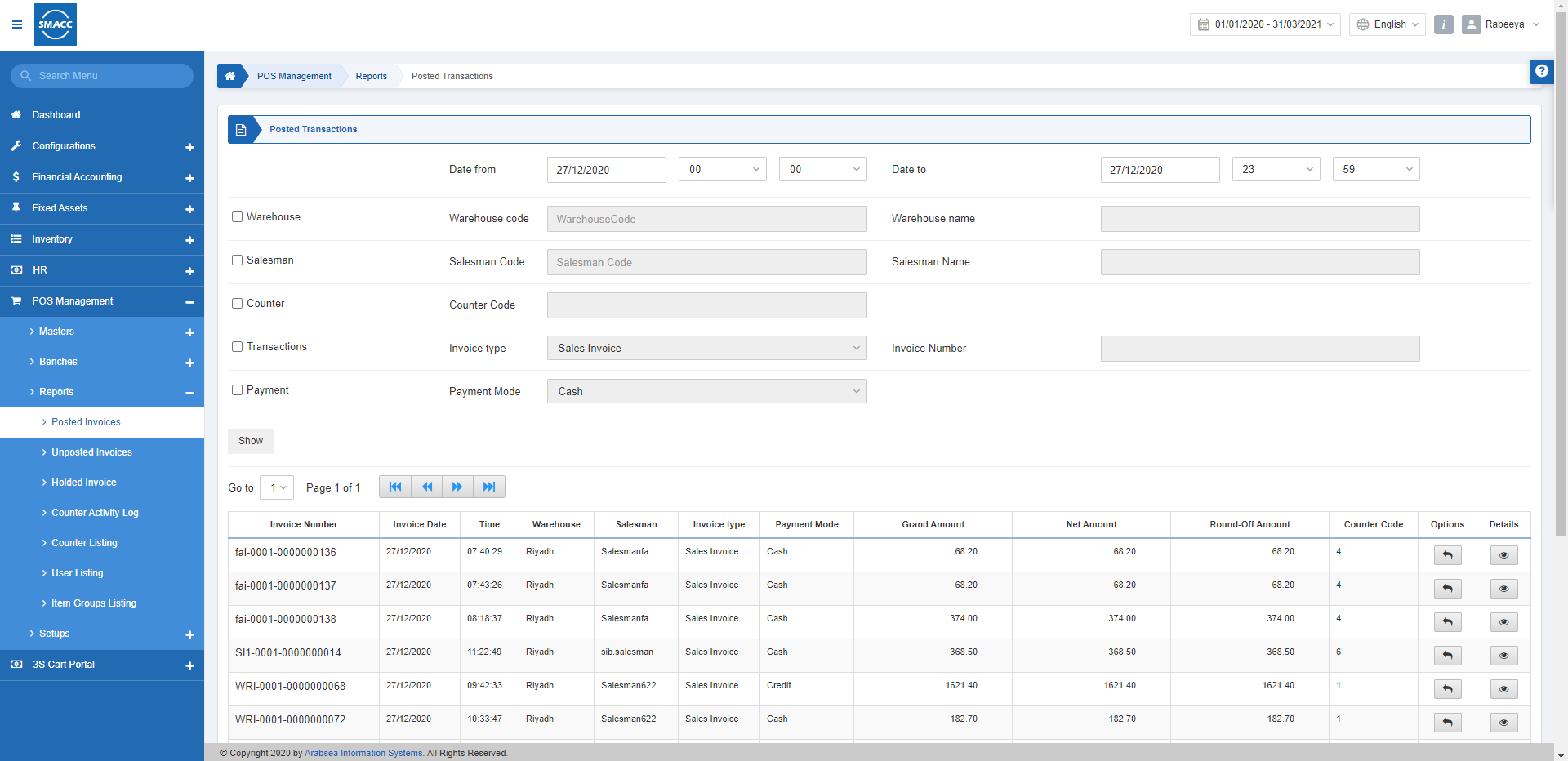
Viewing the Posted Invoices
To view the posted invoices, go to POS Management > Reports > Posted Invoices, the posted invoices page is displayed.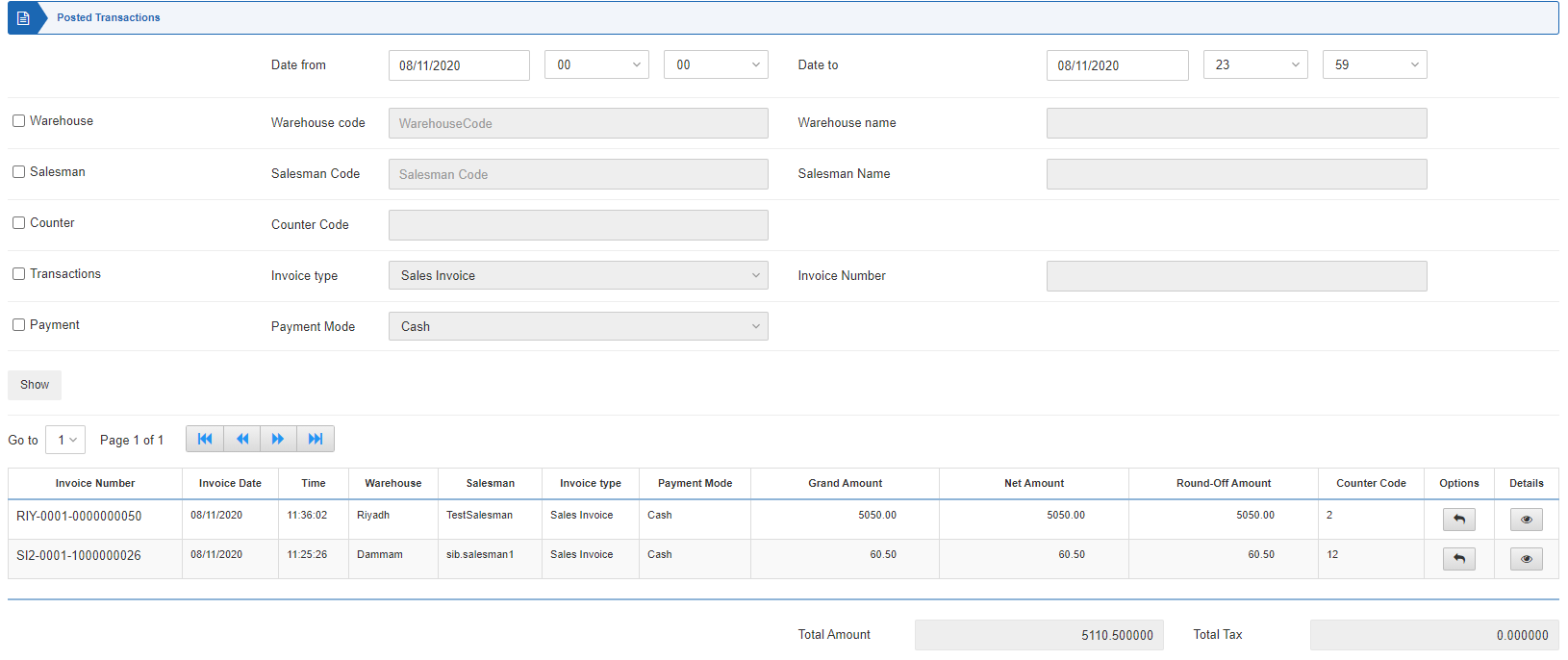 Date From: This field sets the Starting Date of the report along with the Time in hours and minutes.
Date To: This field sets the Ending Date of the report along with the time in hours and minutes.
Warehouse: This checkbox allows the selection of the Warehouse.
Salesman: This checkbox allows the selection of the Salesman.
Counter: This checkbox allows the selection of the Counter.
Transactions: This checkbox allows the selection of Transactions like Sales Invoices, Sales Returns, and all.
Invoice Number: This checkbox allows the selection of the Invoice Number to locate any specific invoice.
Payment: This checkbox allows the selection of Payments like Cash, Credit, and Type-4.
Click on the Show button to show the report.
Note: If all the checkboxes are unchecked it will show the report of all warehouses, salesmen, counters, transactions, and payments.
 Options: Click on the Undo Transaction button under the Options. It will remove the invoice from the inventory and move it to the unposted transactions.
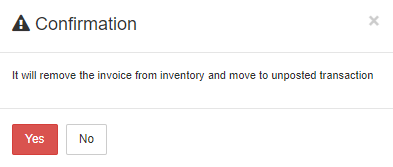 Click on the Yes button to confirm undoing the transaction.
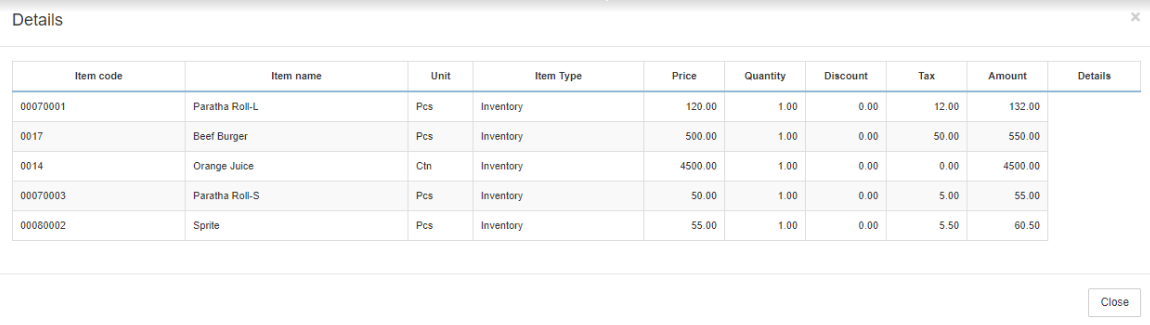
Details: Click on the Load button under the Details.
Was this article helpful?
Start with SMACC today
Try free for 14 days — no credit card, no commitment.