
الفواتير غير المرحّلة
تتيح لك «الفواتير غير المرحّلة» عرض الفواتير التي لم يتم ترحيلها بنجاح إلى الخادم لأي سبب من الأسباب، مثل انقطاع الاتصال بالإنترنت.
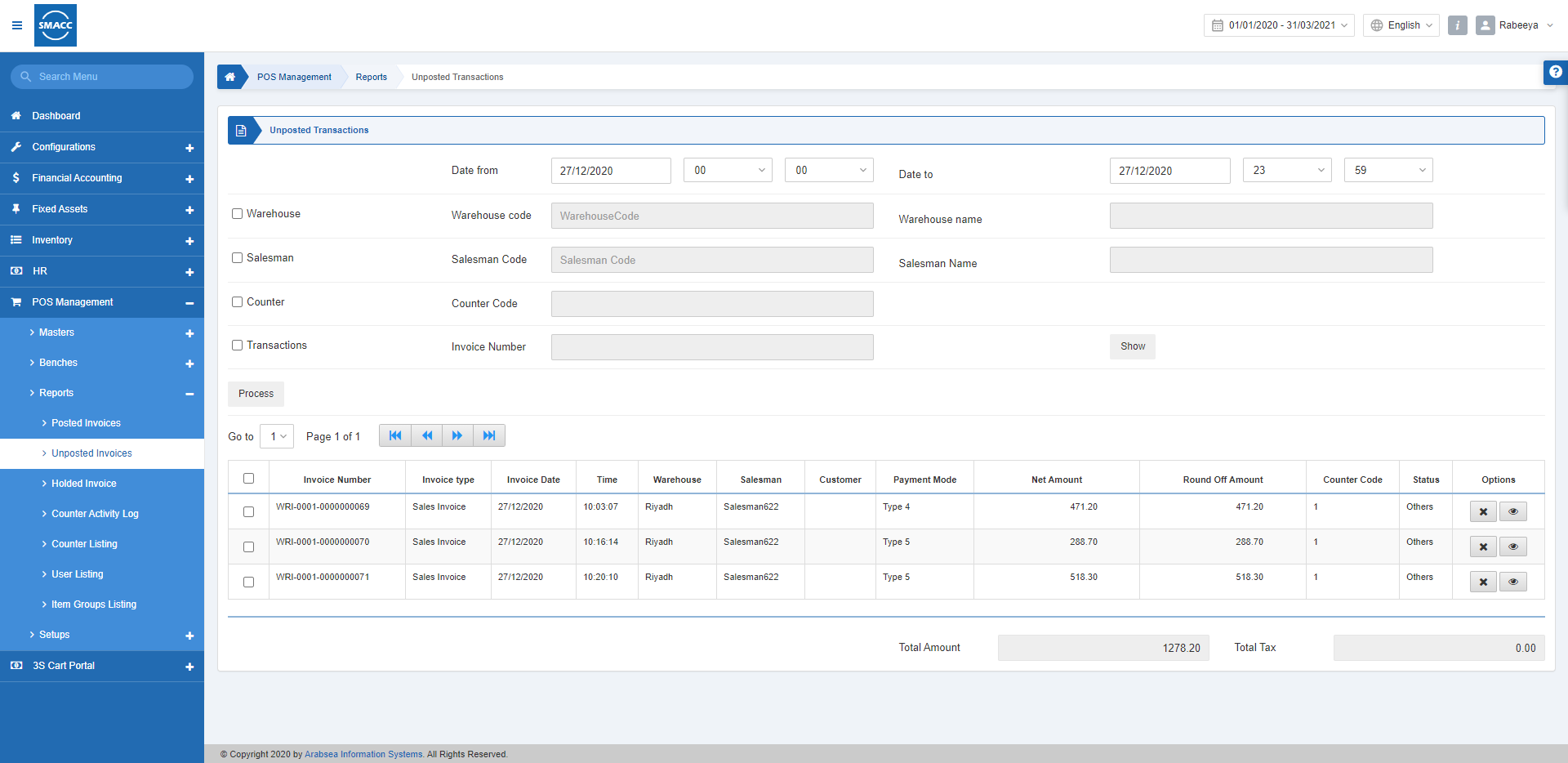
عرض الفواتير غير المرحّلة
لعرض الفواتير غير المرحّلة، انتقل إلى إدارة نقاط البيع > التقارير > الفواتير غير المرحّلة، فتظهر صفحة الفواتير غير المرحّلة.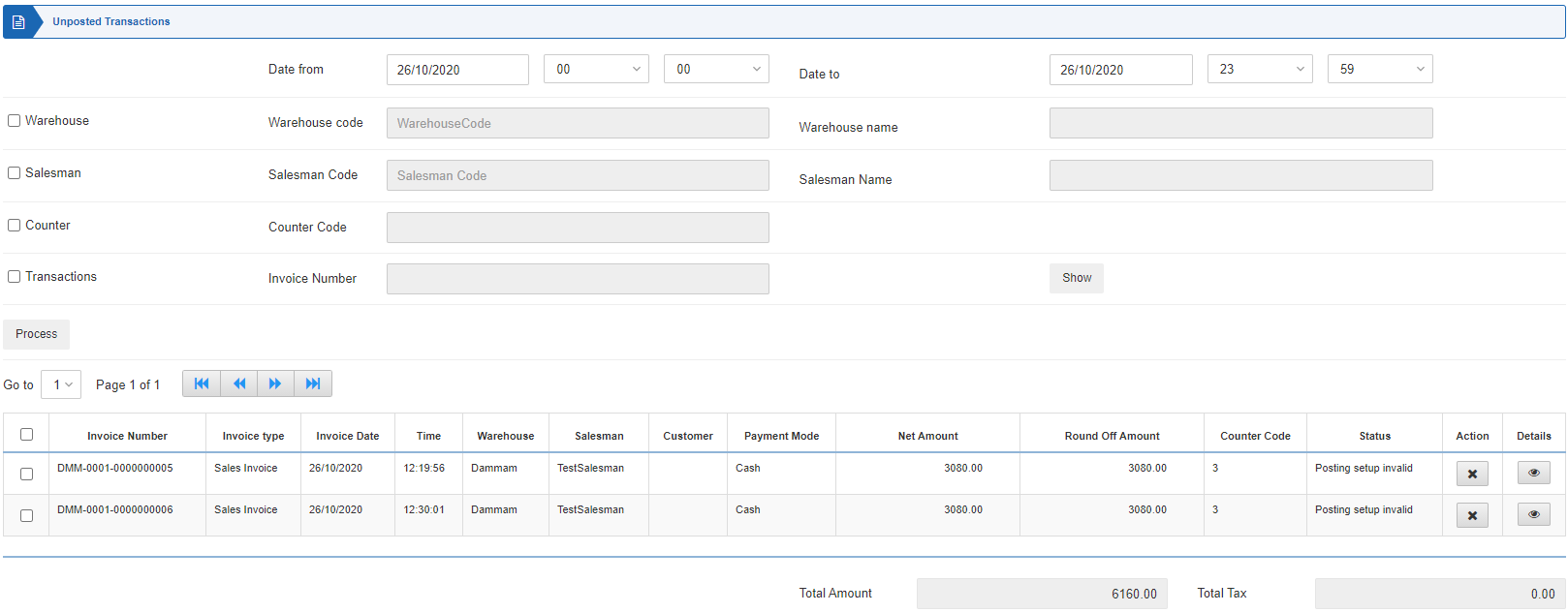 التاريخ من: يحدّد هذا الحقل تاريخ البداية للتقرير إلى جانب الوقت بالساعات والدقائق.
التاريخ إلى: يحدّد هذا الحقل تاريخ النهاية للتقرير إلى جانب الوقت بالساعات والدقائق.
المستودع: يتيح مربع الاختيار هذا تحديد المستودع.
المندوب: يتيح مربع الاختيار هذا تحديد المندوب.
الكاونتر: يتيح مربع الاختيار هذا تحديد الكاونتر.
الحركات: يتيح مربع الاختيار هذا تحديد الحركات مثل فواتير المبيعات ومرتجعات المبيعات والكل.
رقم الفاتورة: يتيح مربع الاختيار هذا تحديد رقم الفاتورة للعثور على فاتورة محددة.
الدفع: يتيح مربع الاختيار هذا تحديد طرق الدفع مثل النقد والآجل والنوع-4.
انقر على زر «عرض» لإظهار التقرير.
التاريخ من: يحدّد هذا الحقل تاريخ البداية للتقرير إلى جانب الوقت بالساعات والدقائق.
التاريخ إلى: يحدّد هذا الحقل تاريخ النهاية للتقرير إلى جانب الوقت بالساعات والدقائق.
المستودع: يتيح مربع الاختيار هذا تحديد المستودع.
المندوب: يتيح مربع الاختيار هذا تحديد المندوب.
الكاونتر: يتيح مربع الاختيار هذا تحديد الكاونتر.
الحركات: يتيح مربع الاختيار هذا تحديد الحركات مثل فواتير المبيعات ومرتجعات المبيعات والكل.
رقم الفاتورة: يتيح مربع الاختيار هذا تحديد رقم الفاتورة للعثور على فاتورة محددة.
الدفع: يتيح مربع الاختيار هذا تحديد طرق الدفع مثل النقد والآجل والنوع-4.
انقر على زر «عرض» لإظهار التقرير.
 انقر على زر «حذف» ضمن «الخيارات».
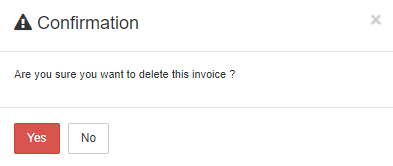 انقر على زر «نعم» لتأكيد حذف الفاتورة.
انقر على زر «تحميل» ضمن «الخيارات».
انقر على زر «نعم» لتأكيد حذف الفاتورة.
انقر على زر «تحميل» ضمن «الخيارات».
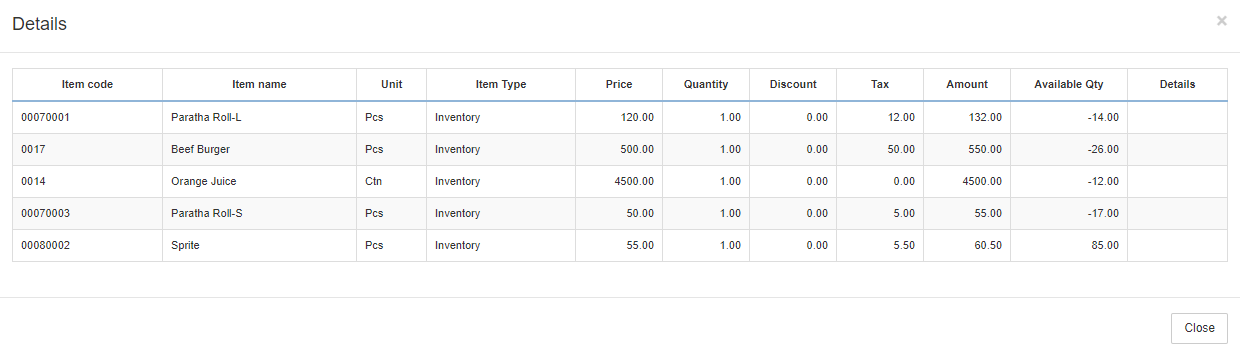 في حال إنشاء فاتورة مكررة، تظهر الإشارة التالية أمام ذلك السطر.
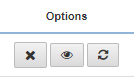 انقر على زر «تعديل» ضمن «الخيارات».
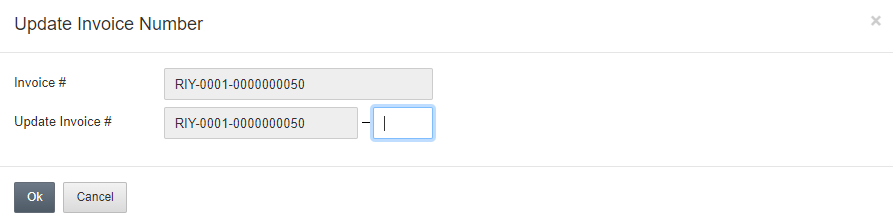 تعديل رقم الفاتورة: يمكنك تعديل رقم الفاتورة هنا في المربع الأزرق، فعلى سبيل المثال، إذا أردت تغييره إلى RIY-0001-000000051.
ملاحظة: الفرق بين زرّي «عرض» و«معالجة» هو أن زر «عرض» يعرض التقرير، بينما يقوم زر «معالجة» بإرسال الفاتورة غير المرحّلة إلى الخادم وترحيلها إليه.
تعديل رقم الفاتورة: يمكنك تعديل رقم الفاتورة هنا في المربع الأزرق، فعلى سبيل المثال، إذا أردت تغييره إلى RIY-0001-000000051.
ملاحظة: الفرق بين زرّي «عرض» و«معالجة» هو أن زر «عرض» يعرض التقرير، بينما يقوم زر «معالجة» بإرسال الفاتورة غير المرحّلة إلى الخادم وترحيلها إليه.هل كان هذا المقال مفيداً؟
ابدأ مع SMACC اليوم
جرّب مجاناً لمدة 14 يوماً — بدون بطاقة ائتمان وبدون التزام.