
User Profile
In the User Profile, you can update the user information. You can set user first/last name, email address, landline/mobile numbers. You can set your favourite module and language of the user. You can link/unlink salesman with the user.
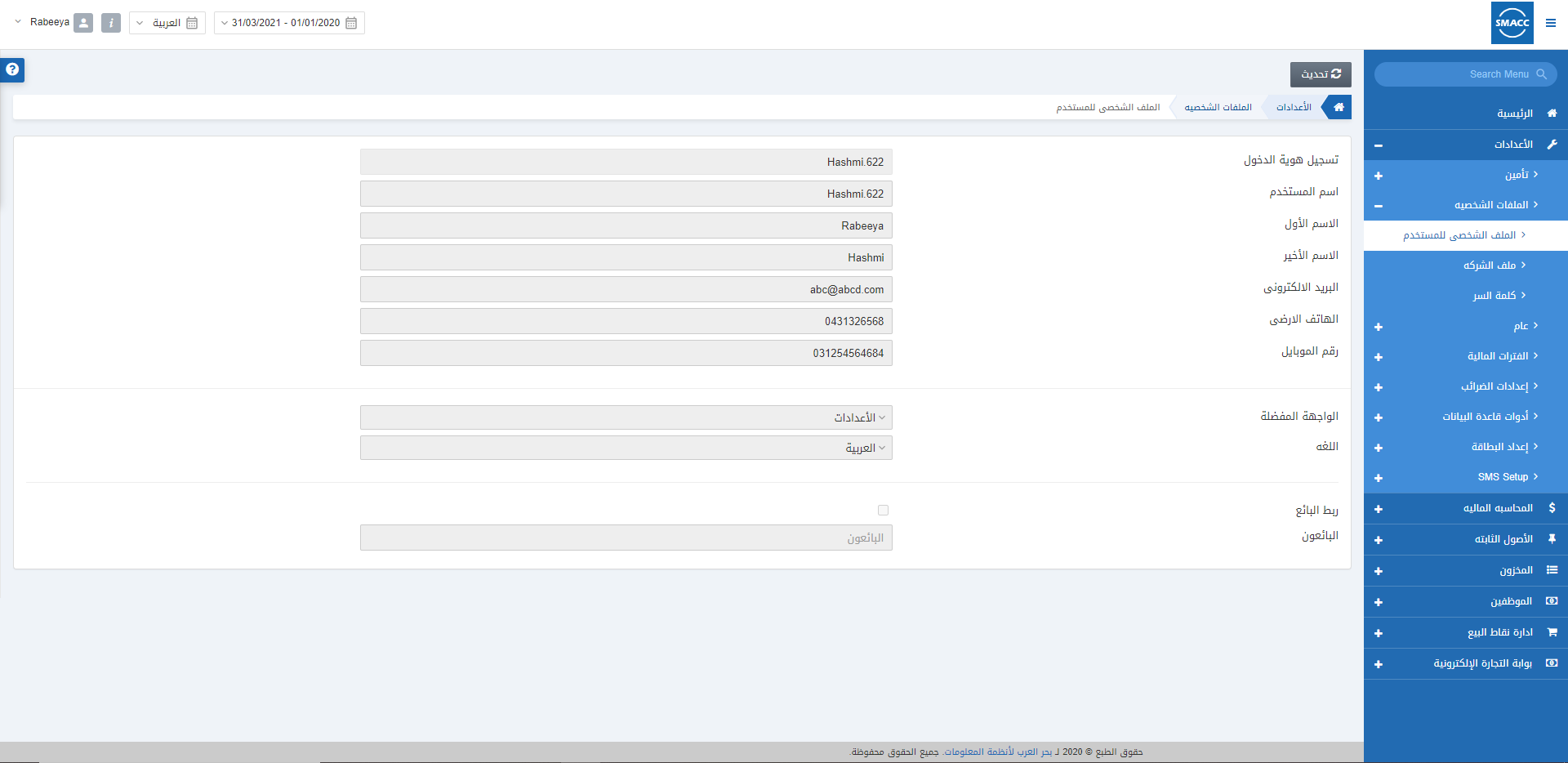
Updating the User Profile
To update all the entries in the User profile, go to Configurations > Profiles > User Profile, the User Profile page is displayed.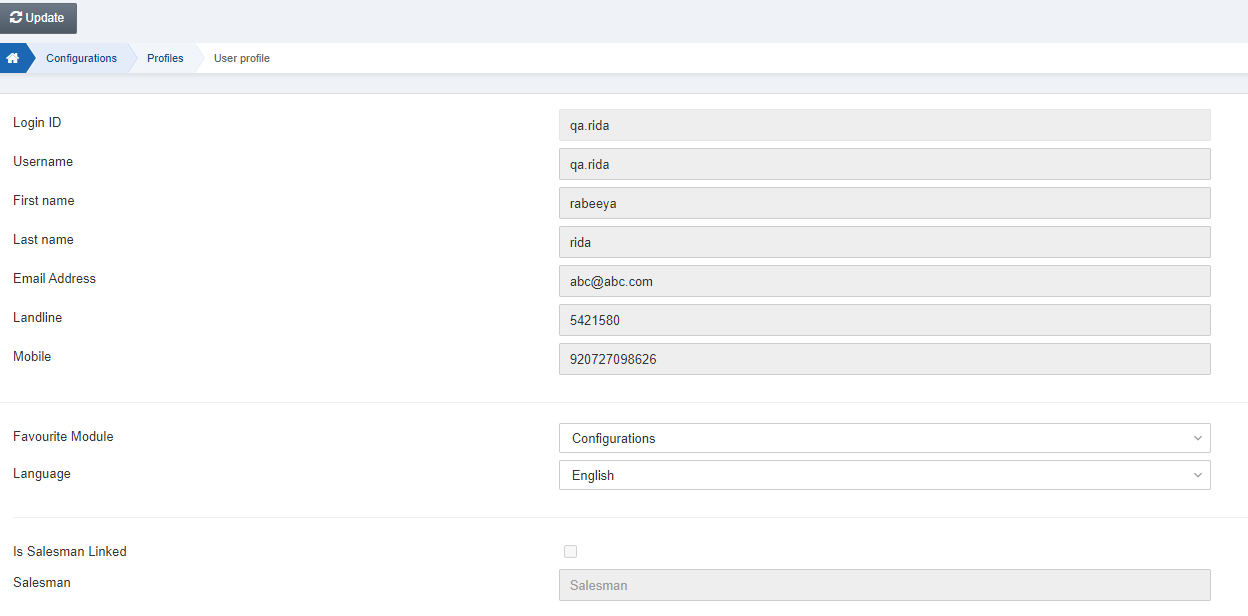 Click the Update button on top of the User Profile page.
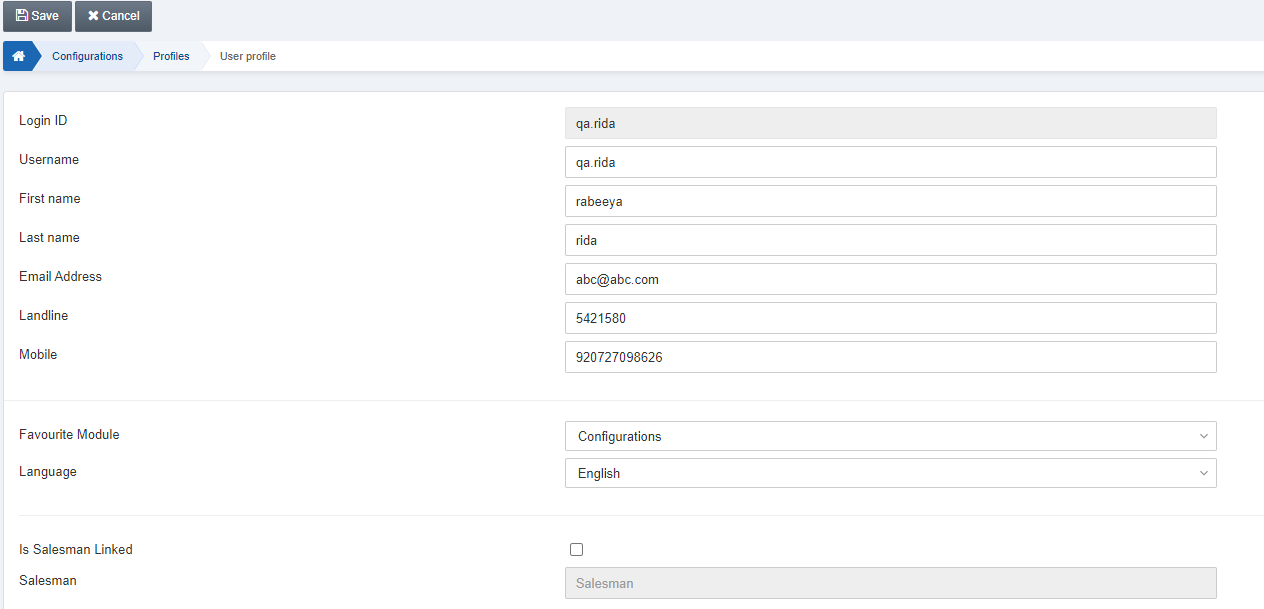 Username: You can set or update the Username.
First Name: You can set or update the First Name.
Last Name: You can set or update the Last Name.
Email Address: You can set or update the Email Address.
Landline: You can set or update the Landline Contact Number.
Mobile: You can set or update the Mobile Contact Number.
Favourite Module: You can select your Favourite Module out of the drop-down list.
 Language: You can select your Language out of the drop-down list.
 Is Salesman Linked: In case you want to link the salesman with your login ID you must check this checkbox.
On checking this checkbox, a drop-down list appears when you click on the Salesman input field.
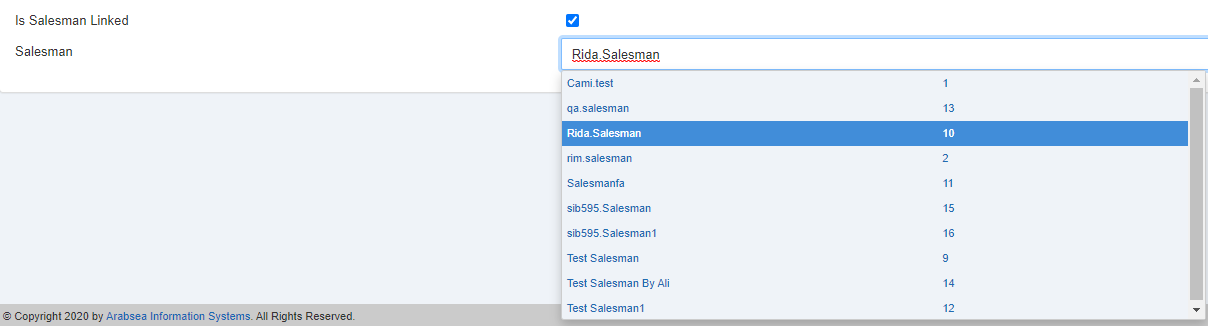 Click the Save button to save the information.
Note: You can link or unlink the Salesman with the checkbox of Is Salesman Linked. In the case of unlinking any Salesman can be using the SMACC while in the case of linking only the “linked” Salesman can use the SMACC.
Was this article helpful?
Start with SMACC today
Try free for 14 days — no credit card, no commitment.