
Currency Rates
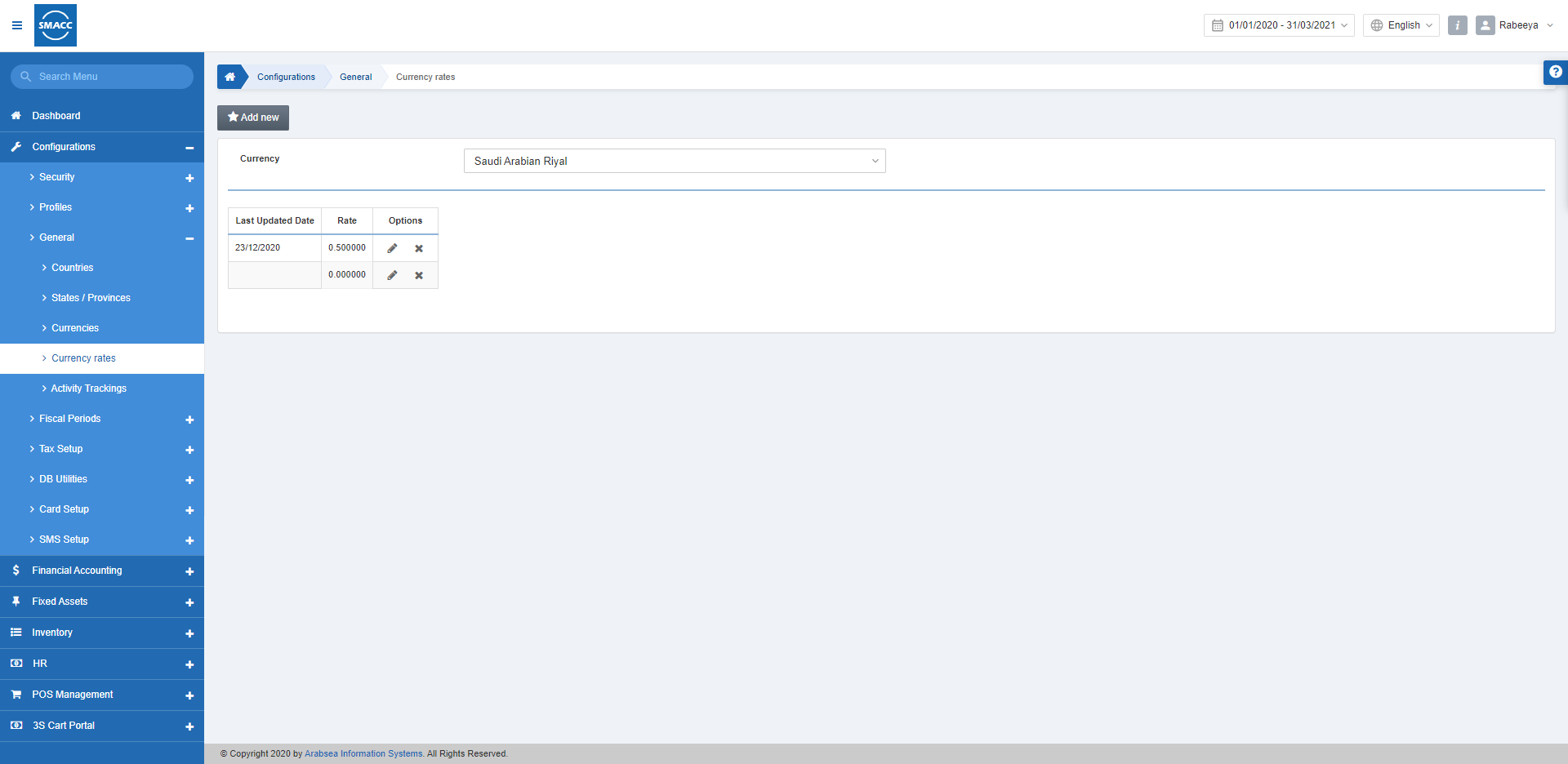
In Currency rates, you can add a new currency rate against your desired currency. You can also delete the currency rate from the list.
Adding Currency Rate
To add Currency Rate go to Configurations > General > Currency Rate, the currency rate page is displayed.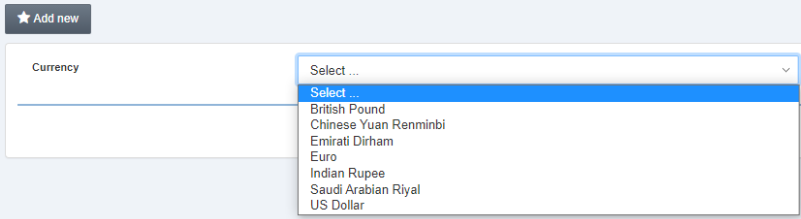 Please select the currency in the Currency list and click on the Add New button on the currency rates page and a pop-up is displayed.
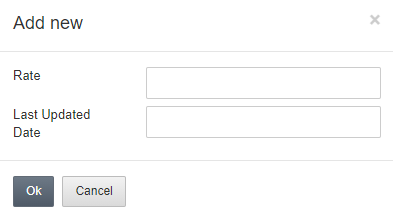 Please enter the currency rate in the Rate input box then enter the date in the Last Updated Date input box.
Click the OK button to save the information.
Edit/Update Currency Rate Information
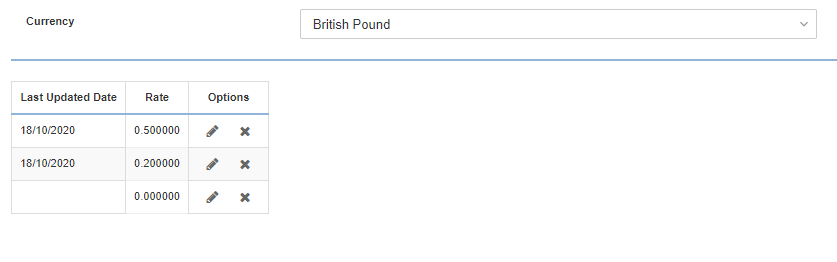
To edit/update Currency Rate, go to Configurations > General > Currency Rate, the currency rate page is displayed.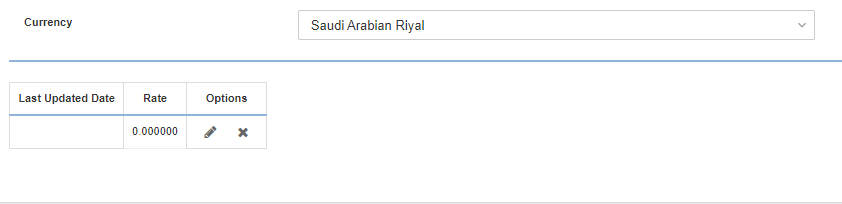 Select the currency in the Currency list box, click on the Edit icon in the grid against the desired currency rate, a pop-up is displayed with information.
Update currency rate using the Rate input box.
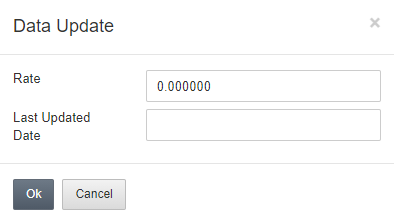 Update the last updated date using the Last Updated Date input box.
Click the OK button to save the information.
Delete Currency Rate Information
To delete Currency Rate Information, go to Configurations > General > Currency Rate, the currency rate page is displayed.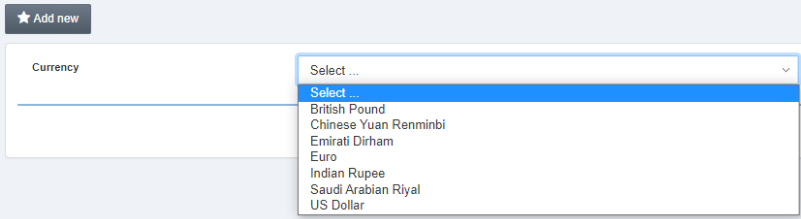 Select the currency in the Currency list box, click on the Delete icon in the grid then a prompt dialog is displayed for confirmation.
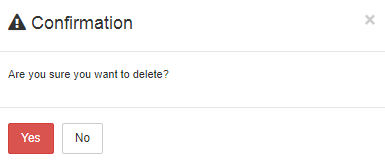 Click the Yes button to confirm the deletion.
Was this article helpful?
Start with SMACC today
Try free for 14 days — no credit card, no commitment.