
Purchase Order Item Listing
The purchase order item listing report helps you view the list of a particular purchase order and the items contained within it.
Viewing the Purchase Order Item Listing
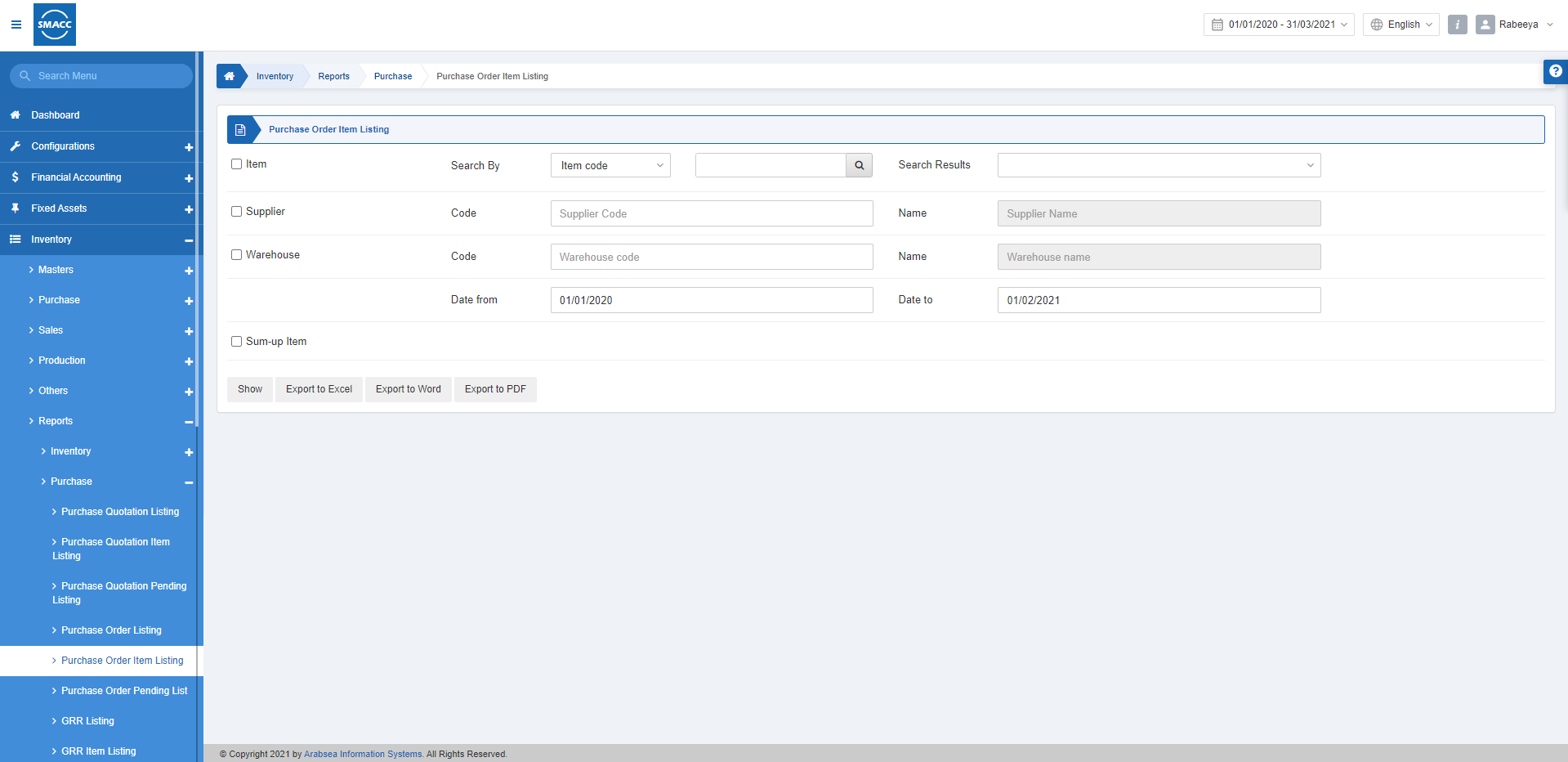
To view the purchase order item listing, go to Inventory > Reports > Purchase > Purchase Order Item Listing, the Purchase order item listing report is displayed.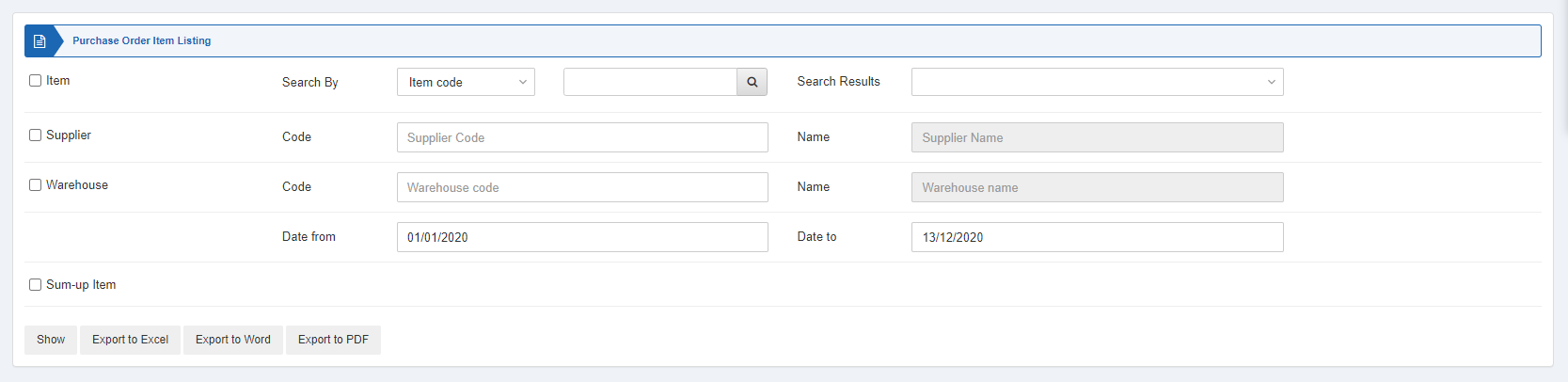
 Item: This checkbox is checked to select any particular item code. If unchecked all items will be shown against the supplier and warehouse.
Supplier: This checkbox is checked to select any particular supplier code. When unchecked all suppliers will be shown.
Warehouse: This checkbox is checked to select any particular warehouse code. When unchecked all warehouses will be shown.
 Date from: This field sets the starting date of the report.
Date to: This field sets the ending date of the report.
 Sum-up Item: This field allows the summing up of the items.
 Show: This button represents the report as per the selected filters.
Export to Excel: This button allows the data of the report to be exported to Excel.
Export to Word: This button allows the data of the report to be exported to Word.
Export to PDF: This button allows the data of the report to be exported to PDF.
Click on the Show button to view the report.
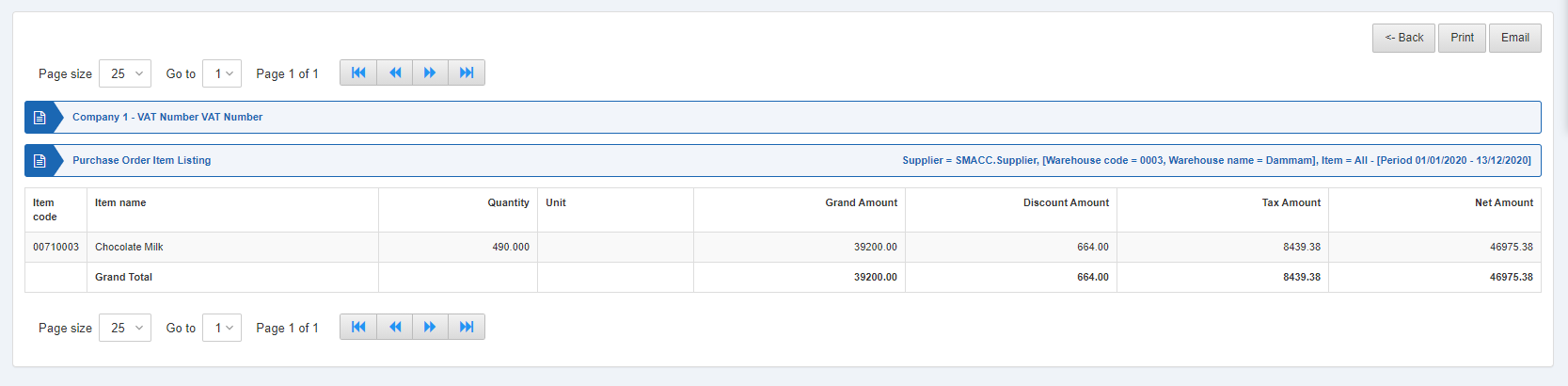 Also, there are navigation buttons for the page view.
 Page Size: You can adjust the number of entries per page.
Go to: You can go to the page number you want to view.
 You can go back to the previous page or print or email the report.
Was this article helpful?
Start with SMACC today
Try free for 14 days — no credit card, no commitment.