
Purchase Order
In purchase order, you can add new, update, delete, and print purchase order. You can add new entries and delete the entries in purchase order.
Adding new purchase order in inventory.
To add new “Purchase Order in Inventory”, click on the “Inventory”, then “Purchase”, then click “Purchase Order”. Purchase Order page will be displayed.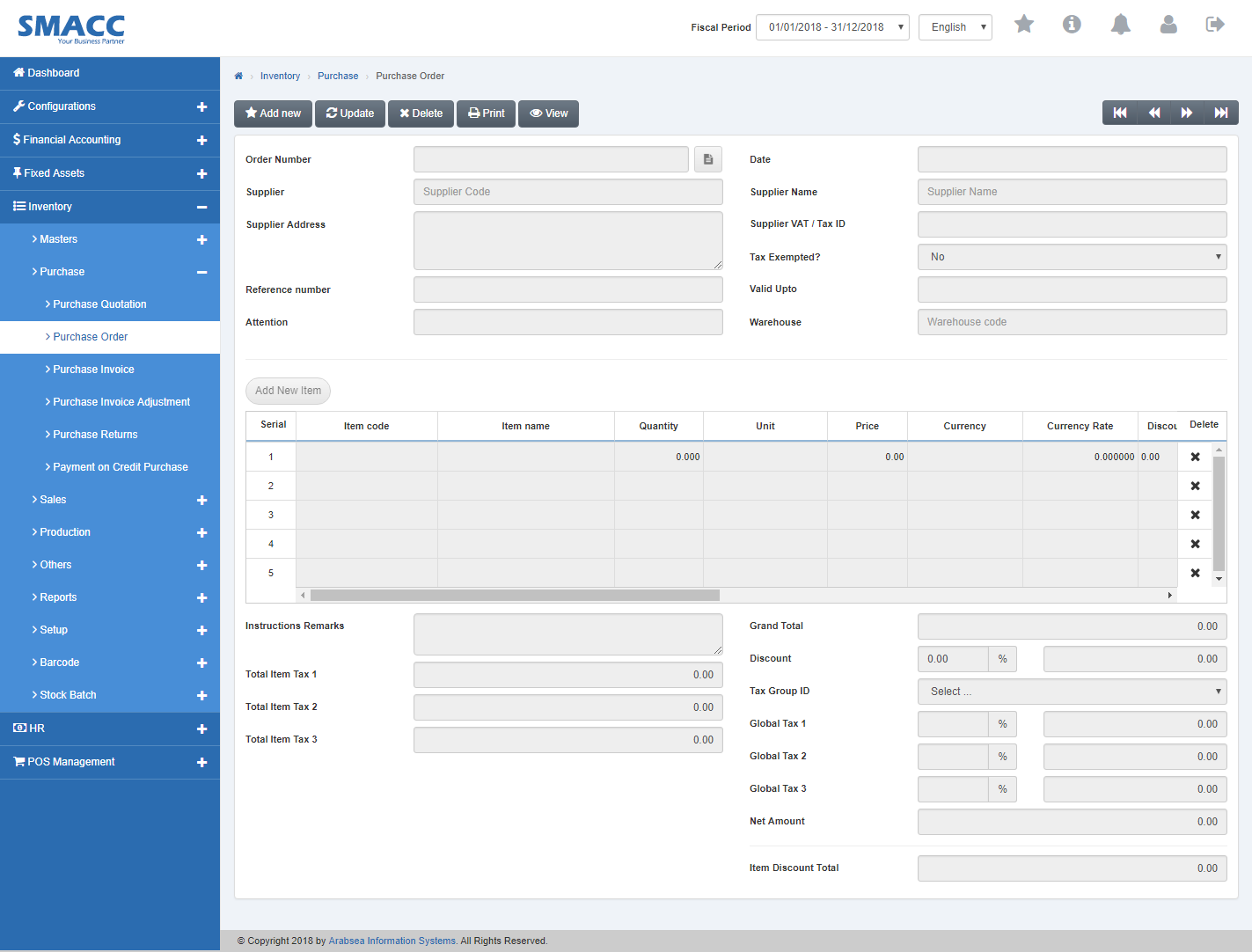 Click the “Add new“ button on the top of Purchase Order page.
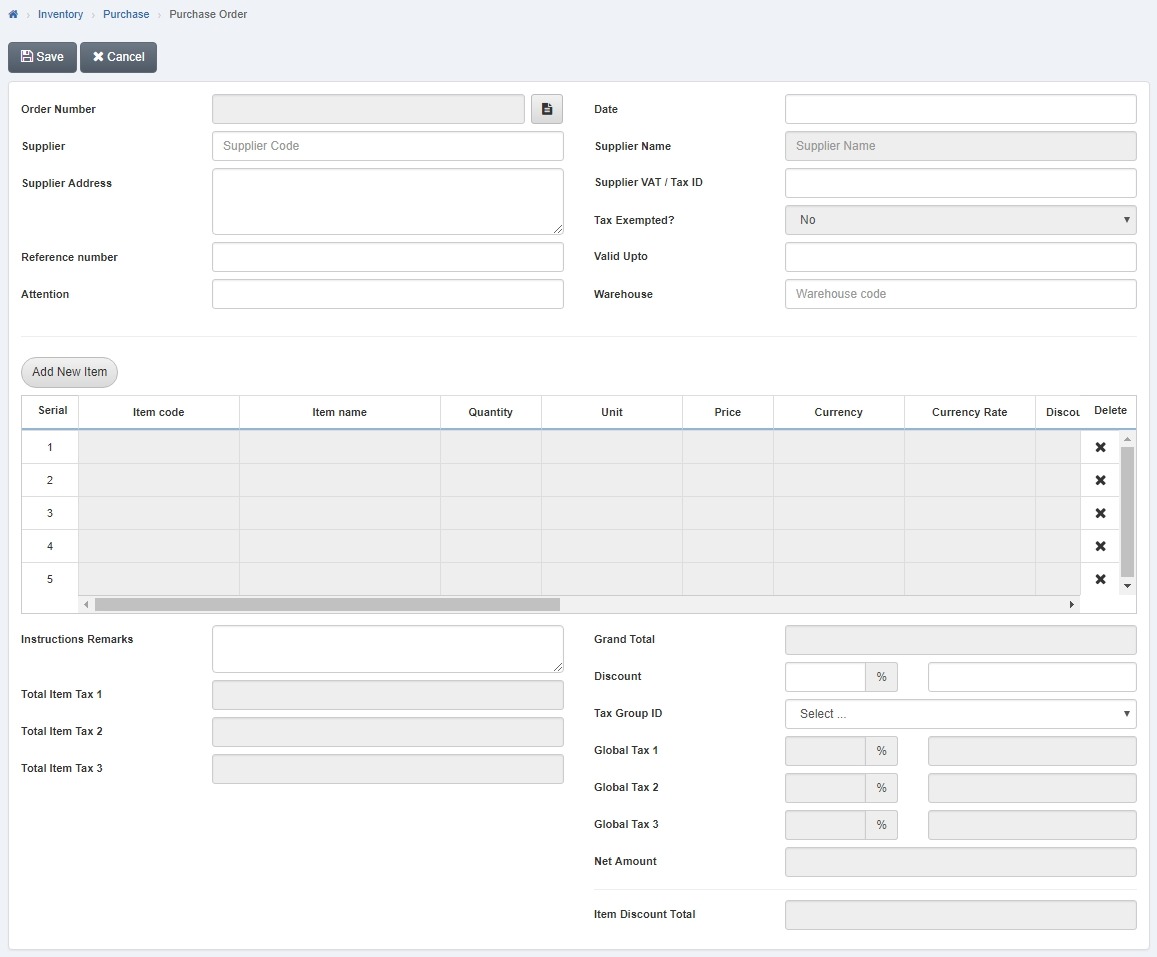 Enter date in “Date” input box. Enter supplier code or click in “Supplier” input box then supplier list will be drop down.
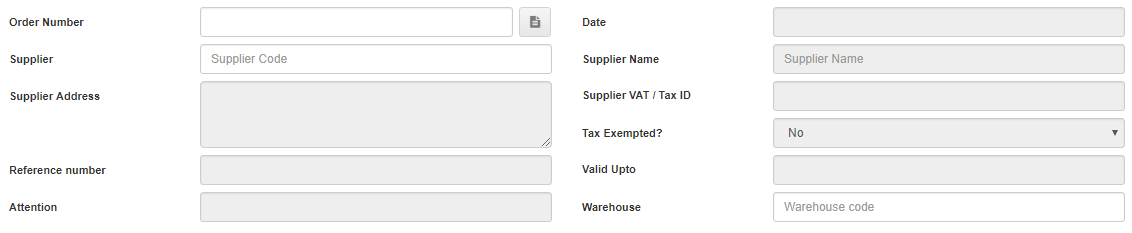
Select the desired supplier then supplier name will be appeared in “Supplier Name” input box. Enter supplier address in “Supplier Address” input box then enter Purchase Order last valid date in “Valid Up to” input box. Enter warehouse code or click in “Warehouse” input box then warehouse list will be drop down. Select your desired warehouse. Enter reference number in “Reference number” input box. Enter attention in “Attention” input box.
 Click on “Add new “Item button then prompt box will be appeared.
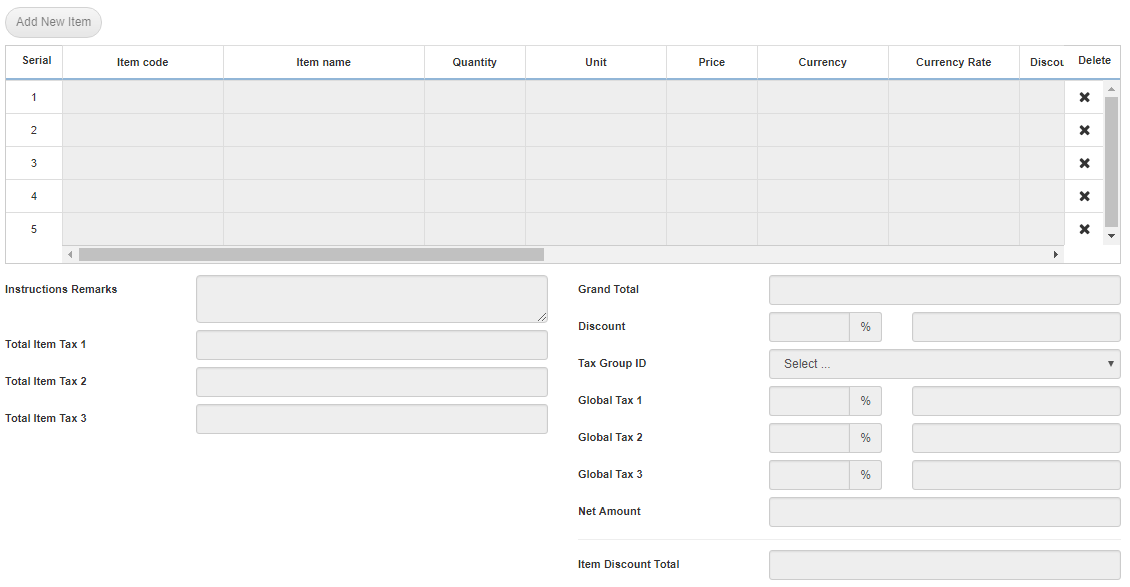 Enter item code or click in “Item code” input box then item code list will be drop down. Select your desired item then selected item name will be appeared in “Item name” input box. Enter quantity in “Quantity” input box. Enter price in “Price” input box. Enter currency code or click in “Currency Code” input box. Enter discount percentage in “Discount” input box then discount amount will be displayed. Total payable amount will be displayed in “Amount” input box.
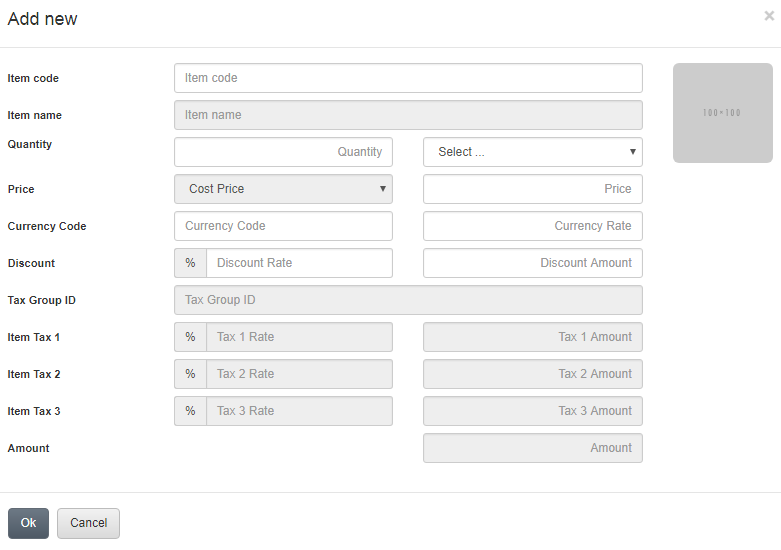 Click “OK” button to save the information then Purchase Order details of selected item will be displayed in the grid on Purchase Order page.
Click “OK” button to save the information.
Setting Warehouse Type of Purchase Order.
To set “Warehouse Type of Purchase Order” in “Inventory”, click on the “Inventory”, then “Purchase”, then click “Purchase Order”. Purchase Order page will be displayed.
Select Purchase Order by navigation bar or click the “Update” button on the top of Purchase Order page.
Enter quotation number in “Quotation Number” input box then click “Load” button.
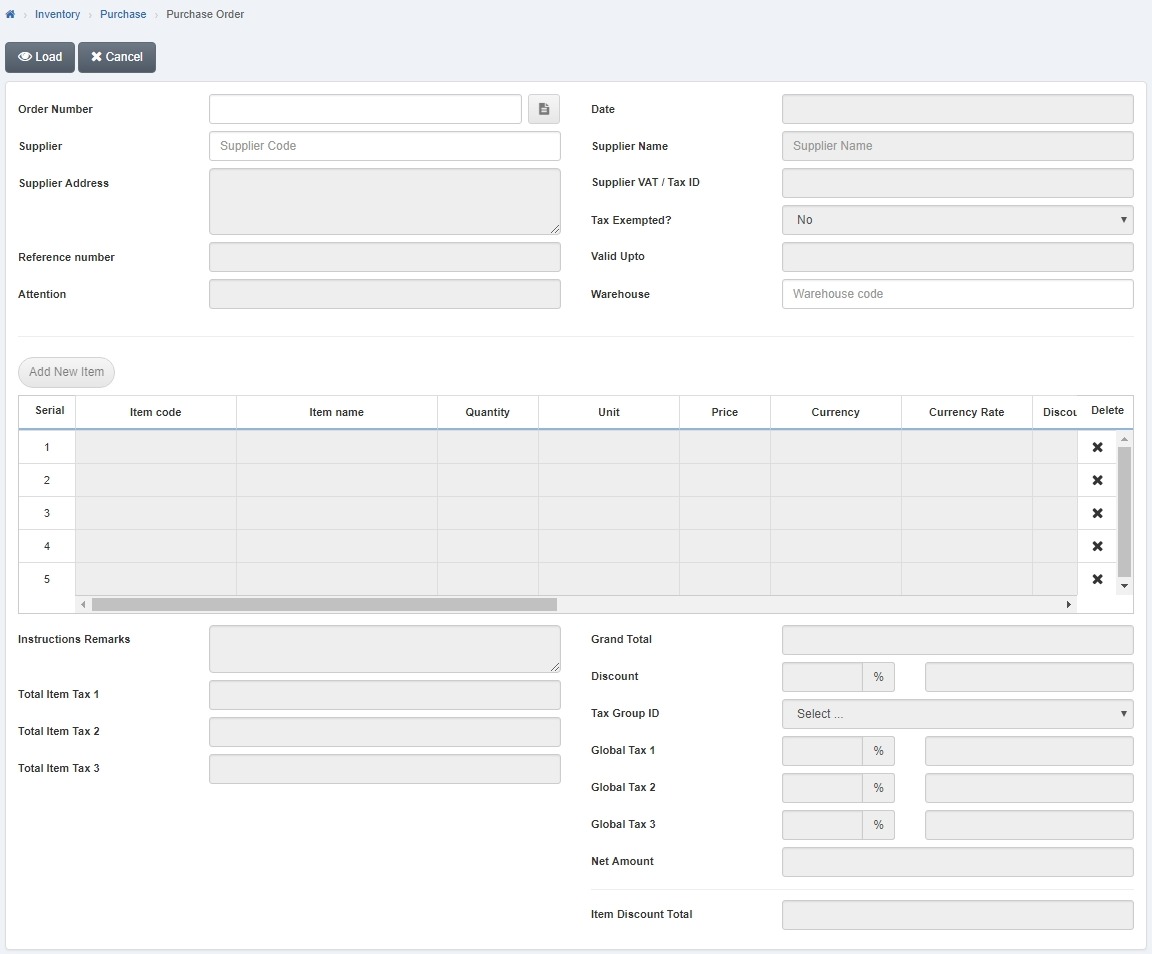 Click in “Warehouse” input box then warehouse list will be drop down. Select your desired warehouse.

Setting Entries of Purchase order.
To set “Entries of Purchase Order” in “Inventory”, click on the “Inventory”, then “Purchase”, then click “Purchase Order”. Purchase Order page will be displayed.
Select Purchase Order by navigation bar or click the “Update” button on the top of Purchase Order page.
Enter quotation number in “Quotation Number” input box then click “Load” button.
In the grid, double click on the desired entry then “Edit” prompt box will be appeared. Edit your desired data and click “OK” button.
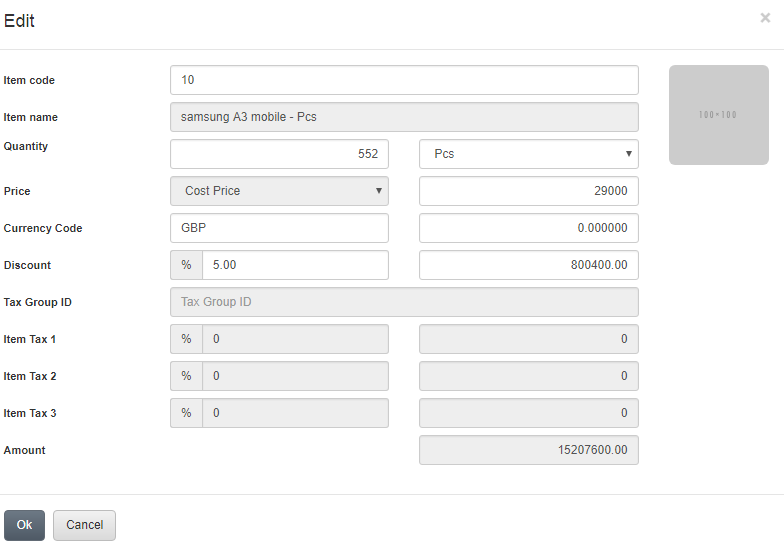 Click “Save” button to save the information.
Deleting entries of purchase order.
To delete “Entries of Purchase Order” in “Inventory”, click on the “Inventory”, then “Purchase”, then click “Purchase Order”. Purchase Order page will be displayed.
Select Purchase Order by navigation bar or click the “Update” button on the top of Purchase Order page.
Enter quotation number in “Quotation Number” input box then click “Load” button.
In the grid, click on "Delete" icon against the desired entry. It will delete the entry in the grid.
Click “Save” button to save the information.
Deleting Purchase Order.
To delete “Purchase Order” in “Inventory”, click on the “Inventory”, then “Purchase”, then click “Purchase Order”. Purchase Order page will be displayed.
Select Purchase Order by navigation bar or click the “Delete” button on the top of Purchase Order page.
Enter quotation number in “Quotation Number” input box then click “Load” button.
A prompt box will be appeared.
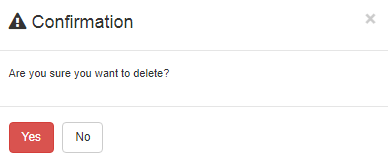 Click “Yes” button to delete the Purchase Order.
Printing purchase order.
To print “Purchase Order” in “Inventory”, click on the “Inventory”, then “Purchase”, then click “Purchase Order”. Purchase Order page will be displayed.
Select Purchase Order by navigation bar or click the “Delete” button on the top of Purchase Order page.
Enter quotation number in “Quotation Number” input box then click “Load” button.
A prompt box will be appeared.
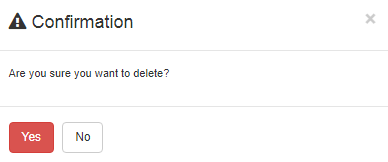 Click “Yes” button to delete the Purchase Order.
Was this article helpful?
Start with SMACC today
Try free for 14 days — no credit card, no commitment.