
البدلات
في شاشة البدلات، يمكنك الاحتفاظ بمعلومات البدلات الشهرية وغير الشهرية الخاصة بالموظفين. كما يمكنك تصدير معلومات حركة البدلات إلى صيغ Excel وWord وPDF.
البحث في تفاصيل البدلات.
للبحث في «تفاصيل البدلات»، انقر على «الموارد البشرية»، ثم «الكشوف»، ثم انقر على «البدلات». ستظهر صفحة البدلات.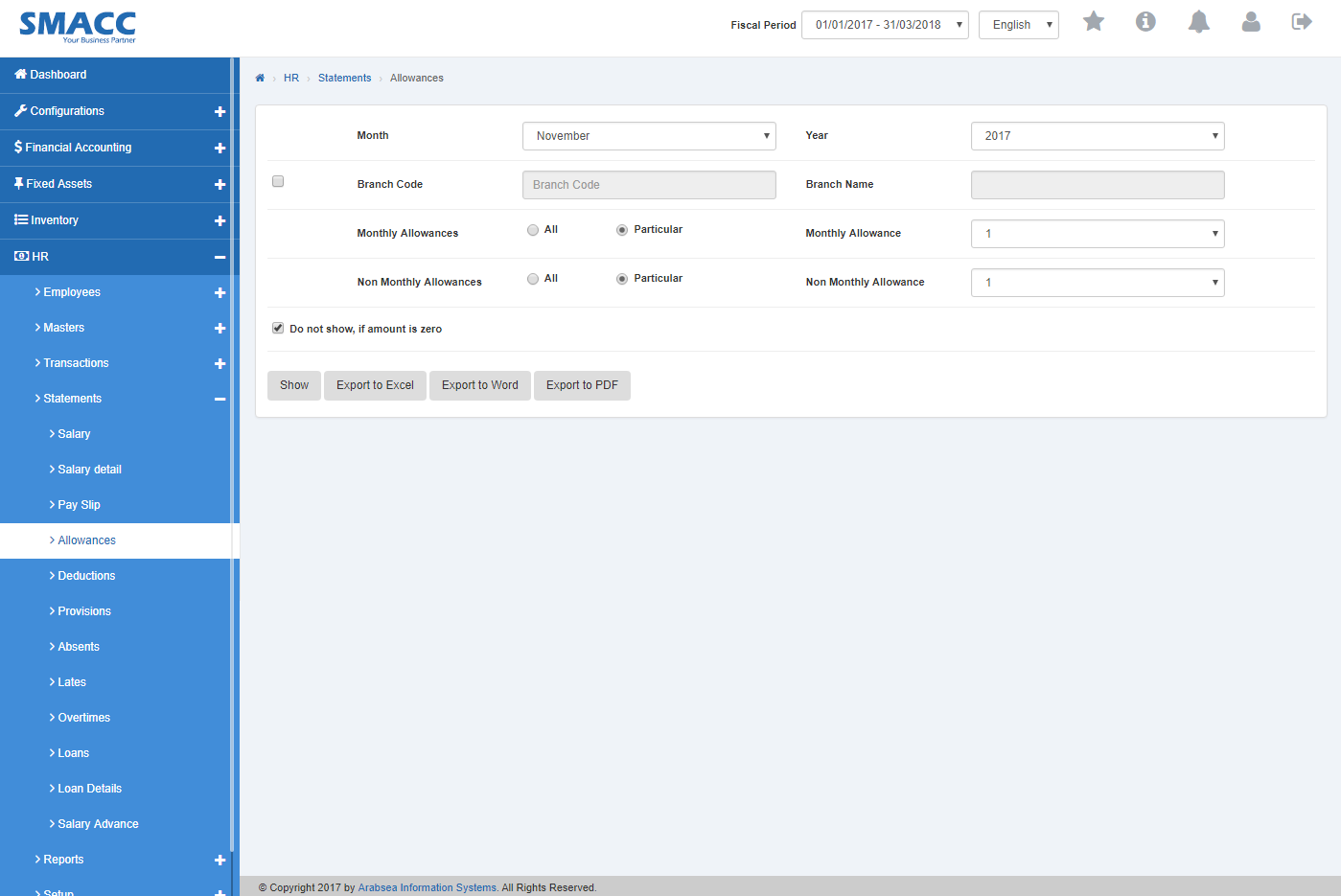 انقر على قائمة «الشهر» فتنسدل قائمة الأشهر. اختر الشهر المطلوب. انقر على قائمة «السنة» فتنسدل قائمة السنوات. اختر السنة المطلوبة.
 إذا أردت عرض تفاصيل الفرع في كشف البدلات، فعلّم على مربع الاختيار «رمز الفرع». أدخل رمز الفرع أو انقر في حقل الإدخال «رمز الفرع» فتنسدل قائمة رموز الفروع. اختر رمز الفرع المطلوب فيظهر اسم الفرع المحدد في حقل الإدخال «اسم الفرع»، أما إذا لم ترغب في عرض تفاصيل الفرع في كشف البدلات، فألغِ التعليم على مربع الاختيار «رمز الفرع».
 إذا أردت عرض جميع البدلات الشهرية، فانقر على زر الاختيار «الكل».
أما إذا أردت عرض بدلات شهرية معينة، فانقر على زر الاختيار «معين» ثم انقر في قائمة «البدلات الشهرية». اختر البدل الشهري المطلوب.
إذا أردت عرض جميع البدلات الشهرية، فانقر على زر الاختيار «الكل».
أما إذا أردت عرض بدلات شهرية معينة، فانقر على زر الاختيار «معين» ثم انقر في قائمة «البدلات الشهرية». اختر البدل الشهري المطلوب.
 إذا أردت عرض جميع البدلات غير الشهرية، فانقر على زر الاختيار «الكل»
أما إذا أردت عرض بدلات غير شهرية معينة، فانقر على زر الاختيار «معين» ثم انقر في قائمة «البدلات غير الشهرية». اختر البدل غير الشهري المطلوب.
إذا أردت عرض جميع البدلات غير الشهرية، فانقر على زر الاختيار «الكل»
أما إذا أردت عرض بدلات غير شهرية معينة، فانقر على زر الاختيار «معين» ثم انقر في قائمة «البدلات غير الشهرية». اختر البدل غير الشهري المطلوب.
 إذا لم ترغب في عرض كشف البدلات عندما يكون المبلغ صفرًا، فعلّم على مربع الاختيار «لا تعرض إذا كان المبلغ صفرًا»، وإذا أردت عرض كشف البدلات عندما يكون المبلغ صفرًا، فألغِ التعليم على مربع الاختيار «لا تعرض إذا كان المبلغ صفرًا».
 انقر على زر «عرض».
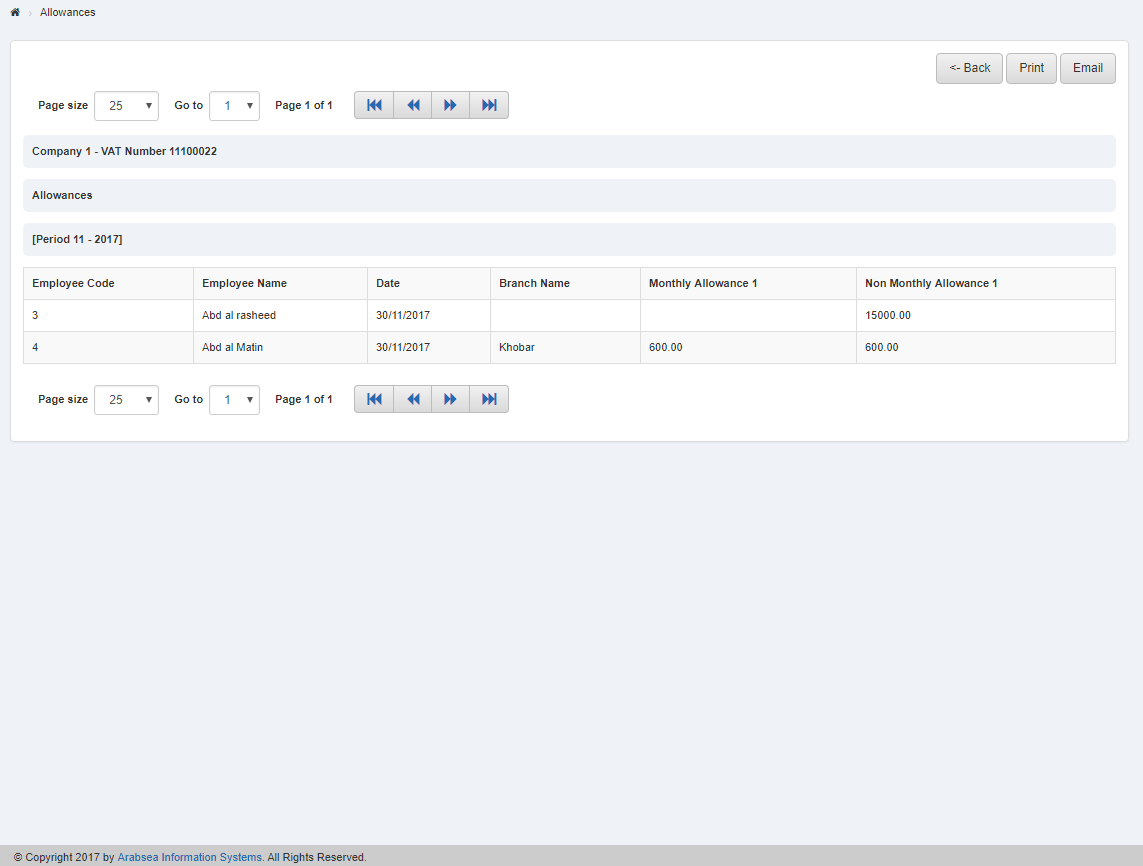 يمكنك تحديد حجم الصفحة بالنقر على مربع الاختيار «حجم الصفحة» فتظهر قائمة أحجام الصفحات. اختر حجم الصفحة. وإذا أردت تحديد رقم صفحة معين، فانقر على زر «التنقل» أو انقر في مربع الاختيار «الانتقال إلى» فتظهر قائمة الصفحات. اختر رقم الصفحة.
 إذا أردت طباعة الصفحة، فاختر الصفحة المطلوبة وانقر على زر «الطباعة» أعلى صفحة تفاصيل البدلات فيظهر مربع التأكيد.
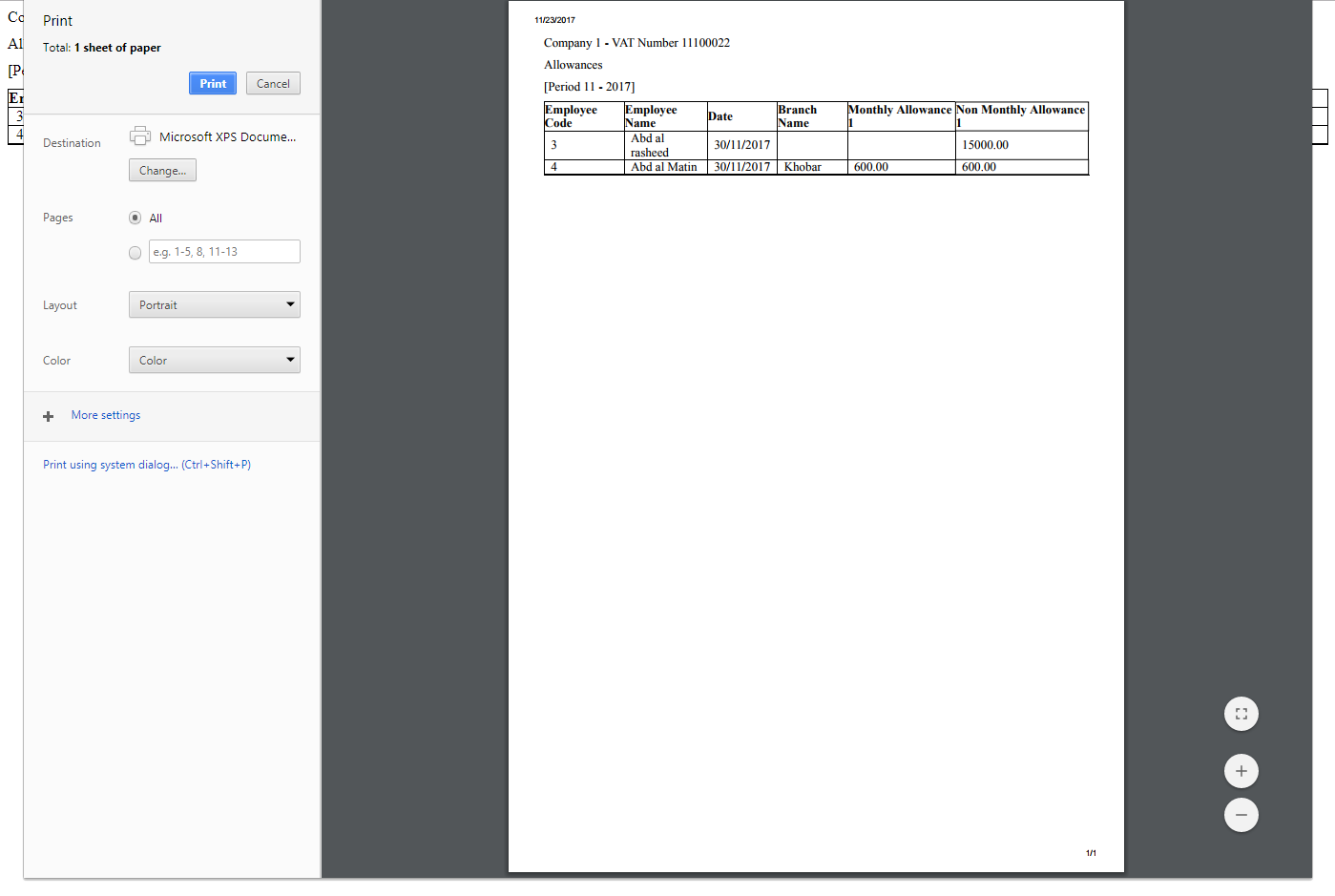 انقر على زر «موافق» لطباعة المعلومات.
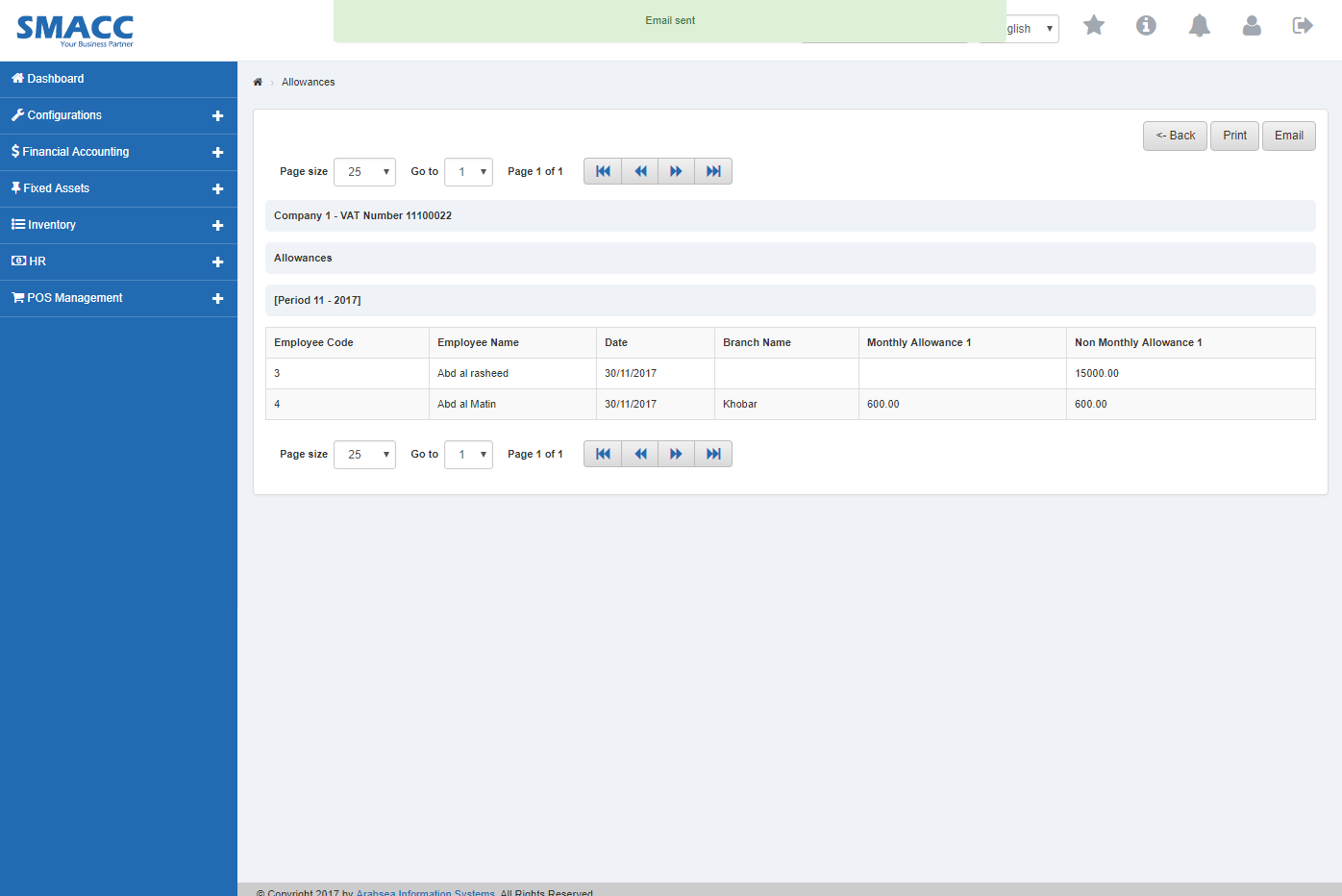
إذا أردت إرسال المعلومات عبر البريد الإلكتروني، فانقر على زر «البريد الإلكتروني» فتظهر رسالة تأكيد البريد الإلكتروني أعلى صفحة تفاصيل البدلات.
انقر على زر «موافق» لطباعة المعلومات.
إذا أردت إرسال المعلومات عبر البريد الإلكتروني، فانقر على زر «البريد الإلكتروني» فتظهر رسالة تأكيد البريد الإلكتروني أعلى صفحة تفاصيل البدلات.
تصدير تفاصيل البدلات إلى Excel.
لـ«تصدير تفاصيل البدلات إلى Excel»، انقر على «الموارد البشرية»، ثم «الكشوف»، ثم انقر على «البدلات». ستظهر صفحة البدلات.
انقر على قائمة «الشهر» فتنسدل قائمة الأشهر. اختر الشهر المطلوب. انقر على قائمة «السنة» فتنسدل قائمة السنوات. اختر السنة المطلوبة.
إذا أردت عرض تفاصيل الفرع في كشف البدلات، فعلّم على مربع الاختيار «رمز الفرع». أدخل رمز الفرع أو انقر في حقل الإدخال «رمز الفرع» فتنسدل قائمة رموز الفروع. اختر رمز الفرع المطلوب فيظهر اسم الفرع المحدد في حقل الإدخال «اسم الفرع»، أما إذا لم ترغب في عرض تفاصيل الفرع في كشف البدلات، فألغِ التعليم على مربع الاختيار «رمز الفرع».
إذا أردت عرض جميع البدلات الشهرية، فانقر على زر الاختيار «الكل».
أما إذا أردت عرض بدلات شهرية معينة، فانقر على زر الاختيار «معين» ثم انقر في قائمة «البدلات الشهرية». اختر البدل الشهري المطلوب.
إذا أردت عرض جميع البدلات غير الشهرية، فانقر على زر الاختيار «الكل»
أما إذا أردت عرض بدلات غير شهرية معينة، فانقر على زر الاختيار «معين» ثم انقر في قائمة «البدلات غير الشهرية». اختر البدل غير الشهري المطلوب.
إذا لم ترغب في عرض كشف البدلات عندما يكون المبلغ صفرًا، فعلّم على مربع الاختيار «لا تعرض إذا كان المبلغ صفرًا»، وإذا أردت عرض كشف البدلات عندما يكون المبلغ صفرًا، فألغِ التعليم على مربع الاختيار «لا تعرض إذا كان المبلغ صفرًا».
انقر على زر «عرض».
يمكنك تحديد حجم الصفحة بالنقر على مربع الاختيار «حجم الصفحة» فتظهر قائمة أحجام الصفحات. اختر حجم الصفحة. وإذا أردت تحديد رقم صفحة معين، فانقر على زر «التنقل» أو انقر في مربع الاختيار «الانتقال إلى» فتظهر قائمة الصفحات. اختر رقم الصفحة.
إذا أردت طباعة الصفحة، فاختر الصفحة المطلوبة وانقر على زر «الطباعة» أعلى صفحة تفاصيل البدلات فيظهر مربع التأكيد.
انقر على زر «موافق» لطباعة المعلومات.
إذا أردت إرسال المعلومات عبر البريد الإلكتروني، فانقر على زر «البريد الإلكتروني» فتظهر رسالة تأكيد البريد الإلكتروني أعلى صفحة تفاصيل البدلات.
انقر على زر «تصدير إلى Excel» فيتم تنزيل تقرير تفاصيل البدلات بصيغة Excel. انقر في مربع الرسالة في الزاوية السفلية من الصفحة.
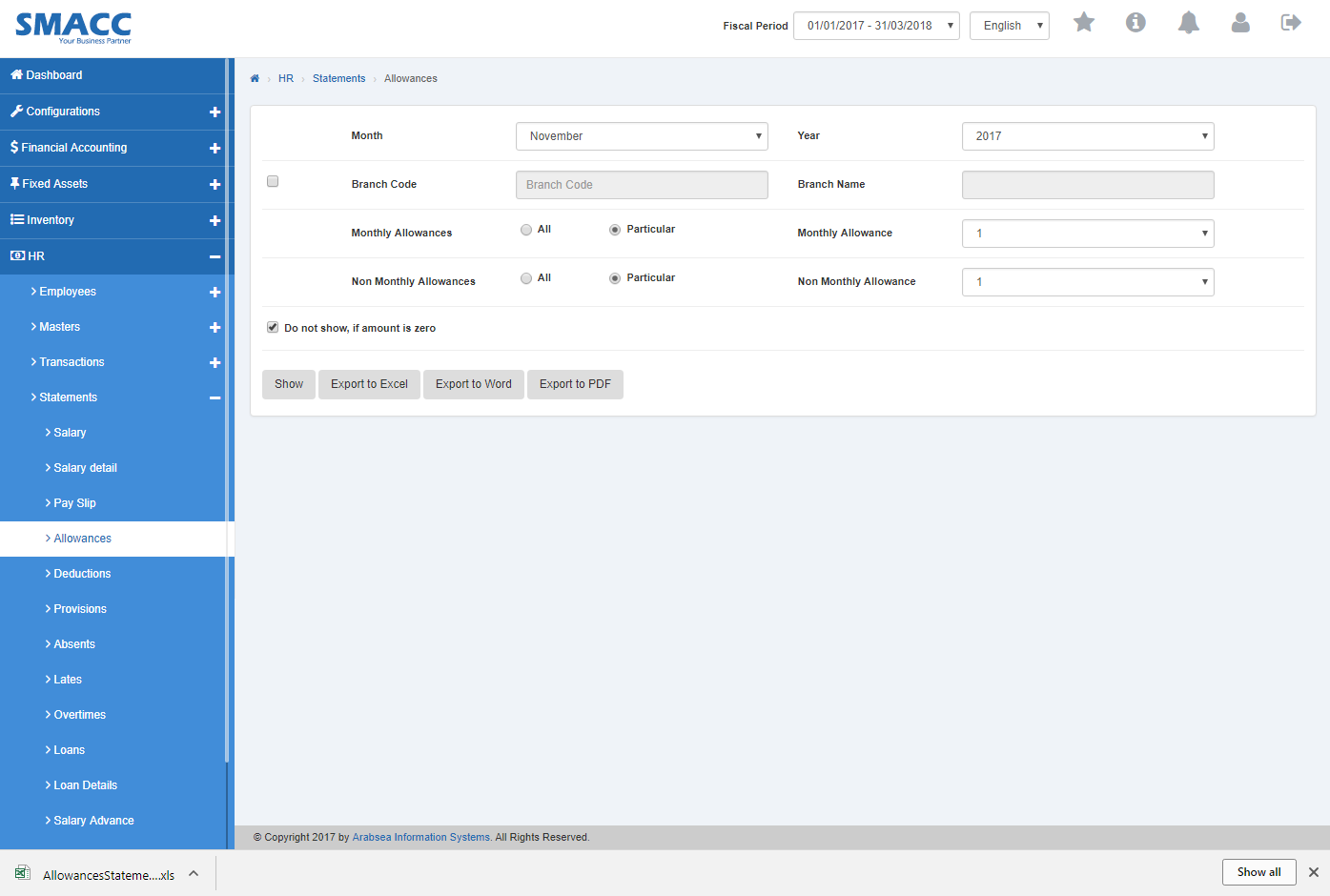 سيعرض كشف البدلات بصيغة Excel.

تصدير تفاصيل البدلات إلى Word.
لـ«تصدير تفاصيل البدلات إلى Word»، انقر على «الموارد البشرية»، ثم «الكشوف»، ثم انقر على «البدلات». ستظهر صفحة البدلات.
انقر على قائمة «الشهر» فتنسدل قائمة الأشهر. اختر الشهر المطلوب. انقر على قائمة «السنة» فتنسدل قائمة السنوات. اختر السنة المطلوبة.
إذا أردت عرض تفاصيل الفرع في كشف البدلات، فعلّم على مربع الاختيار «رمز الفرع». أدخل رمز الفرع أو انقر في حقل الإدخال «رمز الفرع» فتنسدل قائمة رموز الفروع. اختر رمز الفرع المطلوب فيظهر اسم الفرع المحدد في حقل الإدخال «اسم الفرع»، أما إذا لم ترغب في عرض تفاصيل الفرع في كشف البدلات، فألغِ التعليم على مربع الاختيار «رمز الفرع».
إذا أردت عرض جميع البدلات الشهرية، فانقر على زر الاختيار «الكل».
أما إذا أردت عرض بدلات شهرية معينة، فانقر على زر الاختيار «معين» ثم انقر في قائمة «البدلات الشهرية». اختر البدل الشهري المطلوب.
إذا أردت عرض جميع البدلات غير الشهرية، فانقر على زر الاختيار «الكل»
أما إذا أردت عرض بدلات غير شهرية معينة، فانقر على زر الاختيار «معين» ثم انقر في قائمة «البدلات غير الشهرية». اختر البدل غير الشهري المطلوب.
إذا لم ترغب في عرض كشف البدلات عندما يكون المبلغ صفرًا، فعلّم على مربع الاختيار «لا تعرض إذا كان المبلغ صفرًا»، وإذا أردت عرض كشف البدلات عندما يكون المبلغ صفرًا، فألغِ التعليم على مربع الاختيار «لا تعرض إذا كان المبلغ صفرًا».
انقر على زر «عرض».
يمكنك تحديد حجم الصفحة بالنقر على مربع الاختيار «حجم الصفحة» فتظهر قائمة أحجام الصفحات. اختر حجم الصفحة. وإذا أردت تحديد رقم صفحة معين، فانقر على زر «التنقل» أو انقر في مربع الاختيار «الانتقال إلى» فتظهر قائمة الصفحات. اختر رقم الصفحة.
إذا أردت طباعة الصفحة، فاختر الصفحة المطلوبة وانقر على زر «الطباعة» أعلى صفحة تفاصيل البدلات فيظهر مربع التأكيد.
انقر على زر «موافق» لطباعة المعلومات.
إذا أردت إرسال المعلومات عبر البريد الإلكتروني، فانقر على زر «البريد الإلكتروني» فتظهر رسالة تأكيد البريد الإلكتروني أعلى صفحة تفاصيل البدلات.
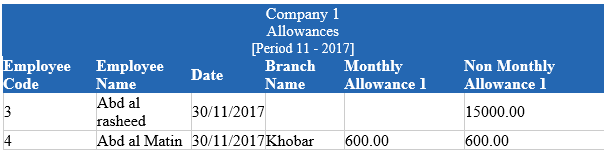
انقر على زر «تصدير إلى Word» فيتم تنزيل تقرير تفاصيل البدلات بصيغة Word. انقر في مربع الرسالة في الزاوية السفلية من الصفحة.
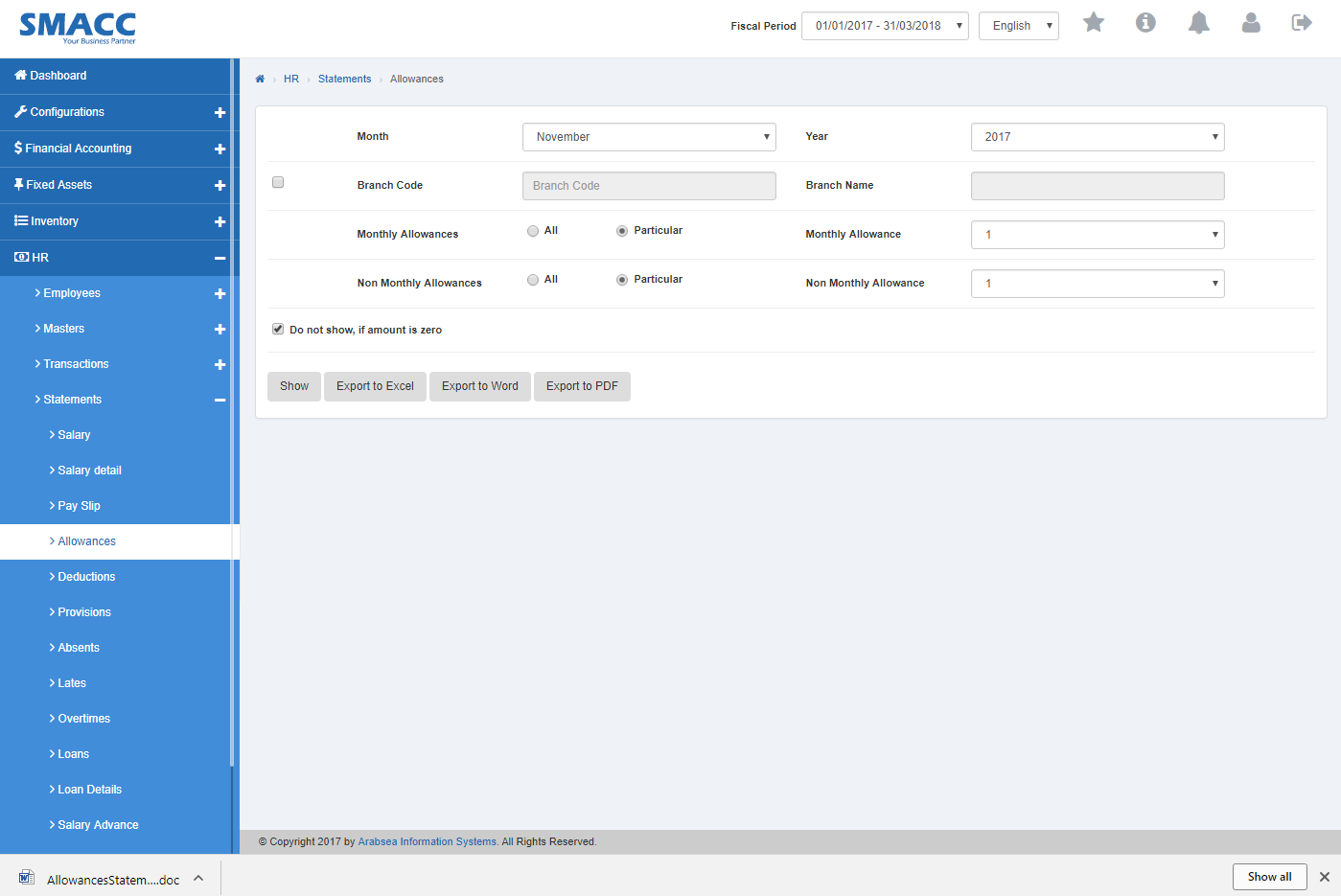 سيعرض كشف البدلات بصيغة Word.
تصدير تفاصيل البدلات إلى PDF.
لـ«تصدير تفاصيل البدلات إلى PDF»، انقر على «الموارد البشرية»، ثم «الكشوف»، ثم انقر على «البدلات». ستظهر صفحة البدلات.
انقر على قائمة «الشهر» فتنسدل قائمة الأشهر. اختر الشهر المطلوب. انقر على قائمة «السنة» فتنسدل قائمة السنوات. اختر السنة المطلوبة.
إذا أردت عرض تفاصيل الفرع في كشف البدلات، فعلّم على مربع الاختيار «رمز الفرع». أدخل رمز الفرع أو انقر في حقل الإدخال «رمز الفرع» فتنسدل قائمة رموز الفروع. اختر رمز الفرع المطلوب فيظهر اسم الفرع المحدد في حقل الإدخال «اسم الفرع»، أما إذا لم ترغب في عرض تفاصيل الفرع في كشف البدلات، فألغِ التعليم على مربع الاختيار «رمز الفرع».
إذا أردت عرض جميع البدلات الشهرية، فانقر على زر الاختيار «الكل».
أما إذا أردت عرض بدلات شهرية معينة، فانقر على زر الاختيار «معين» ثم انقر في قائمة «البدلات الشهرية». اختر البدل الشهري المطلوب.
إذا أردت عرض جميع البدلات غير الشهرية، فانقر على زر الاختيار «الكل»
أما إذا أردت عرض بدلات غير شهرية معينة، فانقر على زر الاختيار «معين» ثم انقر في قائمة «البدلات غير الشهرية». اختر البدل غير الشهري المطلوب.
إذا لم ترغب في عرض كشف البدلات عندما يكون المبلغ صفرًا، فعلّم على مربع الاختيار «لا تعرض إذا كان المبلغ صفرًا»، وإذا أردت عرض كشف البدلات عندما يكون المبلغ صفرًا، فألغِ التعليم على مربع الاختيار «لا تعرض إذا كان المبلغ صفرًا».
انقر على زر «عرض».
يمكنك تحديد حجم الصفحة بالنقر على مربع الاختيار «حجم الصفحة» فتظهر قائمة أحجام الصفحات. اختر حجم الصفحة. وإذا أردت تحديد رقم صفحة معين، فانقر على زر «التنقل» أو انقر في مربع الاختيار «الانتقال إلى» فتظهر قائمة الصفحات. اختر رقم الصفحة.
إذا أردت طباعة الصفحة، فاختر الصفحة المطلوبة وانقر على زر «الطباعة» أعلى صفحة تفاصيل البدلات فيظهر مربع التأكيد.
انقر على زر «موافق» لطباعة المعلومات.
إذا أردت إرسال المعلومات عبر البريد الإلكتروني، فانقر على زر «البريد الإلكتروني» فتظهر رسالة تأكيد البريد الإلكتروني أعلى صفحة تفاصيل البدلات.
انقر على زر «تصدير إلى PDF» فيتم تنزيل تقرير تفاصيل البدلات بصيغة PDF. انقر في مربع الرسالة في الزاوية السفلية من الصفحة.
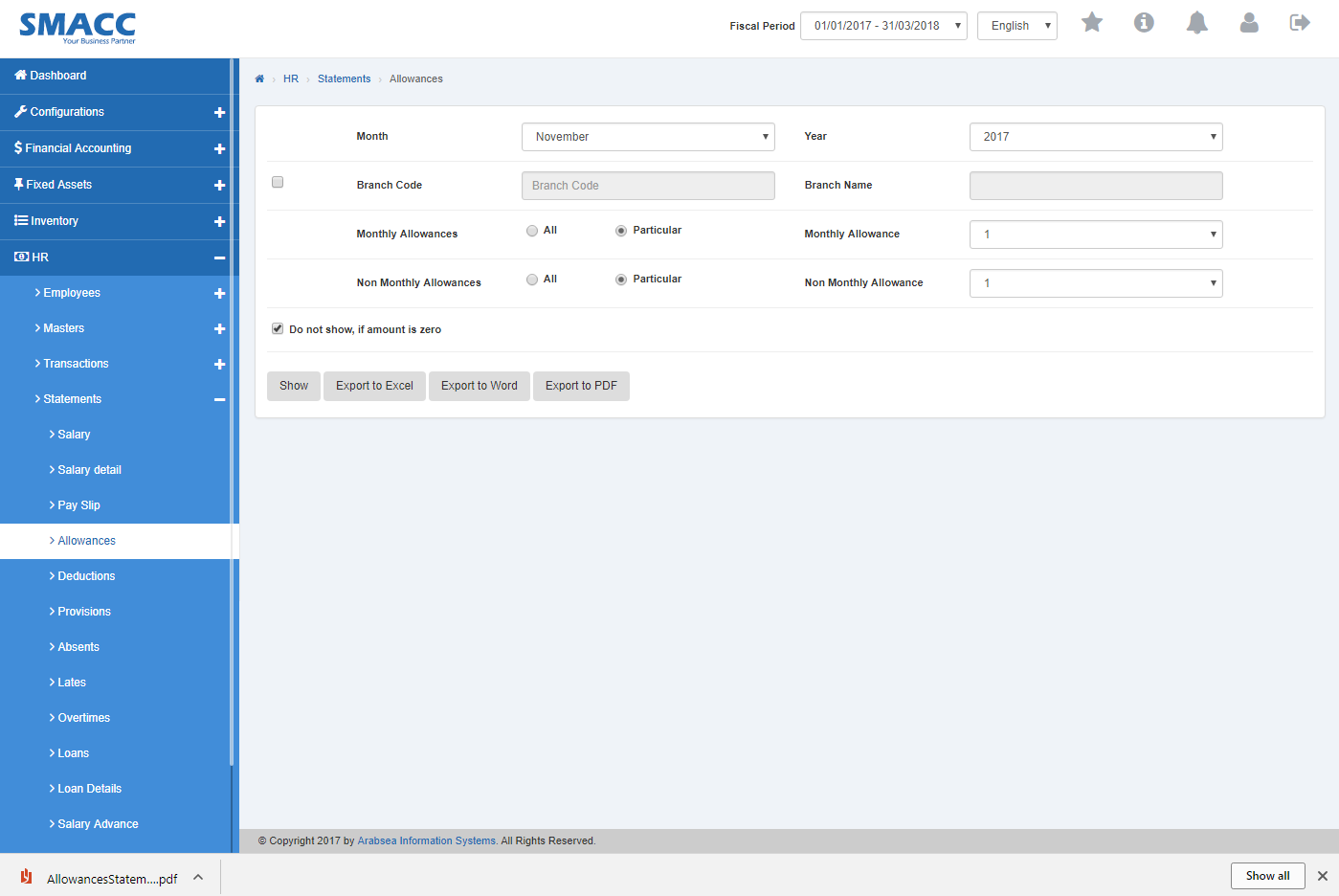 سيعرض كشف البدلات بصيغة PDF.

هل كان هذا المقال مفيداً؟
ابدأ مع SMACC اليوم
جرّب مجاناً لمدة 14 يوماً — بدون بطاقة ائتمان وبدون التزام.